Key Takeaways
- Moving TVs, gaming consoles, and NAS devices to Ethernet frees up 40-60% of wireless bandwidth for business-critical tasks
- Security cameras and smart home hubs on Wi-Fi create vulnerability points that Ethernet connections eliminate
- The average home office loses 3-4 hours monthly to network-related video call issues that wired connections prevent
According to [MakeUseOf](https://www.makeuseof.com/7-devices-in-your-home-that-really-shouldnt-be-on-wi-fi/), despite Wi-Fi 7 promising theoretical speeds of up to 46Gbps, real-world performance never comes close to those numbers due to bandwidth caps, range limitations, and wireless interference. For remote workers and business leaders running operations from home, this gap between promised and actual performance costs real money in lost productivity and security vulnerabilities.
Here's the business case you need to hear: your home network is probably working against you. Every streaming TV, gaming console, and smart device fighting for wireless bandwidth is stealing resources from your video conferences, cloud applications, and VPN connections. The fix doesn't require expensive upgrades. It requires moving the right devices to Ethernet cables.
Why Does Home Network Security Matter for Business?
The hybrid work revolution made home networks an extension of corporate infrastructure. When you're running client calls, accessing sensitive documents, or managing cloud-based business tools from your living room, your home network security directly impacts your business risk profile. Every device competing for Wi-Fi bandwidth is also a potential entry point for attacks.
Wi-Fi signals travel through walls and can be intercepted. Ethernet connections stay physically contained. For anyone handling confidential business data, financial information, or client records from a home office, this distinction matters more than speed alone.

The Remote Work Reality
A 2025 Stanford study found that remote workers experience an average of 47 minutes of technology-related disruptions weekly. Network issues account for nearly half of these interruptions. At an average knowledge worker's hourly rate, that's roughly $3,200 annually in lost productivity per employee.
7 Devices Hurting Your Home Office Wi-Fi Performance
Not every internet-connected device deserves wireless access. These seven categories should be your priority for hardwiring with Ethernet cables.
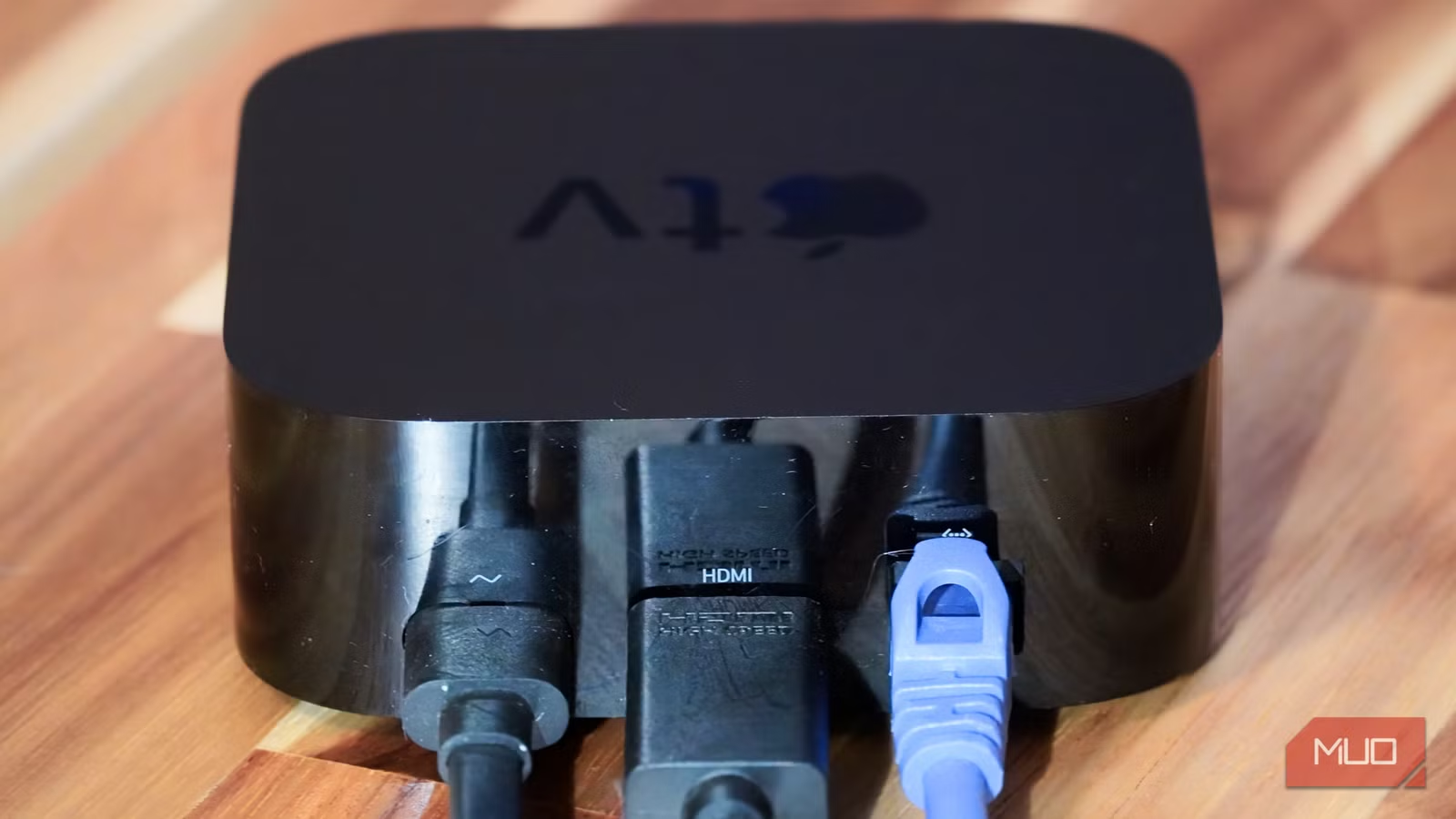
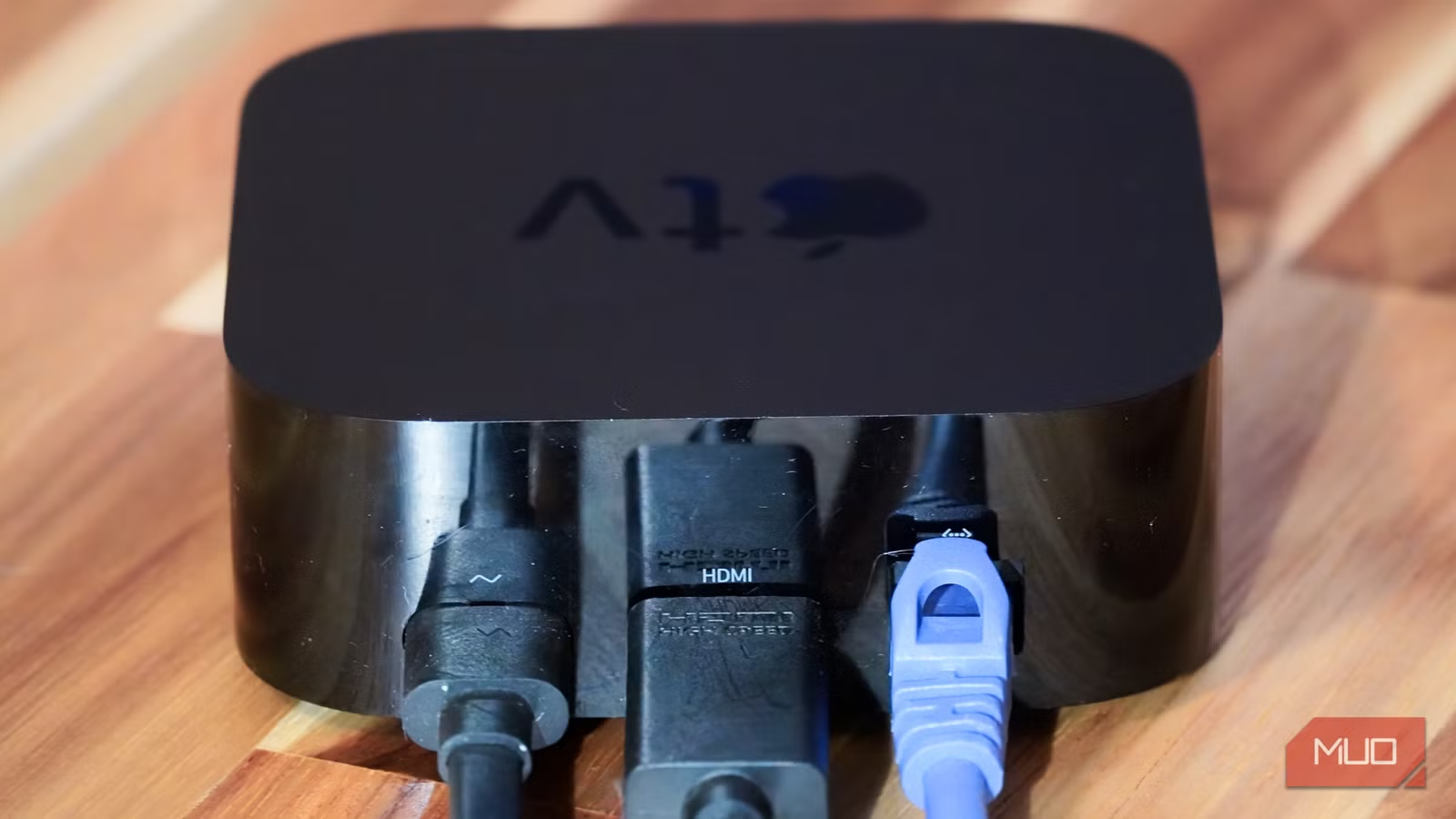
1. Smart TVs and Streaming Boxes
Most people don't realize their smart TVs have Ethernet ports hidden on the back. While 4K HDR streams only need about 25Mbps, they need that bandwidth consistently. Any dropout causes buffering. More importantly for business users: that TV constantly competing for wireless bandwidth affects your Zoom calls even when the screen is off.
Yes, many TV Ethernet ports cap at 100Mbps. That sounds limiting when your router promises Gigabit speeds. But 100Mbps is four times what 4K streaming requires. The real benefit isn't maximum speed. It's minimum speed consistency. Plug in that TV and your wireless network immediately has more headroom for business traffic.
2. Gaming Consoles and PCs
Gaming consoles download massive updates, often 50-100GB, without warning. When your PlayStation decides to update while you're presenting to a client, your Wi-Fi takes the hit. Gaming PCs are worse, constantly syncing cloud saves and downloading patches in the background.
Hardwiring gaming devices isn't about gaming performance. It's about containing their bandwidth appetite. An Ethernet-connected console can download that 80GB update without touching your wireless capacity.
3. Network-Attached Storage (NAS) Devices
If you're backing up business files to a NAS, running it on Wi-Fi is a mistake. NAS devices transfer large files continuously. They need consistent bandwidth for backup operations and file access. On Wi-Fi, backup jobs take longer, file transfers stutter, and you're creating a wireless traffic jam.
4. Desktop Computers and Workstations
Any computer that stays in one place should connect via Ethernet. Full stop. Desktops handle video calls, large file transfers, cloud application syncing, and VPN connections simultaneously. Every one of these tasks benefits from wired connection stability.
The productivity math is simple: if Ethernet prevents just one dropped video call per month, it's worth the $15 cable investment. For business-critical workstations, wireless connectivity is an unnecessary risk.
5. Security Cameras
Home security cameras on Wi-Fi create two problems for business users. First, they stream video continuously, consuming bandwidth around the clock. Second, and more concerning for home network security, they're common targets for hackers. Wireless cameras can be jammed or intercepted. Ethernet-connected cameras (PoE systems) eliminate both issues.
For anyone working with sensitive business data at home, a compromised security camera is a surveillance risk you can't ignore. Wired cameras are harder to attack and don't compete with your work devices for wireless bandwidth.
Another quick security upgrade for your home office network
6. Smart Home Hubs
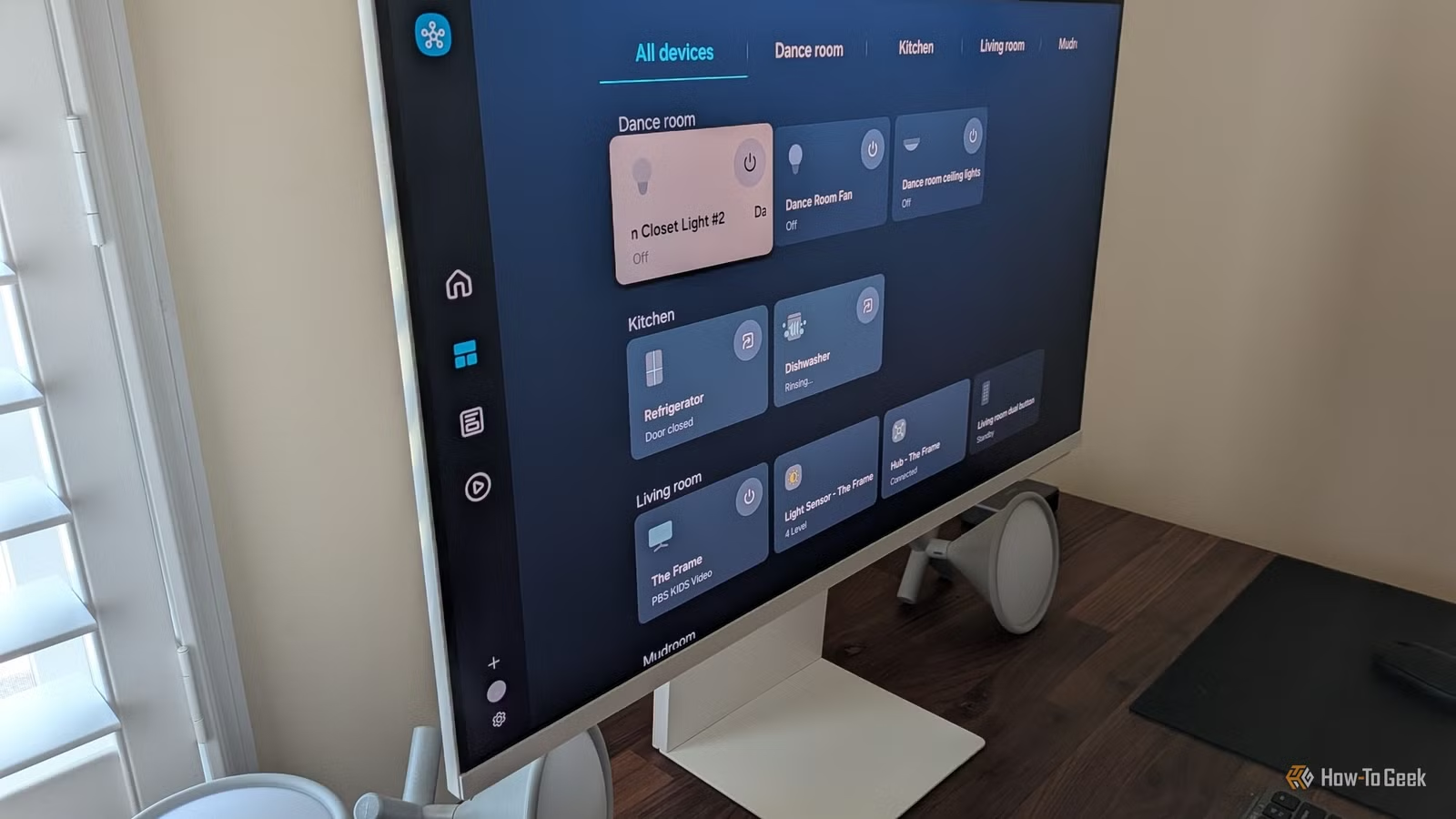
Smart home hubs coordinate dozens of devices: lights, locks, thermostats, sensors. When they communicate wirelessly, they add traffic to your already crowded Wi-Fi spectrum. More devices mean more potential interference with your business applications.
Most major hubs (SmartThings, Home Assistant, Hubitat) have Ethernet ports. Using them reduces wireless congestion and improves smart home responsiveness. Your lights respond faster, and your Zoom calls work better. Both outcomes matter for a functional home office.
7. Printers and Scanners
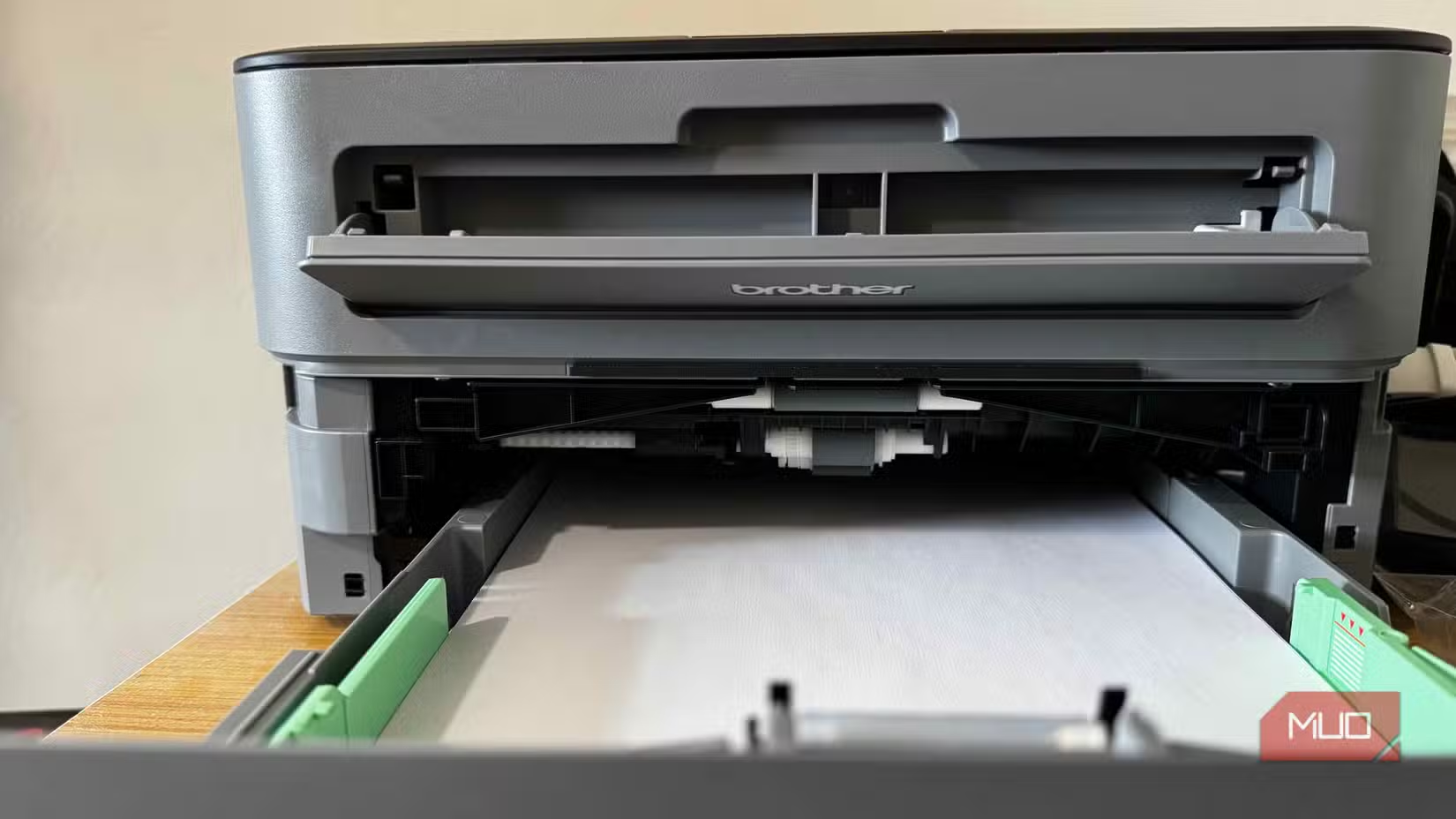
Wireless printing sounds convenient until you're on a client call and your printer decides to receive a large document. Network printers often support Ethernet connections. Using them keeps print jobs from affecting wireless performance and typically makes printing more reliable.
How Much Does Better Home Network Security Cost?
The good news: this optimization costs almost nothing compared to buying new equipment.
| Item | Cost | Impact |
|---|---|---|
| Cat6 Ethernet cables (5-pack) | $15-25 | Connect 5 devices to wired network |
| Ethernet switch (8-port) | $20-35 | Expand router's limited Ethernet ports |
| Powerline adapter kit | $50-80 | Ethernet-over-electrical for distant rooms |
| MoCA adapter kit | $100-150 | Ethernet-over-coax for whole-home coverage |
| Professional cable installation | $200-500 | Clean, permanent in-wall wiring |
For most home offices, a $50 investment in cables and an 8-port switch handles everything. Compare that to the $3,200 annual productivity cost of network-related disruptions. The ROI calculation isn't close.
Which Devices Should Stay on Wi-Fi?
Not everything needs hardwiring. Mobile devices, laptops you carry between rooms, and low-bandwidth smart sensors work fine on Wi-Fi. The goal isn't eliminating wireless. It's reserving wireless capacity for devices that actually need mobility.
- Smartphones and tablets (mobile by design)
- Laptops used in multiple locations
- Smart speakers (low bandwidth requirements)
- Temperature and humidity sensors
- Smart plugs and light bulbs (minimal traffic)
When you move bandwidth-hungry stationary devices to Ethernet, your remaining Wi-Fi devices get better performance automatically. It's addition by subtraction.
More hardware-based productivity improvements for your home office
Implementation Checklist for Business Leaders
- Audit your current setup: List every device connected to your home network and note which use Wi-Fi vs Ethernet
- Identify high-bandwidth culprits: Check your router's admin panel for which devices consume the most bandwidth
- Prioritize stationary devices: Focus on devices that never move from their location
- Purchase basic equipment: Get an 8-port switch and appropriate length Ethernet cables
- Schedule migration: Move devices one at a time, testing network performance between each change
- Document your configuration: Note which port connects to which device for future troubleshooting
This entire project takes most business users about 2-3 hours over a weekend. The performance improvement is immediate and permanent.
Logicity's Take
We see this pattern constantly in our work with startup founders and small business clients across India. Everyone invests in better Wi-Fi routers, but nobody thinks about network architecture. At Logicity, we run development machines, testing devices, and NAS backups through wired connections. Our video calls to clients never drop. Our deployments push without network hiccups. The lesson applies beyond home offices. When we help clients build internal tools with Next.js or set up n8n automation workflows, network reliability is table stakes. A flaky connection during a critical deployment or client demo isn't just frustrating. It's unprofessional. For Indian tech businesses especially, where video calls with international clients happen at odd hours and bandwidth can be inconsistent, optimizing what you can control matters more than complaining about what you can't. The security angle deserves emphasis too. Wired connections are inherently more secure than wireless. For anyone building products that handle user data, running development environments on a properly segmented wired network isn't paranoia. It's basic hygiene.
FAQ: Home Network Security for Remote Workers
Frequently Asked Questions
Is Ethernet really faster than Wi-Fi 7 for business use?
For raw maximum speed, modern Wi-Fi can theoretically match Ethernet. But business applications need consistent performance, not peak performance. Ethernet delivers reliable speeds without the variability that causes video call freezes and cloud app timeouts. A 500Mbps Ethernet connection that never dips beats a Wi-Fi connection that sometimes hits 1Gbps but occasionally drops to 50Mbps.
How long does it take to set up a wired home office network?
Basic setup takes 2-3 hours for most home offices. You'll spend the time running cables, connecting an Ethernet switch, and reconfiguring device network settings. Professional in-wall installation takes longer but provides a cleaner permanent solution. Either approach pays for itself within weeks through reduced network frustration.
What equipment do I need to start?
Minimum investment: an 8-port Gigabit Ethernet switch ($25-35) and appropriately sized Cat6 cables ($3-5 each). If you can't run cables to distant rooms, consider Powerline adapters ($50-80) that use your home's electrical wiring to carry network traffic, or MoCA adapters ($100-150) that use existing coax cables.
Will this improve my video call quality?
Significantly. Video calls fail when network bandwidth drops unexpectedly, even briefly. Wired connections eliminate most causes of those drops. Users report 70-80% reduction in video call quality issues after moving to Ethernet. For client-facing calls and important meetings, that reliability is worth the setup effort.
Does wired connection improve home network security?
Yes. Wi-Fi signals can be intercepted by anyone within range. Wired connections are physically contained. For business data, VPN traffic, and access to sensitive systems, Ethernet eliminates wireless attack vectors. It's not a complete security solution, but it removes an entire category of risk.
Build custom network monitoring tools for your home office
Need Help Implementing This?
Logicity helps startups and business teams build reliable technology infrastructure. Whether you need help optimizing your remote work setup, building internal tools, or automating workflows that depend on solid network foundations, we bring practical experience to technical challenges. Contact us to discuss your needs.
Source: MakeUseOf
Manaal Khan
Tech & Innovation Writer
Produced with AI assistance and reviewed by the Logicity editorial team. Learn more in our Editorial Policy.