Key Takeaways
- Google Forms header images require a 4:1 aspect ratio (1600x400 pixels)
- You can upload custom images, use Google Photos, or choose from pre-made headers
- Free tools like Canva can help you create properly sized branded headers
Google Forms gets the job done. It's free, it works, and it requires almost no setup. But that default purple theme? It screams 'generic form' to anyone who opens it.
Adding a custom header image fixes this instantly. The problem is Google Forms uses an unusual 4:1 aspect ratio that crops most images badly. Upload a standard photo and you'll lose the important parts. Upload your logo and it becomes a thin, illegible strip.
Here's how to create header images that actually work.
How to Add a Header Image to Google Forms
Google Forms doesn't add a header image by default. New forms start with just a title and questions. To add one:
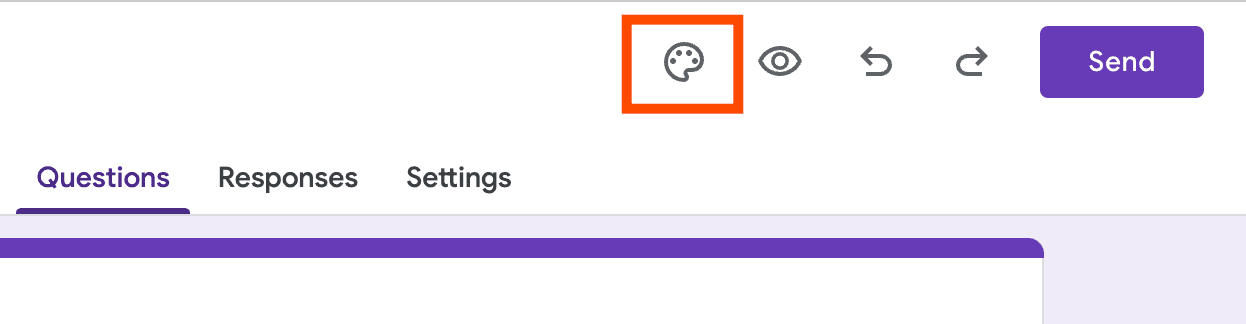
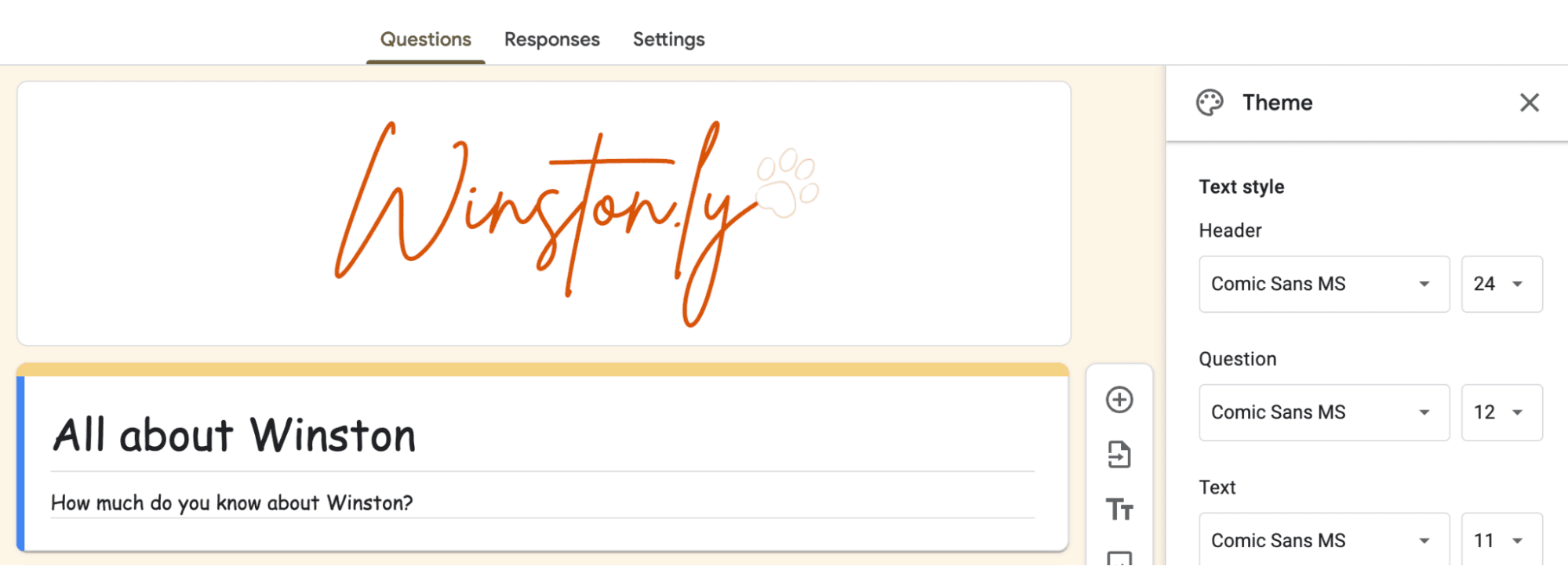
- Click the Customize Theme icon (the paint palette) in the top right
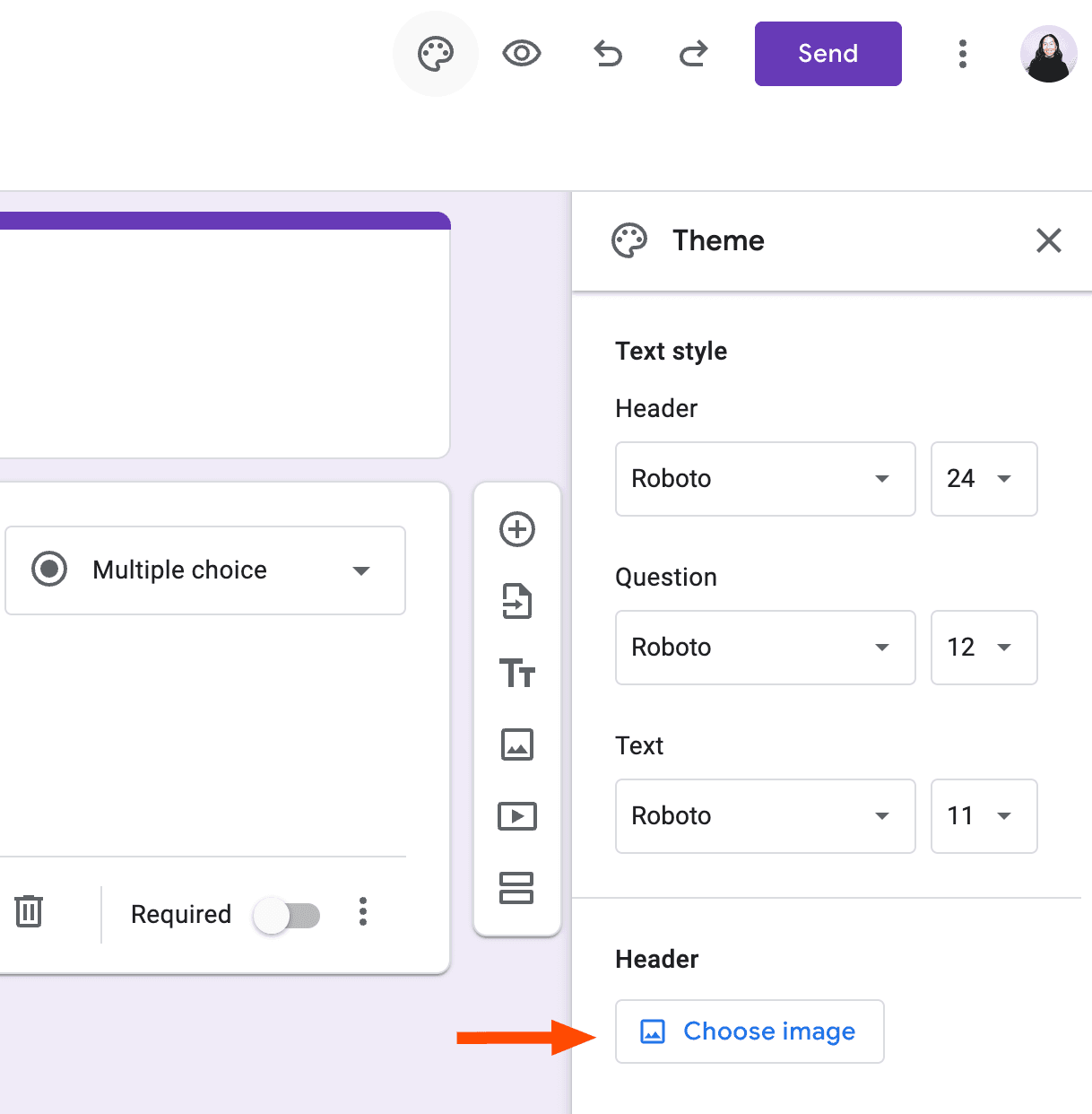
- In the Theme side panel, find the Header section and click Choose image
- Select from pre-made headers, pull from your Google Photos, or click Upload to add your own
- Crop the image to fit the 4:1 ratio
- Click Done
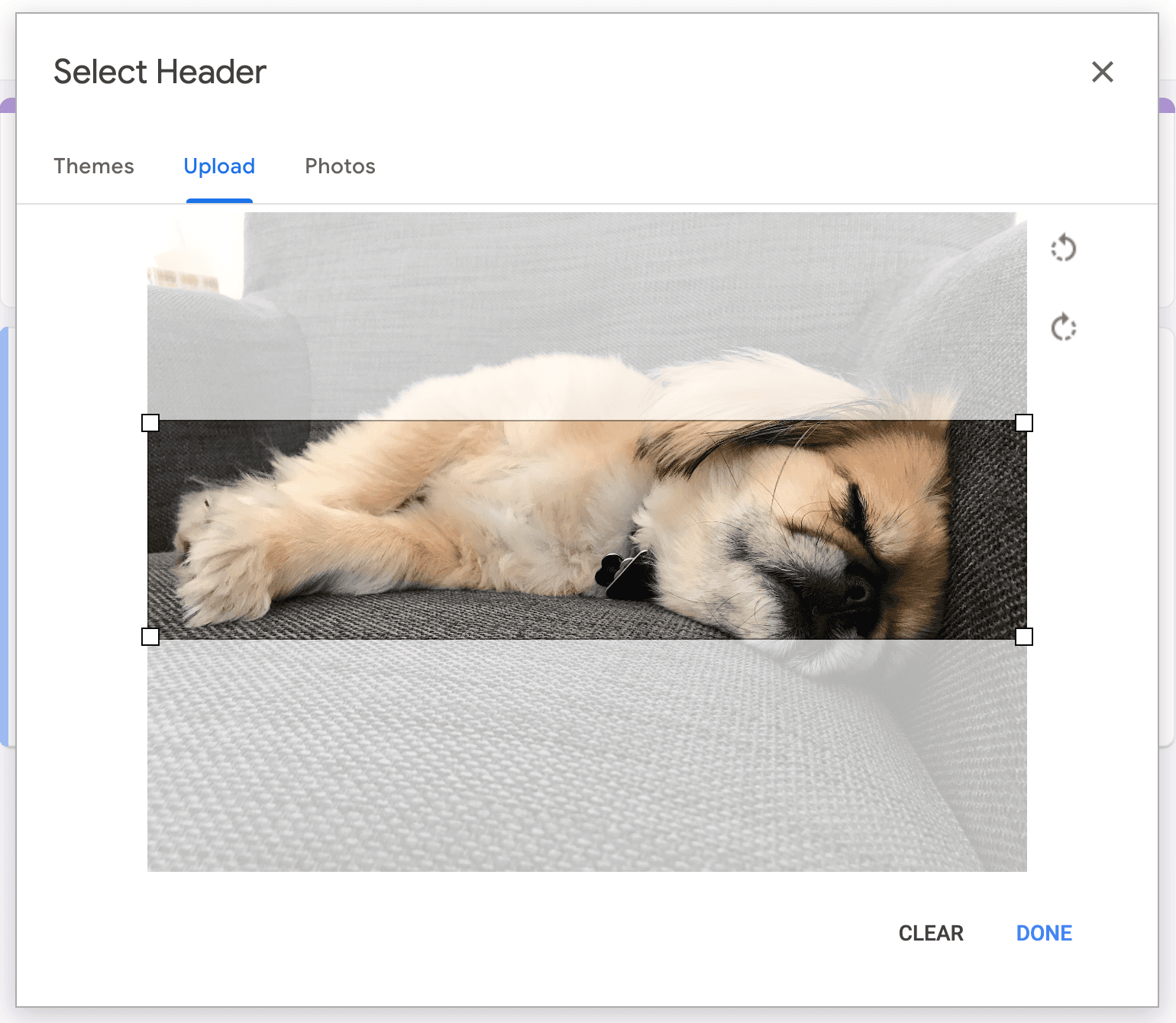
The cropping step is where things get tricky. Google forces you to fit your image into that wide, thin 4:1 frame. Most photos won't work well because the cropping tool cuts off important parts of the image.
Why Most Images Get Cropped Badly
A 4:1 aspect ratio means the image is four times wider than it is tall. Think of a thin banner, not a photograph. Standard photos are usually 4:3 or 16:9. Logos are often square. Neither fits without losing content.
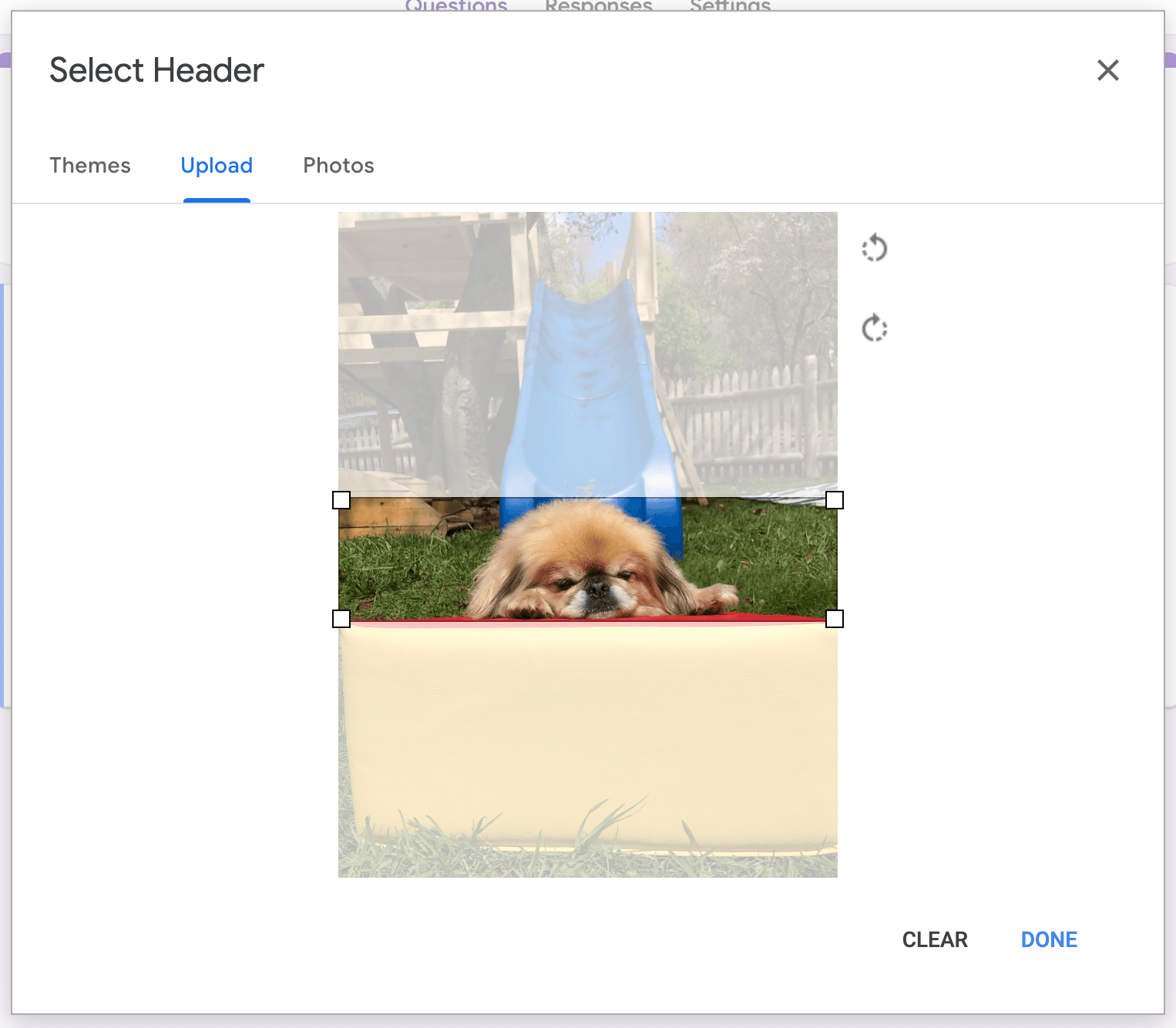
For example, if you upload a photo of a person, the cropper might cut off their head. If you upload a group photo, people on the edges disappear. Centered subjects with simple backgrounds work best.
You'll probably need to try several images before finding one that crops well. Images with the main subject centered and positioned toward the middle height work best.
Creating a Custom Header for Your Brand
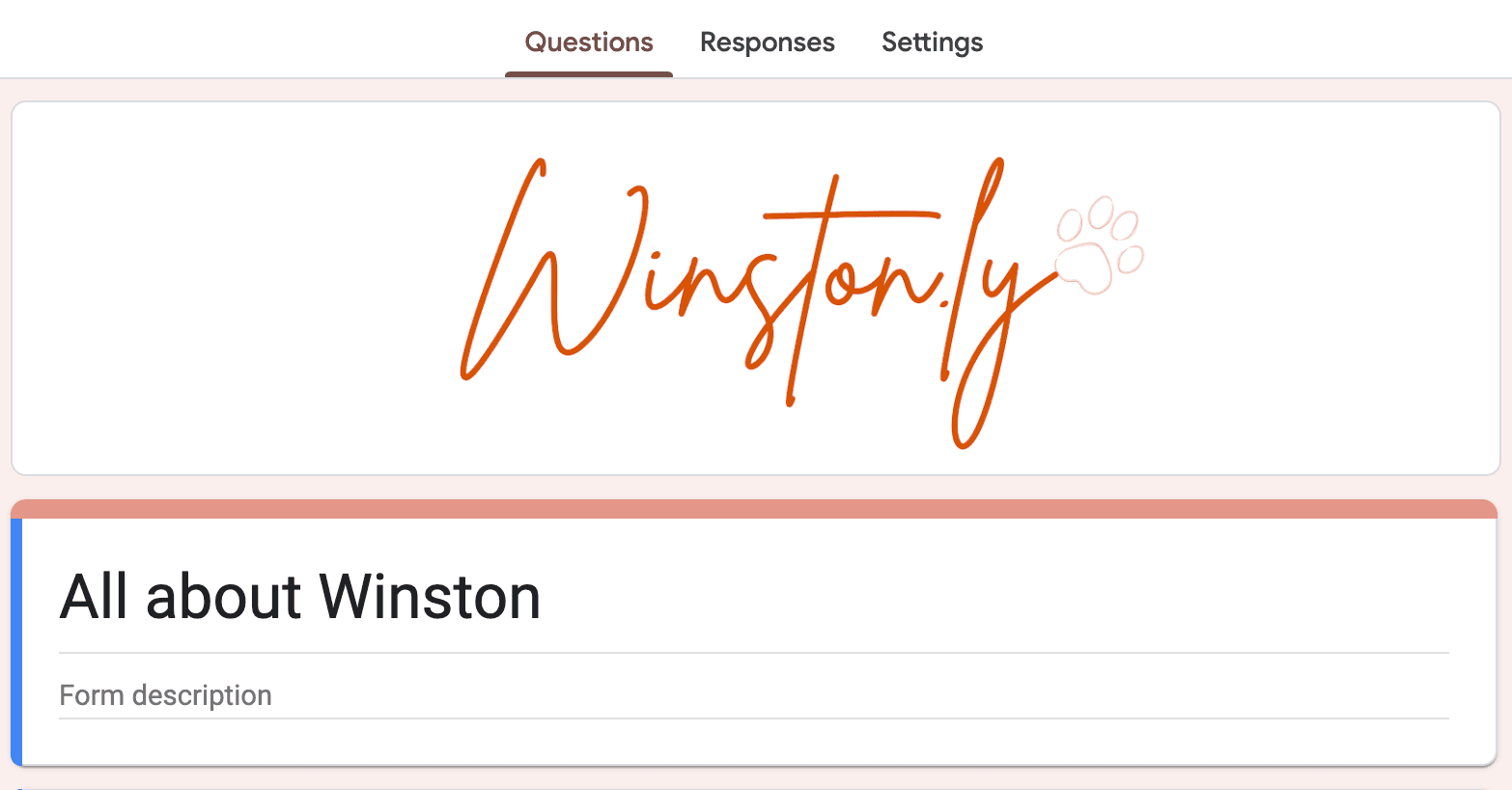
If you want your company's branding on the form, just uploading a logo won't work. You need to create a custom image that's exactly 1600x400 pixels. This fits the 4:1 ratio perfectly, so nothing gets cropped.
Free design tools like Canva make this easy. Start with a blank canvas sized to 1600x400, add your logo, brand colors, and any text you want. Export as PNG or JPG and upload to Google Forms.
This approach gives you full control. You can include your logo, tagline, decorative elements, or whatever else fits your brand. The header then matches your other marketing materials instead of looking like a random photo Google cropped.
Customizing the Rest of Your Form Theme
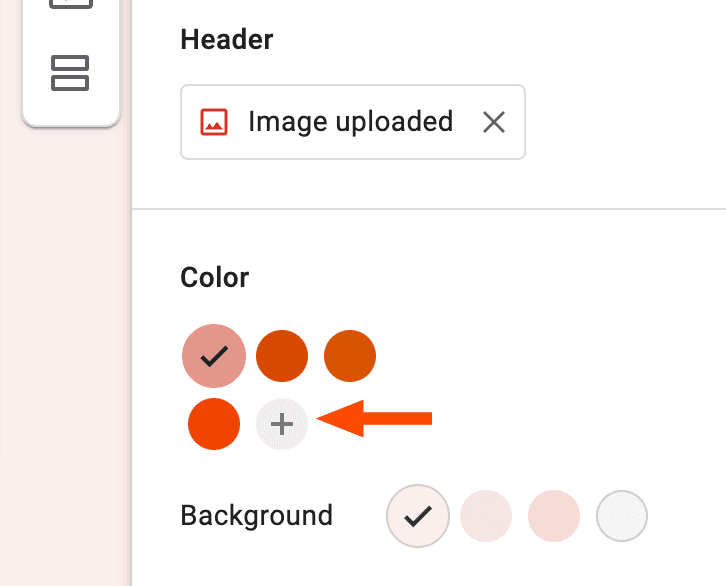
Once you add a custom header, Google Forms automatically suggests a color scheme based on the image. You can accept these suggestions or override them in the Theme panel.
The theme options let you change the background color, accent color, and font style. If your header uses your brand colors, the auto-suggested palette usually coordinates well. If not, set the colors manually to match your brand guidelines.
Logicity's Take
Quick Reference: Google Forms Header Specs
- Aspect ratio: 4:1 (required)
- Recommended size: 1600x400 pixels
- Supported formats: PNG, JPG, GIF
- Source options: Upload, Google Photos, or pre-made templates
Frequently Asked Questions
What size should a Google Forms header image be?
The ideal size is 1600x400 pixels, which matches Google Forms' required 4:1 aspect ratio. Any image four times wider than it is tall will work without awkward cropping.
Can I remove a header image from Google Forms?
Yes. Open the Customize Theme panel, go to the Header section, and select the option to remove or change the image.
Why does Google Forms crop my header image?
Google Forms enforces a 4:1 aspect ratio for all header images. If your image doesn't match this ratio, the cropping tool forces you to trim parts of it to fit.
What's the best free tool for making Google Forms headers?
Canva is popular because you can create a custom canvas sized exactly to 1600x400 pixels. Other options include Figma, Adobe Express, and GIMP.
More on Google's design decisions
Need Help Implementing This?
Source: The Zapier Blog
Huma Shazia
Senior AI & Tech Writer
Produced with AI assistance and reviewed by the Logicity editorial team. Learn more in our Editorial Policy.