Key Takeaways
- The classic Windows 10 right-click menu can be restored permanently with a single registry key
- Bing web results in Start menu search can be disabled only through the registry on Windows Home
- Always create a System Restore Point before editing the registry, as errors can require OS reinstallation
Windows gives you a Settings app, a Control Panel, and dozens of toggles. But some tweaks live only in the registry. Unless you're comfortable opening regedit, you'll never touch them.
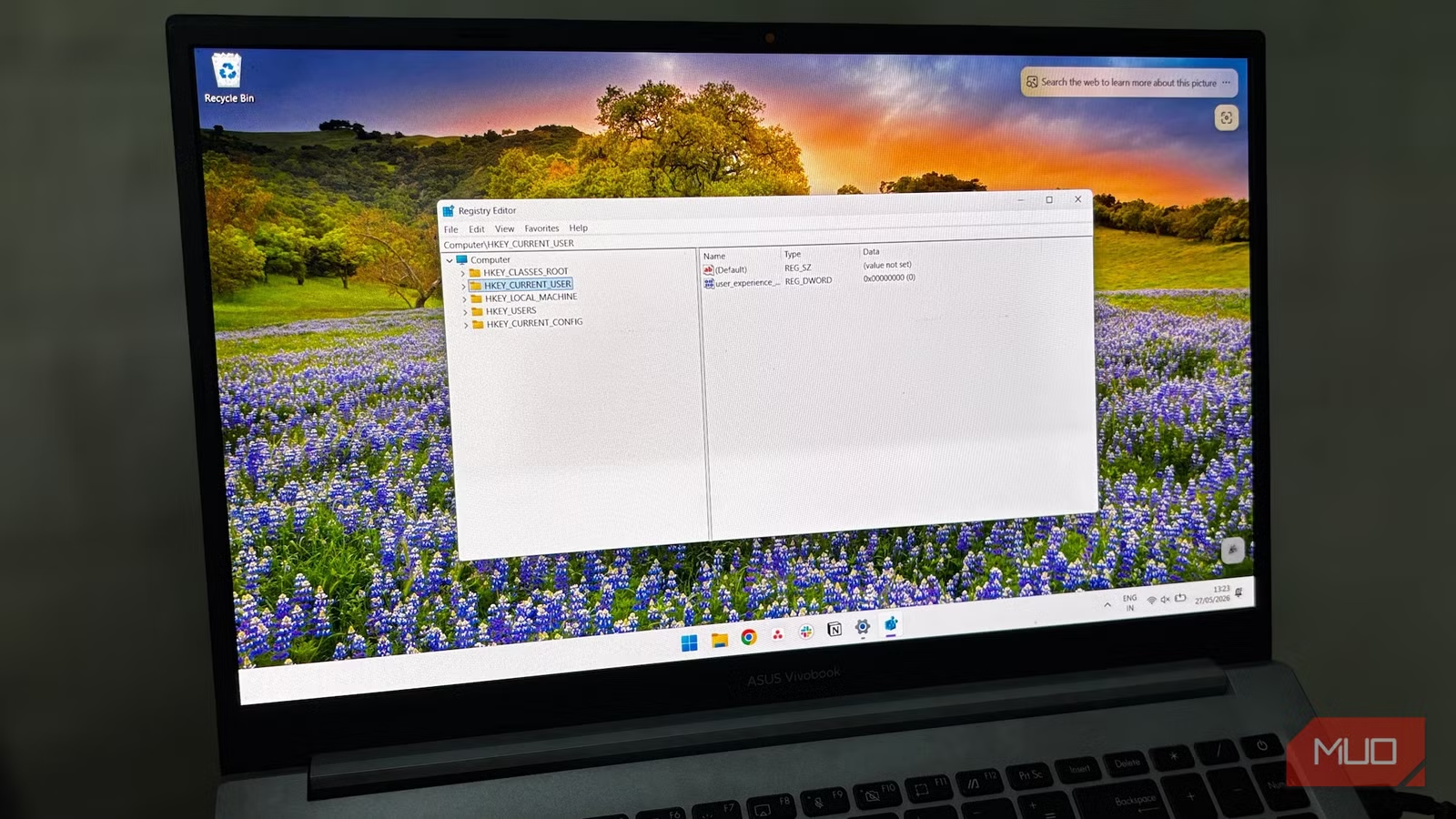
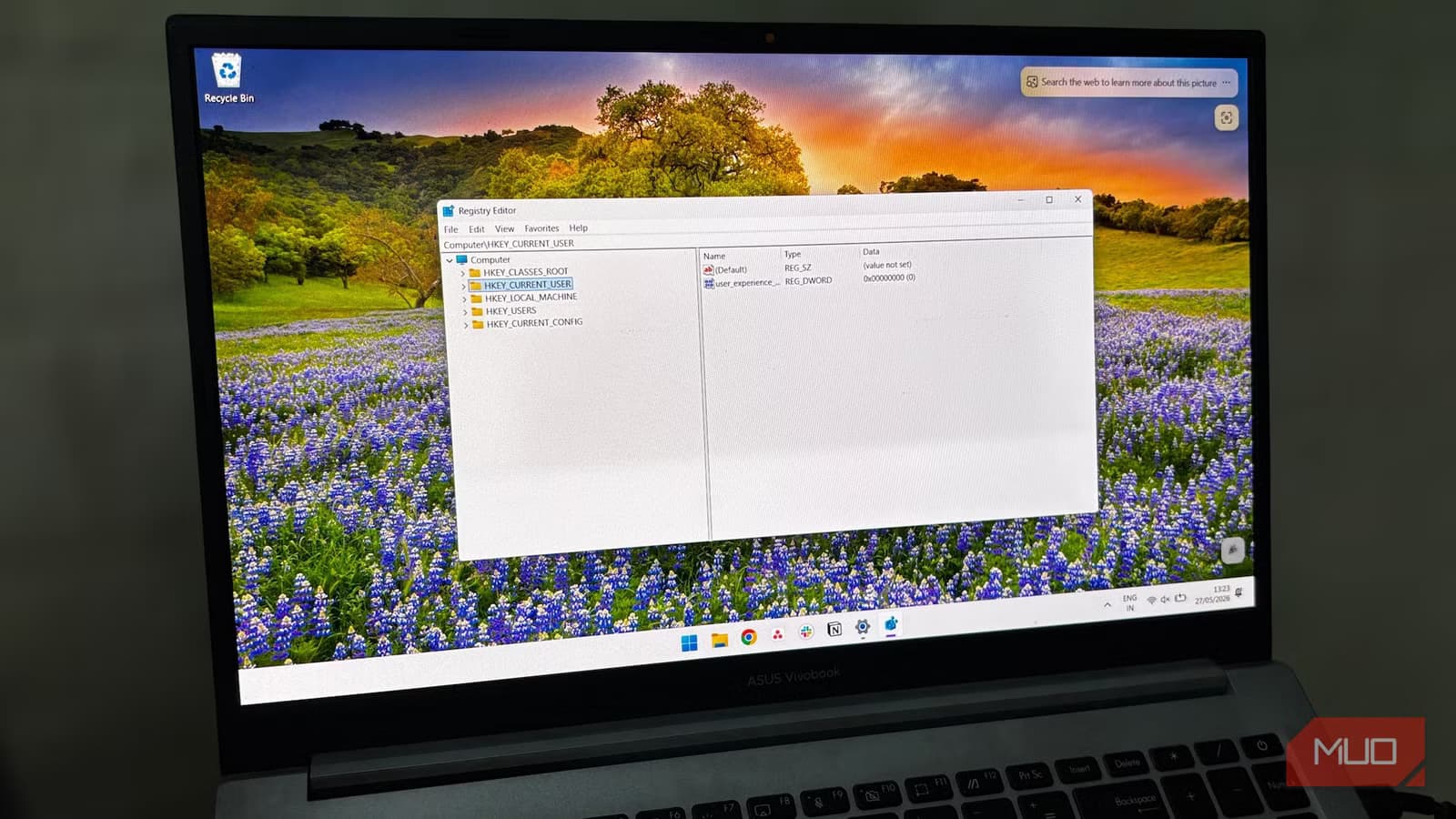
The Windows Registry is a hierarchical database that stores everything from hardware drivers to UI preferences. Modern apps are shifting toward file-based configs like JSON, but the registry remains the authoritative source for system-wide behaviors. That makes it powerful for power users and dangerous for everyone else.
“Serious problems might occur if you modify the registry incorrectly. These problems might require that you reinstall the operating system. Modify the registry at your own risk.”
— Microsoft Official Documentation
If you're on Windows Pro or Education, some of these can also be done through Group Policy Editor. But on Home, the registry is your only option. Here are five settings worth knowing about.
1. Restore the Classic Right-Click Menu
Windows 11 replaced the full right-click menu with a shorter version that hides many useful options. If you want the complete context menu, you have to click "Show more options" every single time. You can also hold Shift while right-clicking to skip that screen, but that's an extra step on every interaction.
To make the classic menu permanent, open Registry Editor and navigate to HKEY_CURRENT_USER\Software\Classes\CLSID. Right-click on the CLSID key, select New > Key, and name it {86ca1aa0-34aa-4e8b-a509-50c905bae2a2}. Then right-click on this new key, select New > Key, and name it InprocServer32. Click on InprocServer32 and leave the existing (Default) value blank.
Once done, open Task Manager, restart Windows Explorer, and every right-click will go straight to the full menu. To revert, delete the key you created.
2. Stop Web Results in Start Menu Search
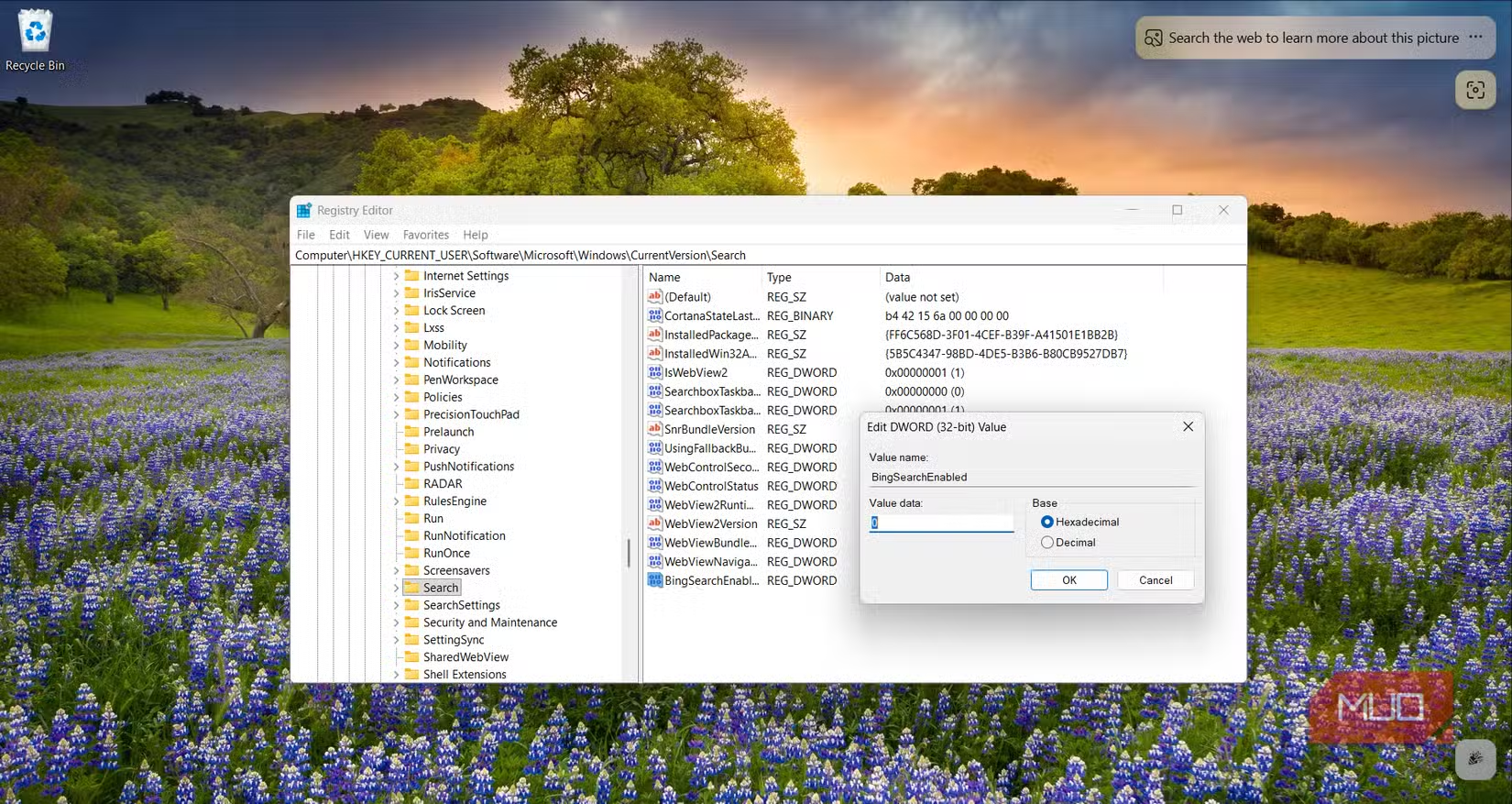
When you type something in the Start menu, Windows doesn't just search your apps and files. It also pulls in web results powered by Bing, and they often take up more space than the local results you actually wanted. If you're searching for Notepad or Device Manager, you don't need a Bing link sitting above the app.
To fix this, open Registry Editor and navigate to HKEY_CURRENT_USER\SOFTWARE\Microsoft\Windows\CurrentVersion\Search. Create a new DWORD (32-bit) value named BingSearchEnabled and set it to 0. You may also need to create CortanaConsent with a value of 0 in the same location.
After a restart, Start menu searches will only show local results. This is particularly useful on slower connections where Bing results add noticeable delay.
3. Disable the Lock Screen
The Windows lock screen shows the time, date, and sometimes ads for Microsoft products before you can enter your password. On a personal machine, you might prefer to skip directly to the login prompt.
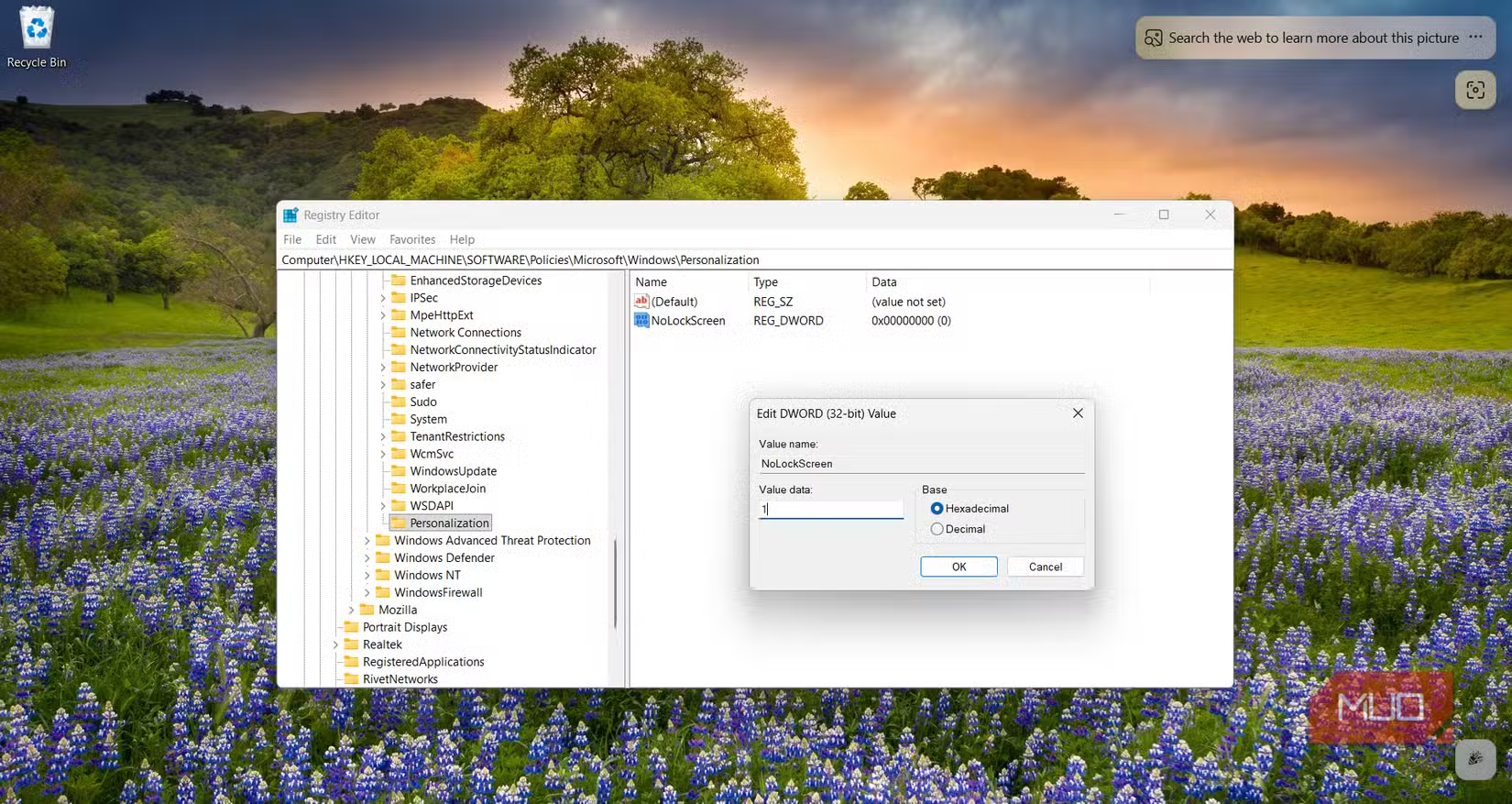
Navigate to HKEY_LOCAL_MACHINE\SOFTWARE\Policies\Microsoft\Windows\Personalization. If the Personalization key doesn't exist, create it. Then create a new DWORD value named NoLockScreen and set it to 1.
This removes the lock screen entirely, taking you straight to the password or PIN entry. On tablets or devices with multiple users, keep this enabled. But for a single-user desktop, it saves a click on every boot and wake.
4. Change the Registered Owner and Organization
Windows stores the name you entered during setup as the "Registered Owner." This shows up in system information dialogs and some third-party software. If you bought a used PC or entered something silly during setup, you might want to change it.
Navigate to HKEY_LOCAL_MACHINE\SOFTWARE\Microsoft\Windows NT\CurrentVersion. Find the RegisteredOwner and RegisteredOrganization values and double-click to edit them. Enter whatever name you prefer.
This is cosmetic, but it matters for corporate machines where the organization name appears in compliance tools and system inventory reports.
5. Clear the Run Dialog History
The Run dialog (Win+R) keeps a history of the last 26 commands you typed. This is convenient for repetition but can expose sensitive paths or commands to anyone who opens your Run dialog.
Navigate to HKEY_CURRENT_USER\SOFTWARE\Microsoft\Windows\CurrentVersion\Explorer\RunMRU. You'll see entries labeled a, b, c, and so on, plus a MRUList value that tracks the order. Delete the individual letter entries to clear specific commands, or delete the entire RunMRU key to wipe the history completely.
Windows will recreate the key when you next use Run, so you're not breaking anything. This is a quick cleanup step before handing a machine to someone else.
Before You Edit: Create a Restore Point
Registry edits take effect immediately and can cause problems that require a full OS reinstall. Before making any changes, create a System Restore Point. Open Start, search for "Create a restore point," and click Create in the System Protection tab.
Reddit communities like r/Windows11 generally view registry tweaks as a double-edged sword. The consensus is to prioritize GUI-based tools like O&O ShutUp10++ over manual editing when possible, and to always have a restore point ready.
Logicity's Take
Another approach to deep OS customization without the risks of manual system editing
When to Use Group Policy Instead
If you're on Windows Pro, Enterprise, or Education, Group Policy Editor (gpedit.msc) offers a safer interface for many of these settings. It writes to the registry under the hood but presents options as toggles with explanations. The lock screen and Bing search settings, for example, are available in Administrative Templates.
Windows Home users don't have Group Policy Editor. For them, the registry is the only path to these customizations.
Frequently Asked Questions
Is it safe to edit the Windows registry?
It's safe if you know what you're changing and create a System Restore Point first. Incorrect edits can cause boot failures or require OS reinstallation.
How do I open Registry Editor in Windows 11?
Press Win+R, type regedit, and press Enter. You'll need administrator privileges to make changes.
Can I undo a registry change?
If you created a System Restore Point beforehand, you can roll back. You can also export a registry key before editing and import it later to restore the original values.
Why doesn't Windows expose these settings in the Settings app?
Microsoft designs the Settings app for mainstream users. Power-user options that could cause stability issues are left in the registry or Group Policy to prevent accidental changes.
Do registry tweaks improve Windows performance?
Most 'performance' registry tweaks are placebo. The tweaks in this article change behavior, not performance. Be skeptical of claims about registry-based speed boosts.
Need Help Implementing This?
Source: MakeUseOf
Manaal Khan
Tech & Innovation Writer
Produced with AI assistance and reviewed by the Logicity editorial team. Learn more in our Editorial Policy.