Key Takeaways
- Switch from Vivid or Dynamic mode to Cinema or Movie mode for accurate colors
- Lower sharpness settings to reduce artificial edge enhancement artifacts
- Disable tracking and data collection features to speed up your TV's interface
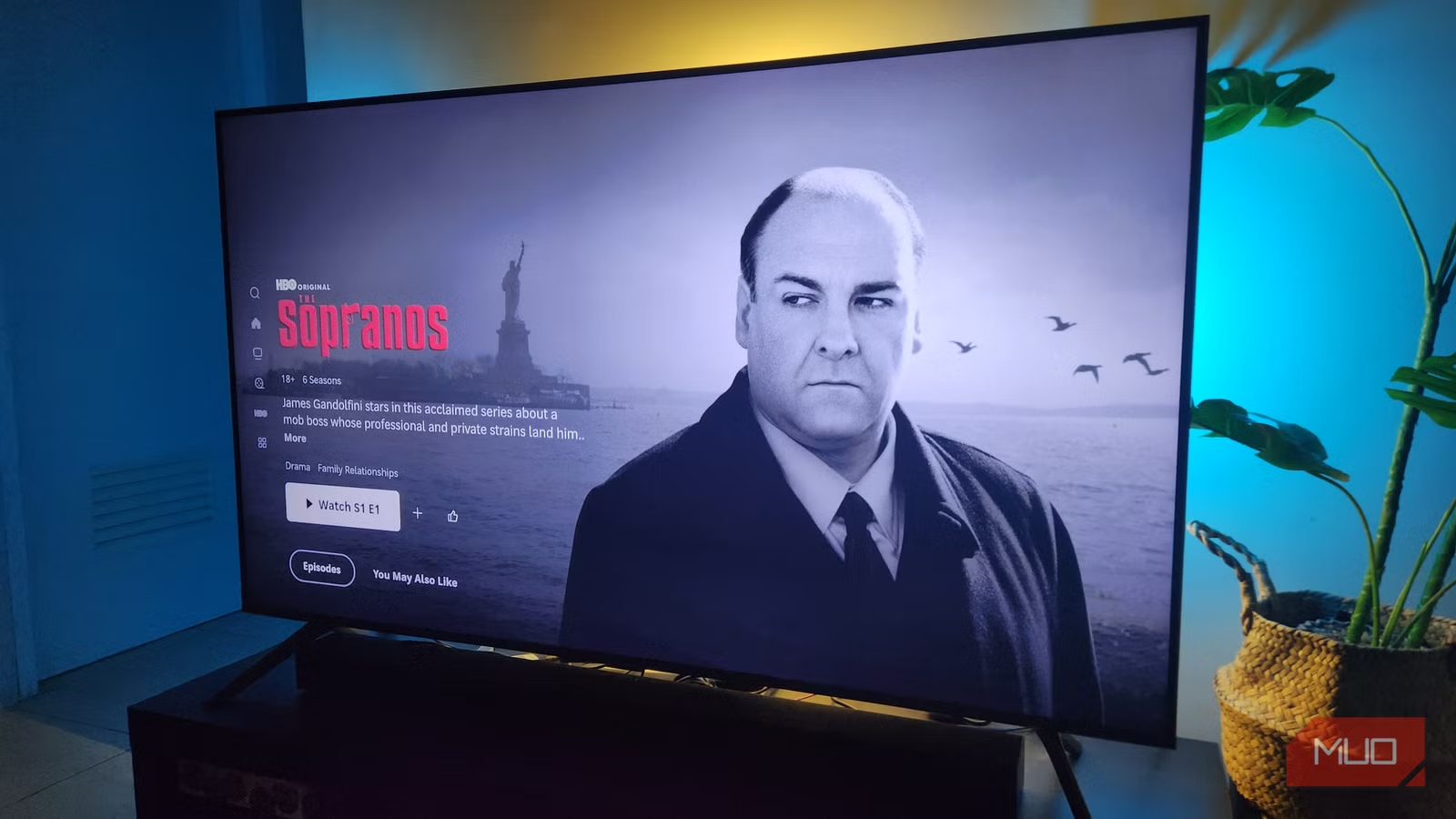
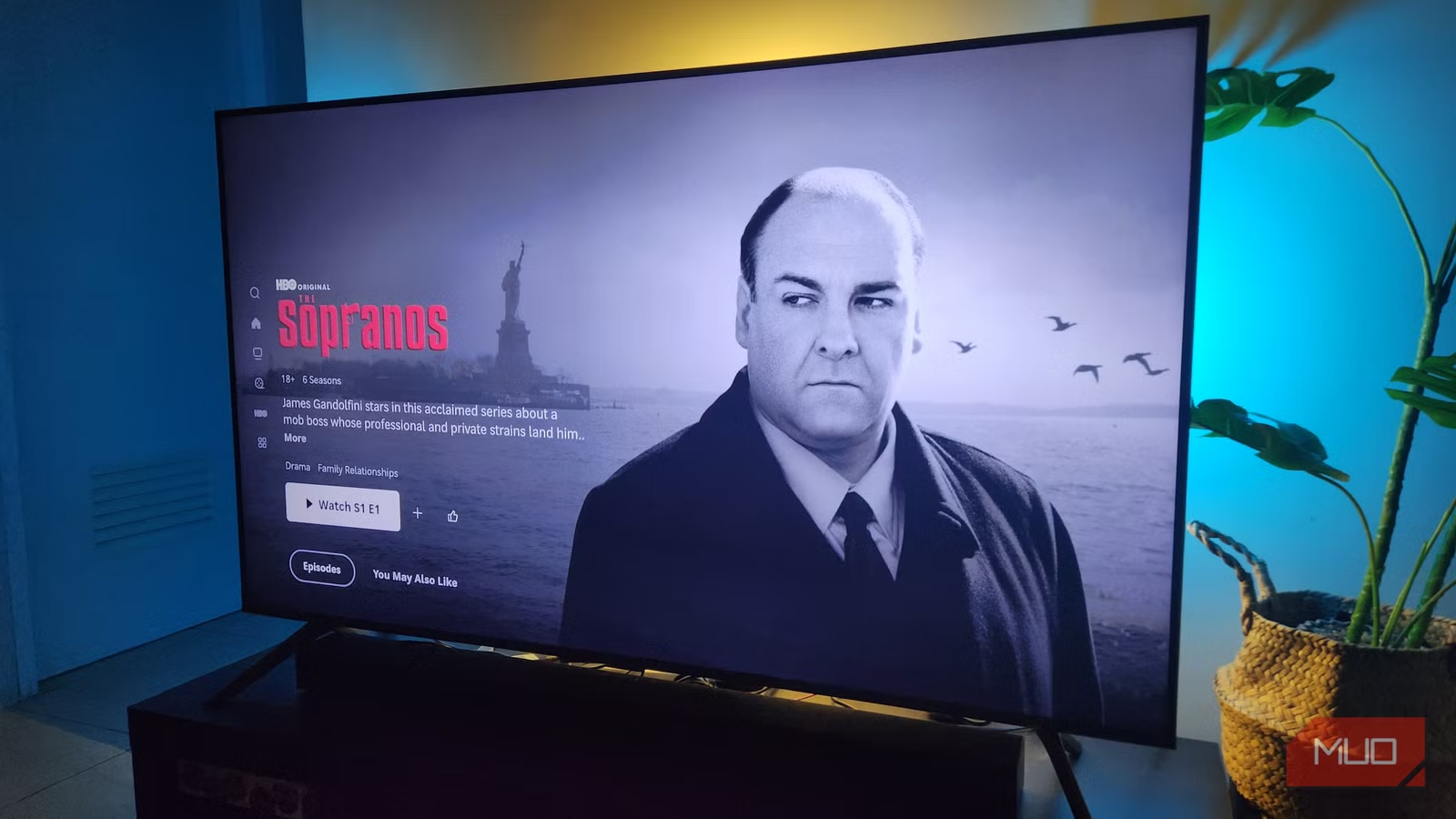
Smart TVs arrive configured for the showroom floor, not your living room. Manufacturers crank up brightness, oversaturate colors, and enable every data-collection feature by default. The result: streaming that looks worse than it should and menus that lag for no good reason.
The good news is that a few minutes in your settings menu can fix most of these problems. No special equipment required. No technical background needed.
1. Switch Your Picture Mode From Vivid to Cinema
This single change makes the biggest visual difference. Most TVs ship in Vivid or Dynamic mode, which pumps up saturation and contrast to catch your eye in a Best Buy. At home, this makes skin tones look orange and shadows lose all detail.
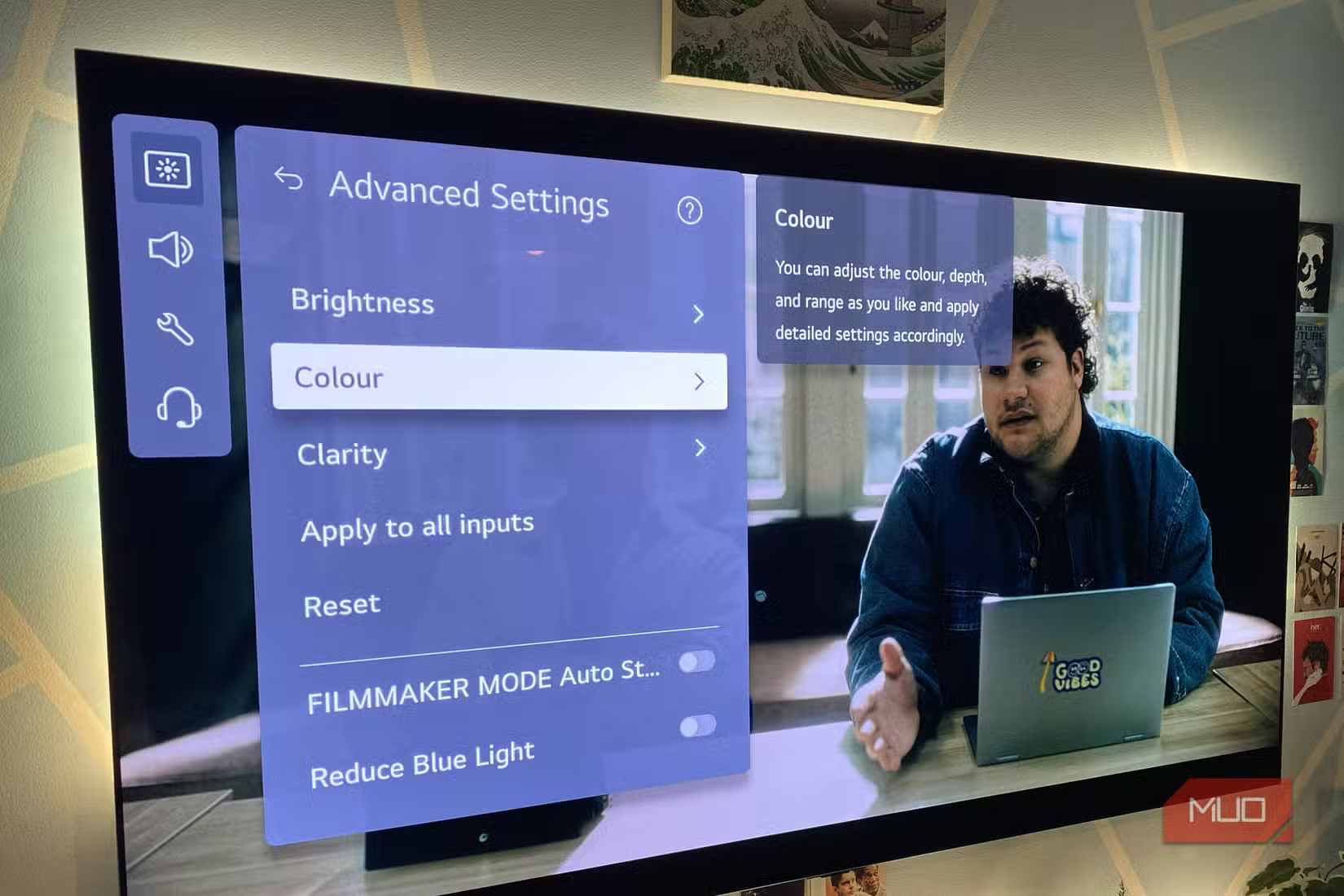
Open your TV's picture settings and look for a mode called Cinema, Movie, or Filmmaker Mode. These presets aim for accuracy rather than impact. Colors will look more natural, and you will start noticing details in dark scenes that were previously crushed to black.
2. Turn Down Sharpness
This sounds counterintuitive. Higher sharpness should mean clearer images, right? Not quite.
TV sharpness settings add artificial edge enhancement. The processor draws white lines around objects to make them pop. The result is a harsh, processed look that makes everything resemble a soap opera. Modern streaming content arrives sharp enough. Your TV does not need to add more.
Try setting sharpness to zero or somewhere in the 10-20 range. The image will look softer at first glance but more natural after your eyes adjust.
3. Adjust Brightness for Your Room
Brightness settings control how dark the darkest parts of the image appear. Set it too high and blacks look gray. Set it too low and you lose shadow detail entirely.
The right level depends on your room. If you watch in a dark basement, lower brightness helps blacks stay black. If your living room has afternoon sun, you may need to push it higher. There is no universal correct number.
A quick test: find a scene with someone wearing a black suit or standing in shadows. If you can see fabric texture and facial features, your brightness is close. If everything blends into a dark blob, raise it. If the black suit looks gray, lower it.
4. Set Color Temperature to Warm
Color temperature determines whether whites look blue-tinted or yellowish. Most TVs default to Cool, which appears brighter in stores but makes everything look clinical at home.
Switch to Warm or Warm2 if your TV offers multiple warm options. This matches the industry standard that filmmakers use when color-grading movies. Faces will look healthy instead of washed out.
The warm setting looks wrong for about 15 minutes because your eyes have adapted to the cool tint. Give it a full movie before deciding.
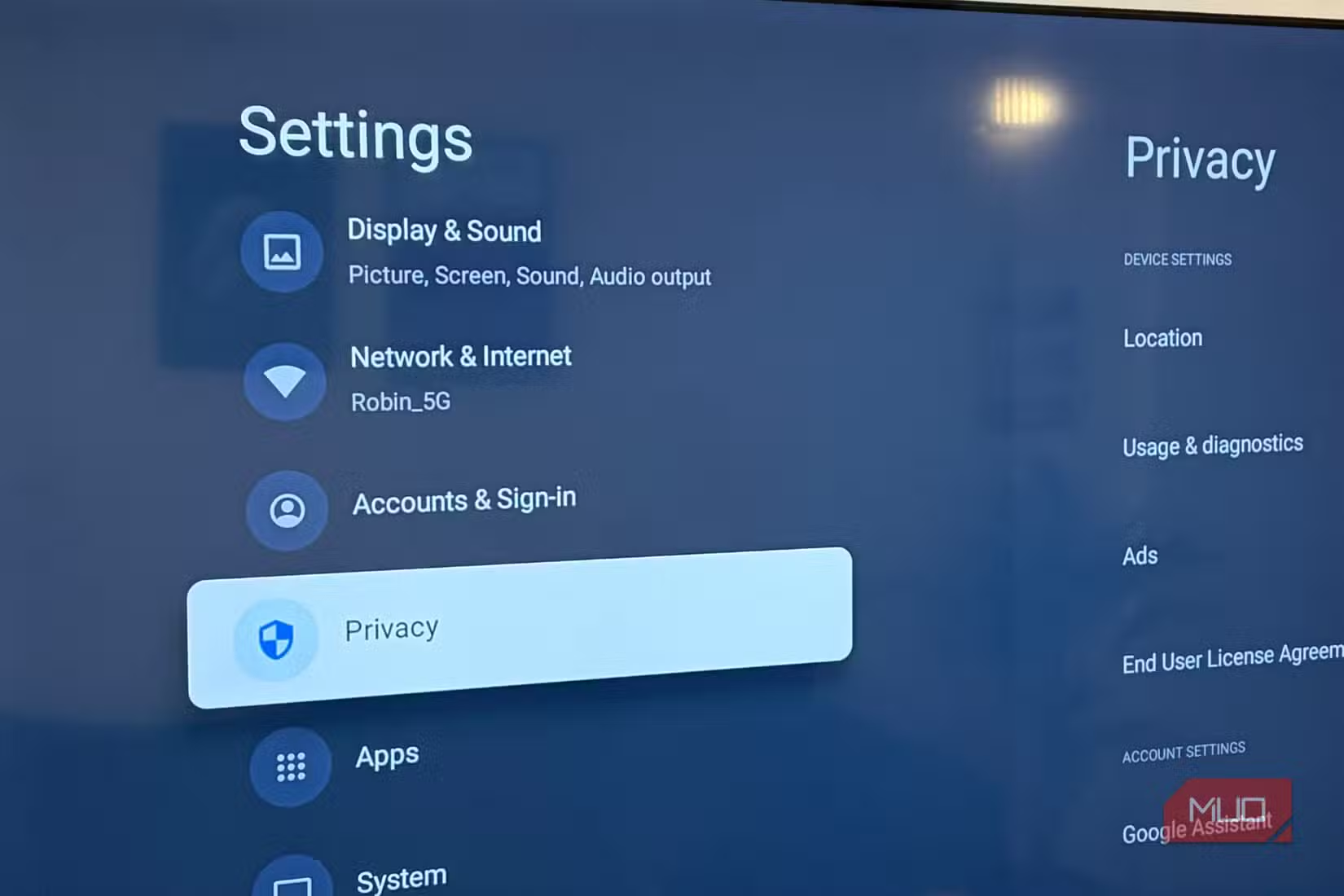
5. Disable Tracking and Data Collection
Smart TVs watch what you watch. They collect viewing data, serve targeted ads, and phone home constantly. This is not just a privacy concern. It can also slow down your TV.

Dig into your TV's privacy or terms settings. Look for options labeled ACR (Automatic Content Recognition), viewing data, or personalized advertising. Turn them off. The exact location varies by brand. Samsung buries it under Terms and Policies. LG puts it in User Agreements. Roku calls it Smart TV Experience.
Your TV may warn that disabling these features will degrade your experience. It will not. You will still have full access to all apps and streaming services. You just will not see ads based on what you watched last night.
Bonus: Check Your Network Setup
If your TV buffers frequently or takes forever to load thumbnails, the problem may be your network rather than your settings. Wi-Fi signals weaken dramatically through walls, and the TV in your living room may be far from your router.
Try running an Ethernet cable directly to your TV if possible. This eliminates wireless interference entirely. If that is not practical, consider a mesh Wi-Fi system or a powerline adapter to get a stronger signal to your entertainment center.
Logicity's Take
Frequently Asked Questions
Will changing picture settings void my TV warranty?
No. Picture settings are user-adjustable by design. You can always reset to factory defaults if needed.
Why does Cinema mode look so yellow at first?
Your eyes adapted to the blue-tinted Cool setting. Give warm color temperature 20-30 minutes and it will start looking natural.
Does disabling tracking really speed up my TV?
It can help. Your TV dedicates processing power and network bandwidth to data collection. Turning it off frees those resources.
Should I use the same settings for gaming?
No. Gaming benefits from Game Mode, which reduces input lag. Switch picture modes depending on what you are doing.
Similar settings optimizations for another device you use daily
Another privacy-focused approach to managing your digital life
Need Help Implementing This?
Source: MakeUseOf
Huma Shazia
Senior AI & Tech Writer
Produced with AI assistance and reviewed by the Logicity editorial team. Learn more in our Editorial Policy.