Key Takeaways
- Windows 11 animations introduce millisecond delays that add up across thousands of daily tasks
- Transparency effects make the OS harder to read and require GPU resources
- Both can be disabled through Settings > Accessibility > Visual Effects
Windows 11 ships with plenty of visual polish. Menus fade in. Windows slide across the screen. Taskbars blur the content behind them. Microsoft wants the OS to feel modern. But all that polish has a cost.
Every animation and transparency effect requires CPU and GPU cycles. One animation takes a few milliseconds. Perform thousands of actions per day, and those milliseconds stack up. On older hardware, the lag becomes obvious. On newer machines, you're still paying for eye candy you might not even notice.
The video above shows the troubleshooting steps some users go through to fix laggy Windows animations. There's a simpler approach: turn them off entirely.
Why animations make Windows feel slower
Animations exist to make transitions feel smooth. In practice, they often do the opposite. Opening the Start menu, switching apps, using virtual desktops. Each action gets a brief delay while Windows renders the visual effect.
Virtual desktops are a clear example. Swiping between desktops triggers a full-screen animation. Even using keyboard shortcuts to jump directly to a specific desktop feels sluggish because Windows insists on showing the transition.
A computer without these animations responds instantly. The visual feedback is less flashy, but the system feels faster because it is faster. You're removing a delay that existed purely for aesthetics.
Transparency creates readability problems
Windows 11's transparency effects blur whatever sits behind a window or taskbar. The result looks sleek in screenshots. In actual use, it can make text and icons harder to read at a glance.
The GPU has to composite multiple layers in real time. That's extra work. On integrated graphics or older dedicated cards, transparency effects contribute to general sluggishness. Disabling them frees up resources and often improves clarity.
How to disable animations in Windows 11
- Open Settings (Windows key + I)
- Click Accessibility in the left sidebar
- Select Visual effects
- Toggle off Animation effects
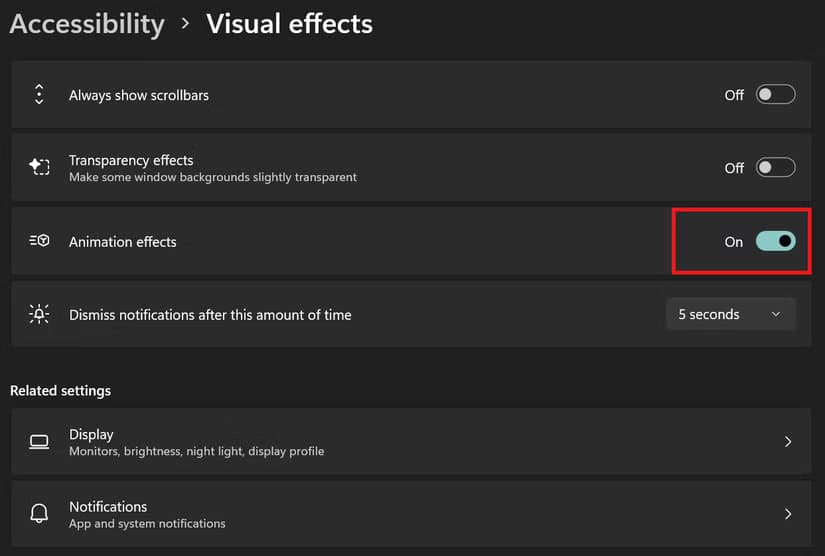
The change takes effect immediately. Menus will appear instantly instead of fading in. Windows will snap into place instead of sliding. The difference is noticeable within seconds.
How to disable transparency effects
- Open Settings (Windows key + I)
- Click Accessibility in the left sidebar
- Select Visual effects
- Toggle off Transparency effects
You can also reach this setting through Settings > Personalization > Colors. Both paths lead to the same toggle.
With transparency off, the taskbar, Start menu, and window title bars become solid colors. Text becomes easier to read. The system uses fewer GPU resources.
Who benefits most from these changes
Older PCs see the biggest improvement. If your machine struggles with basic navigation, disabling animations and transparency removes overhead that serves no functional purpose.
Power users who switch between apps and desktops constantly will notice the snappier response. Every saved millisecond multiplies across a full workday.
Even on fast hardware, some users simply prefer the instant feedback. The minimalist look has its own appeal when you stop expecting Windows to animate everything.
Logicity's Take
Other performance tweaks worth trying
If you're optimizing an older PC, these settings pair well with other changes. Disable startup programs you don't need. Switch to a local account if you don't use Microsoft's cloud features. Uninstall bloatware that shipped with the machine.
None of these fixes will turn a slow computer into a fast one. But they remove friction that makes a capable machine feel worse than it should.
More productivity tweaks hiding in plain sight
Frequently Asked Questions
Will disabling animations break any Windows 11 features?
No. All features work normally. Only the visual transitions change. Menus and windows appear instantly instead of animating.
Can I disable animations but keep transparency?
Yes. The two settings are separate toggles. You can turn off one, the other, or both.
Does this affect gaming performance?
Minimally. Games run in their own rendering context. The main benefit is faster navigation when you're not gaming.
Will Windows Update re-enable these settings?
Generally no. These are user preferences that persist through updates, though major feature updates occasionally reset some settings.
Need Help Implementing This?
Source: How-To Geek
Manaal Khan
Tech & Innovation Writer
Produced with AI assistance and reviewed by the Logicity editorial team. Learn more in our Editorial Policy.