Key Takeaways
- Default BIOS settings on mini PCs are often too conservative, limiting performance
- Secure Boot and TPM 2.0 should be verified even if Windows 11 boots fine
- Enabling virtualization unlocks Docker, WSL, Hyper-V, and homelab tools
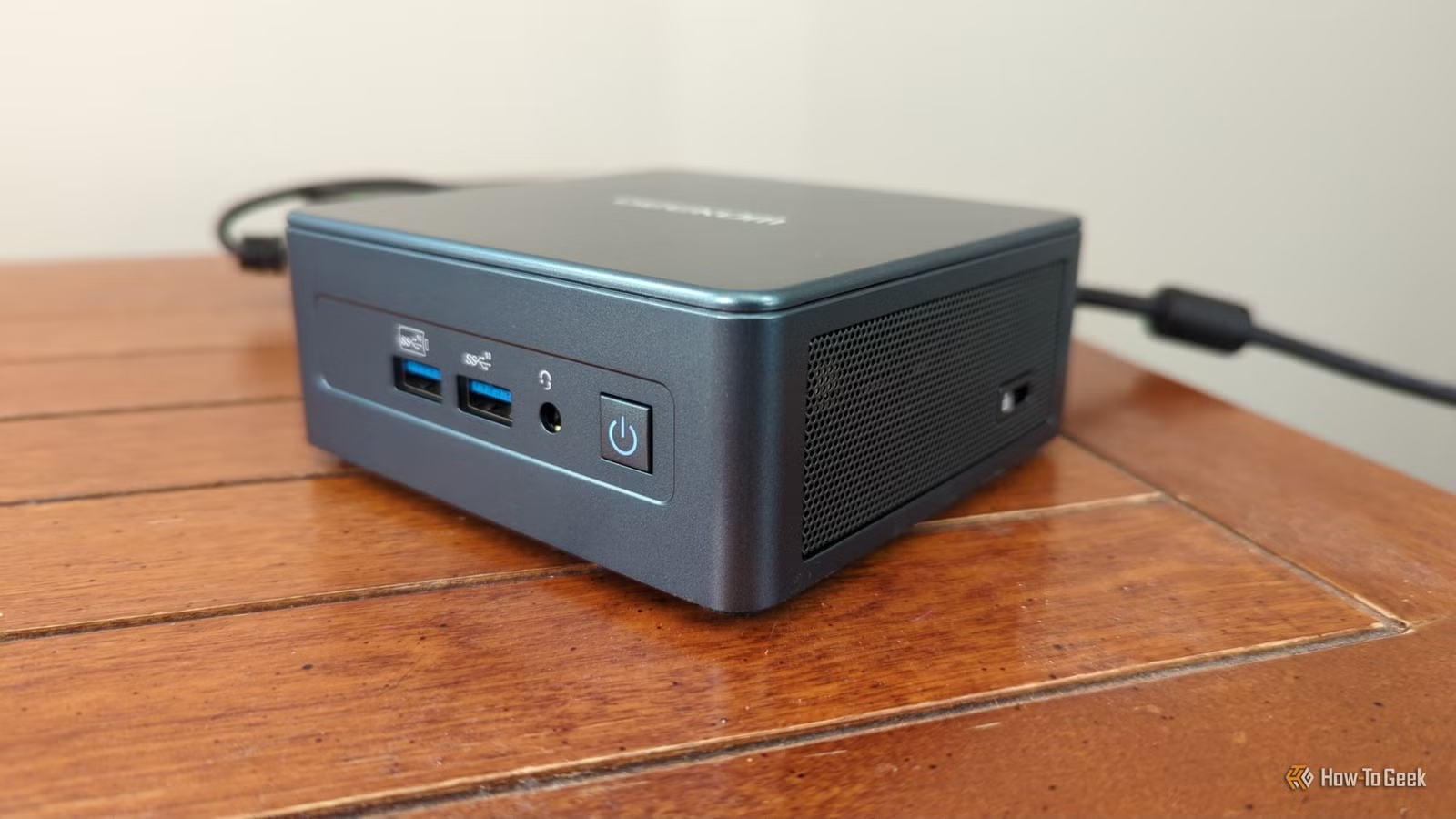
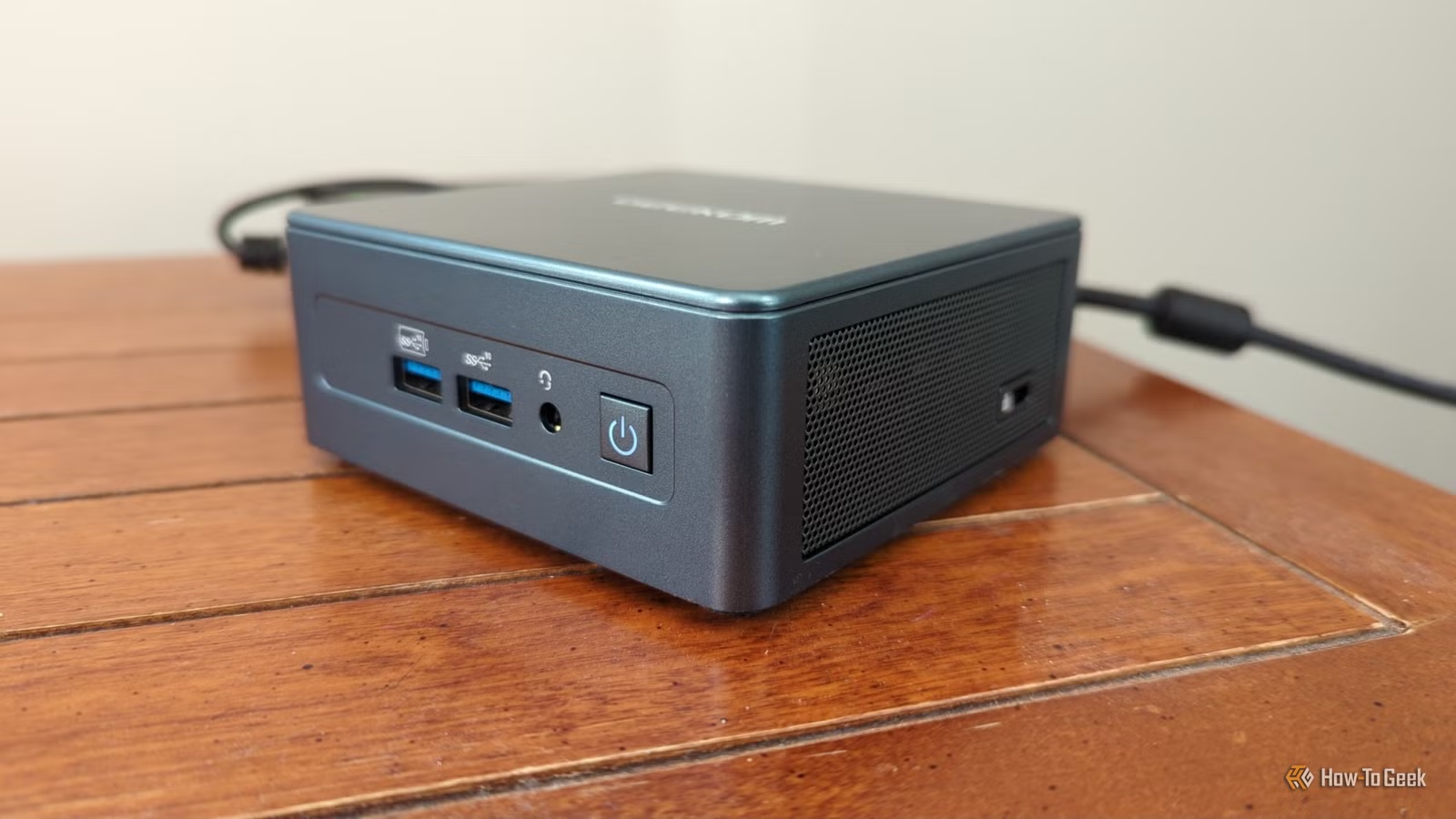
You bought a mini PC. You plugged it in. Windows booted. Job done, right? Not quite. According to Monica J. White, a tech journalist who has tested dozens of mini PCs over the years, the default BIOS settings on these compact machines are often 'weirdly conservative, or just badly tuned.'
The result: you might be leaving real performance on the table without knowing it. Here are the five BIOS changes White recommends making on every new mini PC.
1. Verify Secure Boot and TPM 2.0
On a Windows 11 mini PC, Secure Boot and TPM 2.0 should already be enabled. But 'should' is doing a lot of work in that sentence. White's advice: never assume everything is set up properly just because the PC boots.
If either setting is off, you might run into problems with Windows security features, system updates, BitLocker encryption, or certain applications. A quick check in the BIOS can save hours of troubleshooting later.
2. Enable Virtualization
This is White's must-check setting, especially if your mini PC might handle server-adjacent work. Virtualization support in the BIOS unlocks:
- Hyper-V for Windows virtual machines
- Windows Subsystem for Linux (WSL)
- Docker containers
- Android emulators
- Homelab tools and self-hosted applications
If virtualization is disabled, none of these will work. You'll get cryptic error messages instead of useful feedback about the actual problem. The setting is usually called 'Intel VT-x' or 'AMD-V' depending on your processor.
Why Mini PCs Need Extra Attention
Desktop PCs need BIOS tweaks too, but mini PCs 'err on the side of caution even more,' White notes. The reasons make sense: compact cases have limited cooling capacity, and manufacturers would rather ship a stable, quiet system than a fast one that overheats.
The tradeoff is that your $400 mini PC might perform like a $300 one until you adjust the settings yourself.
How to Access BIOS on a Mini PC
Most mini PCs use the same BIOS access keys as their full-sized counterparts. Try pressing Delete, F2, or F12 immediately after powering on. The splash screen usually shows the correct key for a fraction of a second.
If you miss the window, Windows 11 offers another path: Settings > System > Recovery > Advanced startup > Restart now. After the reboot, select Troubleshoot > Advanced options > UEFI Firmware Settings.
A Word of Caution
BIOS changes take effect immediately and can affect system stability. If you're not sure what a setting does, leave it alone. Focus on the specific items listed here rather than exploring every menu.
Most modern BIOS interfaces include a 'Load Defaults' option that can restore factory settings if something goes wrong. Know where this option is before you start making changes.
Logicity's Take
Frequently Asked Questions
Will changing BIOS settings void my mini PC warranty?
Generally no. Adjusting software settings like virtualization or Secure Boot is normal user activity. Hardware modifications like voltage changes might be different. Check your warranty terms if concerned.
What happens if I enable virtualization but never use it?
Nothing negative. The setting enables the capability but doesn't consume resources unless you actually run virtual machines or containers.
How do I know if my mini PC has TPM 2.0?
In Windows, press Win+R, type 'tpm.msc' and press Enter. The TPM Management console will show your TPM version and status.
Can BIOS changes cause data loss?
The settings discussed here won't affect your data. Changes to boot order or storage modes could cause boot issues but won't delete files.
Once virtualization is enabled, try these self-hosted apps on your mini PC
More ways to get more from your Windows hardware
Need Help Implementing This?
Source: How-To Geek
Manaal Khan
Tech & Innovation Writer
Produced with AI assistance and reviewed by the Logicity editorial team. Learn more in our Editorial Policy.