Key Takeaways
- Not every Windows app has a Linux equivalent, and alternatives like GIMP or LibreOffice may not match your workflow
- Testing Linux distros via live USB before wiping Windows prevents costly mistakes
- The terminal isn't optional. Some tasks simply require command-line work
The Promise vs. the Reality
Linux has a lot going for it. No ads baked into the OS. No telemetry phoning home without your consent. No random background processes eating your RAM. For users tired of Windows 11's increasingly aggressive design choices, Linux looks like the obvious escape route.
But there's a gap between 'Linux is great' and 'you should just switch to Linux.' The second statement glosses over friction that can turn your first week into a frustrating mess. Pankil Shah, a tech writer who made the jump in 2026, shared the things he wishes he'd known beforehand. None of these would have stopped him from switching. But knowing them upfront would have saved hours of confusion.
1. App Gaps Are Real
The Linux community loves to say 'there's an open-source alternative for everything.' Technically true. Practically misleading.
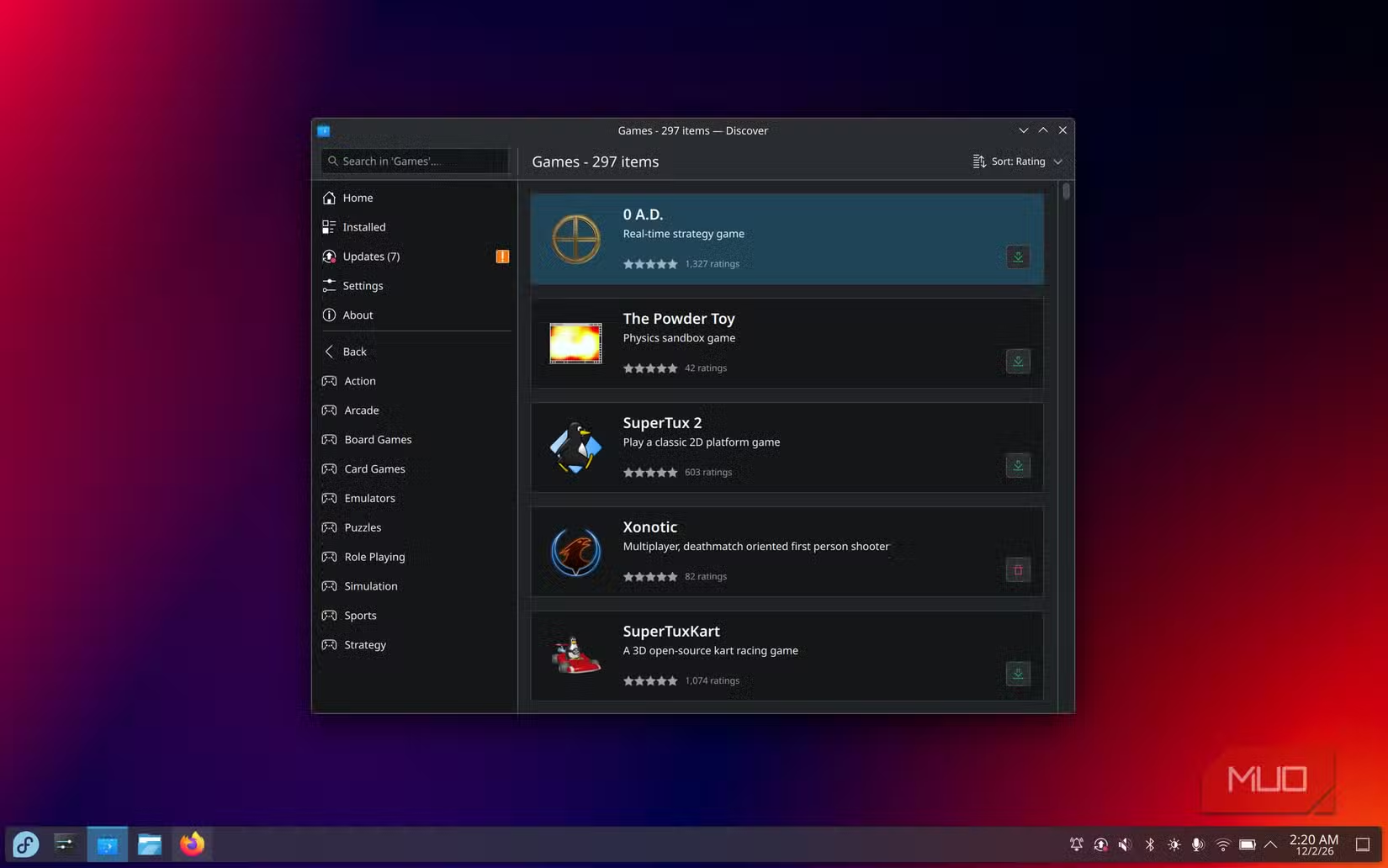
Adobe Photoshop, Microsoft Office, AutoCAD, Paint.NET, and ShareX are not available on Linux. Yes, GIMP exists. Yes, LibreOffice is surprisingly capable. But 'alternative exists' is not the same as 'alternative matches your workflow.'
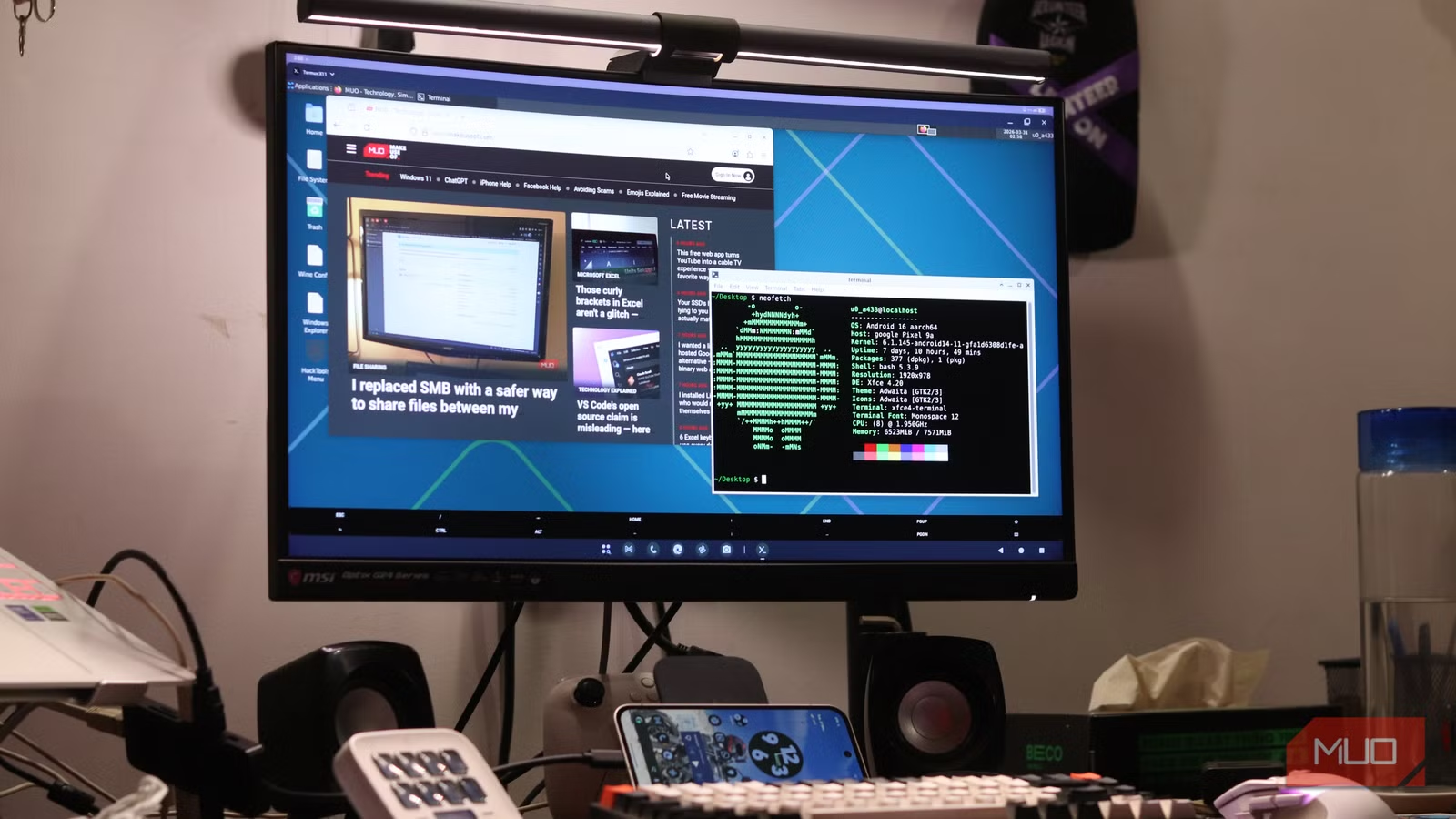
Tools like Wine and WinBoat let you run some Windows apps on Linux. Linux users will mention these within seconds of you bringing up missing software. But they don't work flawlessly every time. More importantly, they add friction. A regular user who just wants to open an app shouldn't need to configure compatibility layers.
The saving grace? Web apps. Most services now work perfectly in a browser. If your workflow lives in Figma, Google Workspace, or Notion, Linux won't slow you down. But if you depend on native Windows software, audit your apps before you wipe anything.
2. Distro Choice Matters More Than You Think
Linux isn't one operating system. It's hundreds of variations called distributions, or distros. Each comes with different default apps, update schedules, and assumptions about what users want.
Shah made a classic mistake: going all in immediately. He wiped Windows, installed Arch Linux because it 'sounded like the ultimate Linux experience,' and quickly replaced it with Linux Mint.
Arch is powerful but assumes you know what you're doing. It's designed for users who want to build their system from the ground up. Linux Mint, by contrast, looks and feels closer to Windows. It's designed for people who want their computer to just work.
The fix is simple: test before committing. Almost every Linux distro offers a 'live' mode. You boot from a USB drive and run the full operating system without installing anything. Use this. Spend a few hours in two or three distros before making a decision.
More practical Linux-based projects
3. The Terminal Isn't Optional
Modern Linux distros have come a long way. You can install apps, change settings, and manage files without ever opening a terminal. But eventually, you'll hit a wall.
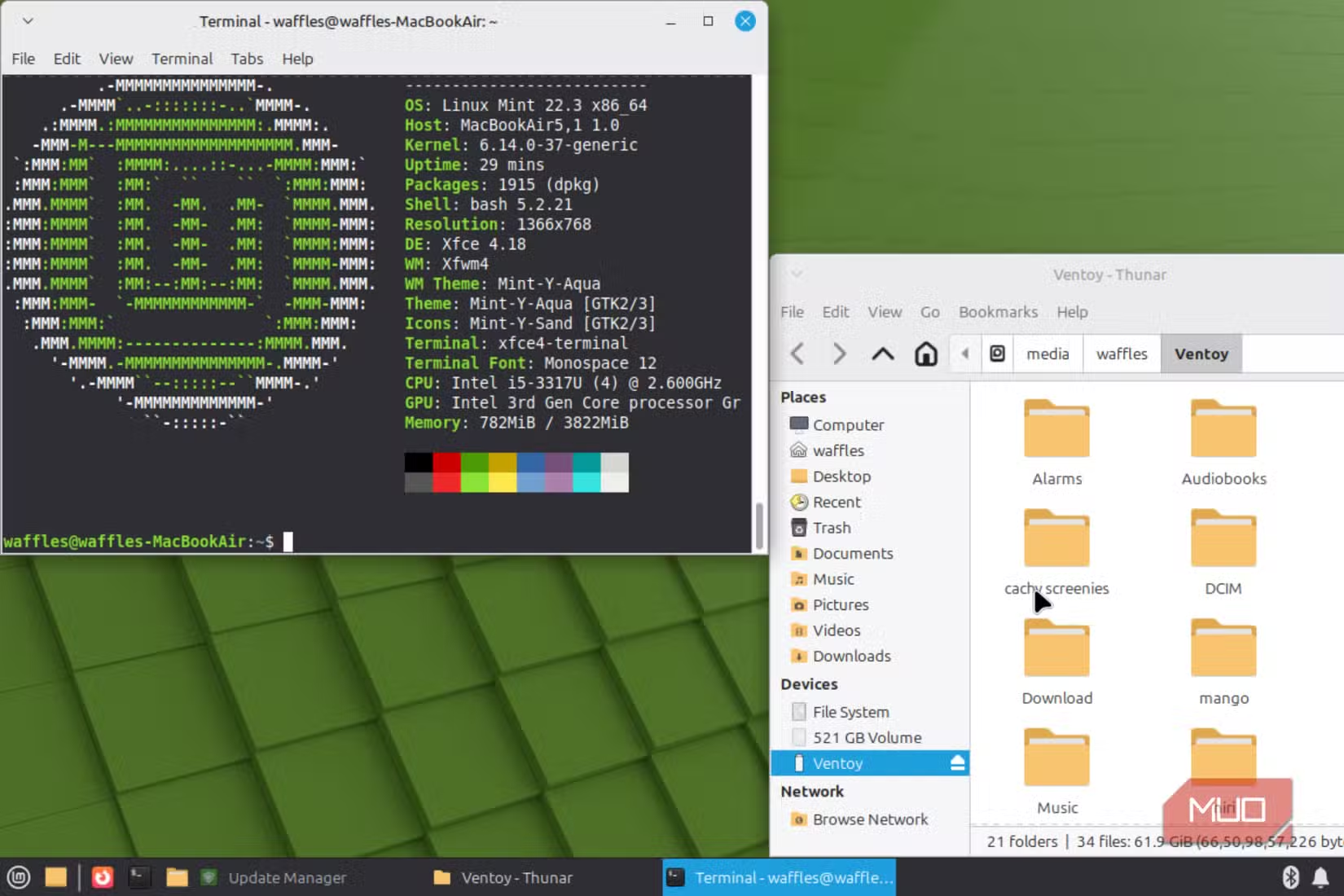
Some troubleshooting steps only exist as terminal commands. Some software only installs via command line. Some configuration files require text editing in a terminal-based editor. The graphical interface handles 90% of daily use. The terminal handles the remaining 10% that you can't skip.
You don't need to become a command-line expert. But you do need to get comfortable copying and pasting commands from documentation. You need to understand basics like navigating directories, editing files, and installing packages. Treat it as a skill to build over time, not a barrier to entry.
4. Hardware Support Can Surprise You
Linux supports a huge range of hardware. But 'supports' can mean different things. Your Wi-Fi card might work out of the box. Or it might need a driver you have to compile yourself. Your laptop's fingerprint reader might never work at all.
Nvidia graphics cards are notorious for Linux complications. AMD and Intel graphics tend to work better with less effort. Printers can be hit or miss. Specialized peripherals, like drawing tablets or audio interfaces, vary wildly.
Before switching, boot a live USB and test your hardware. Does Wi-Fi connect? Does the display scale correctly? Does your external monitor work? Does suspend and resume function? Finding these issues before you commit is much better than discovering them after you've wiped Windows.
How to Actually Prepare
- Audit your apps. List every Windows program you use weekly. Search for Linux equivalents. Test them in a browser or virtual machine.
- Pick a beginner distro. Linux Mint, Pop!_OS, and Fedora Workstation are solid starting points. Avoid Arch, Gentoo, or anything that describes itself as 'minimal' for your first install.
- Test with a live USB. Download the ISO, flash it to a USB drive with a tool like Balena Etcher, and boot from it. Spend at least a few hours using it.
- Check your hardware. While running the live USB, test Wi-Fi, Bluetooth, display, sound, and any peripherals you depend on.
- Dual boot first. Instead of wiping Windows, install Linux alongside it. You can switch between operating systems at boot. This gives you a safety net while you learn.
Another perspective on choosing your own tools
Is It Worth the Effort?
For many users, yes. Linux gives you an operating system that respects your hardware and your attention. No ads in the Start menu. No forced updates that restart your machine during work. No telemetry you can't disable.
But the switch isn't free. You pay with time spent learning new tools, adapting workflows, and occasionally troubleshooting problems that Windows users never face. For some people, that trade-off isn't worth it. For others, it's the best decision they've made.
The key is going in with realistic expectations. Linux won't fix every frustration you have with Windows. It will replace some frustrations with different ones. But if the frustrations you're escaping matter more than the ones you're accepting, the switch makes sense.
Logicity's Take
Frequently Asked Questions
What is the best Linux distro for Windows users?
Linux Mint is widely recommended for Windows switchers. Its desktop layout feels familiar, it includes common software out of the box, and it prioritizes stability over cutting-edge features.
Can I run Microsoft Office on Linux?
Not natively. You can use the web versions of Word, Excel, and PowerPoint in a browser. LibreOffice is a free alternative that handles most Office documents well. Running the desktop versions via Wine is possible but unreliable.
Do I need to learn command line to use Linux?
For basic daily use, no. Modern distros have graphical tools for most tasks. But you'll eventually need terminal commands for troubleshooting or installing certain software. Basic familiarity helps.
Can I install Linux without deleting Windows?
Yes. Dual booting lets you keep both operating systems on the same machine. At startup, you choose which one to load. This is the safest way to try Linux if you're not ready to fully commit.
Will my games work on Linux?
Many Steam games work on Linux through Proton, Valve's compatibility layer. Check ProtonDB.com to see how specific games perform. Native Windows games outside Steam are less reliable.
Need Help Implementing This?
Source: MakeUseOf
Manaal Khan
Tech & Innovation Writer
Produced with AI assistance and reviewed by the Logicity editorial team. Learn more in our Editorial Policy.