Key Takeaways
- Modern homes can have 100+ Wi-Fi devices, and most smart home gadgets default to the crowded 2.4GHz band
- The 2.4GHz band offers better range but slower speeds, while 5GHz and 6GHz deliver faster connections at shorter distances
- Moving phones, laptops, and streaming devices to the 5GHz or 6GHz band can eliminate bandwidth competition
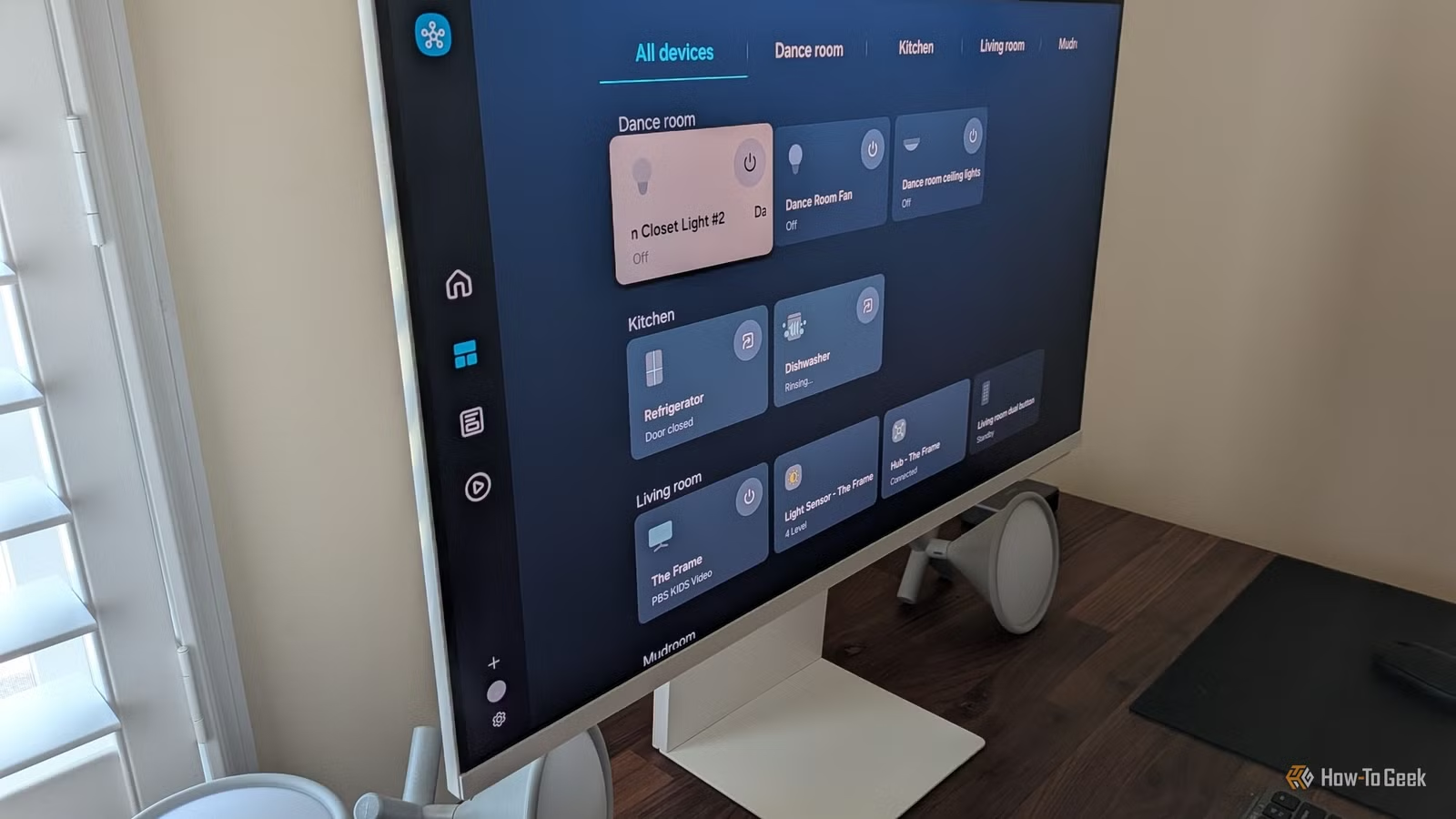
Your home Wi-Fi network in 2026 might be handling upwards of 100 connected devices. That number sounds high until you count everything: phones, tablets, laptops, TVs, streaming boxes, game consoles, smart lights, thermostats, appliances, security cameras. Each one wants a slice of your bandwidth.
Here's the problem: by default, the devices that need fast speeds the most are competing with smart lights and switches for the same radio frequency. If your ISP promises gigabit speeds but you're stuck buffering Netflix, a congested 2.4GHz band is likely the culprit.
The 2.4GHz Bottleneck Explained
Most home networks run on either dual-band (2.4GHz and 5GHz) or tri-band setups (adding 6GHz if you have Wi-Fi 6E or Wi-Fi 7). Each band has different strengths, and smart home devices almost universally prefer 2.4GHz for one reason: range.
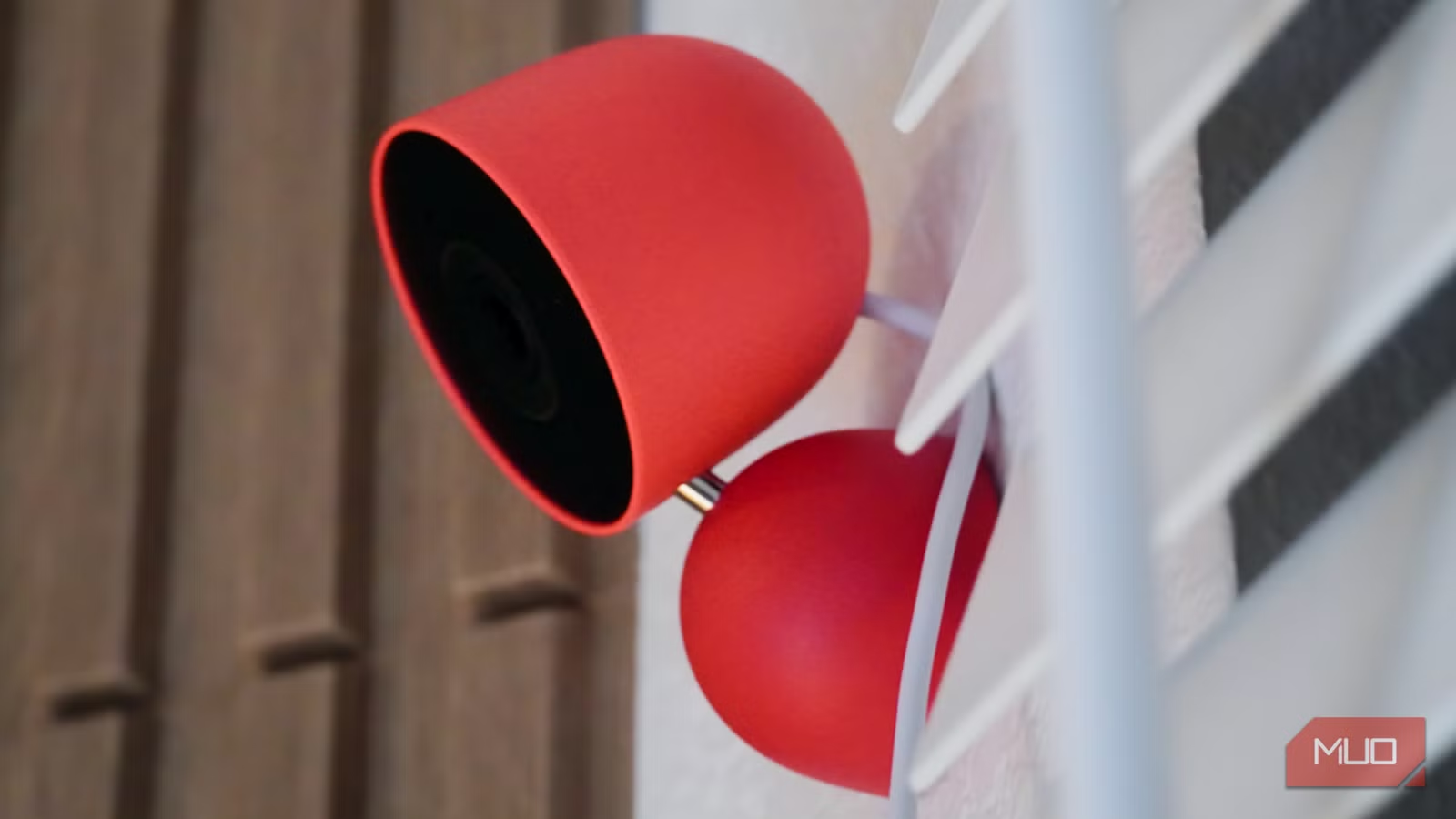
The 2.4GHz band travels farther and penetrates walls and floors better than higher frequencies. That makes it perfect for a smart thermostat in the hallway or a connected light bulb on the second floor. But this range advantage comes with a tradeoff. The band is slower and more prone to interference.
The 5GHz band delivers faster speeds at shorter distances. It's ideal when your device sits relatively close to the router. The 6GHz band, available on newer routers, is even faster and less crowded since fewer devices support it yet.
When your phone, laptop, or streaming box connects to the 2.4GHz band, it shares that frequency with every smart plug, sensor, and light bulb in your house. The result is congestion, interference, and speeds that never match what you're paying for.
Two Fixes That Actually Work
The solution is straightforward: move your high-bandwidth devices off the 2.4GHz band and onto 5GHz or 6GHz. Your smart home gadgets can stay on 2.4GHz since they don't need speed. They need reliability and range.
1. Manually Select Your Band
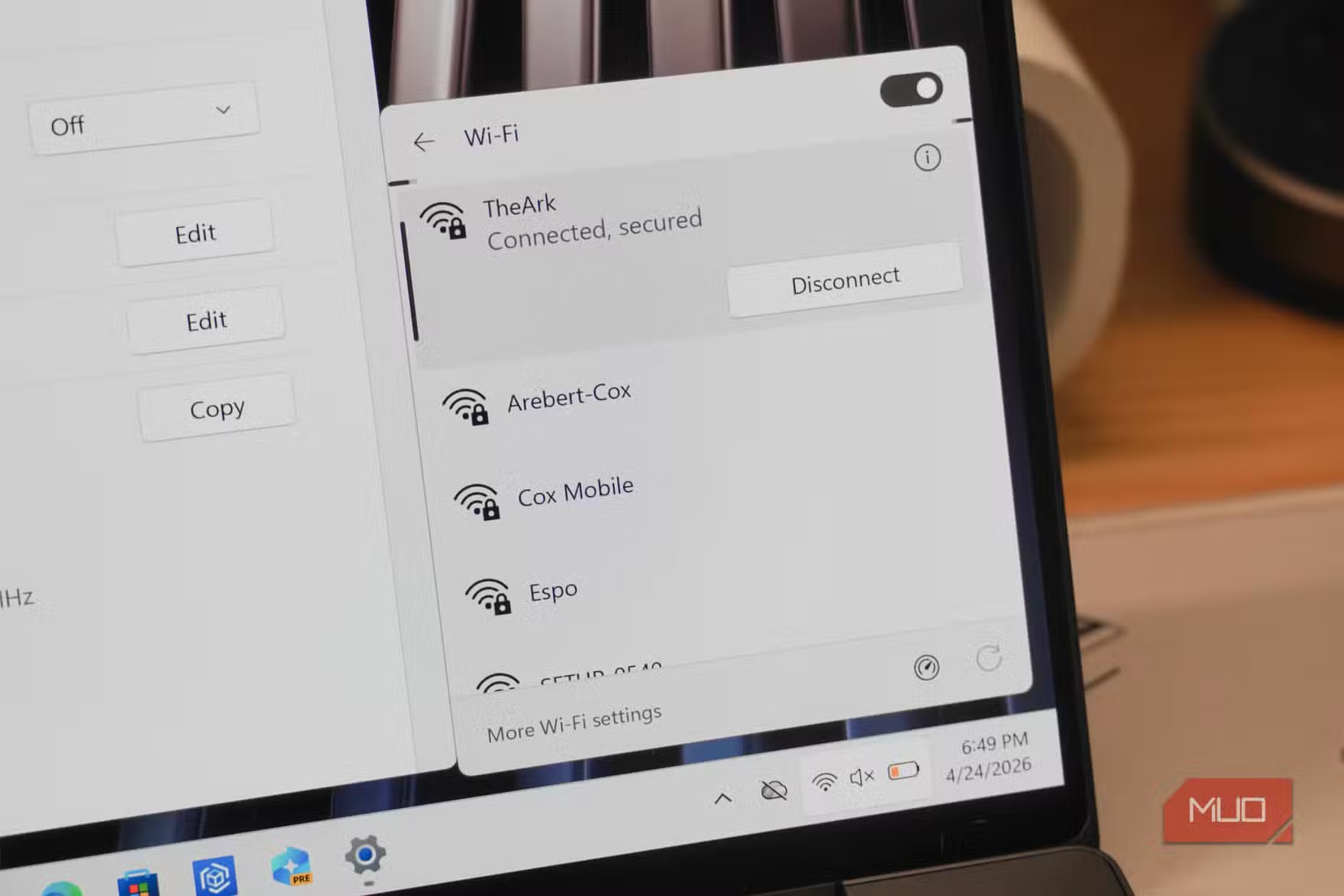
Many routers broadcast separate network names for each band. You might see "HomeNetwork" and "HomeNetwork_5G" in your available networks. Connect your phones, tablets, laptops, and streaming devices to the 5GHz or 6GHz network. Leave smart home devices on the standard 2.4GHz network.
If your router uses a single network name for all bands (band steering), you can usually disable this feature in your router's admin panel. This lets you create separate SSIDs for each frequency and control which devices connect where.
2. Use Your Router's Device Management
Most modern routers let you assign specific devices to specific bands through their app or web interface. Look for settings labeled "band preference" or "device priority." You can force your laptop to always use 5GHz while your smart doorbell stays on 2.4GHz.
Some routers also offer QoS (Quality of Service) settings that prioritize bandwidth for streaming or gaming traffic. This helps even when devices share the same band.
When to Consider a Router Upgrade
If you're running a Wi-Fi 5 router with dozens of smart home devices, upgrading to Wi-Fi 6E or Wi-Fi 7 adds the 6GHz band as an escape valve. High-bandwidth devices can use this uncrowded frequency while your smart home gadgets stay on 2.4GHz.
That said, you don't need to rush. If your current router supports separate band assignment and you implement the fixes above, you can likely squeeze more life out of your existing hardware.
Another practical approach to getting more from your existing tech setup
Logicity's Take
Frequently Asked Questions
Why do smart home devices use 2.4GHz instead of 5GHz?
The 2.4GHz band offers better range and can penetrate walls and floors more effectively. Smart home devices prioritize reliable connections over speed since they transmit small amounts of data.
Will moving to 5GHz reduce my smart home device range?
You shouldn't move your smart home devices to 5GHz. Keep them on 2.4GHz for range. Move only your phones, laptops, and streaming devices to 5GHz or 6GHz.
How do I know which band my device is connected to?
Most router apps show connected devices and their current band. On Windows, you can check your Wi-Fi properties. On phones, look in your Wi-Fi settings or download a network analyzer app.
Does Wi-Fi 6E or Wi-Fi 7 solve this problem automatically?
These standards add the 6GHz band, which helps. But you still need devices that support 6GHz, and smart home gadgets will likely stay on 2.4GHz regardless of your router.
Need Help Implementing This?
Source: MakeUseOf
Manaal Khan
Tech & Innovation Writer
Produced with AI assistance and reviewed by the Logicity editorial team. Learn more in our Editorial Policy.