Key Takeaways
- Storage Sense has been in Windows since 2017 but remains underused
- The tool automatically cleans temp files, Recycle Bin, and downloads on a schedule you choose
- OneDrive integration lets Storage Sense free up local space by keeping files cloud-only
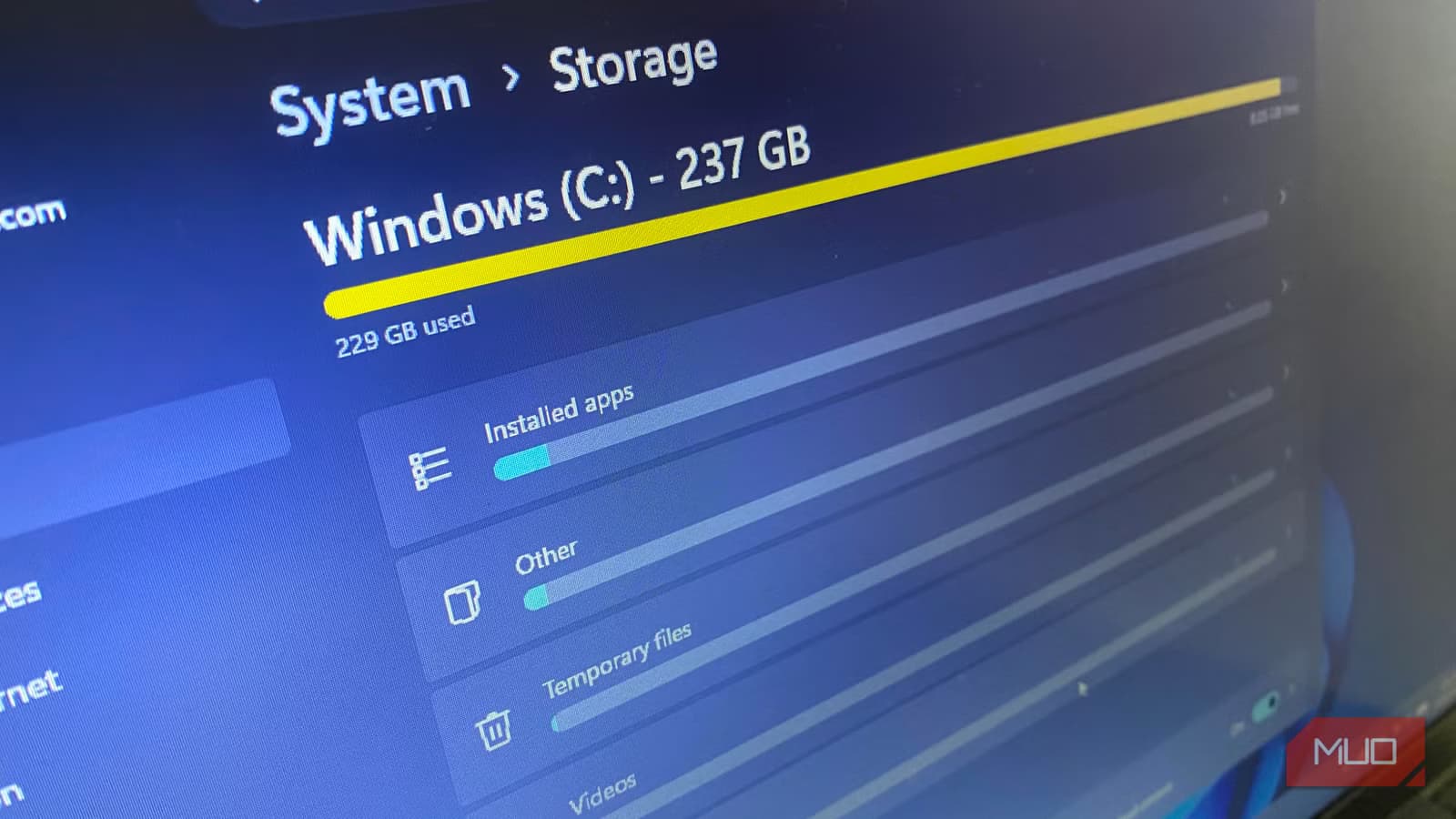
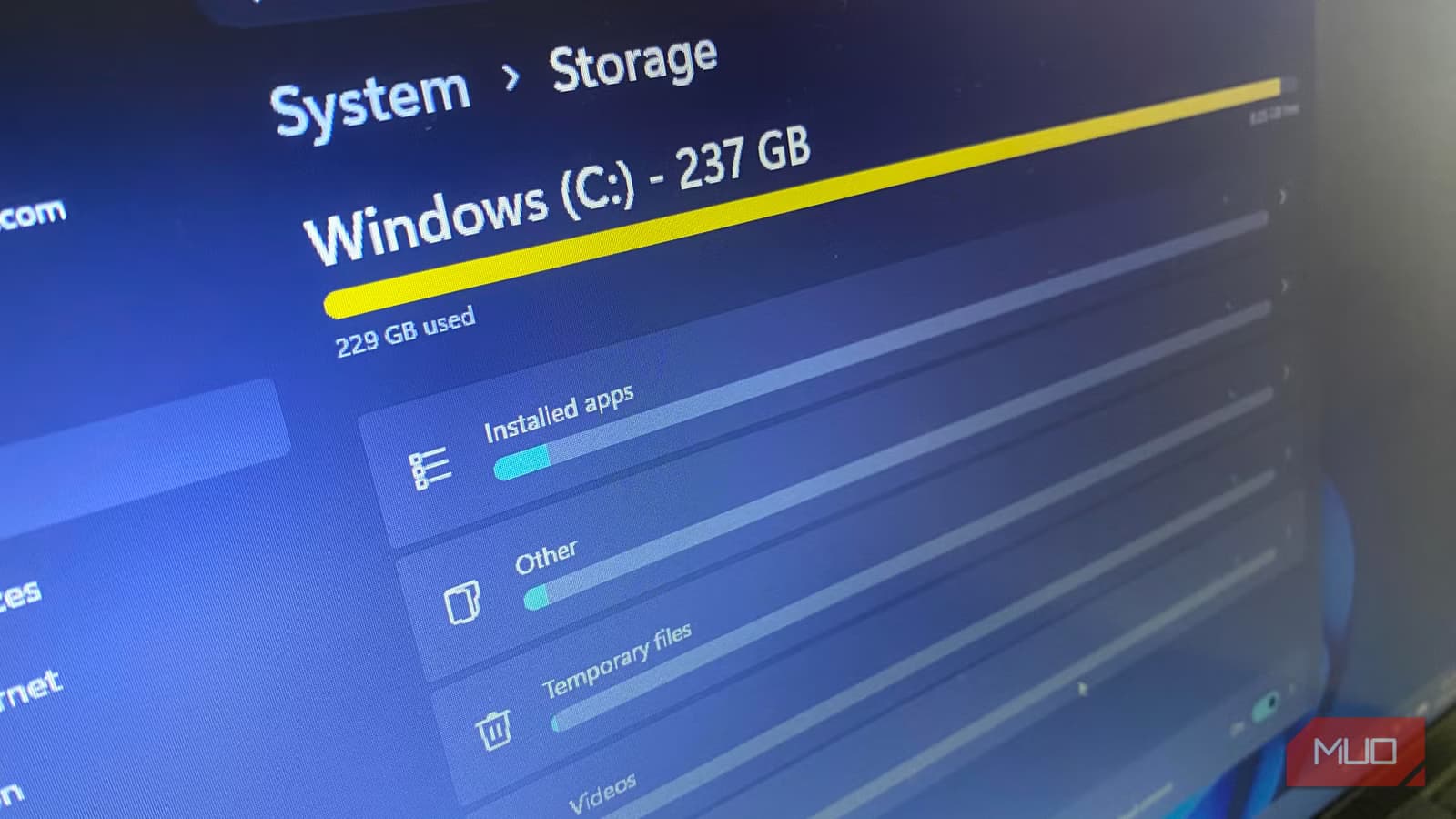
Windows 11 ships with bloatware, and the OS itself takes up a healthy chunk of your drive. Most users turn to third-party tools like CCleaner or BleachBit to claw back space from cache, junk files, and leftover Windows Update data. But there's a built-in feature that handles all of this automatically, and it's been hiding in plain sight since 2017.
Storage Sense first appeared in Windows 10 and carried over to Windows 11. It removes temporary files, empties the Recycle Bin on a schedule, and even integrates with OneDrive to manage local storage. The tool runs in the background with no subscription fees, no ads, and no upsells.
How to Enable Storage Sense
The feature is off by default. To turn it on, open Settings, then go to System, then Storage, then Storage Sense. From there you can configure how often it runs: daily, weekly, monthly, or only when disk space runs low.
Weekly is a reasonable middle ground. It gives the tool enough time to accumulate files worth cleaning without letting junk pile up for a month.
You can also run Storage Sense manually whenever you need an immediate cleanup. Just click the "Run Storage Sense now" button in the same settings panel.
What Storage Sense Actually Cleans
- Temporary files from apps and system processes
- Recycle Bin contents after a set number of days (default is 30)
- Downloads folder files that haven't been opened in a specified period
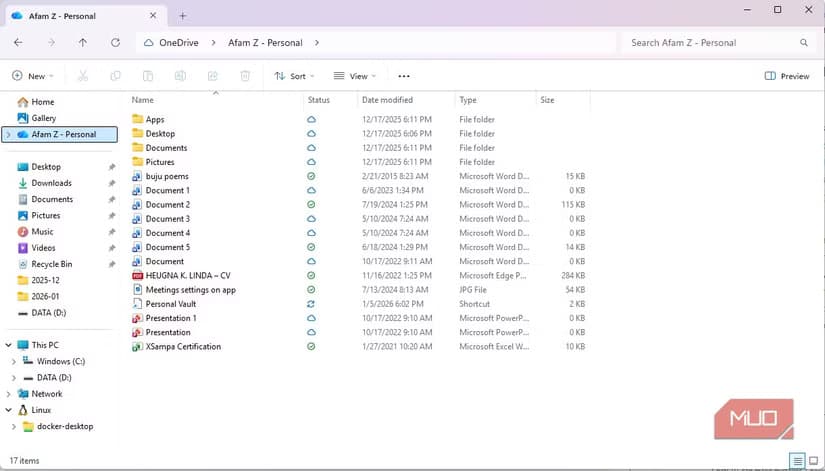
- Locally cached OneDrive files that exist in the cloud
The Recycle Bin cleanup defaults to 30 days, which you can adjust to daily or weekly. But running it daily is risky. If you accidentally delete something, you'll have less time to recover it before it's permanently gone.
The Downloads folder cleanup is more aggressive. Many users accumulate installers, PDFs, and images they'll never touch again. Storage Sense can automatically clear files from Downloads after 1, 14, 30, or 60 days of not being opened. The 60-day option is a safe starting point.
OneDrive Integration Adds Another Layer
Because Storage Sense is a Microsoft tool, it works directly with OneDrive. If you have OneDrive files synced locally, Storage Sense can convert them to cloud-only versions when you haven't opened them recently. The files still appear in File Explorer, but they don't take up local disk space until you access them again.
This is useful for laptops with smaller SSDs. You keep access to your full OneDrive library without dedicating 50GB or 100GB of local storage to files you rarely touch.
Why Skip CCleaner and Similar Tools
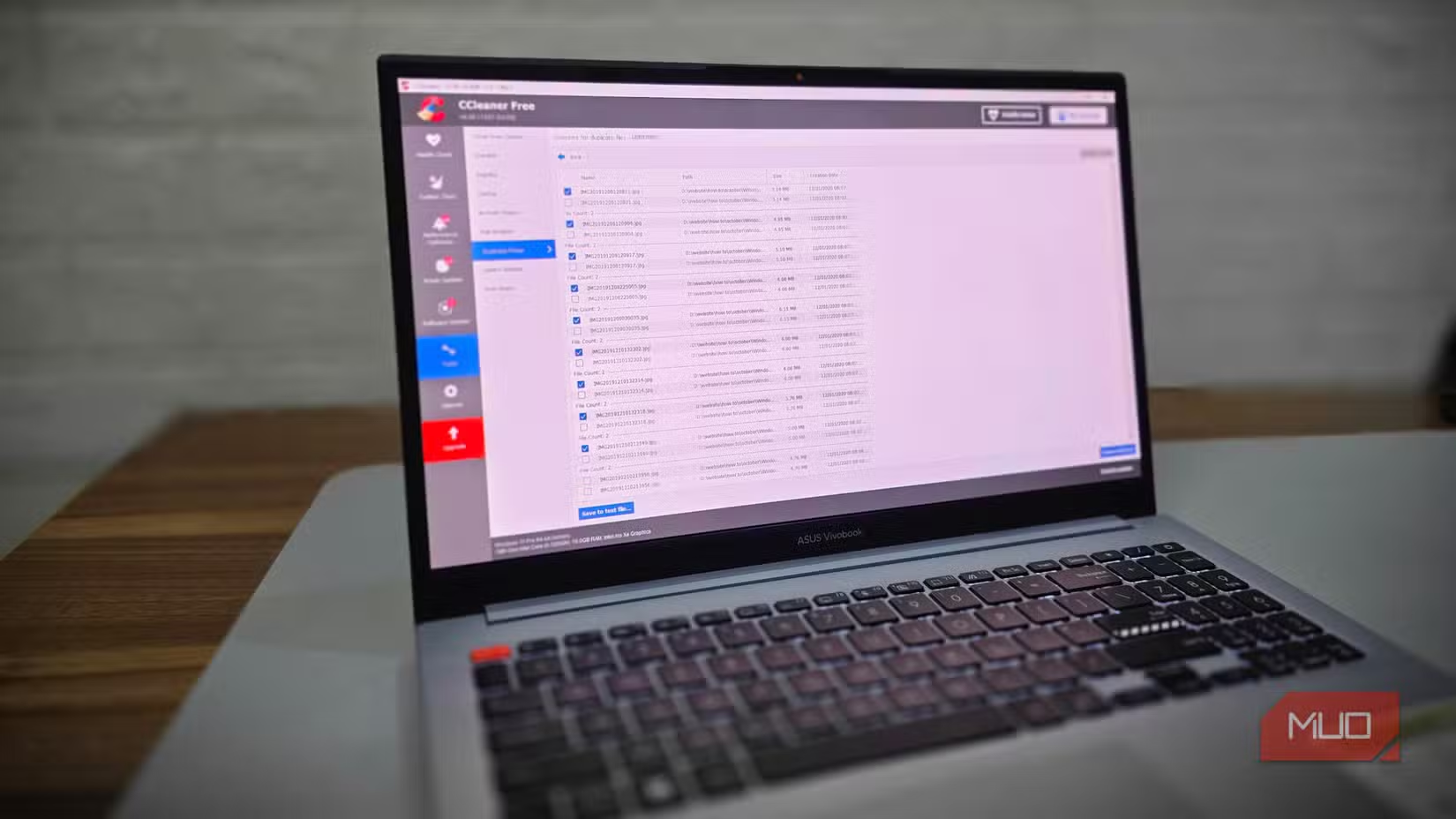
Third-party cleanup tools have been around for decades. CCleaner was once the go-to recommendation. But these tools now come with bundled software offers, premium upsells, and sometimes questionable registry cleaning features that can cause more problems than they solve.
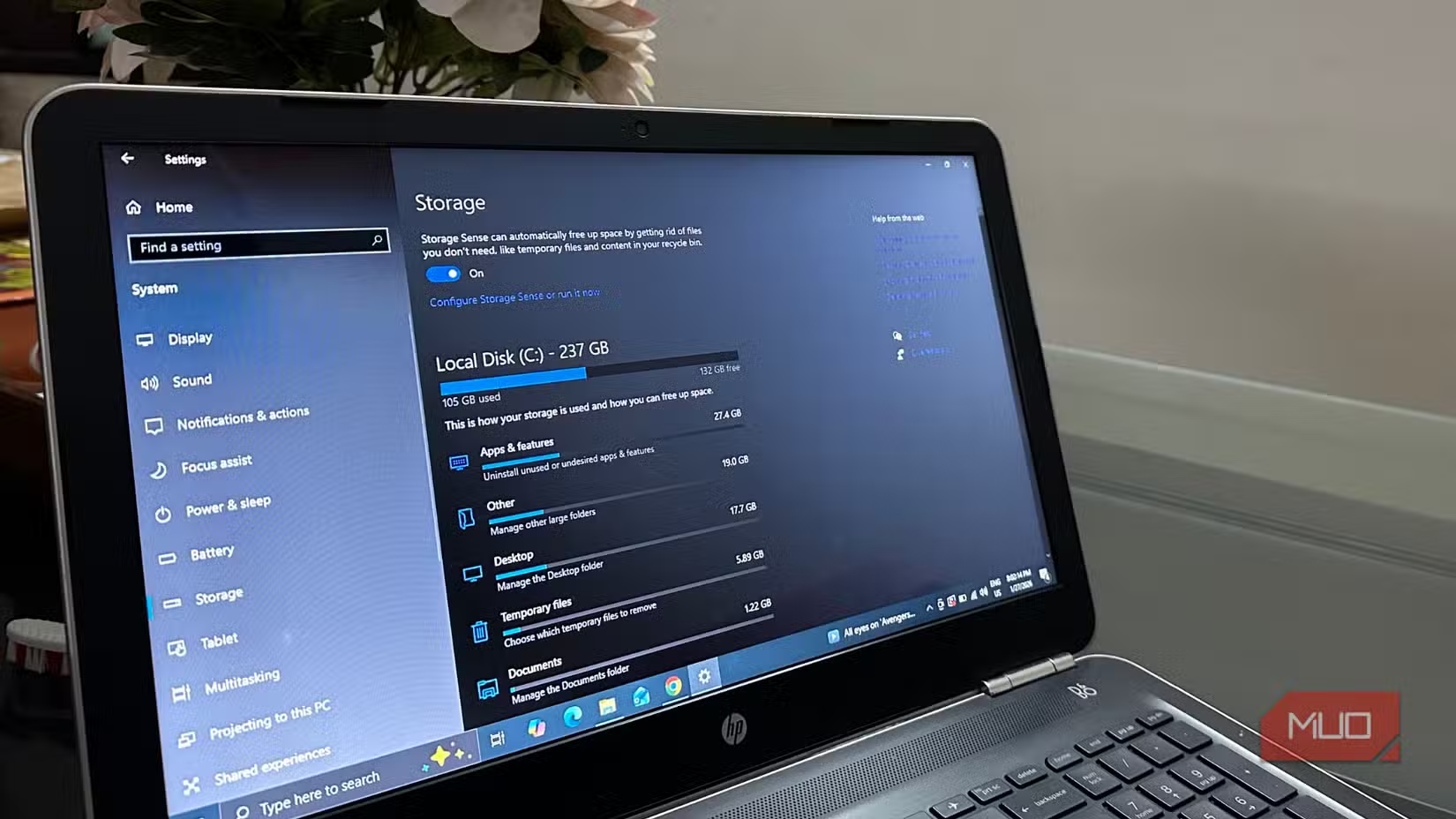
Storage Sense does less, which is a good thing. It focuses on safe, reversible cleanup tasks. It won't touch your registry. It won't delete files it can't identify. It just removes the obvious junk that Windows itself created.
✅ Pros
- • Free and built into Windows with no ads or upsells
- • Runs automatically on a schedule you control
- • OneDrive integration frees up space without deleting files
- • Safe cleanup targets that won't break your system
❌ Cons
- • Less aggressive than third-party tools for deep cleaning
- • Won't clean up leftover files from uninstalled programs
- • No registry cleaning (though that's arguably a feature)
Recommended Settings
Here's a practical configuration that balances automation with safety:
- Run Storage Sense: Weekly
- Delete Recycle Bin files older than: 30 days
- Delete Downloads files not opened for: 60 days
- OneDrive: Make files cloud-only if not opened for 30 days
These settings prevent runaway disk usage while giving you enough time to recover from mistakes. Adjust based on how quickly you accumulate junk and how aggressively you want to reclaim space.
More Windows 11 customization options you might have missed
Logicity's Take
Frequently Asked Questions
Does Storage Sense delete personal files?
No. It only removes temporary files, Recycle Bin contents after your chosen period, and optionally files in Downloads that haven't been opened. It won't touch Documents, Pictures, or other user folders.
Is Storage Sense better than CCleaner?
For most users, yes. Storage Sense handles safe, automatic cleanup without ads, upsells, or the risk of registry damage. CCleaner offers deeper cleaning but with more potential for problems.
Can I run Storage Sense manually?
Yes. Go to Settings, System, Storage, then click Run Storage Sense now. This performs an immediate cleanup using your current settings.
Will Storage Sense delete my OneDrive files?
No. It converts locally synced OneDrive files to cloud-only versions, meaning they stay in OneDrive but don't take up local disk space. You can still access them anytime.
Need Help Implementing This?
Source: MakeUseOf
Huma Shazia
Senior AI & Tech Writer
Produced with AI assistance and reviewed by the Logicity editorial team. Learn more in our Editorial Policy.