Key Takeaways
- Volatile functions like OFFSET, INDIRECT, TODAY, and RAND recalculate every time anything changes in your workbook
- Replace OFFSET with INDEX to get the same results without triggering constant recalculations
- Switch to manual calculation mode when volatility is unavoidable, then use F9 to control updates
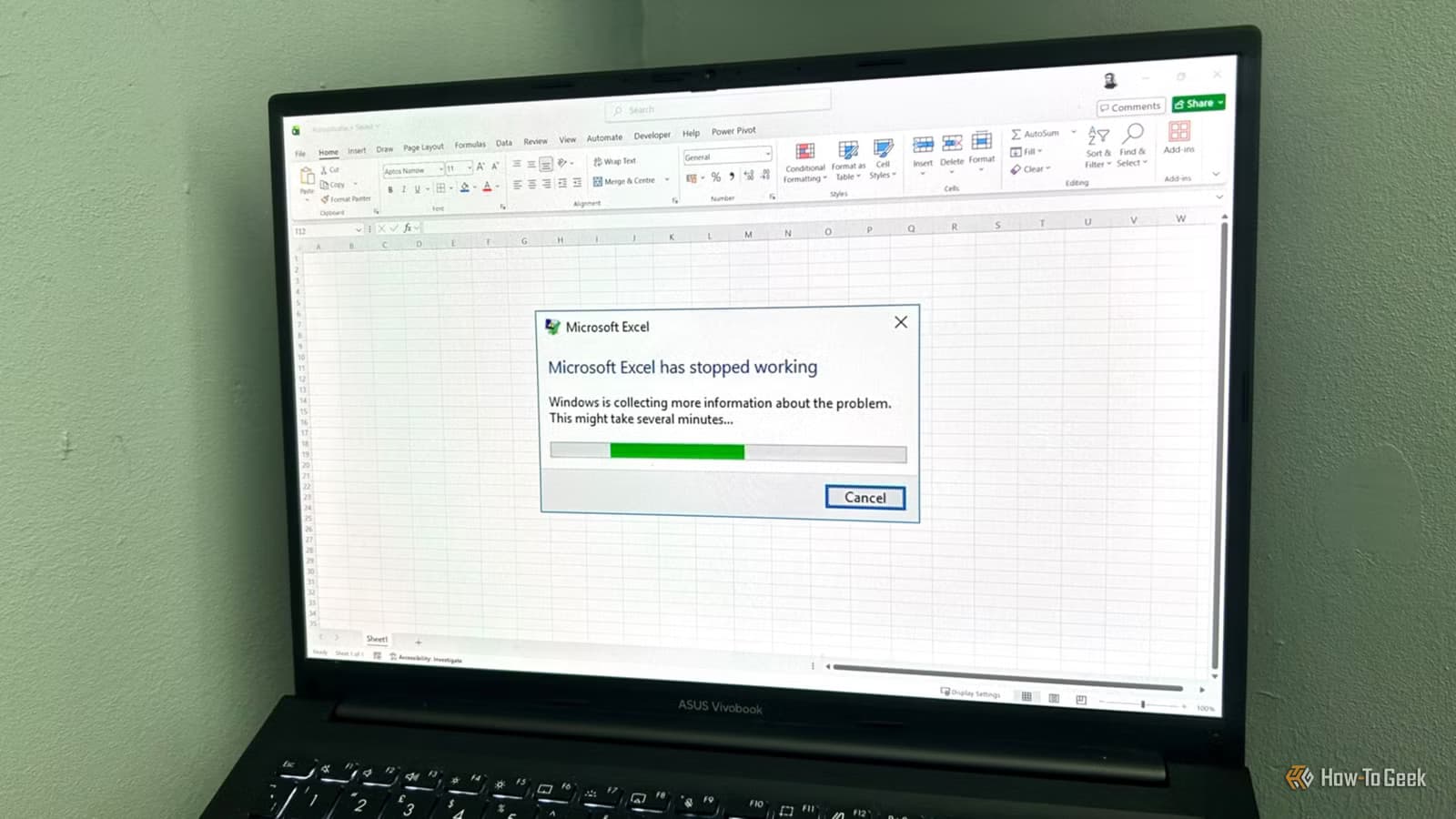
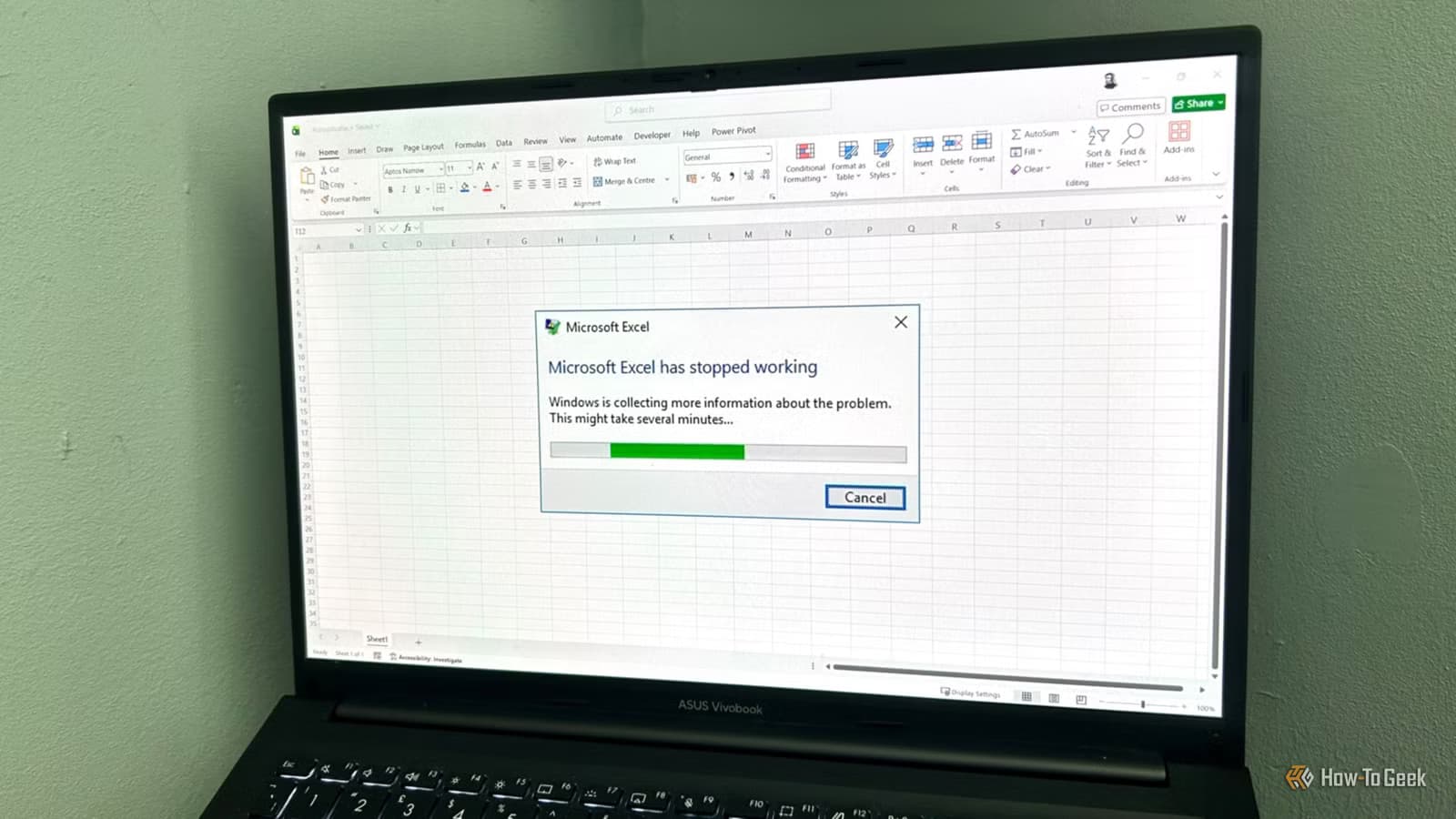
Before you blame your laptop or curse your IT department, check your formula bar. A slow Excel workbook is rarely a hardware problem. It's almost always a formula problem.
The fix usually takes minutes, not hours. And it doesn't require buying a faster computer or upgrading to a premium Excel tier.
The Real Culprit: Volatile Formulas
Standard Excel formulas only recalculate when their specific inputs change. Edit cell A1, and only formulas referencing A1 update. This is efficient.
Volatile functions work differently. They recalculate every time anything in the workbook changes. Click a cell, type a number, hit Enter. The volatile function recalculates. Every single time.
The worst offenders are OFFSET, INDIRECT, TODAY, and RAND. These functions trigger what How-To Geek's Tony Phillips calls a "recalculation domino effect." One change cascades through the entire workbook, forcing large sections to recalculate even when you're editing completely unrelated cells.
At scale, this creates constant background noise that drags performance to a halt.
Fix 1: Replace OFFSET with INDEX
OFFSET is popular for dynamic ranges. It's also volatile. Every time you touch your spreadsheet, OFFSET recalculates.
INDEX does the same job without the performance penalty. It's non-volatile. It only recalculates when its actual inputs change.
The swap is straightforward in most cases. If you're using OFFSET to return a value from a dynamic position, INDEX paired with MATCH will give you identical results faster.
Fix 2: Stop Using INDIRECT for Dynamic Ranges
INDIRECT breaks Excel's dependency tracking. Excel doesn't know which cells INDIRECT actually references until runtime. So it guesses. It recalculates everything that might be affected.
The alternative: structured tables. Tables in Excel automatically expand when you add data. They work with formulas that reference table columns by name. And they don't break dependency tracking.
Fix 3: Switch to Manual Calculation Mode
Sometimes you can't avoid volatile formulas. Maybe a third-party template uses INDIRECT everywhere. Maybe TODAY is essential to your date logic.
In those cases, switch Excel to manual calculation mode. Go to Formulas, then Calculation Options, then Manual. This stops Excel from recalculating after every edit.
When you need updated results, press F9 to trigger a manual recalculation. You control when the workbook updates instead of letting every keystroke trigger a cascade.
Fix 4: Convert Formulas to Values
If you only need a formula's result once, kill the formula entirely. Copy the cell with Ctrl+C, then paste as values with Ctrl+Shift+V.
This replaces the formula with its output. No more recalculation overhead. The number stays, but the computational drag disappears.
This works well for historical data, completed reports, or any section where the underlying numbers won't change.
Quick Reference: Volatile vs. Non-Volatile
- Volatile (avoid): OFFSET, INDIRECT, TODAY, NOW, RAND, RANDBETWEEN
- Non-volatile alternatives: INDEX (for OFFSET), structured tables (for INDIRECT), static date values (for TODAY when appropriate)
Logicity's Take
Another productivity tool fix that takes minutes, not hours
Frequently Asked Questions
Why is my Excel spreadsheet so slow even with a fast computer?
Volatile formulas like OFFSET, INDIRECT, TODAY, and RAND recalculate every time anything changes in your workbook. This creates constant recalculation overhead regardless of your hardware specs.
What's the difference between OFFSET and INDEX in Excel?
OFFSET is volatile and recalculates on every change. INDEX is non-volatile and only recalculates when its specific inputs change. Both can return values from dynamic positions, but INDEX performs better.
How do I switch Excel to manual calculation mode?
Go to Formulas in the ribbon, click Calculation Options, and select Manual. Press F9 when you want to recalculate. This prevents automatic recalculation after every edit.
Will converting formulas to values break my spreadsheet?
Only if you need those values to update later. Pasting as values (Ctrl+Shift+V) replaces formulas with their current output. Use this for historical data or completed calculations that won't change.
Need Help Implementing This?
Source: How-To Geek
Manaal Khan
Tech & Innovation Writer
Produced with AI assistance and reviewed by the Logicity editorial team. Learn more in our Editorial Policy.