Key Takeaways
- Python's pandas library can automate Excel data cleaning tasks that take hours manually
- Setting up a Python environment with Pixi provides a clean workspace for data tools
- Core operations like removing blanks, duplicates, and filtering take one line of code each
If you spend hours manually fixing messy Excel files, you're doing it the hard way. Blank cells, duplicate rows, inconsistent entries, "ERROR" values scattered throughout. These problems plague spreadsheets across every industry. Python solves them in seconds.
David Delony, writing for How-To Geek, puts it bluntly: "Manually cleaning data in 2026 is like manually washing dishes when you own a dishwasher. It's not just inefficient; it's an unnecessary drain on your most valuable resource: your time."
The key tool is pandas, a Python library built for data manipulation. Combined with Jupyter notebooks for visual code execution, it transforms spreadsheet cleanup from tedious chore to automated workflow. Here's how to set it up and start using it.
Setting Up Your Python Environment
Before writing any code, you need a proper Python environment. If you're on Windows, the recommended path is Windows Subsystem for Linux (WSL). Most Python tutorials assume a Linux-like environment, and WSL saves you from translating pathnames and commands.
The system Python that ships with most operating systems isn't ideal for your own projects. It's meant for running system scripts, and depending on how often your OS updates, it might be outdated. You want a separate environment where you control the packages.
Pixi is a clean solution for managing Python packages. Install it with one command in your terminal:
curl -fsSL https://pixi.sh/install.sh | sh
With Pixi installed, you can add packages globally so they're always available. For data cleaning, you need four tools:
- pandas: The core library for data manipulation
- NumPy: The foundation for numerical computing in Python
- Jupyter: Graphical notebooks for running and examining code
- IPython: Enhanced terminal-based Python for quick tests
Install all four with a single command:
pixi global install numpy pandas jupyter ipython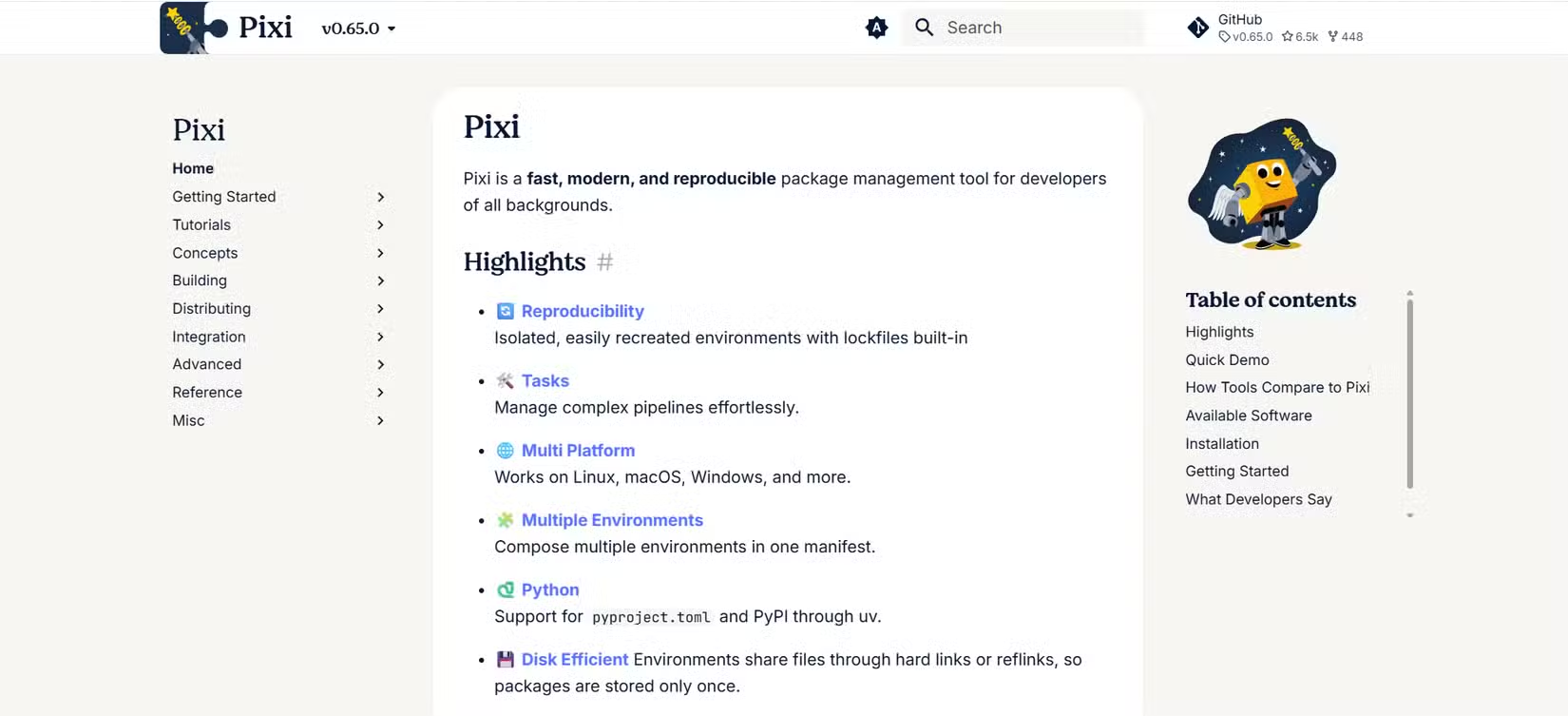
Loading Your Messy Data
Once your environment is ready, launch Jupyter and create a new notebook. The first step is loading your Excel file into pandas. The library reads spreadsheets directly:
import pandas as pd

df = pd.read_excel('messy_data.xlsx')
df.head()  # View first 5 rows
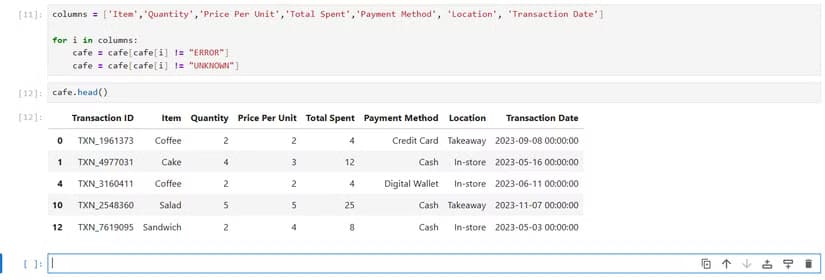
Real-world spreadsheets have all kinds of problems. Missing data. Cells filled with "ERROR" or "N/A". Duplicate entries. Inconsistent formatting. The dataset Delony uses for his tutorial was specifically designed to showcase these issues. It's available on Kaggle for anyone who wants to practice.
Removing Blank Entries
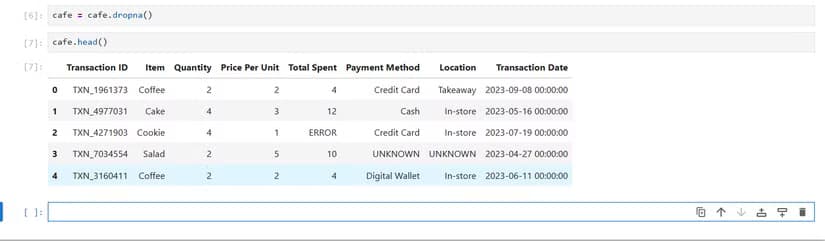
Blank cells are the most common spreadsheet problem. In Excel, you'd filter, select, delete, repeat. In pandas, it's one line:
Code sample: df_clean = df.dropna()
This removes any row containing at least one blank cell. If you want more control, you can specify which columns to check or require all cells to be blank before dropping a row.
Eliminating Duplicates
Duplicate rows creep into spreadsheets from data imports, copy-paste errors, and system glitches. Finding them manually means sorting, scanning, comparing. Pandas makes it trivial:
Code sample: df_unique = df.drop_duplicates()
You can also check for duplicates based on specific columns. If two rows have the same customer ID, for example, you might want to keep only the most recent one.

Filtering and Transforming Data
Beyond cleanup, pandas lets you filter data instantly. Need only rows where a column equals a certain value? One line. Need to convert text to uppercase or dates to a standard format? One line each.
The syntax is consistent across operations. Once you learn the pattern, you can chain transformations together. A cleaning pipeline that would take an hour in Excel runs in under a second.
Python in Excel vs. Standalone Scripts
Microsoft now offers Python directly inside Excel, running in the cloud. It's convenient for quick fixes. But it has limitations. The code runs on Microsoft's servers, which raises data privacy questions for sensitive information. And not all pandas features work identically.
Standalone Python scripts give you full control. You can process files locally, schedule automation, and integrate with other tools. The trade-off is more setup time upfront.
Community discussions on Reddit and HackerNews show consensus: use Python in Excel for ad-hoc analysis, standalone scripts for enterprise-grade automation.
The Bigger Picture
Excel has an estimated 750 million users worldwide. Most still clean data manually. The Python ecosystem offers over 300 libraries for data manipulation, far exceeding Excel's native capabilities.
The shift isn't about abandoning spreadsheets. It's about recognizing where automation makes sense. Repetitive cleaning tasks are exactly where Python shines. Write the script once, run it forever.
Logicity's Take
More command-line automation for common tasks
Frequently Asked Questions
Do I need to know Python to clean Excel data with it?
Basic syntax is enough. The pandas commands for cleaning are straightforward, and Jupyter notebooks let you run code line by line to see results immediately.
Can Python handle large Excel files that crash Excel?
Yes. Python processes data more efficiently than Excel's GUI. Files that freeze Excel often load fine in pandas, though very large datasets may need chunked processing.
Is Python in Excel the same as using standalone Python?
No. Python in Excel runs in Microsoft's cloud with some feature limitations. Standalone Python runs locally with full library access and no data privacy concerns.
How long does it take to learn pandas for data cleaning?
A few hours for the basics. The core operations, like removing blanks, dropping duplicates, and filtering, each take one line of code once you understand the syntax.
Can I save cleaned data back to Excel format?
Yes. Use df.to_excel('clean_data.xlsx') to export your cleaned DataFrame directly to a new Excel file.
Need Help Implementing This?
Source: How-To Geek
Manaal Khan
Tech & Innovation Writer
Produced with AI assistance and reviewed by the Logicity editorial team. Learn more in our Editorial Policy.