Key Takeaways
- The pwd, cd, and ls commands form the navigation trinity for moving through your filesystem
- Commands like cp, mv, and rm handle file operations 5x faster than GUI alternatives for bulk tasks
- grep and find combine to create powerful search pipelines that would take hours manually
Every Linux developer uses the command line daily. It's not nostalgia or elitism. The terminal is simply faster. Bulk file operations that take minutes in a file manager take seconds in the shell.
"The terminal is not just a tool; it is a superpower," says Sarah Jenkins, Senior Infrastructure Engineer at CloudScale. "Once you master the command line, you stop interacting with your computer and start commanding it."
These ten commands cover 90% of what you'll do with files. Learn them well, and you'll work faster than colleagues clicking through folder windows.
pwd: Know Where You Are
Every terminal session drops you into a directory. Usually your home folder. The pwd command, short for "print working directory," tells you exactly where you are with the full path.
pwd
/home/username/projects
Think of it as a "you are here" marker on a map. Simple, but essential when you're deep in nested folders and lose track.
cd: Move Around
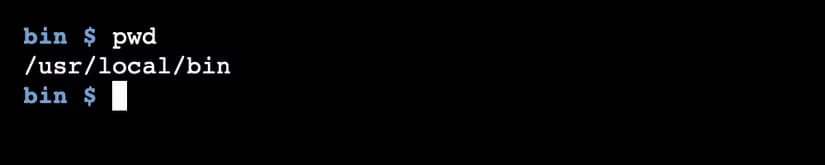
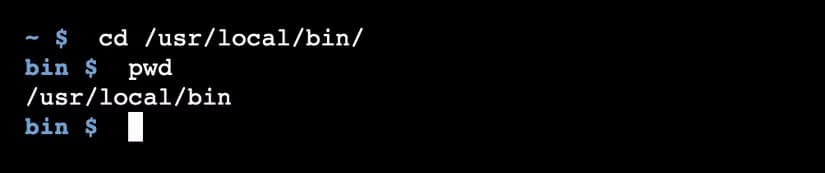
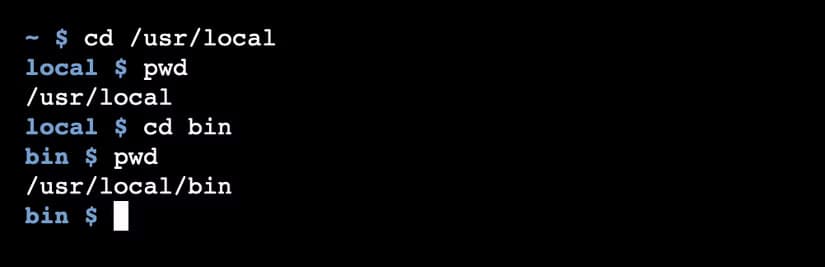
The cd command changes your working directory. You can use absolute paths (starting from root) or relative paths (from where you are now).
cd /usr/local/bin          # absolute path
cd bin                      # relative path
cd ../docs                  # go up one level, then into docs
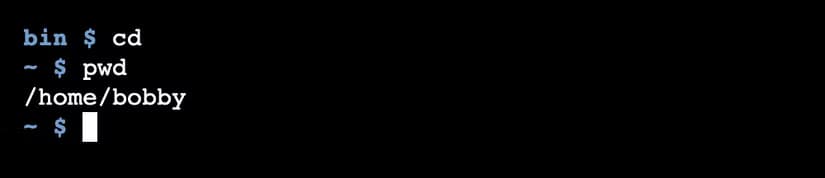
cd                          # return to home directory
That last trick, calling cd with no arguments, saves time. No need to type out your full home path.
ls: See What's Here
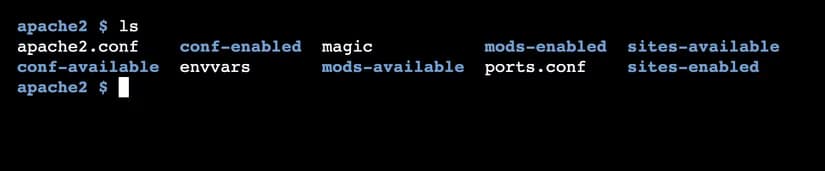
The ls command lists directory contents. On its own, it shows files in the current folder. But the real power comes from its flags.
ls                    # basic listing
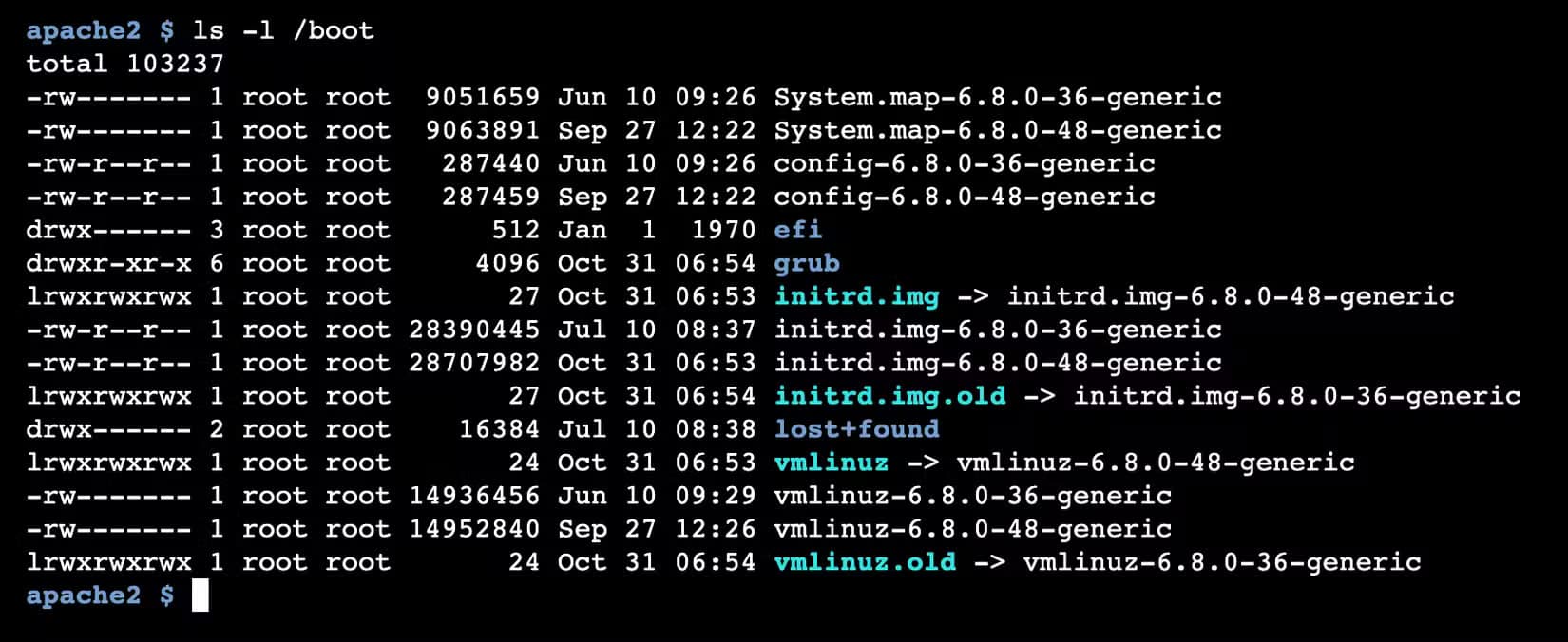
ls -l /boot           # long format with permissions, size, dates
ls -F /bin/*.grep     # add indicators: / for directories, @ for links
The long format (-l) shows file permissions, ownership, size, and modification dates. The first character tells you the type: "d" for directory, "l" for link, "-" for regular file.
Wildcards work here too. Use * to match any characters, ? to match exactly one. These patterns work with any command that accepts file arguments.
touch: Create and Update Files
The touch command creates empty files. If the file exists, it updates the modification timestamp instead. Developers use it constantly to create placeholder files or trigger build systems that watch for changes.
Code sample: touch newfile.txt # create empty file
touch existing.txt # update timestamp
cp: Copy Files and Directories
The cp command copies files from one location to another. For directories, add the -r flag (recursive) to copy everything inside.
Code sample: cp file.txt backup.txt # copy single file
cp -r project/ project-backup/ # copy entire directory
This is where CLI speed shines. Copying 10,000 small files? The terminal handles it without the GUI freezing or showing progress dialogs for each one.
mv: Move and Rename
The mv command moves files. It also renames them. The syntax is the same either way.
Code sample: mv oldname.txt newname.txt # rename
mv file.txt /backup/ # move to different directory
mv *.log /archive/ # move all log files
That last example shows the 5x speed advantage over GUI file managers. Renaming or moving hundreds of files with a pattern takes one command, not hundreds of clicks.
rm: Delete Files
The rm command removes files permanently. No trash folder. No undo. Use it carefully.
Code sample: rm file.txt # delete single file
rm -r directory/ # delete directory and contents
rm -i *.txt # prompt before each deletion
The -i flag adds a safety net by asking confirmation for each file. Many admins alias rm to rm -i by default to prevent accidents.

Warning
find: Search by Criteria
The find command searches for files based on name, type, size, date, or other criteria. It searches recursively through subdirectories.
Code sample: find /home -name "*.txt" # find all .txt files
find . -type d -name "test*" # find directories starting with test
find . -mtime -7 # files modified in last 7 days
Combine find with other commands using -exec. This lets you perform actions on every match.
Code sample: find . -name "*.tmp" -exec rm {} \; # delete all .tmp files
grep: Search Inside Files
While find locates files by name, grep searches inside them for text patterns. It's essential for code reviews, log analysis, and debugging.
Code sample: grep "error" logfile.txt # find lines containing "error"
grep -r "TODO" ./src/ # search recursively in directory
grep -i "warning" *.log # case-insensitive search
Pipe find and grep together for powerful searches. Find all Python files modified this week that contain a specific function name, all in one line.
cat: View and Combine Files
The cat command displays file contents. It can also combine multiple files into one.
Code sample: cat config.txt # display file contents
cat part1.txt part2.txt > full.txt # combine files
For large files, use less or head instead. cat dumps everything at once, which isn't helpful for a 10,000-line log file.
Modern Alternatives
The Linux community constantly debates tools. Traditionalists stick with GNU utilities. Power users often prefer modern rewrites like eza (replaces ls with better defaults and colors) or fd (a faster, simpler find).
Both approaches work. The standard commands exist on every Linux system. The alternatives require installation but offer friendlier syntax. Learn the basics first. You can always add modern tools later.
Building Habits
"You don't need to be a wizard to use Linux," writes Bobby Jack in How-To Geek. "You just need to learn the language of the shell."
Start with one command at a time. Use pwd and cd until they're automatic. Add ls variations. Then file operations. Within a few weeks, you'll reach for the terminal before the file manager.
Two terminal shortcuts worth memorizing: Ctrl+R searches your command history. Typing !! and pressing enter reruns your last command, useful for adding sudo to a failed command.
Logicity's Take
Frequently Asked Questions
What's the difference between rm and rmdir?
rmdir only removes empty directories. rm -r removes directories and all their contents. Use rmdir as a safety check when you expect a folder to be empty.
How do I undo a file deletion in Linux terminal?
You can't. The rm command bypasses the trash and deletes permanently. Use rm -i for confirmation prompts, or create aliases that move files to a trash directory instead.
What does the dot mean in Linux paths?
A single dot (.) refers to the current directory. Two dots (..) refer to the parent directory. So cd .. moves you up one level.
Can I use these commands on macOS?
Yes. macOS is Unix-based and includes the same core commands. Some flags differ slightly, but pwd, cd, ls, cp, mv, rm, find, grep, and cat all work.
What's the fastest way to learn Linux commands?
Use them daily. Pick one task you normally do in a file manager and force yourself to do it in the terminal for a week. Repetition builds muscle memory.
Another guide on using powerful open-source tools effectively
Need Help Implementing This?
Source: How-To Geek
Manaal Khan
Tech & Innovation Writer
Produced with AI assistance and reviewed by the Logicity editorial team. Learn more in our Editorial Policy.