Key Takeaways
- Task Manager lacks CPU temperature monitoring and cannot detect thermal throttling
- Thermal throttling happens at the hardware level and triggers no OS warnings
- HWiNFO provides real-time temperature and clock speed data to diagnose silent slowdowns
The Problem: Task Manager Shows Everything Is Fine
Your PC feels sluggish. Programs lag. Games stutter. You open Task Manager and see... nothing unusual. CPU usage hovers around normal. RAM is fine. No runaway processes eating resources. The system insists everything is working correctly.
This exact scenario frustrated tech writer Afam Onyimadu, who spent decades using Windows and instinctively turned to Task Manager when performance dropped. The graphs looked normal. No metric pinned at 100%. Yet the slowdown was real.
The culprit was thermal throttling. Modern CPUs and GPUs automatically reduce their clock speeds when temperatures climb too high. It's a defense mechanism against heat damage. The OS treats this as normal operation. No warnings appear. No flags trigger. Your hardware quietly underperforms while Windows reports that everything is fine.
Why Task Manager Cannot Catch This
Task Manager does exactly what it was designed to do: show how busy your system is. It displays CPU utilization, memory consumption, network activity, and GPU load. What it cannot show is whether your hardware is performing at expected speeds.
The biggest limitation is simple. Task Manager has no CPU temperature reading. It cannot tell you that your processor hit 95°C and dropped from 4.5 GHz to 2.1 GHz to cool down. It shows the CPU is 40% utilized. It does not show that 40% utilization is running at half speed.
Thermal throttling happens at the hardware level, below the operating system's view. Windows sees a processor doing work. It has no visibility into the thermal constraints forcing that processor to slow down.
HWiNFO Reveals What Windows Hides
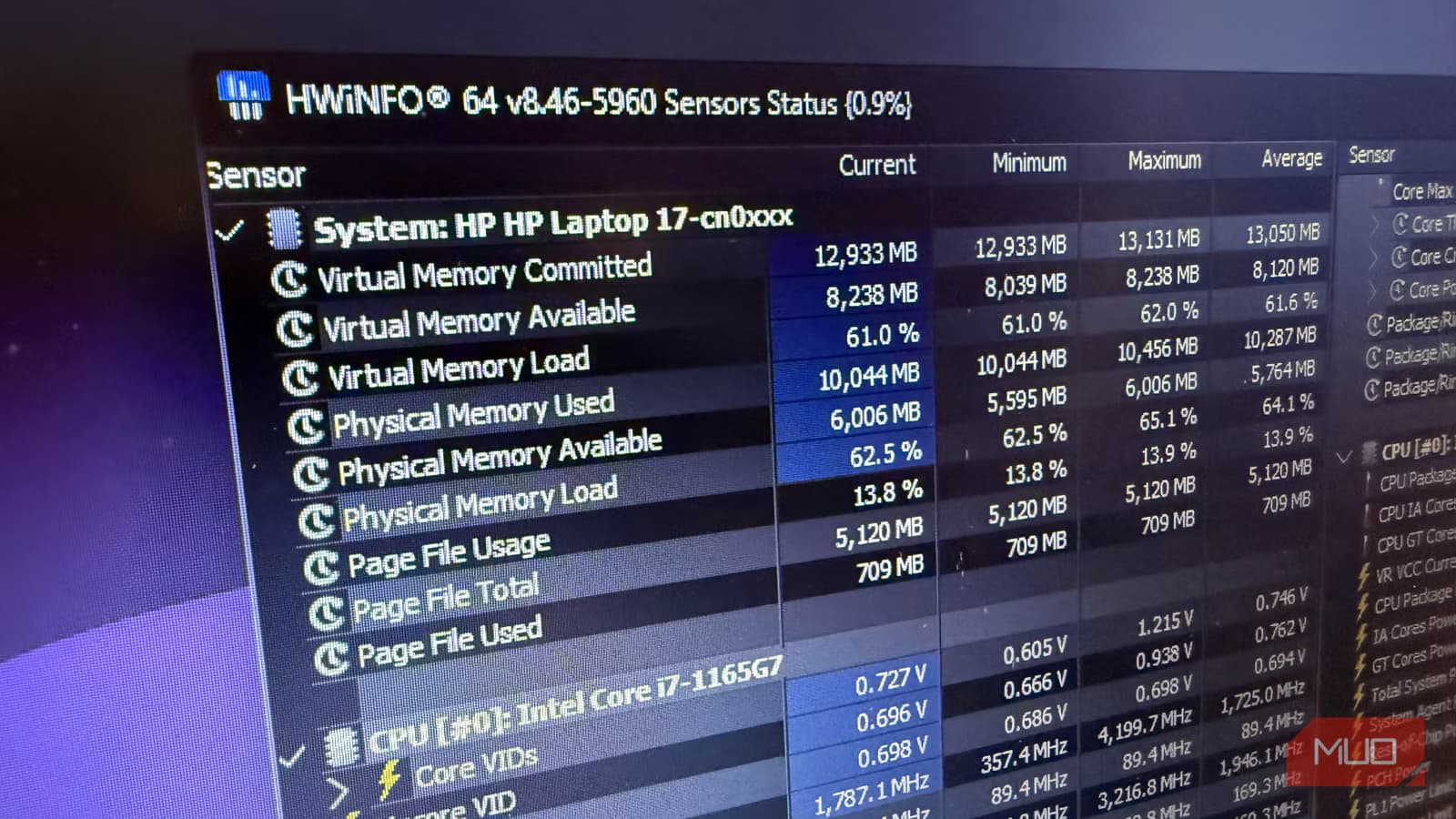
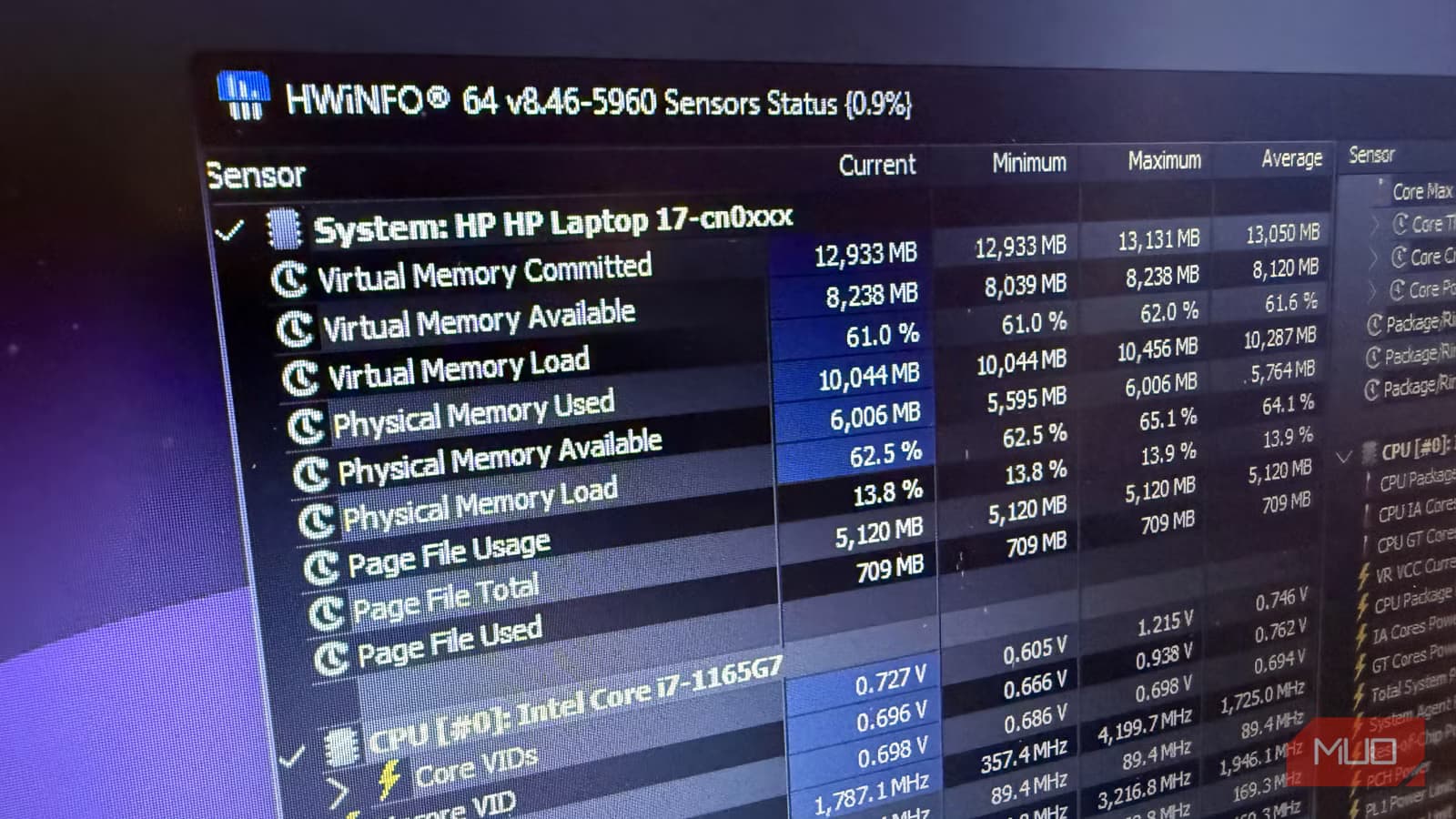
HWiNFO is a free Windows utility that reads sensor data directly from your hardware. It shows CPU and GPU temperatures, clock speeds, voltages, fan speeds, and dozens of other metrics in real time.
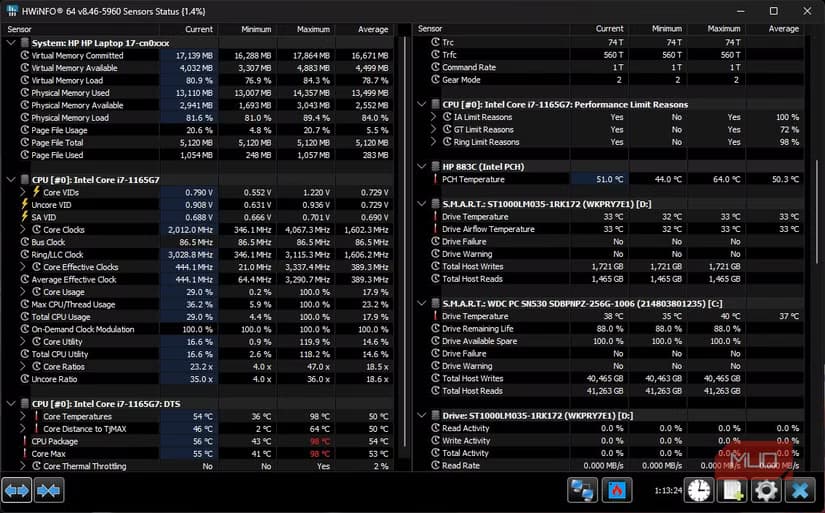
When Onyimadu ran HWiNFO during his slowdowns, he spotted the pattern immediately. His CPU temperature spiked. Clock speeds dropped. The two events correlated directly with the performance dips he felt. Task Manager showed normal activity because the CPU was working. HWiNFO showed the CPU was working slowly because it was too hot.
How to Use HWiNFO for Thermal Monitoring
- Download HWiNFO from the official site (hwinfo.com). It is free for personal use.
- Run the portable version or install it. Choose 'Sensors-only' mode for real-time monitoring.
- Look for CPU Package temperature and CPU Core temperatures. Note the current, minimum, maximum, and average values.
- Watch clock speeds under CPU Core #0 Clock, Core #1 Clock, etc. Compare these to your processor's rated boost speed.
- Run a task that triggers the slowdown. If temperatures spike above 90-95°C while clock speeds drop significantly, you have thermal throttling.
Fixing Thermal Throttling Once You Find It
Diagnosing the problem is half the battle. Once HWiNFO confirms thermal throttling, you have several options depending on your hardware.
- Clean dust from fans and vents. Blocked airflow is the most common cause of overheating.
- Replace thermal paste on the CPU. Old paste dries out and loses conductivity after 3-5 years.
- Improve case airflow with better fan placement or additional fans.
- Check that your cooler is properly seated. A loose heatsink cannot transfer heat effectively.
- Consider undervolting the CPU to reduce heat without sacrificing performance. Tools like Intel XTU or AMD Ryzen Master can help.
- On laptops, use a cooling pad or elevate the back to improve ventilation.
When to Run HWiNFO
Keep HWiNFO in your troubleshooting kit for any unexplained slowdown. It is especially useful when Task Manager shows normal activity but performance feels wrong. Gaming sessions that gradually degrade, video exports that slow down mid-process, or general sluggishness during sustained workloads all point to possible thermal issues.
The tool is also valuable for baseline monitoring. Run it while your system is idle and under load to establish normal temperature ranges. When something changes, you will have data to compare.
Logicity's Take
More free tools to upgrade your system diagnostics
Frequently Asked Questions
Can Task Manager show CPU temperature?
No. Task Manager displays CPU usage, memory, disk, and network activity but has no temperature monitoring. You need third-party tools like HWiNFO, Core Temp, or Open Hardware Monitor.
What temperature causes CPU thermal throttling?
Most modern CPUs start throttling between 90°C and 100°C. Intel calls this Tjunction. AMD processors have similar thermal limits. HWiNFO shows both current temperature and throttling status.
Is HWiNFO safe to download?
Yes. HWiNFO has been a trusted hardware monitoring tool since 1995. Download it only from the official site (hwinfo.com) to avoid bundled software or malware from third-party mirrors.
How do I know if my PC is thermal throttling?
Watch CPU clock speeds in HWiNFO while running demanding tasks. If temperatures climb above 90°C and clock speeds drop well below your processor's rated boost speed, your system is throttling.
Does thermal throttling damage my CPU?
No. Throttling is a protective mechanism that prevents damage by reducing performance before temperatures reach dangerous levels. However, constant throttling means your system is not performing as designed.
Need Help Implementing This?
Source: MakeUseOf
Manaal Khan
Tech & Innovation Writer
Produced with AI assistance and reviewed by the Logicity editorial team. Learn more in our Editorial Policy.






