Key Takeaways
- Kaggle provides 30 hours of free GPU compute weekly with dual NVIDIA T4s (32GB combined VRAM)
- Secure tunneling tools like ngrok let you expose cloud-hosted models as private API endpoints
- This setup can run 70B parameter models in 4-bit quantization, rivaling expensive enterprise hardware
Running a 70 billion parameter language model typically requires an NVIDIA A100 or H100 GPU. Those cost thousands of dollars. But there's a workaround hiding in plain sight: Kaggle, Google's AI research platform, hands out 30 hours of free GPU compute every week. With the right setup, you can run state-of-the-art open-source models without owning any hardware.
The trick involves Jupyter notebooks, quantized models, and secure tunneling. It's not a polished consumer product. It's a hack. But it works, and developers on Reddit's r/LocalLLaMA community have been refining the technique for months.
What Kaggle Actually Gives You
Kaggle notebooks are isolated coding environments that run on Google's data center hardware. Each notebook consists of executable "cells." You write Python code in a cell, hit run, and the output appears below. Simple enough.
The interesting part is the hardware. Kaggle lets you attach one of three accelerators to your notebook. The best free option is "GPU T4 x2," which gives you two NVIDIA T4 GPUs working together. Each T4 has 16GB of VRAM, so you get 32GB combined. That's enough to run a 70B parameter model in 4-bit quantization.
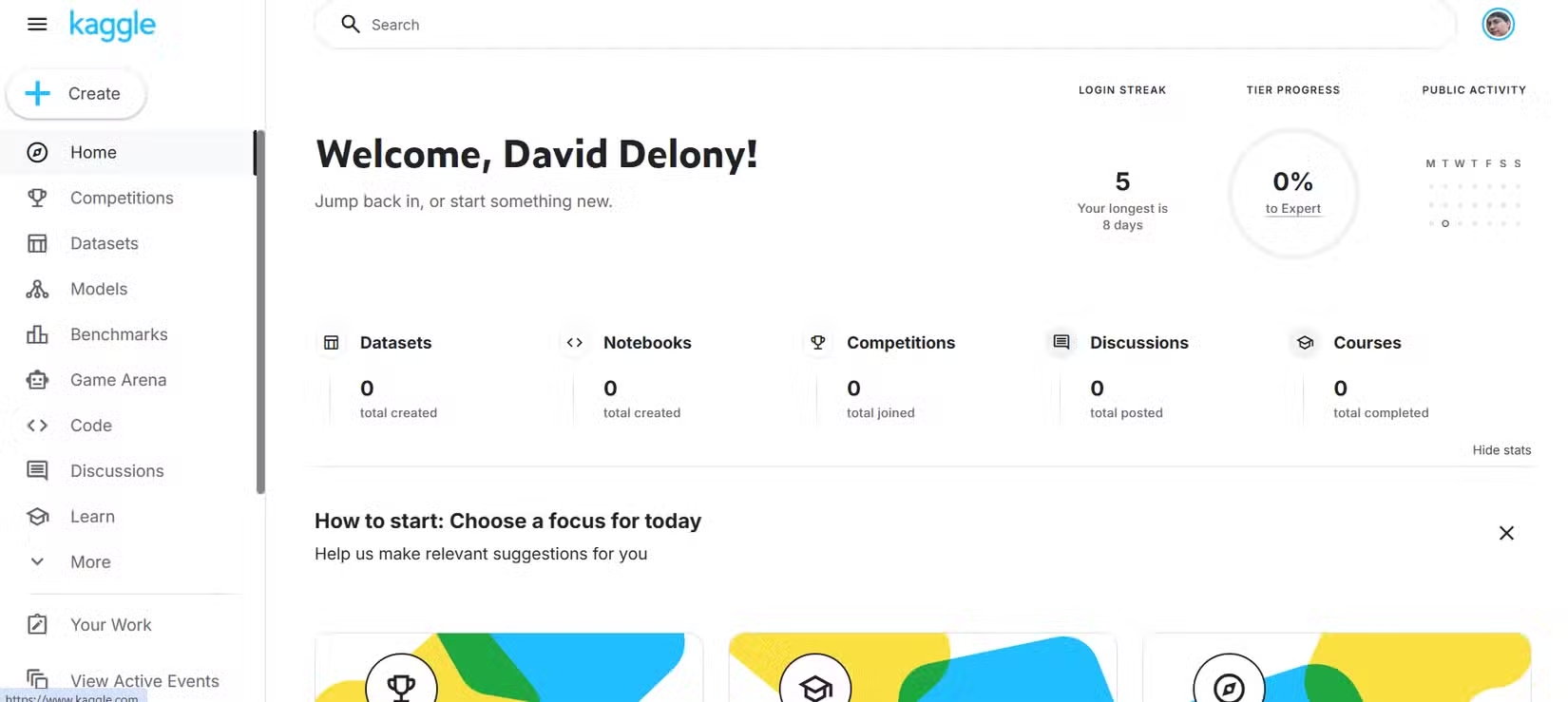
There's also a P100 GPU option with 16GB VRAM if you need a fallback. CPU usage is unlimited and uncapped. Since the notebook runs inside Google's network, you get 1-2 GBps download speeds. That matters when you're pulling multi-gigabyte model files from HuggingFace.
Why Kaggle Beats Google Colab
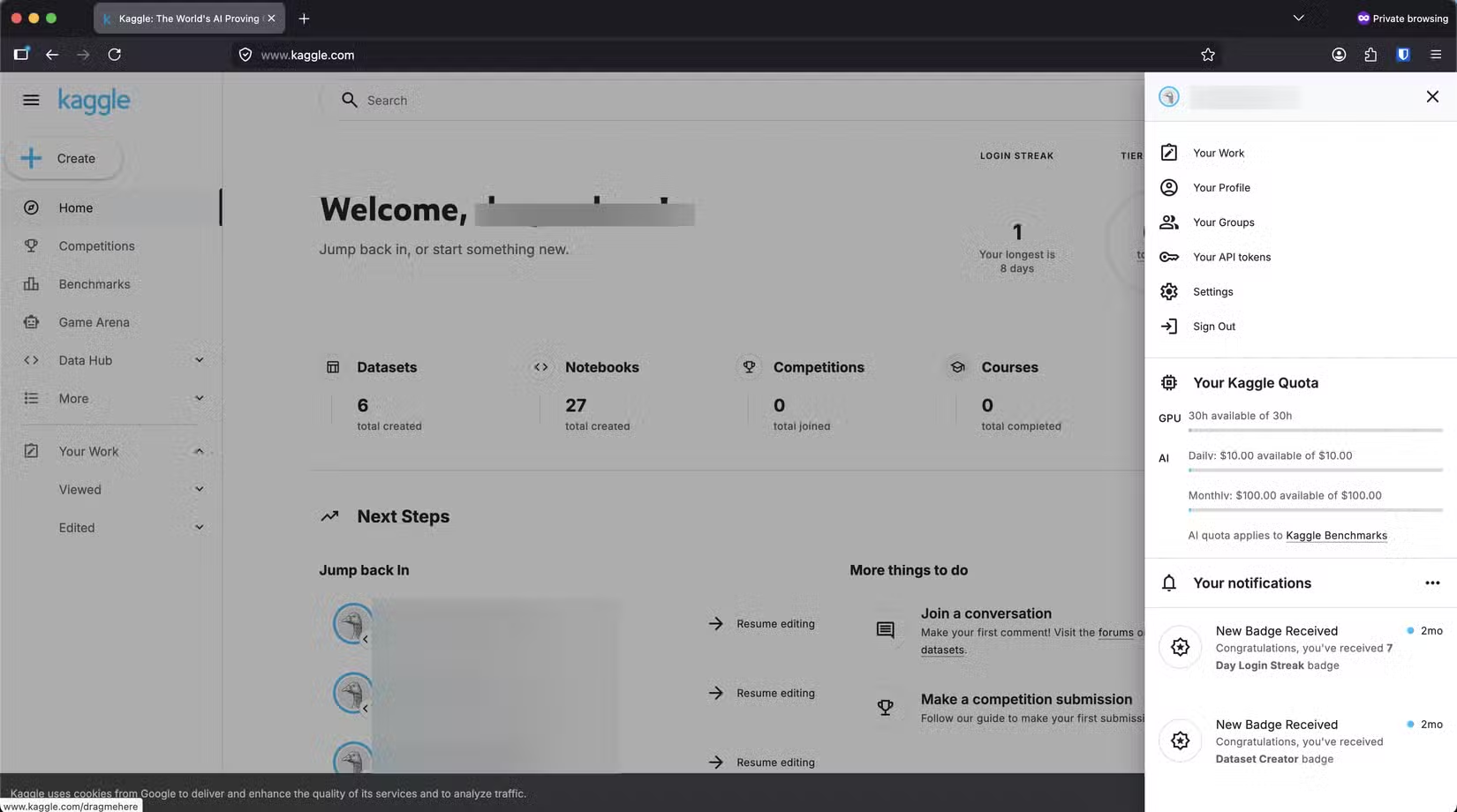
Google Colab offers a similar setup with a single T4 GPU, but there's a catch. Colab's quota is "dynamically allocated." In practice, that means your session can randomly time out without warning. Google can throttle you based on recent usage. There's no clear counter showing how much compute you have left.
Kaggle gives you a fixed, visible quota. You know exactly how many hours remain. Your 12-hour session won't die unexpectedly at hour 3. For running LLM inference, that predictability matters.
| Feature | Kaggle | Google Colab |
|---|---|---|
| GPU Options | Dual T4 (32GB) or P100 (16GB) | Single T4 (16GB) |
| Weekly Quota | 30 hours fixed | Dynamic, unpredictable |
| Session Limit | 12 hours max | Variable, can timeout early |
| Download Speed | 1-2 GBps | ~500 Mbps |
| Quota Visibility | Clear counter | No clear indicator |
The Setup: Ollama + Ngrok + Kaggle
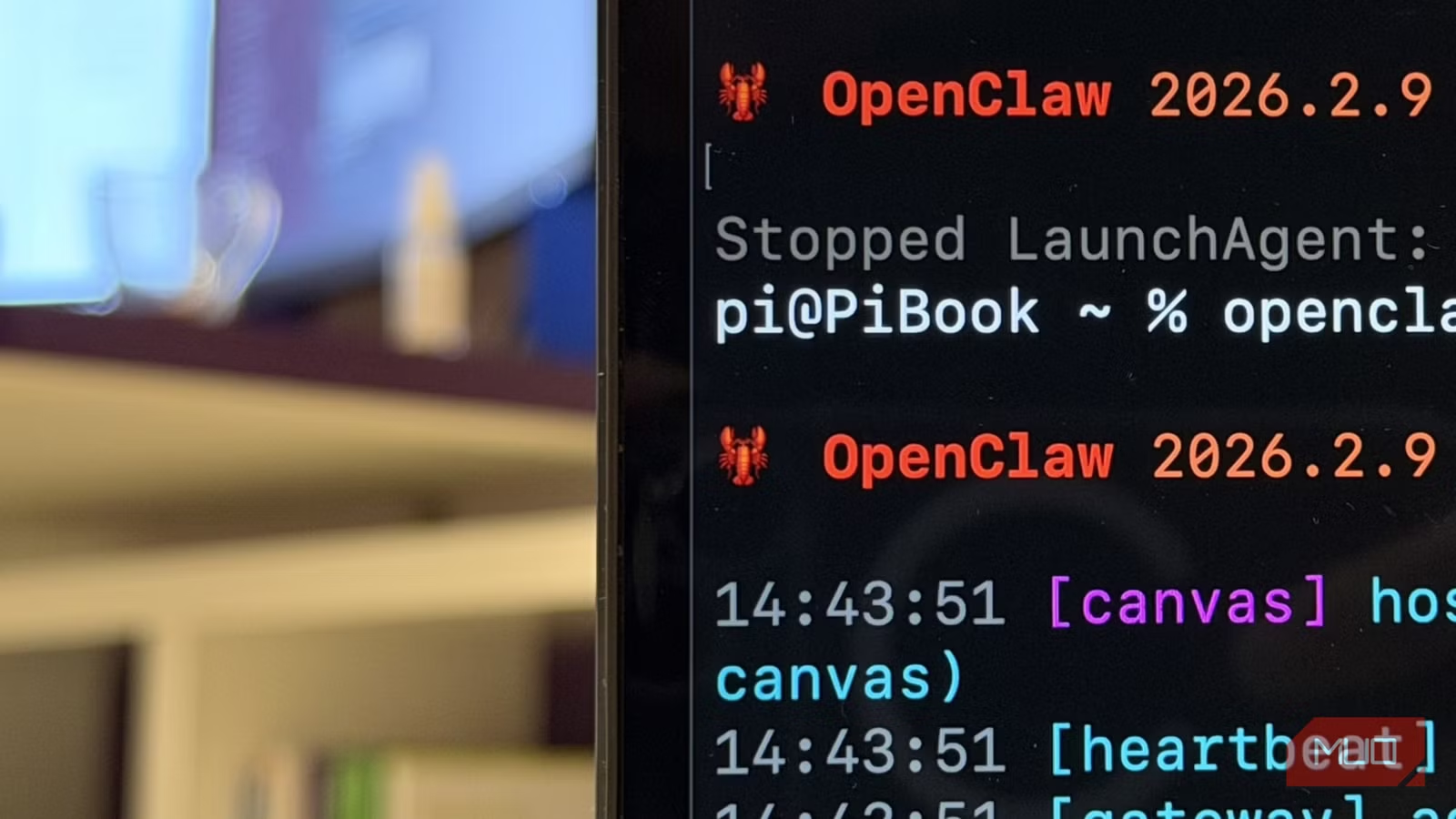
The standard approach uses Ollama, an open-source tool that simplifies running local LLMs. You install Ollama in your Kaggle notebook, pull a model like Llama 3 or Mistral, and start the server. The problem: your model runs inside Kaggle's network. You can't access it from your laptop.
That's where ngrok comes in. Ngrok creates a secure tunnel from your Kaggle notebook to a public URL. You point your local client at that URL, and it forwards requests to the Ollama server running on Kaggle's hardware. The result: a private API endpoint for running large models, powered entirely by free compute.
Step-by-Step Process
- Create a free Kaggle account and verify your phone number (required for GPU access)
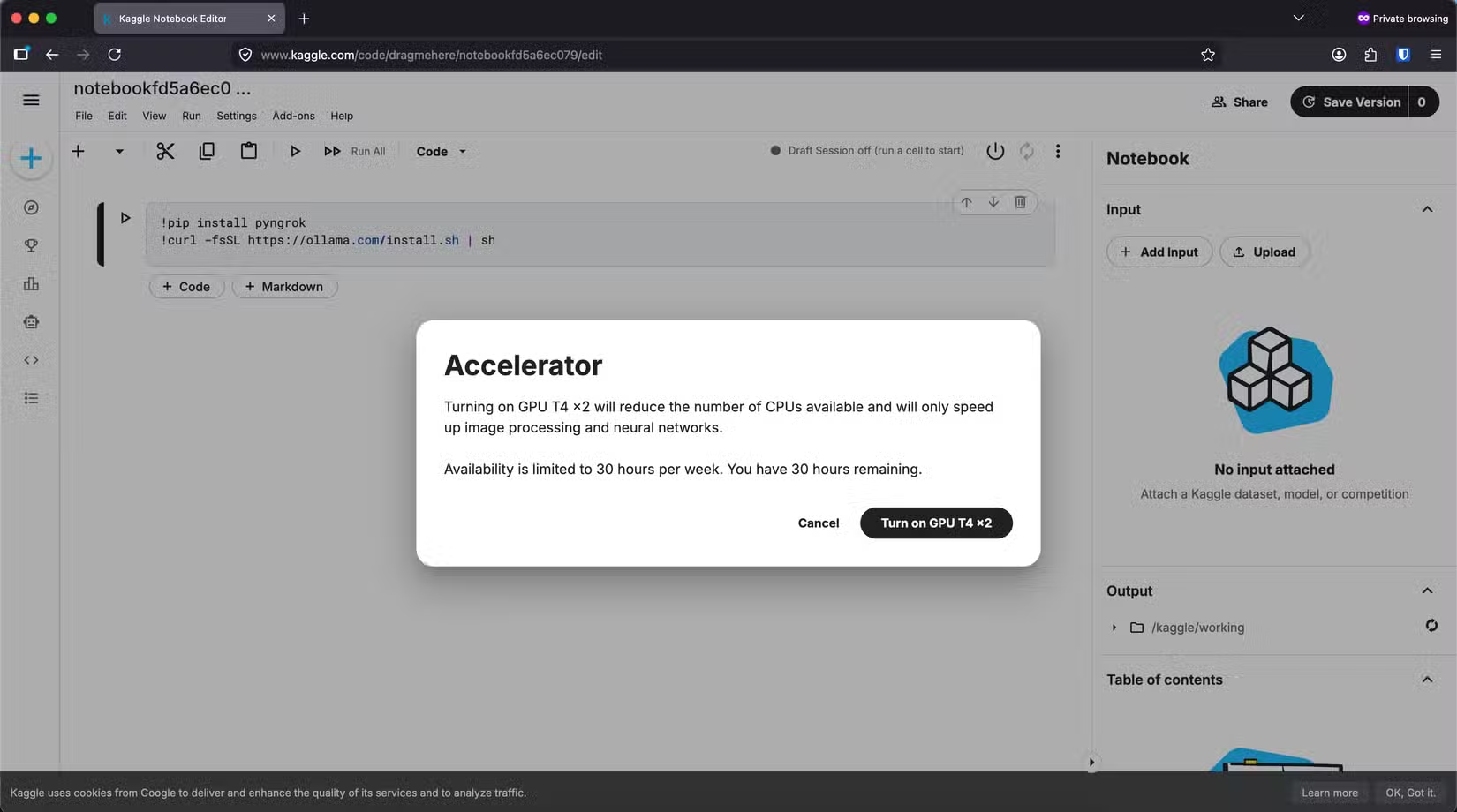
- Create a new notebook and enable GPU T4 x2 under accelerator settings
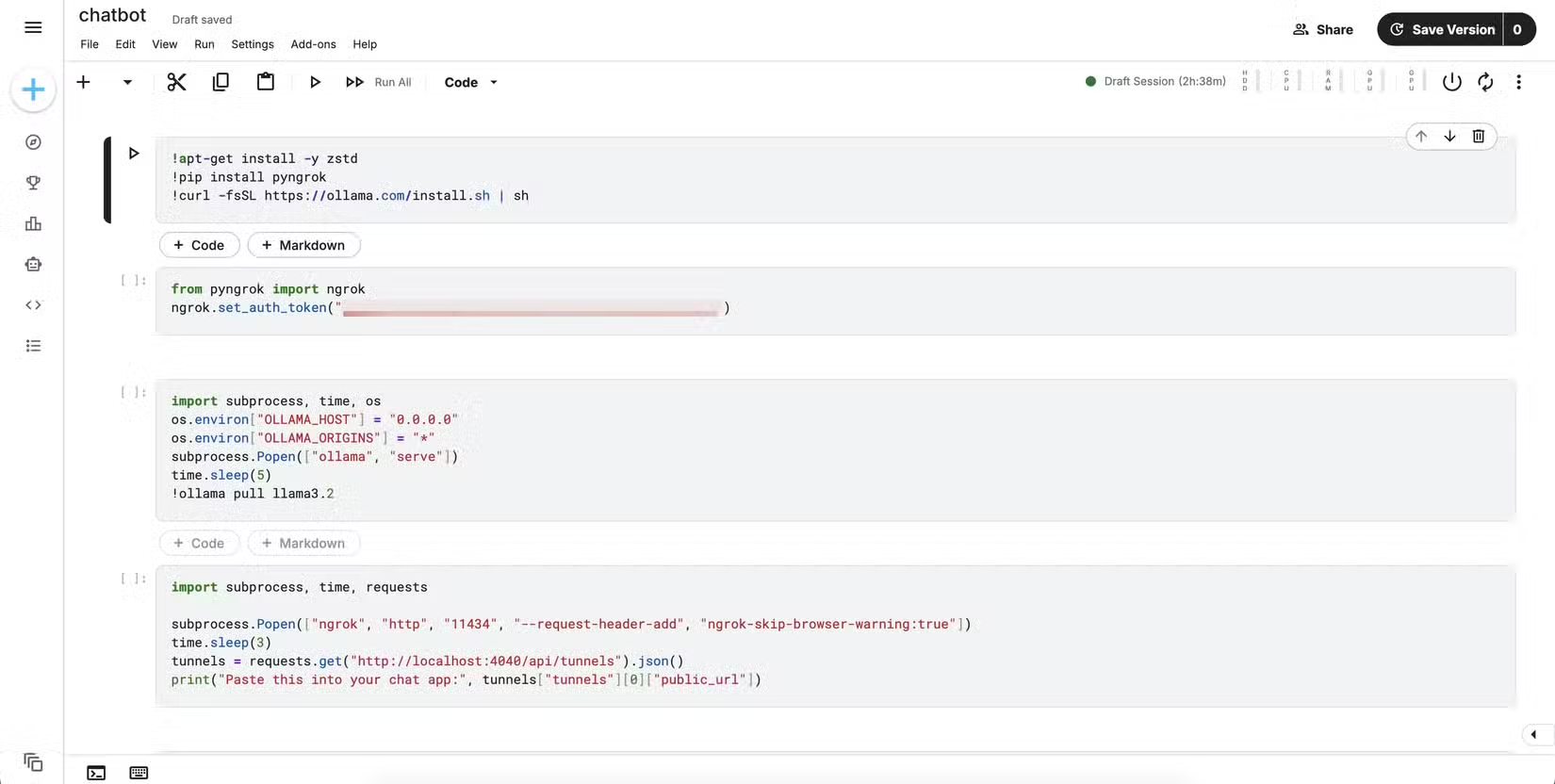
- Install Ollama and pull your model (e.g., `ollama pull llama3:70b-instruct-q4_0`)
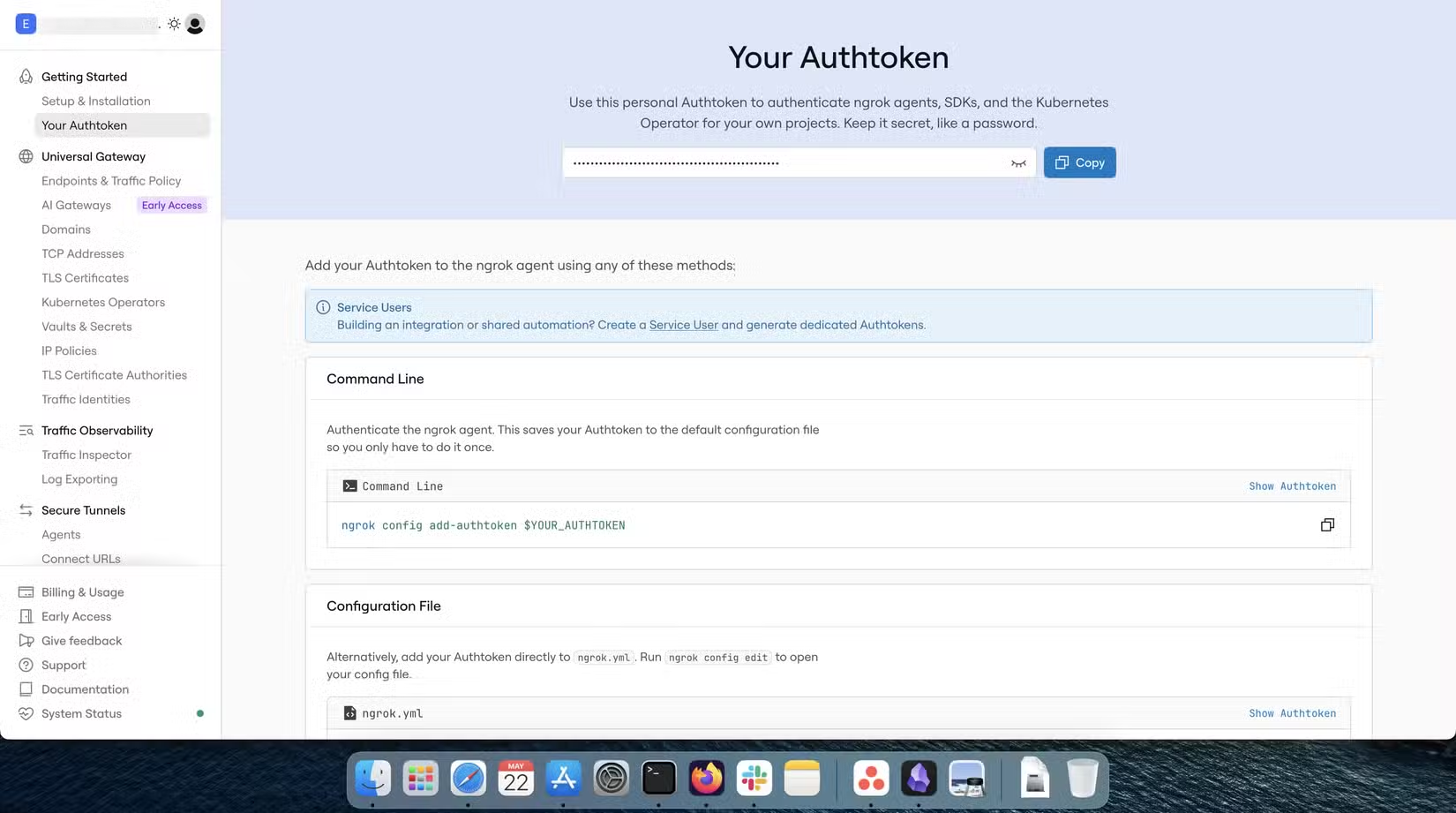
- Sign up for ngrok's free tier and copy your auth token
- Run ngrok in your notebook to create a public tunnel
- Connect your local client (Jan AI, Open WebUI, or API calls) to the ngrok URL
The entire setup fits in a single Jupyter notebook. Once configured, you can reuse it weekly as your 30-hour quota resets.
What Models Can You Actually Run?
With 32GB of combined VRAM, you can run 70B parameter models in 4-bit quantization. That includes Llama 3 70B, Qwen 72B, and similar large models. Smaller models like Llama 3 8B or Mistral 7B run easily with room to spare.
The catch: 4-bit quantization sacrifices some accuracy compared to full precision. For most use cases, the difference is negligible. You're getting 90% of the capability at a fraction of the hardware cost.
- Llama 3 70B (4-bit): ~35GB, fits comfortably on dual T4s
- Llama 3 8B (4-bit): ~5GB, leaves room for context
- Mistral 7B (4-bit): ~4GB, fast inference
- Qwen 72B (4-bit): ~38GB, tight fit but works
The Security Warning
HackerNews users have flagged a real risk with this setup: "LLMjacking." If you expose an ngrok endpoint without authentication, anyone who finds the URL can use your compute credits. Some developers have accidentally created public API endpoints, burning through their quotas in hours.
Always enable ngrok's built-in authentication or add API key checks to your Ollama server. The free compute is valuable. Don't give it away.
Understanding security vulnerabilities in LLM deployments
Limitations to Know
✅ Pros
- • 30 hours of free weekly GPU compute
- • Dual T4 setup (32GB VRAM) runs 70B models
- • 1-2 GBps downloads from HuggingFace
- • Predictable quotas, no surprise timeouts
- • Works with standard Ollama tooling
❌ Cons
- • 12-hour session limit requires restarts
- • Model weights must be re-downloaded each session unless cached
- • Latency higher than local hardware
- • Requires ngrok or similar tunneling for external access
- • Security misconfiguration risk
The 12-hour session cap is the biggest friction point. When your session ends, you lose everything. The model weights, the Ollama installation, your configuration. You'll need to re-run your setup notebook each time, which takes 10-15 minutes for large models.
Some developers work around this by caching model weights in Kaggle's persistent storage, but the free tier limits that to 20GB.
More techniques for optimizing LLM deployments
Who This Works For
This setup makes sense for developers who want to experiment with large open-source models before committing to hardware purchases. It's also useful for occasional inference tasks. If you need a 70B model for a few hours of testing, 30 free hours weekly covers that.
It doesn't work for production workloads. The session limits, re-download times, and unpredictable tunneling latency make it impractical for customer-facing applications. For that, you still need dedicated hardware or a paid API.
“The democratization of high-end compute means that any developer with an internet connection can now run state-of-the-art models that were previously locked behind expensive enterprise APIs.”
— AI Research Community Leader
Another practical Python automation technique
Logicity's Take
This hack democratizes access to cutting-edge AI in a real way. For startups evaluating whether to invest in GPU infrastructure, 30 free hours weekly is enough to prototype and benchmark before writing a check. Just remember: it's a scrappy research tool, not a production platform.
Frequently Asked Questions
Do I need to verify my identity to get Kaggle's free GPU access?
Yes. Kaggle requires phone number verification before enabling GPU accelerators on your notebooks. This prevents abuse of the free compute credits.
Can I run multiple Kaggle notebooks with GPUs at the same time?
No. Your 30-hour weekly quota is shared across all notebooks. Running two GPU notebooks simultaneously will drain your quota twice as fast.
Is this against Kaggle's terms of service?
Running LLM inference falls within acceptable use for research and experimentation. However, using the platform for commercial production workloads may violate their terms.
What happens when my 12-hour session times out?
Everything in your notebook environment is deleted. You'll need to reinstall Ollama and re-download model weights when you start a new session.
Can I use this setup with local clients like Jan AI or Open WebUI?
Yes. Once you expose your Ollama server via ngrok, any client that supports the OpenAI API format can connect to your endpoint.
Need Help Implementing This?
Setting up cloud LLM infrastructure can be tricky, especially when balancing cost and performance. If you're exploring options for your team or product, reach out to Logicity's editorial team. We can connect you with experts who specialize in AI infrastructure optimization.
Source: How-To Geek
Manaal Khan
Tech & Innovation Writer
Produced with AI assistance and reviewed by the Logicity editorial team. Learn more in our Editorial Policy.