Key Takeaways
- Every Linux command includes built-in documentation you can access with man, --help, or by running the command incorrectly
- Understanding bracket notation ([optional], <required>, ...) transforms man pages from walls of text into actionable guides
- 70% of the world's servers run Linux, making command-line fluency a core skill for infrastructure work
The terminal looks intimidating until you realize every command comes with instructions. Linux commands include built-in documentation explaining what they do, which options they support, and what parameters they need. The problem is that this documentation uses a dense, standardized syntax that reads like legal fine print.
Once you crack that syntax, man pages stop being walls of jargon. They become quick reference cards. Here's how to read them.
What the Usage Output Actually Tells You
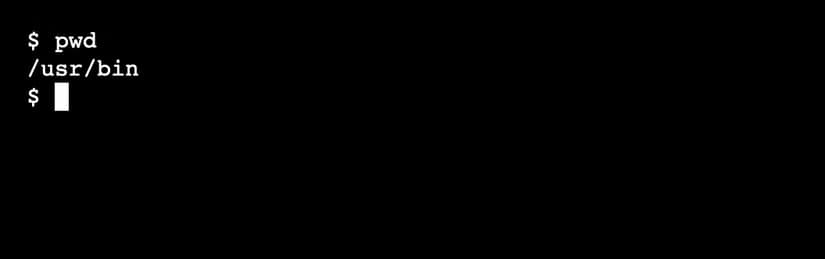
Some commands work on their own. Type pwd and you get your current directory. No extra information needed.
Other commands need context. The rmdir command removes directories, but it needs to know which one. You can also modify its behavior. Running rmdir -v reports each directory as it's deleted.
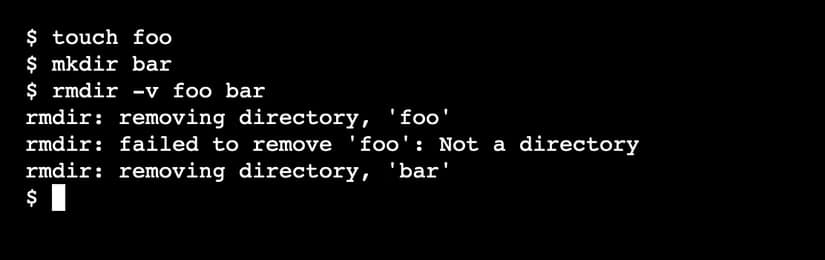
Linux calls everything after the command name an operand. Letters starting with a hyphen (-v, -a) or words starting with double hyphens (--verbose, --all) are options. They change how the command behaves. Words after options are parameters. They pass data to the command.
A command's usage tells you which options it supports, which parameters it accepts, and which are optional. It also shows how you can combine them.
Three Ways to See a Command's Usage
1. The man Command
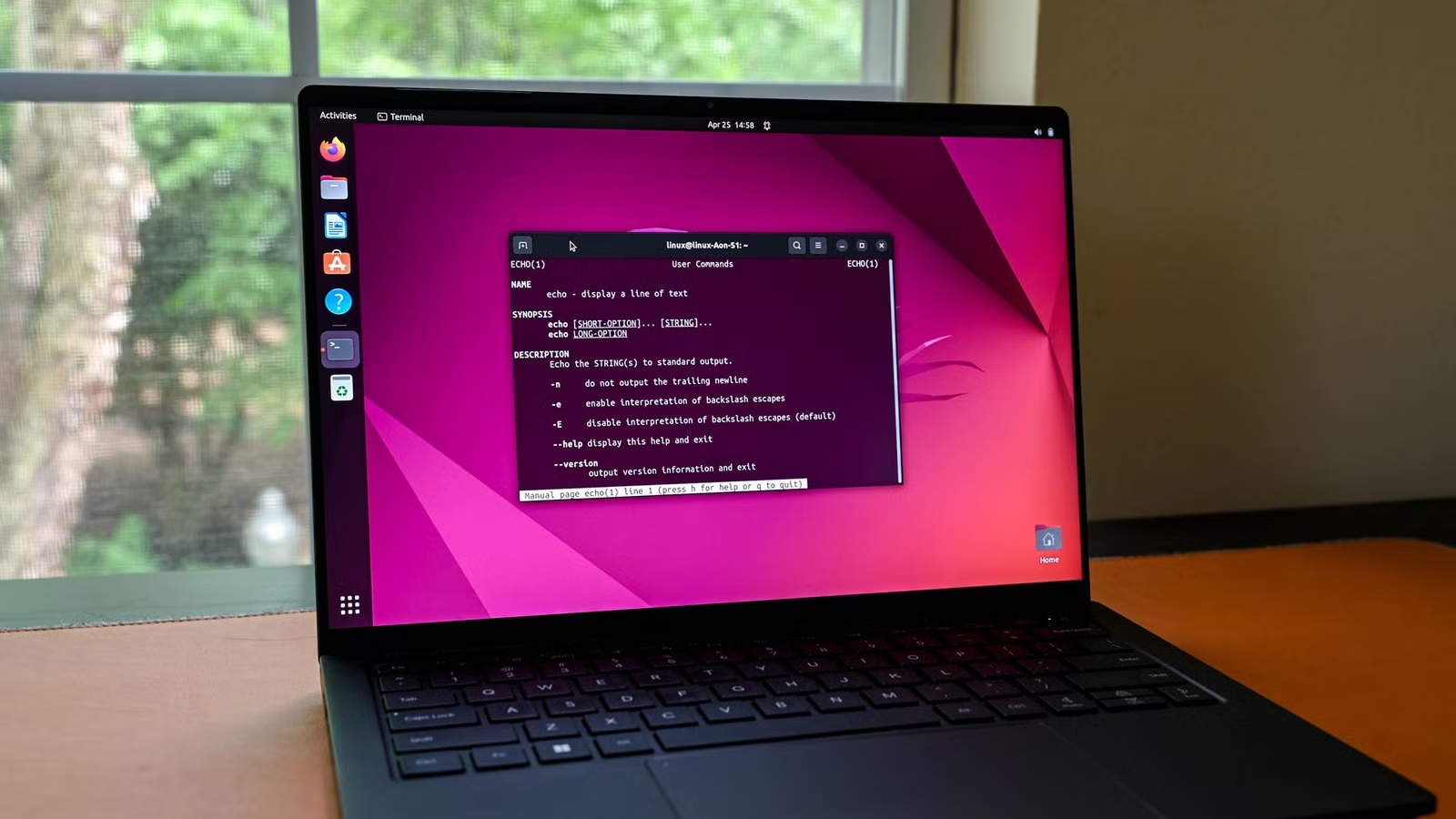
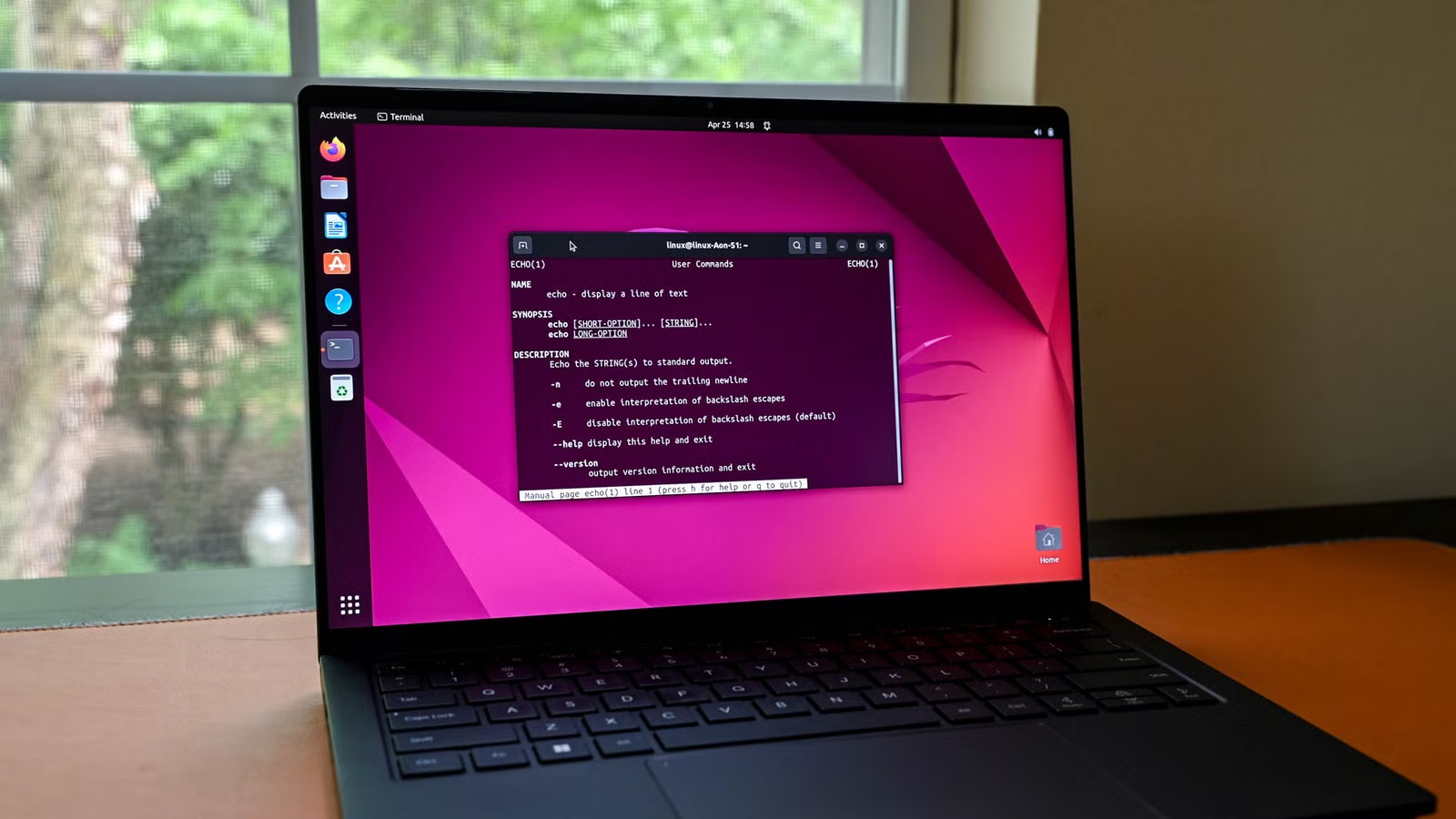
The most reliable method. Type man followed by the command name. Most commands display their usage in a SYNOPSIS section at the top.
Take the which command. Running man which shows:
which [-as] filename ...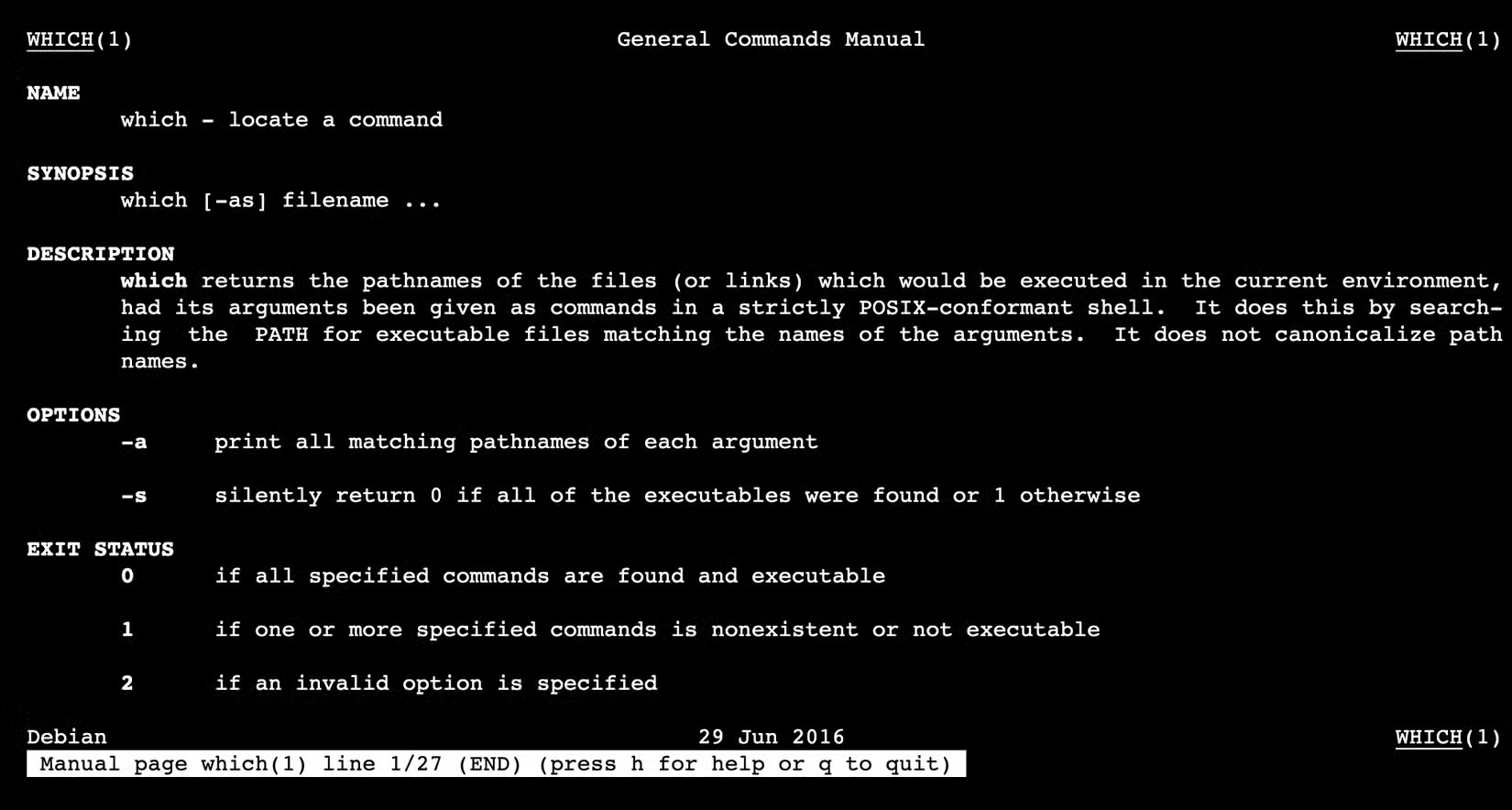
This tells you which accepts optional flags -a and -s (the brackets mean optional), followed by one or more filenames (the ellipsis means you can pass multiple).
2. Run the Command Wrong
Commands that require parameters usually print usage when you run them without any. The grep command searches for patterns in text. Run it with no arguments and it tells you what it needs:
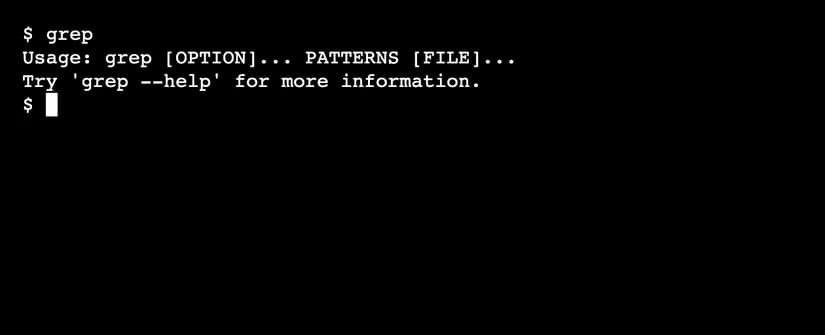
This works because grep needs at least one regular expression pattern to do anything useful. Without it, the command has nothing to search for.
3. The --help Flag
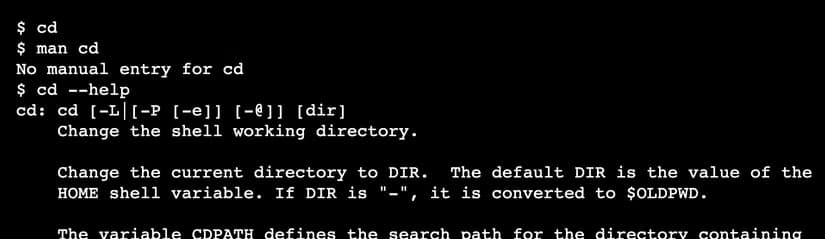
Some commands work without parameters and don't have man pages. For these, try the --help option. The cd command (change directory) prints its usage when you run cd --help.
Decoding the Bracket Notation
Usage guides follow a universal grammar. Once you learn it, every man page becomes readable.
- Square brackets [] mean optional. You can include it or skip it.
- Angle brackets <> mean required. The command won't work without it.
- Ellipsis ... means you can repeat the previous item multiple times.
- Pipe | means choose one. For example, [-a | -b] means use -a or -b, not both.
- Items without brackets are required exactly as shown.
So when you see which [-as] filename ..., you know:
- which is the command (required, obviously)
- -a and -s are optional flags you can use together
- filename is required (no brackets)
- You can pass multiple filenames (ellipsis)
Why This Matters Now
With 70% of servers running Linux and 93.87% of developers using git daily, command-line fluency is table stakes for infrastructure work. The terminal isn't going away. If anything, containerization and cloud infrastructure make it more central.
“The command line isn't a barrier; it's a telescope. Once you learn how to read the instructions, you stop guessing and start controlling the system.”
— Elena Rodriguez, Senior Systems Engineer at CloudCore
The man page system has drawn criticism for its dense format. Reddit's r/linux and HackerNews threads frequently discuss the high barrier to entry for beginners. Tools like tldr have emerged as community-driven alternatives that prioritize examples over exhaustive specifications.
But experienced developers still point to man pages as the source of truth. They're comprehensive, authoritative, and installed on nearly every Linux system. Learning to read them pays compound interest.
Quick Reference: Common Option Patterns
Most commands follow similar conventions for their options:
- -v or --verbose: Show detailed output
- -h or --help: Display usage information
- -f or --force: Skip confirmation prompts
- -r or --recursive: Apply to directories and their contents
- -n or --dry-run: Show what would happen without doing it
These patterns aren't universal, but they're common enough that you can often guess a command's options before checking the man page.
Logicity's Take
Frequently Asked Questions
What does the ellipsis (...) mean in Linux command usage?
The ellipsis means you can repeat the preceding item multiple times. For example, 'filename ...' means you can pass one or more filenames to the command.
Why doesn't my command have a man page?
Some commands, particularly shell built-ins like cd, don't have man pages. Try running the command with --help instead, or use 'help cd' for shell built-ins in Bash.
What's the difference between -v and --verbose?
They usually do the same thing. Single-letter options (short options) start with one hyphen. Full-word options (long options) start with two hyphens. Short options are faster to type; long options are easier to read in scripts.
How do I search within a man page?
Press / followed by your search term, then Enter. Press n to jump to the next match. Press q to exit the man page.
What is tldr and should I use it instead of man?
tldr is a community-maintained collection of simplified command examples. It's great for quick reference but doesn't replace man pages for comprehensive documentation. Use tldr for common tasks and man for edge cases.
Another guide to unlocking powerful tools through overlooked features
More practical Linux and local development tips
Need Help Implementing This?
Source: How-To Geek
Manaal Khan
Tech & Innovation Writer
Produced with AI assistance and reviewed by the Logicity editorial team. Learn more in our Editorial Policy.