Key Takeaways
- You can add pre-made Discord bots from directories like top.gg without any coding
- Adding bots requires server management permissions, so regular members need to request access
- Discord's Discover tab offers exclusive bots not found on third-party directories
Bots get a bad rap on most social platforms. On Discord, they're actually useful. A Discord bot automates tasks inside your server. Simple examples include sending welcome messages to new members. Complex ones handle moderation, run giveaways, and manage roles.
You can build Discord bots from scratch if you want to code. But millions of pre-made bots already exist. Adding them takes about two minutes and zero programming knowledge.
Adding Bots on Desktop
The fastest method uses online bot directories. Three popular ones are top.gg, discord.bots.gg, and discordbotlist.com. These sites list bots by category, so you can browse for gaming bots, moderation tools, or role management helpers.
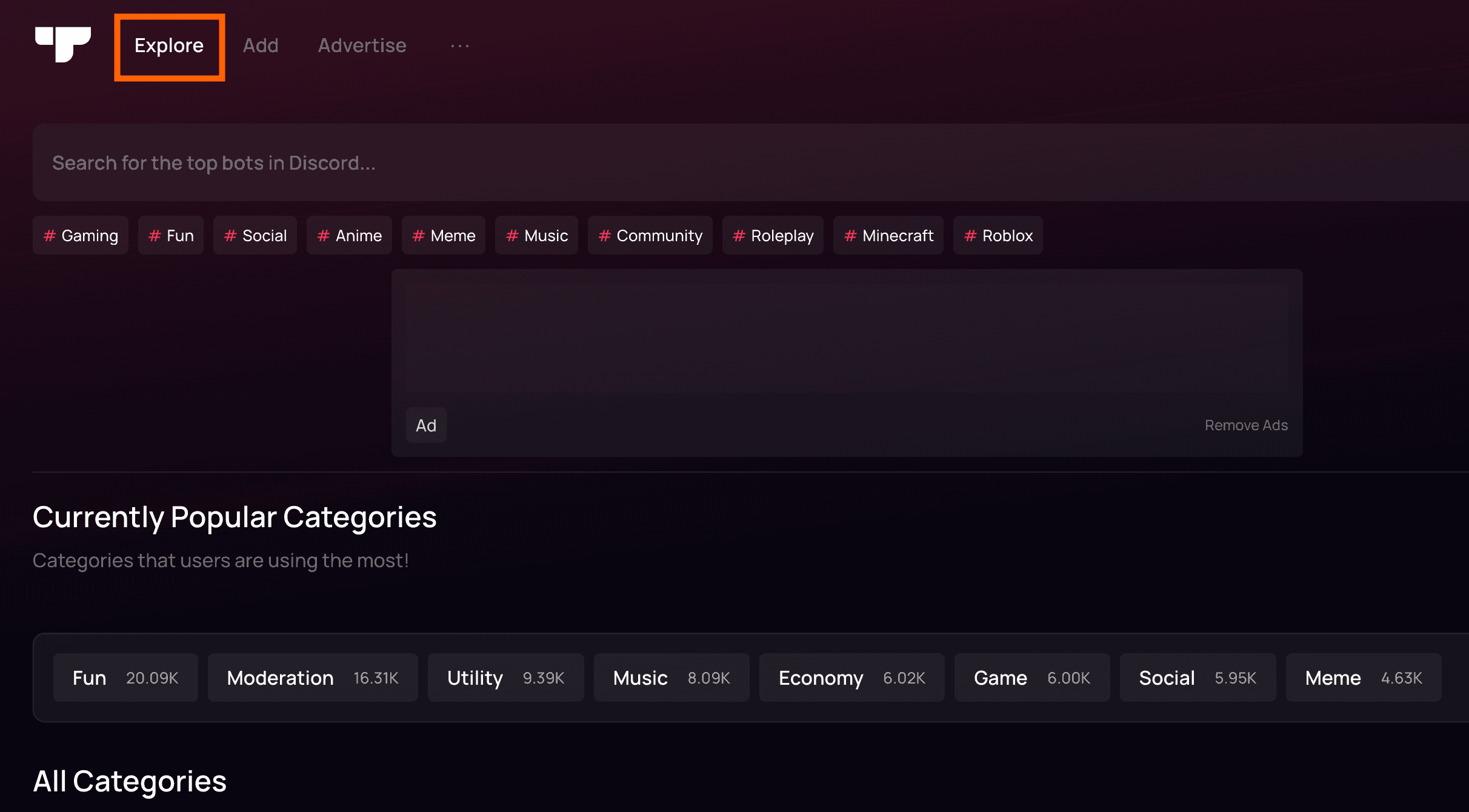
Here's the process using top.gg (other directories work the same way):
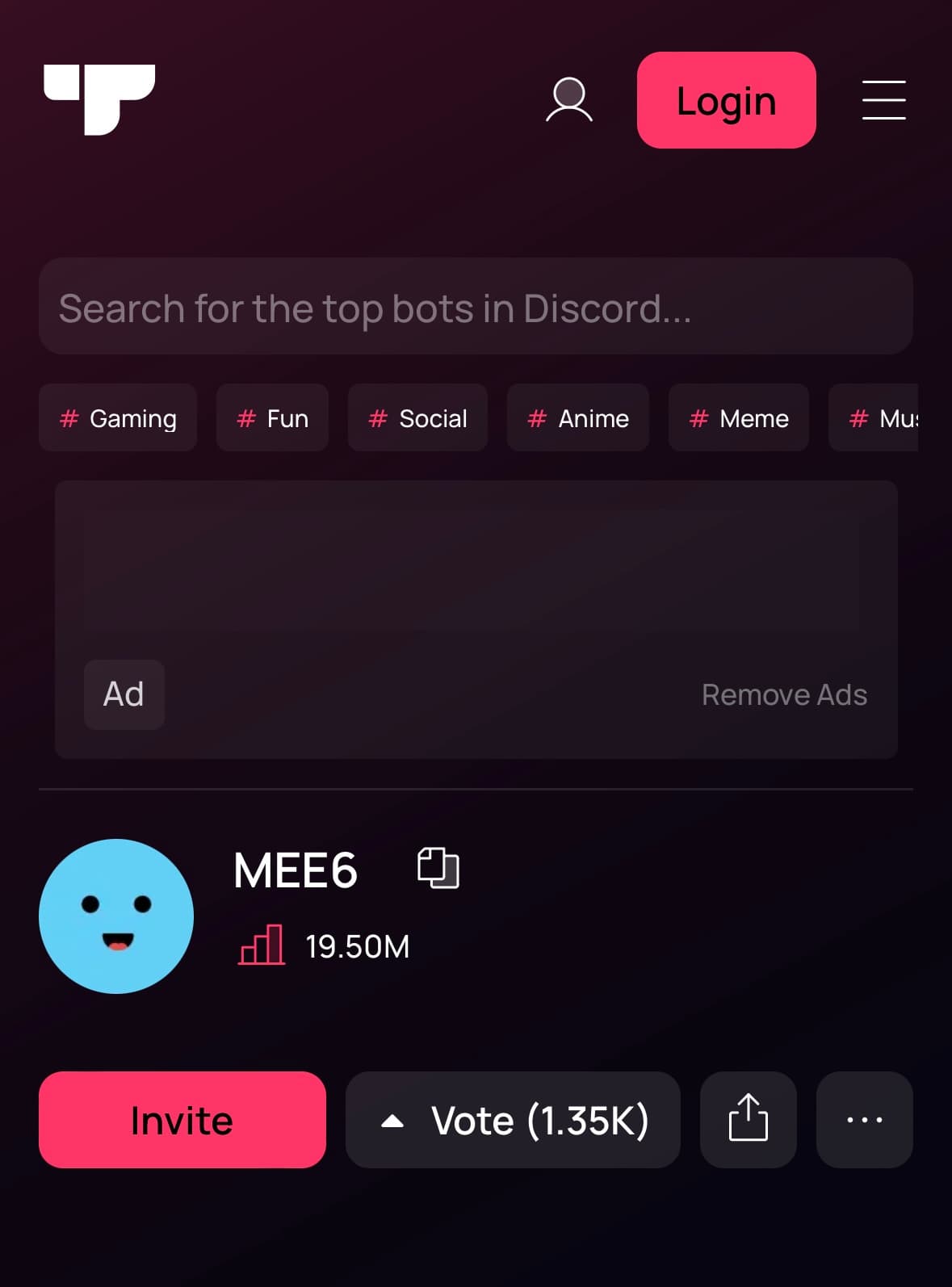
- Go to top.gg and search for the bot you want. You can also browse by category under the Explore tab.
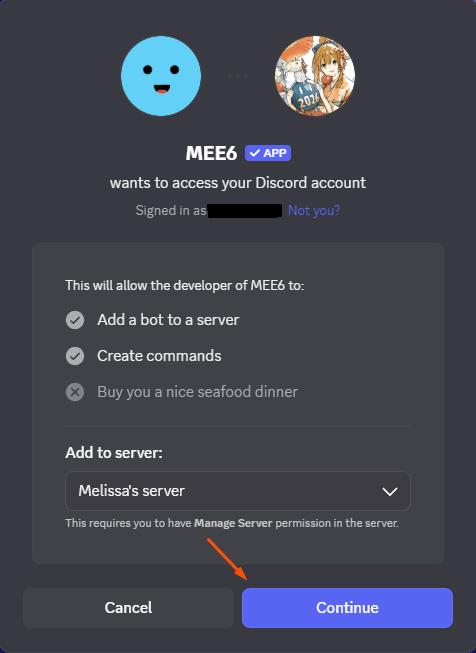
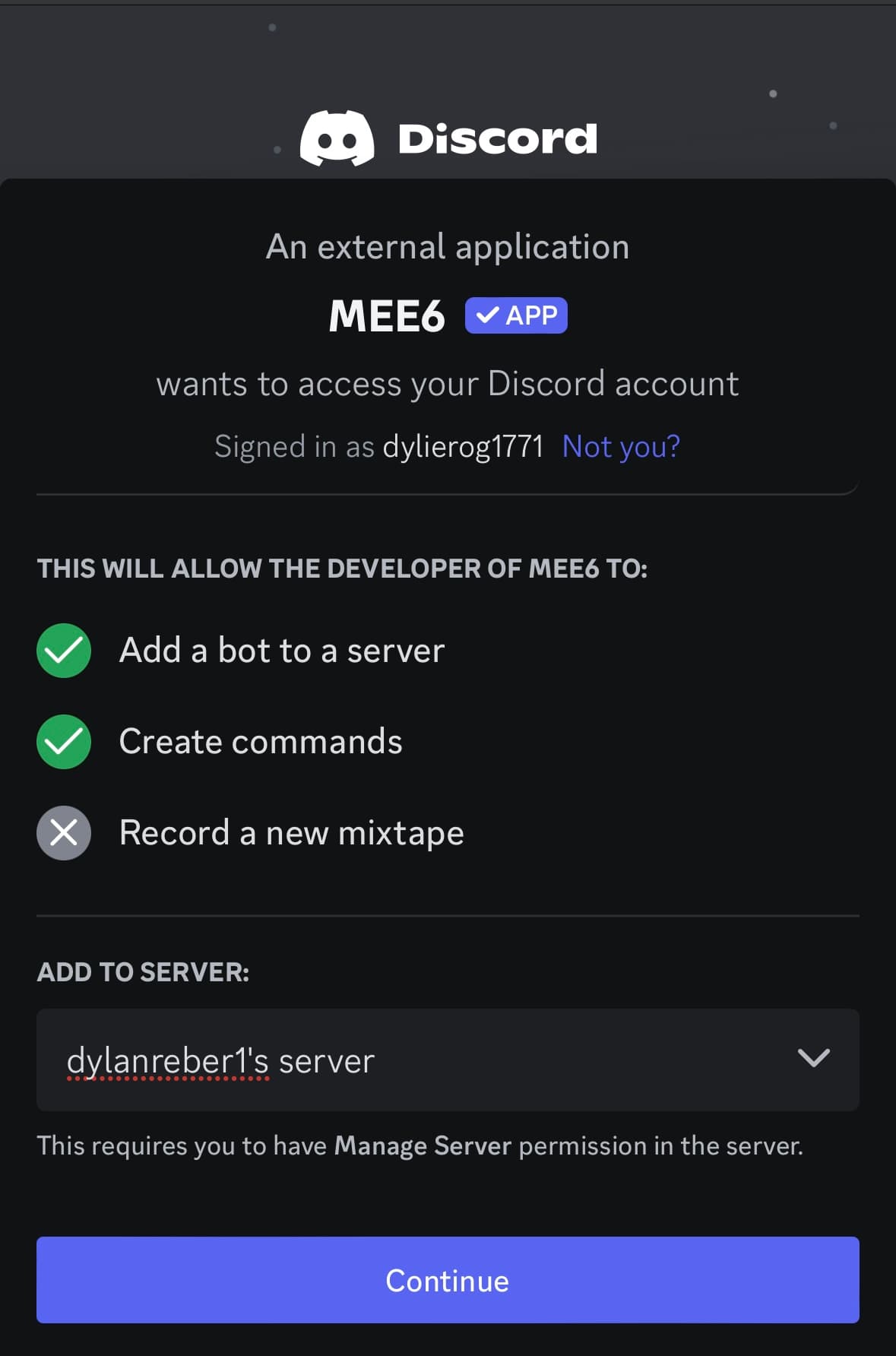
- Click Invite on the bot's page. Discord will ask you to sign in.
- Select the server where you want the bot. Click Continue.
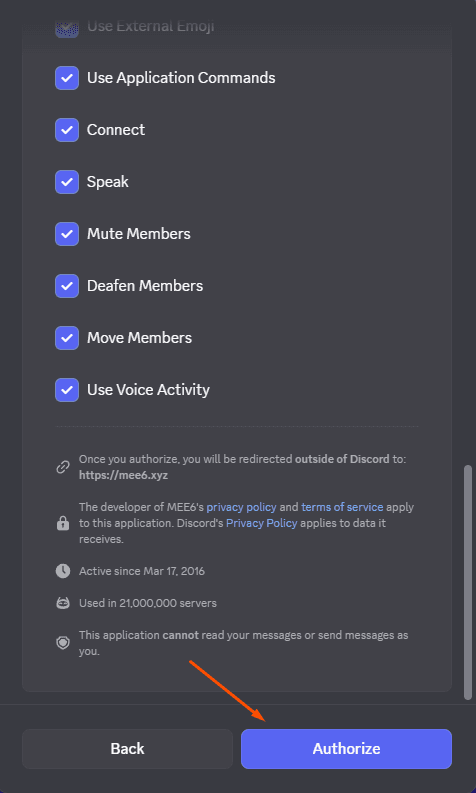
- Choose which permissions the bot should have. Click Authorize.
- If you use two-factor authentication, enter your code when prompted.
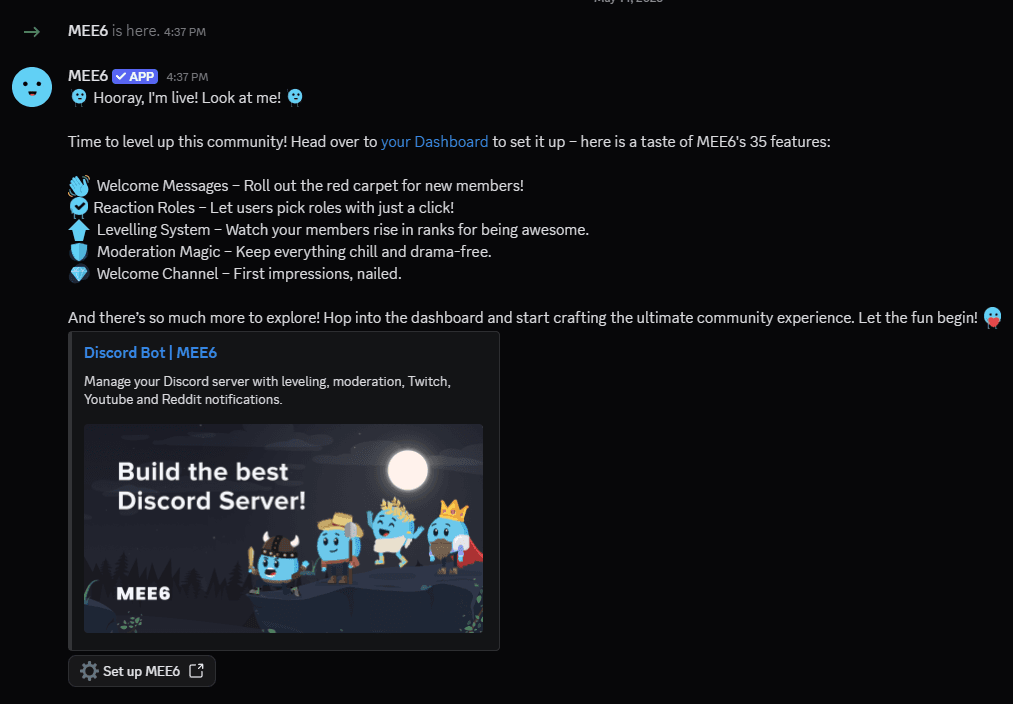
- Open Discord and go to your server. You'll see a welcome message confirming the bot was added.
Click the bot's name to see its commands and settings. Most bots include a help command that lists what they can do.
If the invite fails, you probably lack server management permissions. Only server admins can add bots. Regular members need to ask an admin to either add the bot or grant them the necessary permissions.
Adding Bots on Mobile
The mobile process mirrors desktop. Open top.gg in your phone's browser, find a bot, and tap Invite. Sign in through Discord, pick your server, set permissions, and authorize.
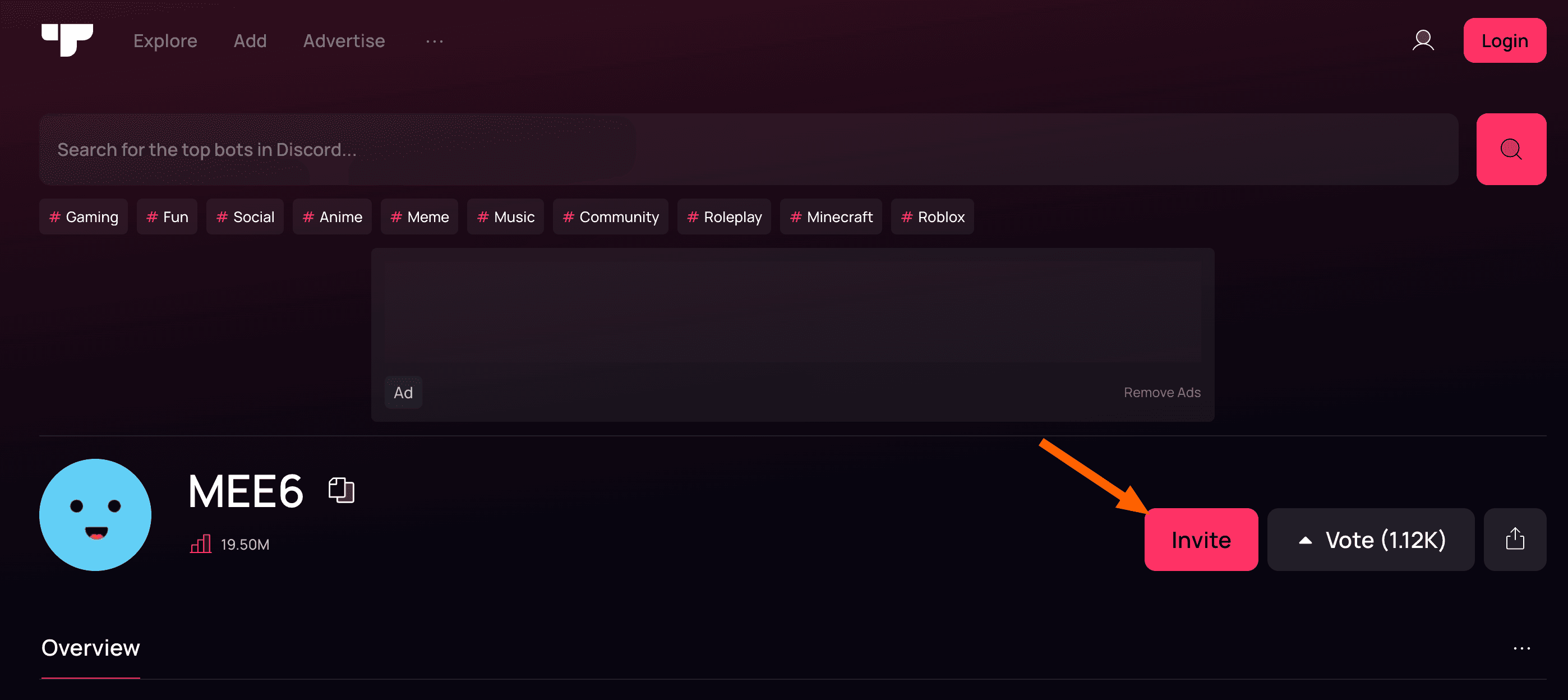
- Open top.gg in your mobile browser and find a bot.
- Tap Invite and sign in via Discord when prompted.
- Choose which server gets the bot. Tap Continue.
- Select permissions and tap Authorize.
- Open the Discord app and check your server for the confirmation message.
Using Discord's Built-in Discover Tab
Discord has its own bot discovery feature. Some bots appear exclusively in the Discover tab, meaning you won't find them on third-party directories.
To access it, click the Discover icon in Discord's sidebar. Browse or search for bots, then follow the same authorization flow. The benefit here is staying within Discord's interface rather than switching to an external website.
Interacting with Bots
Once a bot joins your server, you interact with it through commands. Most bots use a prefix (like ! or /) followed by a keyword. For example, typing /help often shows available commands.
Click or tap the bot's name in the member list to see its profile. Many bots display their command list or a link to documentation there.
Removing a Bot
Removing bots is straightforward. Right-click (or long-press on mobile) the bot's name in your server's member list. Select Kick or Ban. Kicking removes the bot but allows re-adding later. Banning prevents the bot from returning unless you unban it.
You need the same server management permissions to remove bots as you do to add them.
Bot Permissions to Consider
When authorizing a bot, you choose its permissions. Grant only what the bot needs. A music bot doesn't need permission to manage channels. A moderation bot probably does.
- Read Messages: required for most bots to function
- Send Messages: lets the bot respond to commands
- Manage Messages: allows deleting or pinning messages (useful for moderation)
- Manage Channels: lets the bot create or modify channels
- Administrator: full access to everything (use sparingly)
Review permissions before clicking Authorize. You can adjust them later in Server Settings under Roles.
Logicity's Take
Frequently Asked Questions
Do I need coding skills to add bots to Discord?
No. Pre-made bots on directories like top.gg can be added with a few clicks. Coding is only needed if you want to build a custom bot from scratch.
Why can't I add bots to a Discord server?
You need server management permissions. If you're a regular member, ask an admin to add the bot or grant you the necessary permissions.
Are Discord bots free?
Most bots are free with optional premium features. Check the bot's page on top.gg or its website for pricing details.
Can I add bots on Discord mobile?
Yes. Use your mobile browser to visit a bot directory, then follow the same invite and authorization steps as desktop.
How do I remove a bot from my Discord server?
Right-click the bot's name in the member list and select Kick or Ban. You need server management permissions to do this.
If you're adding bots and extensions to your tools, this breach shows why vetting third-party code matters
Need Help Implementing This?
Source: The Zapier Blog
Huma Shazia
Senior AI & Tech Writer
Produced with AI assistance and reviewed by the Logicity editorial team. Learn more in our Editorial Policy.