Key Takeaways
- Samsung disables most third-party app notifications by default on Galaxy Watch
- Key settings like 'Turn on screen when notifications received' require navigating three sub-menus
- The 'Mute notifications on phone' toggle automatically silences your phone only when wearing your watch
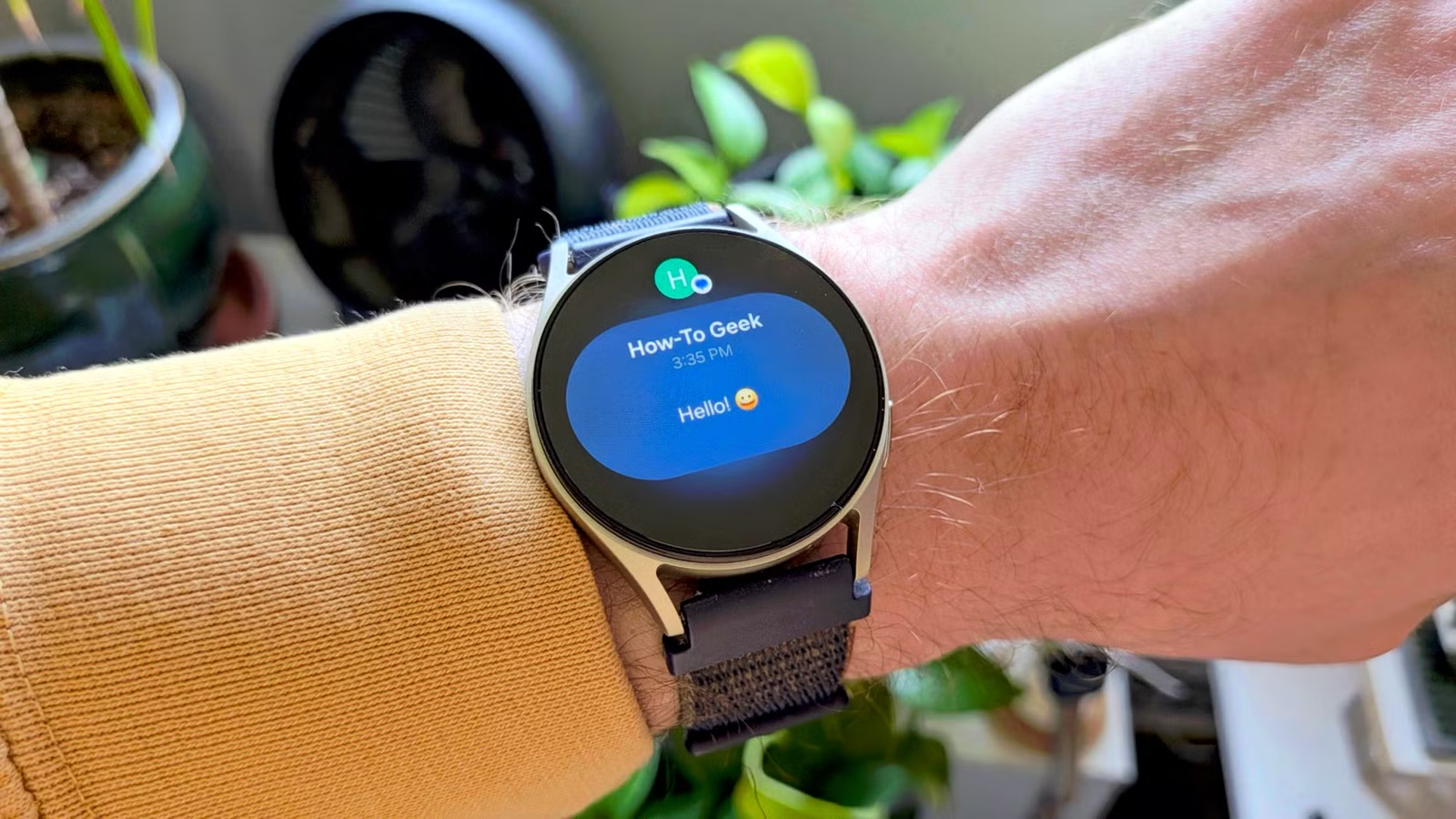
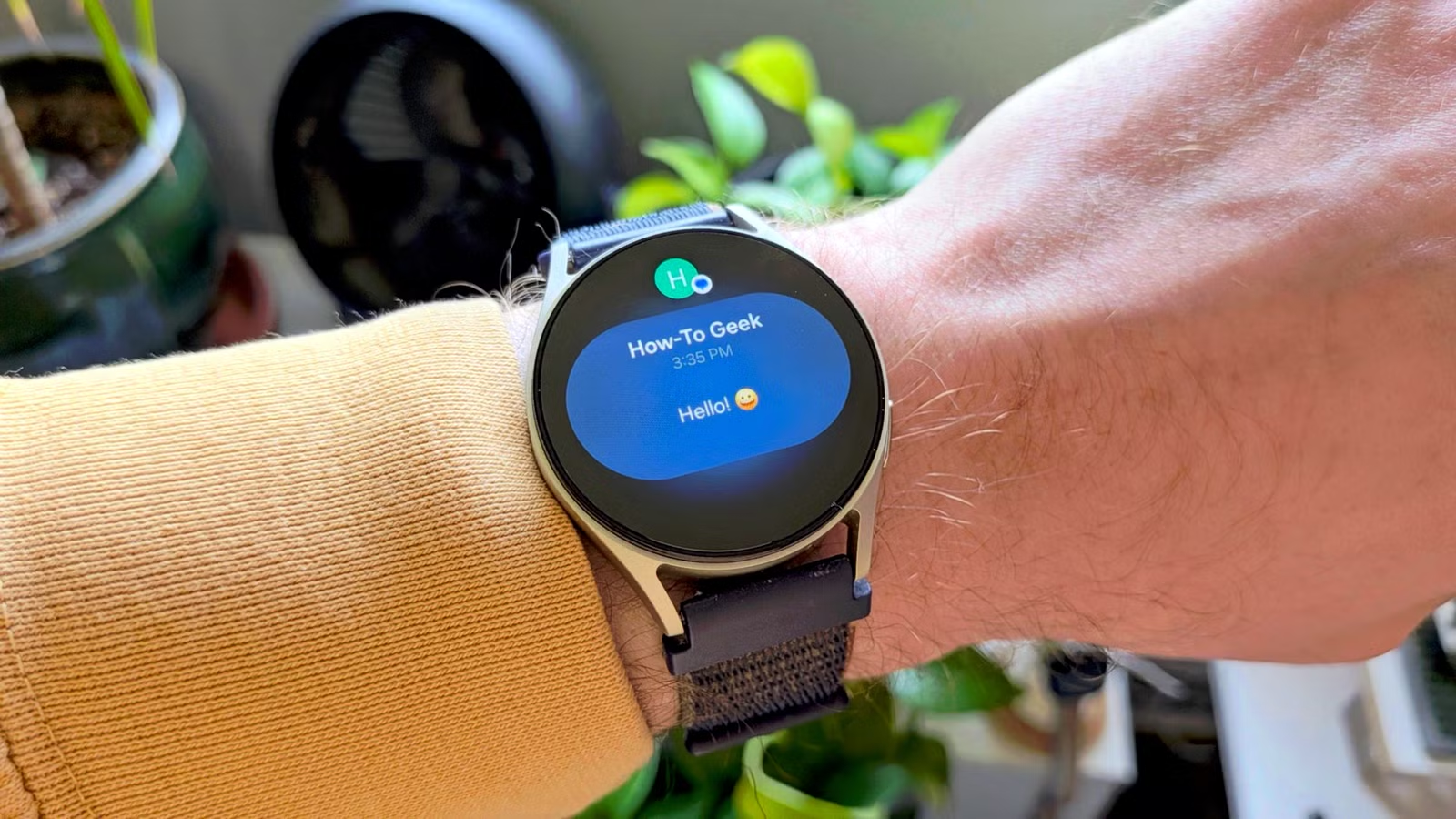
If your Galaxy Watch feels strangely quiet, you're not alone. Samsung buries the most useful notification settings behind three menus in the Galaxy Wearable app. The result: roughly 15-20% of new Galaxy Watch owners think their device is defective when it's actually working exactly as designed.
The problem is Samsung's conservative default approach. Out of the box, only a handful of core apps can send notifications to your wrist. WhatsApp, Slack, your email client? Silent until you manually enable them. Finding that toggle requires navigating to Settings, then Notifications, then Advanced settings, then App notifications. Most people give up before they get there.
Why Samsung Made This Choice
Samsung's One UI Watch uses this opt-in design to minimize battery drain and reduce notification overload. It's a defensible idea in theory. In practice, it fights against the core reason people buy smartwatches.
On Reddit's r/GalaxyWatch, a common thread pattern has emerged. Someone posts asking why their watch won't vibrate for WhatsApp or Slack. Dozens of replies point them to the same buried menu. This happens often enough that the community has essentially become Samsung's unofficial support desk for this one issue.
The Four Toggles That Fix Everything
Once you know where to look, the fixes take under a minute. Open the Galaxy Wearable app on your phone and dig into these settings.
1. Turn On Screen When Notifications Arrive
Go to Settings > Notifications > Advanced settings and enable "Turn on screen when notifications received." By default, your Galaxy Watch behaves like a phone. It vibrates or beeps, but the screen stays dark. You have to wake it manually to see what came in. With this toggle on, the notification appears on screen the moment it arrives. Lift your wrist, and it's already there.
2. Enable All App Notifications
In the same Notifications menu, find "App notifications." Samsung restricts this to a small whitelist by default. You'll need to scroll through and enable each app you actually want alerts from. Or just toggle "All apps" if you want your watch to mirror your phone's notification stream.
3. Mute Notifications on Phone
This one is clever. Enable "Mute notifications on phone" and your phone goes silent whenever you're wearing your watch. Take the watch off or leave it at home? Your phone returns to its normal alert mode automatically. No more manually switching between silent and vibrate depending on whether you're wearing your watch.
4. Show Details on Lock Screen
By default, notifications may show a generic "New message" alert without the actual content. Look for the toggle that shows notification details even when the watch is locked. This removes one more tap from the process of actually reading your alerts.
A Design Pattern Worth Criticizing
Some Hacker News users have called Samsung's approach a "dark pattern." That's probably too strong. There's no evidence Samsung is trying to trick users. More likely, this is a battery-preservation decision that prioritized power consumption over usability.
Still, the outcome is the same. Users expect a smartwatch to show them notifications. When it doesn't, they assume hardware failure. A better default would mirror phone notifications from the start, with clear prompts to customize if the user finds it overwhelming.
Logicity's Take
Frequently Asked Questions
Why isn't my Galaxy Watch showing WhatsApp notifications?
Samsung disables third-party app notifications by default. Open the Galaxy Wearable app, go to Settings > Notifications > App notifications, and enable WhatsApp manually.
How do I make my Galaxy Watch screen turn on for notifications?
In the Galaxy Wearable app, navigate to Settings > Notifications > Advanced settings and toggle on "Turn on screen when notifications received."
Can I mute my phone only when wearing my Galaxy Watch?
Yes. Enable "Mute notifications on phone" in the Galaxy Wearable app's notification settings. Your phone will automatically unmute when you're not wearing the watch.
Why does Samsung hide notification settings by default?
Samsung uses an opt-in approach to reduce battery drain and prevent notification overload. The trade-off is that many users never discover these settings exist.
Related Samsung device optimization guide
Recent Samsung company news
Need Help Implementing This?
Source: How-To Geek
Huma Shazia
Senior AI & Tech Writer
Produced with AI assistance and reviewed by the Logicity editorial team. Learn more in our Editorial Policy.