
Key Takeaways

- Ctrl+Backspace instantly returns your view to the active cell after scrolling through large spreadsheets
- F3 opens a list of named ranges while you're typing a formula, eliminating guesswork
- These shortcuts work in Excel for Microsoft 365 on Windows; Mac users substitute Command for Ctrl and Option for Alt
Every Excel cheat sheet includes Ctrl+C, Ctrl+V, and Ctrl+Z. You learned those in elementary school. The shortcuts that actually save time are the ones buried in muscle memory of power users who never bother sharing them.
These nine shortcuts work in Excel for Microsoft 365 on Windows. Most also work in older versions and Excel for the web, though behavior may vary. Mac users should substitute Command for Ctrl and Option for Alt.
Ctrl+Backspace: Return to Your Active Cell
You're editing a formula in cell B50, but you need to scroll down to row 10,000 to verify a reference. Once you've checked the value, scrolling back takes forever. Press Ctrl+Backspace instead. Your view snaps back to the active cell instantly.
This shortcut doesn't move your cursor or change your selection. It just repositions the screen. If you audit large spreadsheets regularly, this one shortcut can save minutes per day.
F3: Access Named Ranges Mid-Formula
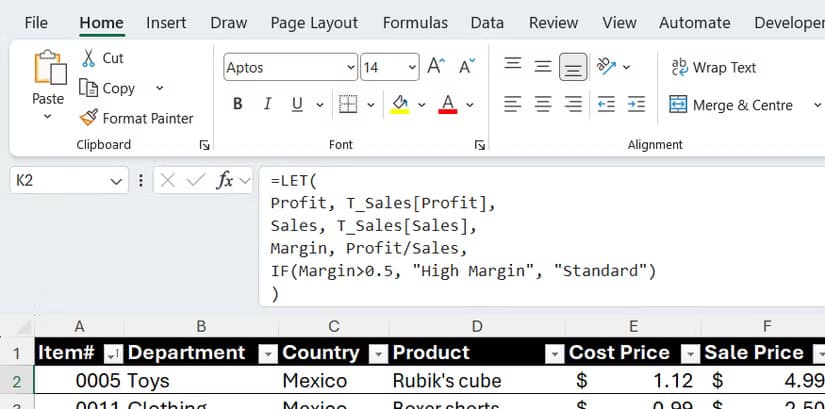
Named ranges make formulas readable. =SUM(Regional_Sales_2026) beats =SUM($B$2:$B$500) every time. But once you have dozens of named ranges in a workbook, you start guessing. Was it RegionalSales or Sales_Regional or Regional_Sales_Q1?
Press F3 while typing a formula. Excel opens a list of all named ranges in the workbook. Select the one you need, and it inserts directly into your formula. No more switching to the Name Manager to remember what you called something three months ago.
Why Standard Cheat Sheets Skip These
Most shortcut lists optimize for completeness, not usefulness. They include every combination, whether you'll use it or not. The result is a wall of text where the gems hide among the obvious.
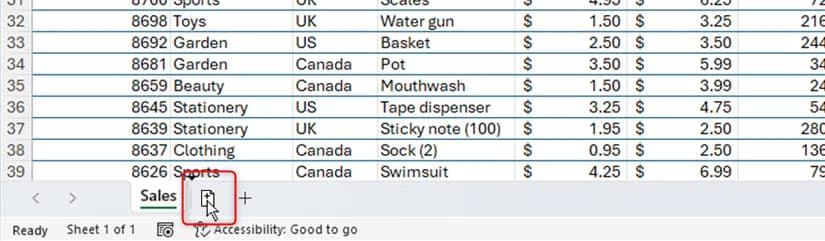
The shortcuts that matter are the ones that interrupt your workflow when you don't know them. You're mid-formula and can't remember a range name. You're lost in a 50,000-row dataset. You need to duplicate a sheet but the right-click menu is three clicks away. These are the friction points where a single keystroke makes the difference.
Logicity's Take
Workflow Context Matters
These shortcuts are designed for specific pain points. Ctrl+Backspace solves a navigation problem. F3 solves a memory problem. Neither appears on most cheat sheets because they're situational. But if you hit that situation daily, they become essential.
The best approach is to identify your own friction points first. Where do you lose time in Excel? What action requires too many clicks? Then look for the shortcut that addresses that specific workflow. One targeted shortcut beats twenty generic ones.
More hidden Excel features that power users rely on
Mac Differences
The same principles apply on Mac, but the modifier keys differ. In most cases, substitute Command for Ctrl and Option for Alt. Some shortcuts have Mac-specific alternatives that don't map directly, so test before relying on them in your workflow.
Frequently Asked Questions
Does Ctrl+Backspace work in Excel for the web?
Behavior may vary in Excel for the web. The shortcut is designed for Excel for Microsoft 365 on Windows. Test it in your specific environment.
What is the Mac equivalent of Ctrl+Backspace in Excel?
Mac users typically substitute Command for Ctrl, making it Command+Delete. However, some shortcuts have Mac-specific alternatives that differ.
How do I access named ranges while typing a formula?
Press F3 while in formula edit mode. Excel displays a list of all named ranges in the workbook. Select one to insert it directly into your formula.
Why don't most Excel cheat sheets include these shortcuts?
Most cheat sheets prioritize completeness over usefulness, listing every shortcut regardless of how often it's used. Situational shortcuts like Ctrl+Backspace get buried.
Need Help Implementing This?
Source: How-To Geek
Huma Shazia
Senior AI & Tech Writer
Produced with AI assistance and reviewed by the Logicity editorial team. Learn more in our Editorial Policy.






