Key Takeaways
- Split-screen mode genuinely improves productivity on larger Galaxy phones and foldables
- Secure Folder provides encrypted storage with biometric lock for apps, files, and photos
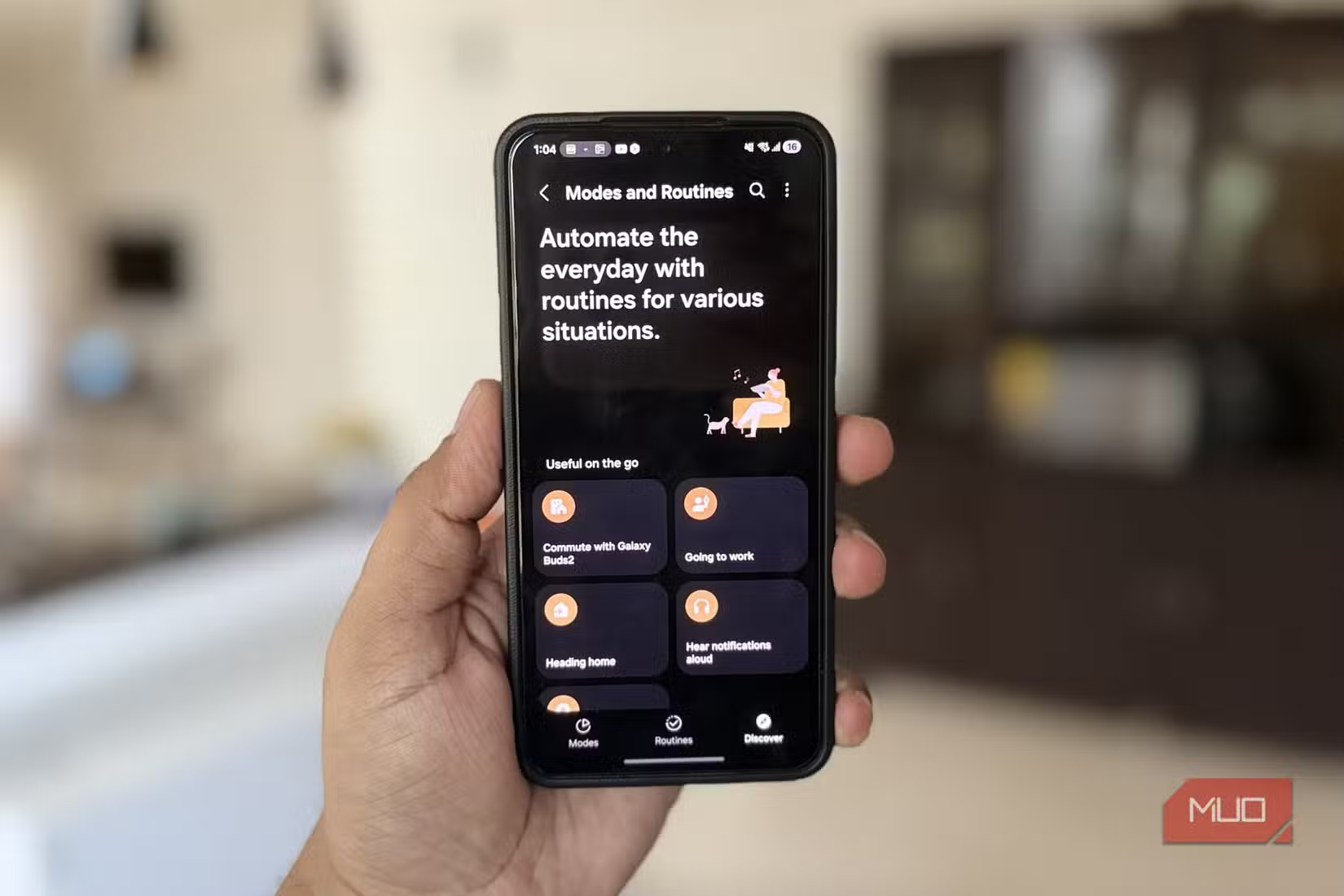
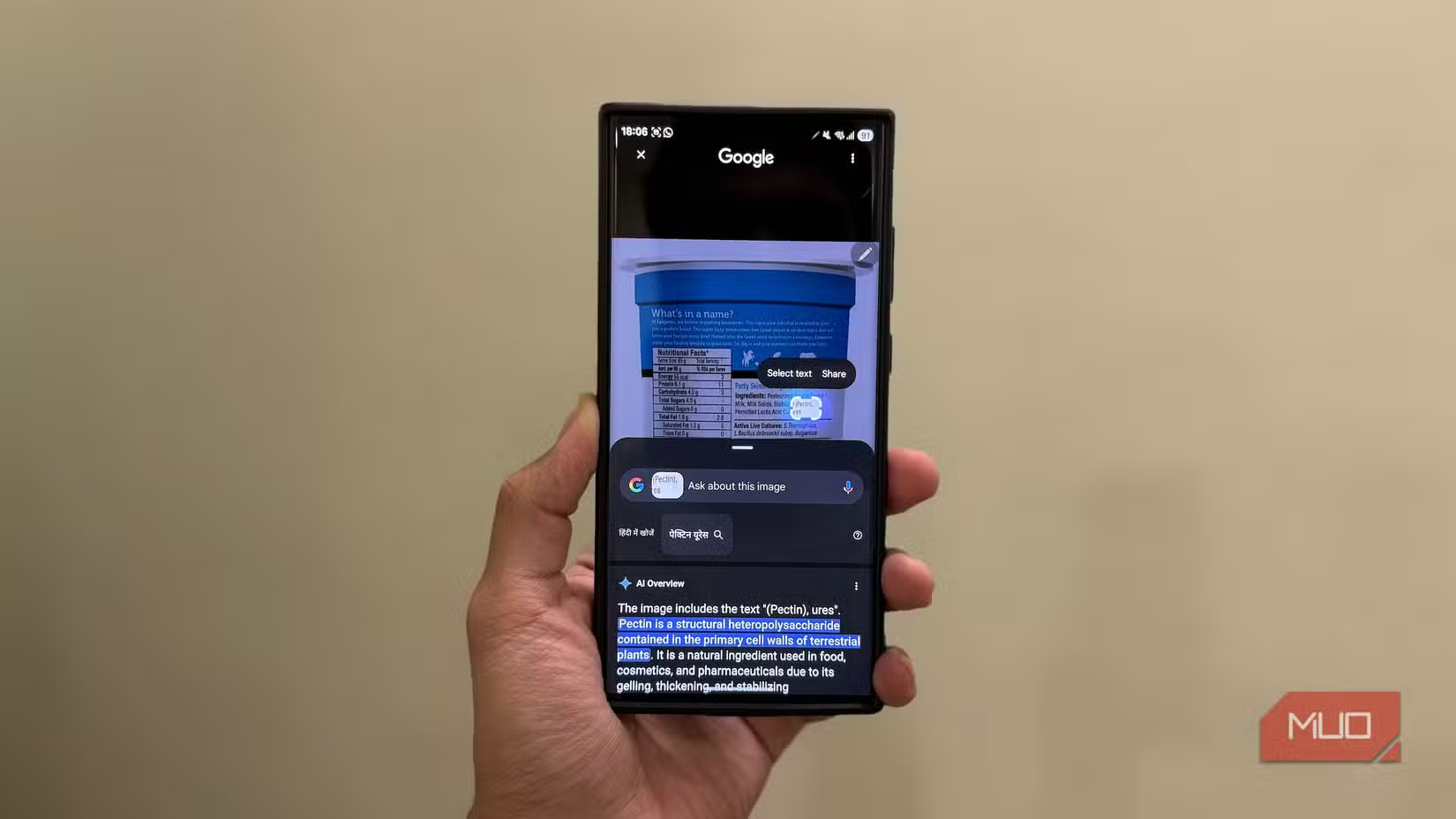
- RAM Plus, Edge Panels, and ad personalization are features worth disabling on any new Samsung device
Samsung smartphones come loaded with features. Some are tucked into obscure corners. Others hide behind three layers of settings menus. After years of using Galaxy devices, certain tools have become essential to daily workflows. Others get disabled within minutes of setting up a new phone.
Here's a breakdown of which Samsung features actually deliver value and which ones you can safely ignore.
Features Worth Using Every Day
1. Split-Screen Mode
Split-screen sounds like a gimmick until you actually use it on a larger Galaxy device. On Ultra models and foldables, the feature transforms how you work on your phone.
The implementation is smooth. Resizing is fluid. You can stack two apps vertically or run them side by side. Watch YouTube while replying to messages. Take notes while browsing Chrome. No more constant app switching.
To access it, open the Recent Apps screen, tap any app icon, and select Split screen. It's not in your settings menu, which is why many users never discover it.
2. Secure Folder
Secure Folder is one of the biggest reasons to choose Samsung over other Android devices. Most people think of it as a place to hide photos. It does that, but it's far more capable.
Secure Folder creates an encrypted environment on your phone with its own biometric lock. It gets its own app instances, its own gallery, and its own file storage. You can run a second copy of an app with a different account. Work apps stay separate from personal ones.
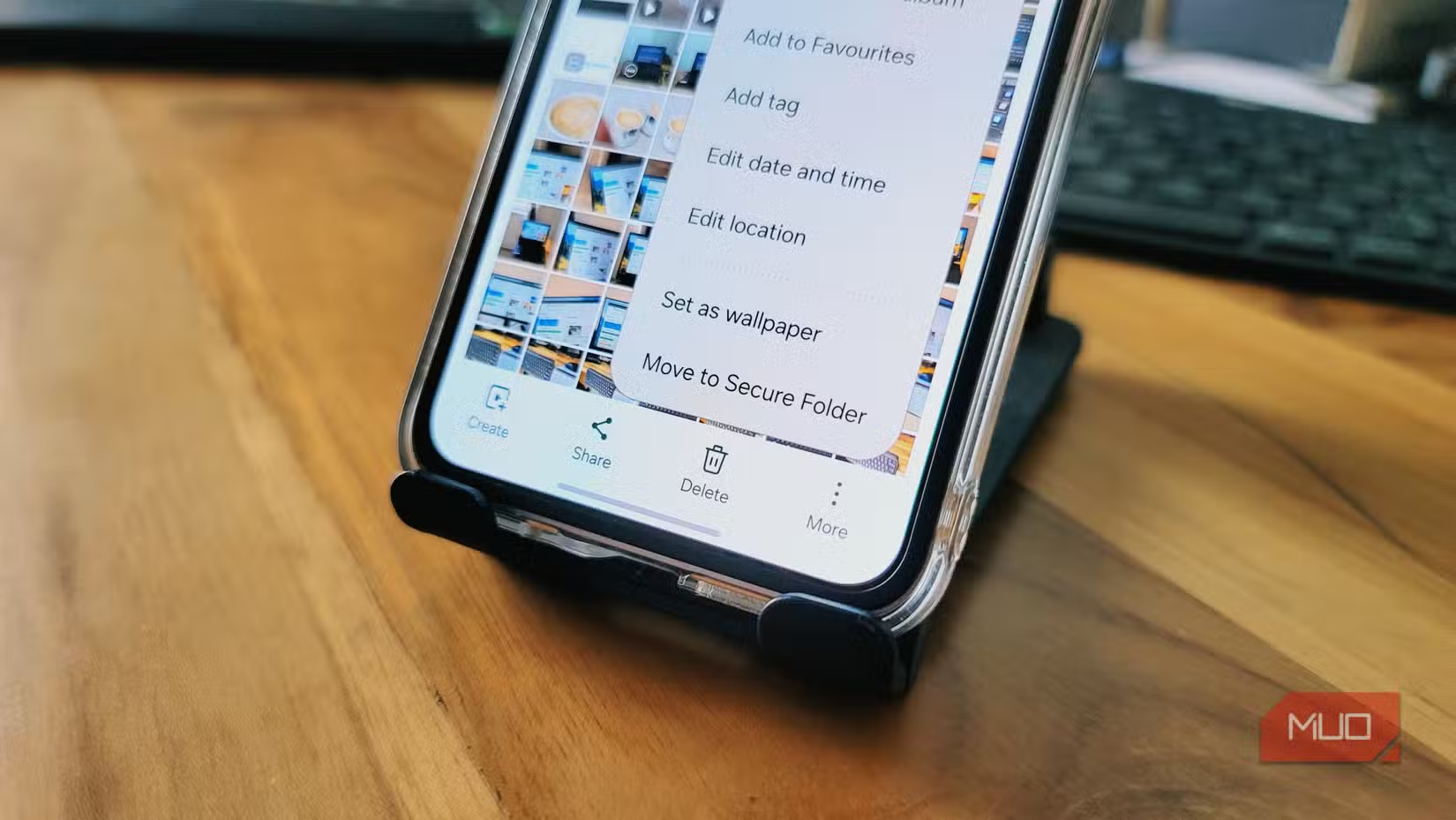
For professionals handling sensitive documents or anyone who values privacy, Secure Folder provides a level of data separation that most phones simply don't offer.
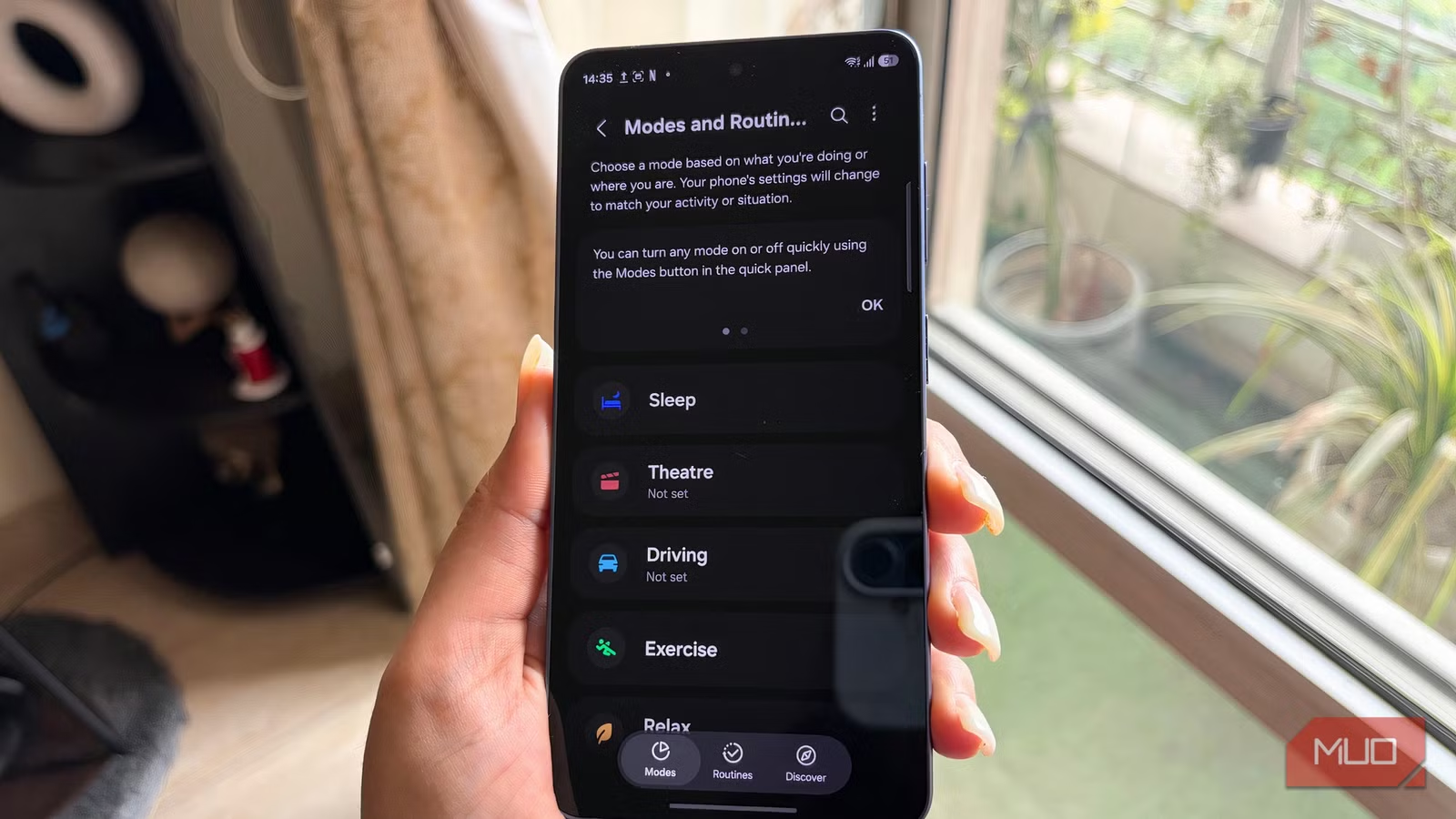
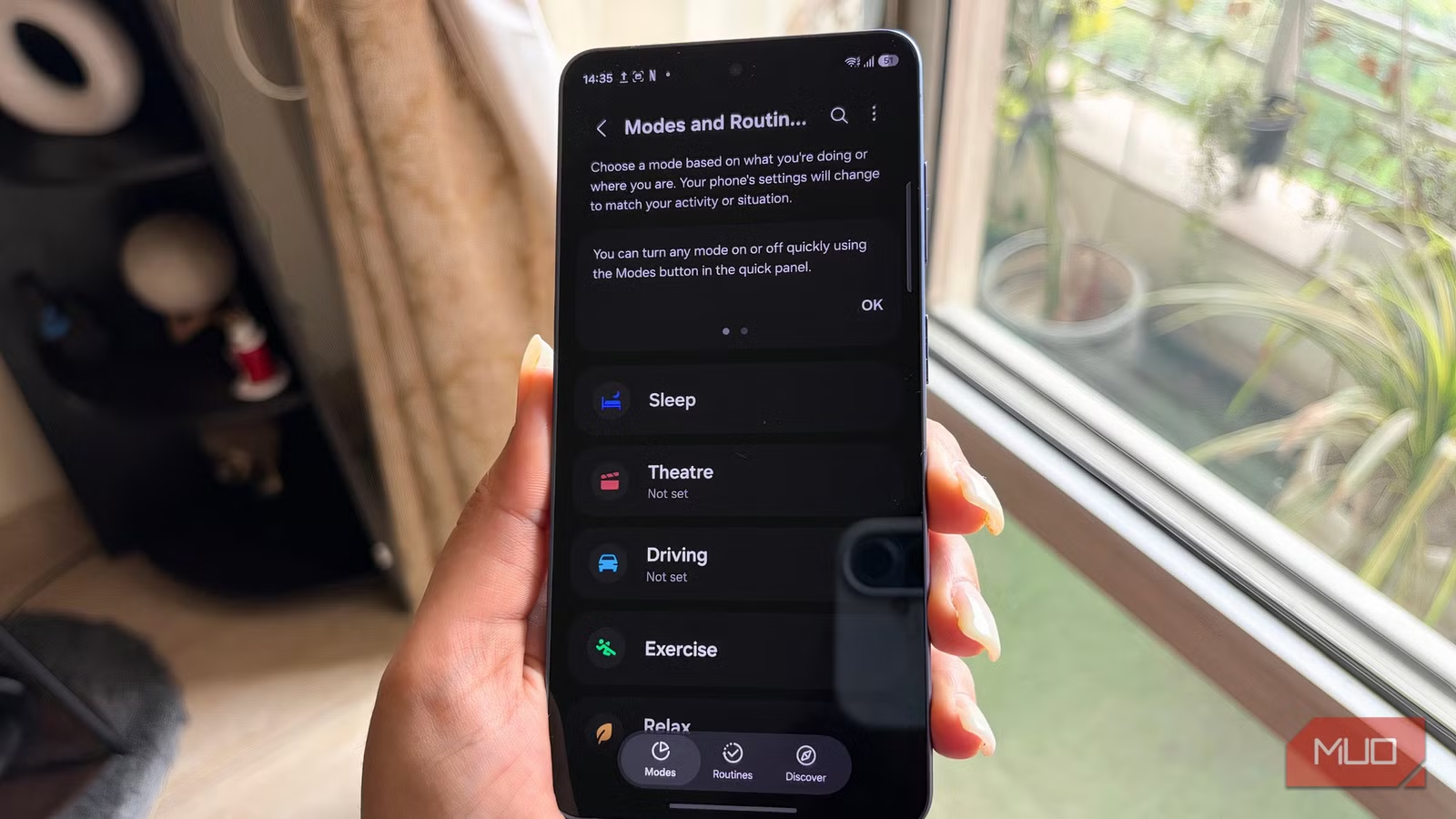
3. Modes and Routines
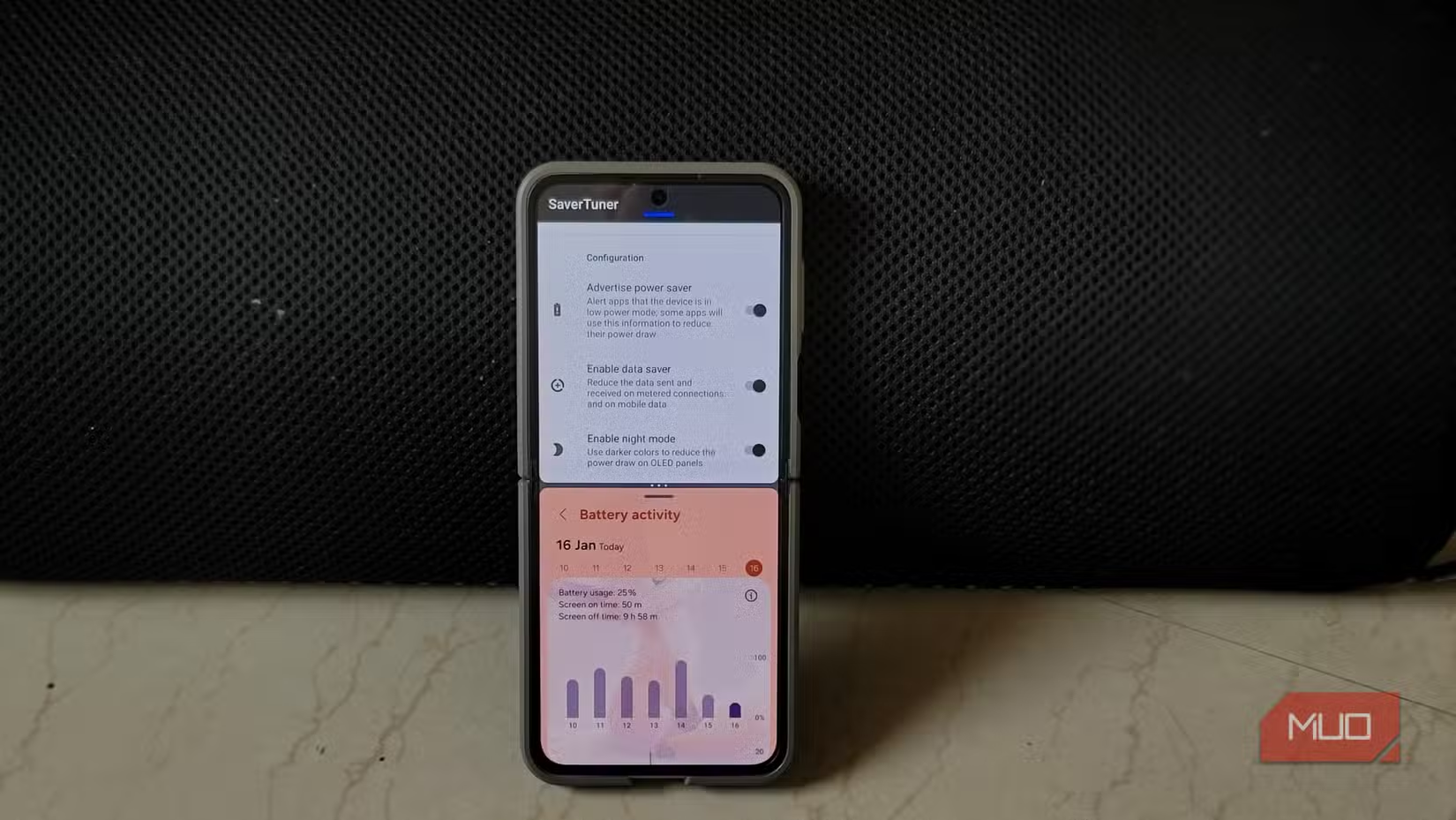
Samsung's Modes and Routines let you automate phone behavior based on time, location, or activity. Set your phone to enable Do Not Disturb during meetings. Automatically turn on power saving when battery hits 20%. Switch to dark mode at sunset.
The automation runs quietly in the background. Once configured, you stop thinking about manual toggles. Your phone adjusts to your schedule instead of the other way around.
4. Good Lock Modules
Good Lock is Samsung's official customization suite available through the Galaxy Store. It contains modules that let you tweak everything from lock screen layouts to notification styles to gesture controls.
Not every module matters, but a few stand out. One UI Home adds extra home screen options. NavStar customizes your navigation bar. SoundAssistant gives granular control over volume for individual apps.
5. Samsung Notes with Handwriting Recognition
If you use an S Pen, Samsung Notes becomes essential. The handwriting recognition works well, converting scribbles to searchable text. Notes sync across Samsung devices. You can record audio while taking notes and have it linked to what you wrote at that moment.
Features to Disable Immediately
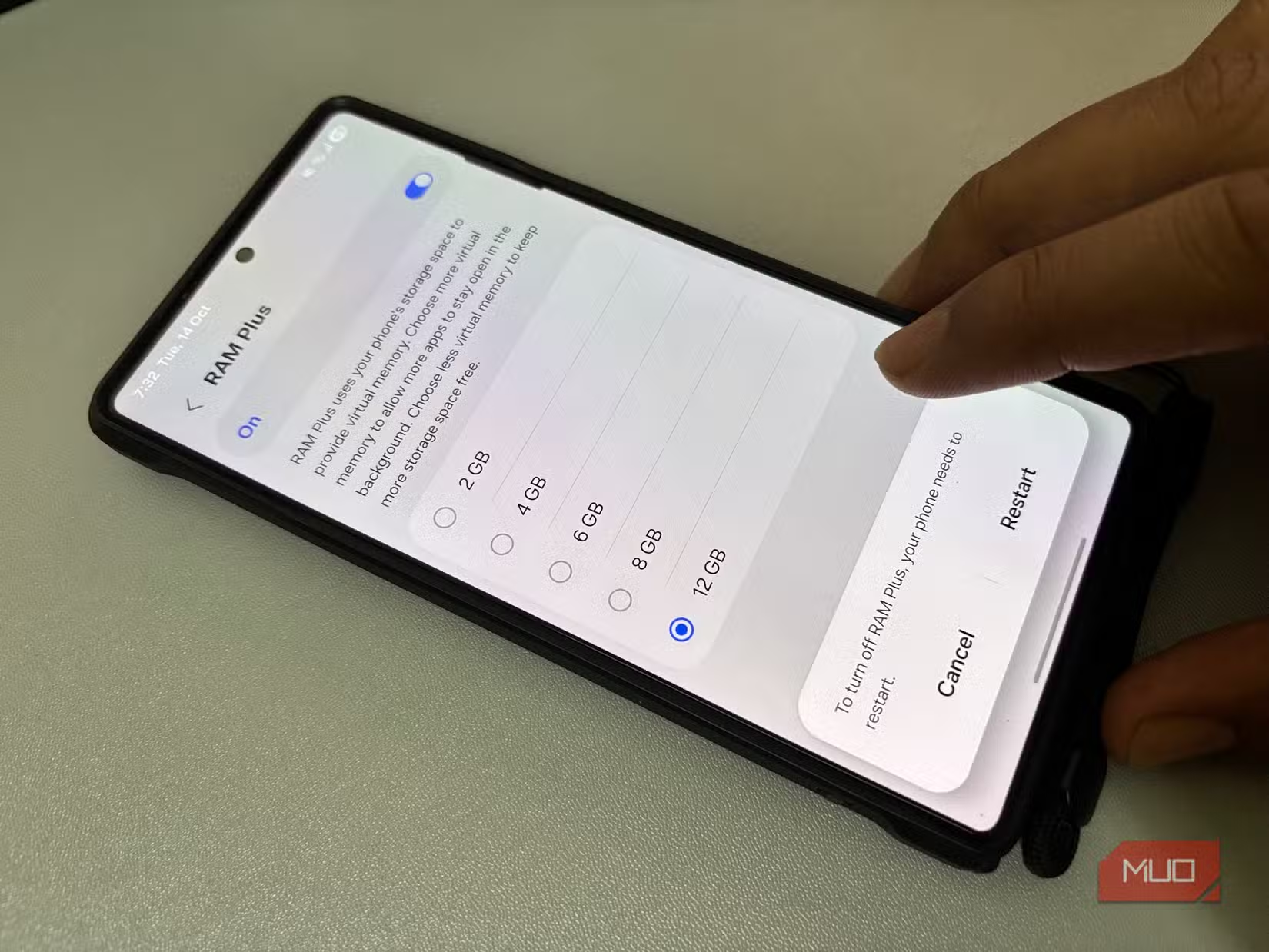
1. RAM Plus
RAM Plus uses storage space as virtual memory when your phone runs low on actual RAM. Sounds useful. It's not.
Storage is slower than RAM. When your phone starts swapping to storage, everything slows down. Modern Samsung devices already ship with plenty of RAM. RAM Plus adds unnecessary wear on your storage chip while providing no noticeable benefit. Turn it off in Settings > Battery and device care > Memory.
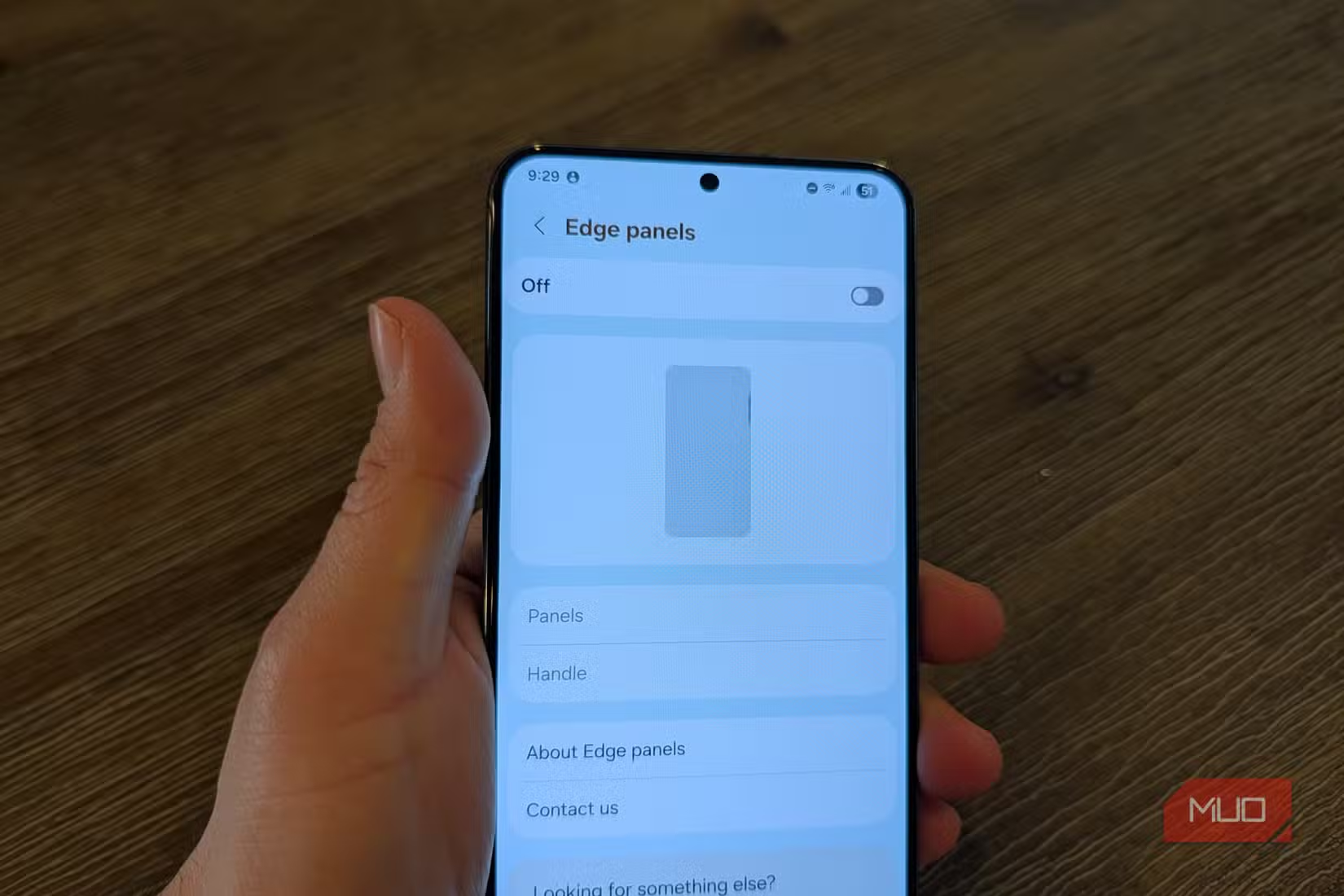
2. Edge Panels
Edge Panels create a swipeable drawer on the side of your screen for quick access to apps, contacts, or tools. In practice, they get triggered accidentally when you're trying to swipe from the edge. They add visual clutter without providing faster access than your home screen or recent apps.
Disable them in Settings > Display > Edge panels.
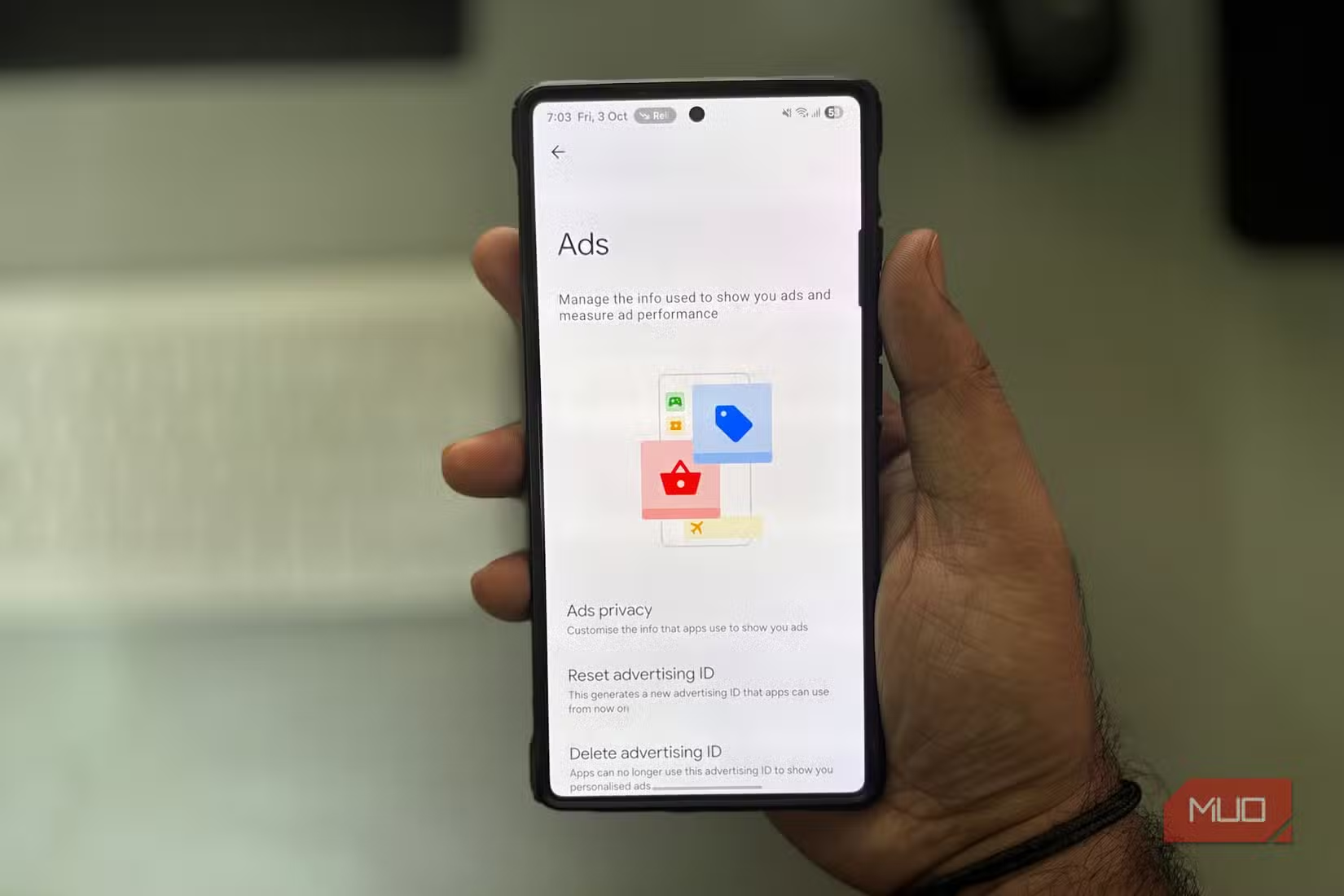
3. Advertising ID and Personalization
Samsung, like most Android manufacturers, tracks usage for ad targeting. You can delete your advertising ID and opt out of personalized ads in Settings > Privacy > Ads.
This won't eliminate ads entirely. It stops Samsung from building a detailed profile of your behavior. Worth doing on any new device.
Logicity's Take
How to Audit Your Samsung Settings
If you've never explored your Galaxy's settings beyond the basics, start with these three areas:
- Battery and device care: Check RAM Plus status and background app restrictions
- Display: Review Edge panels and screen timeout settings
- Privacy: Audit advertising options and app permissions
Spend 15 minutes going through these menus on a new device. You'll save hours of frustration later.
More productivity-focused software tweaks
Frequently Asked Questions
Does disabling RAM Plus affect Samsung phone performance?
No. Modern Samsung phones have 8GB or more of RAM, which is sufficient for normal use. RAM Plus can actually slow down your phone by swapping to slower storage memory.
Can I use Secure Folder on any Samsung phone?
Secure Folder is available on most Samsung Galaxy phones running One UI. Check Settings > Biometrics and security > Secure Folder to set it up.
How do I access split-screen mode on Samsung?
Open the Recent Apps screen by swiping up and holding. Tap the app icon at the top of any app card, then select Split screen. Choose a second app to run alongside it.
Will deleting my advertising ID stop all ads on Samsung?
No. Deleting your advertising ID stops personalized ad tracking. You'll still see ads, but they won't be targeted based on your usage patterns.
Are Samsung's Good Lock modules safe to install?
Yes. Good Lock is an official Samsung app available through the Galaxy Store. The modules are developed by Samsung and receive regular updates.
Need Help Implementing This?
Source: MakeUseOf
Huma Shazia
Senior AI & Tech Writer
Produced with AI assistance and reviewed by the Logicity editorial team. Learn more in our Editorial Policy.