Key Takeaways
- Pillow library handles resize, crop, and rotate operations in two lines of code
- The rembg library removes image backgrounds using AI without manual selection
- Python can generate animated GIFs from still images with basic loops
If you've spent time with Python, you've probably used it for data work, scripting, or automation. Image editing likely wasn't on your radar. But Python handles a surprising amount of what Photoshop does, with far less code than you'd expect.
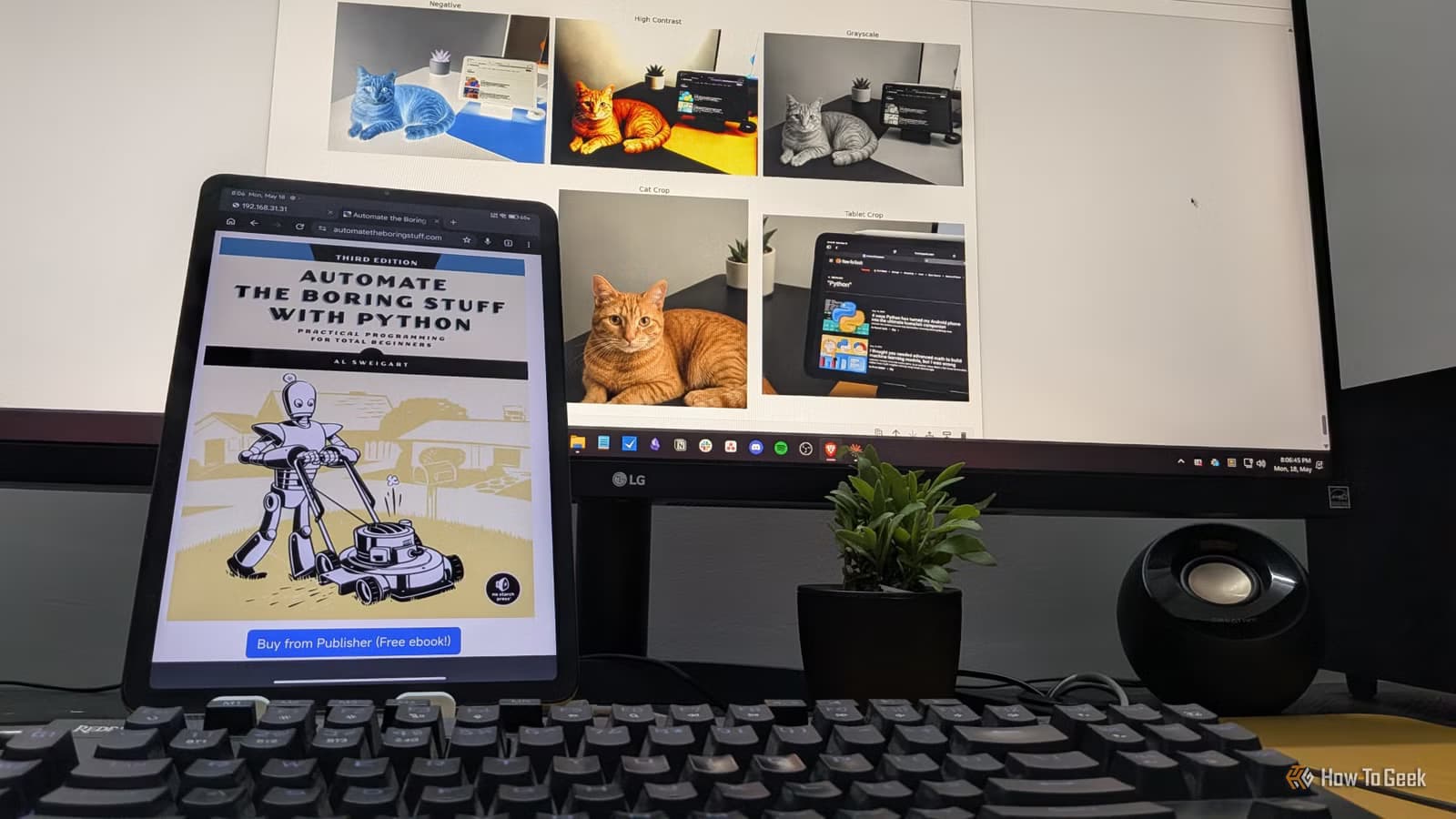
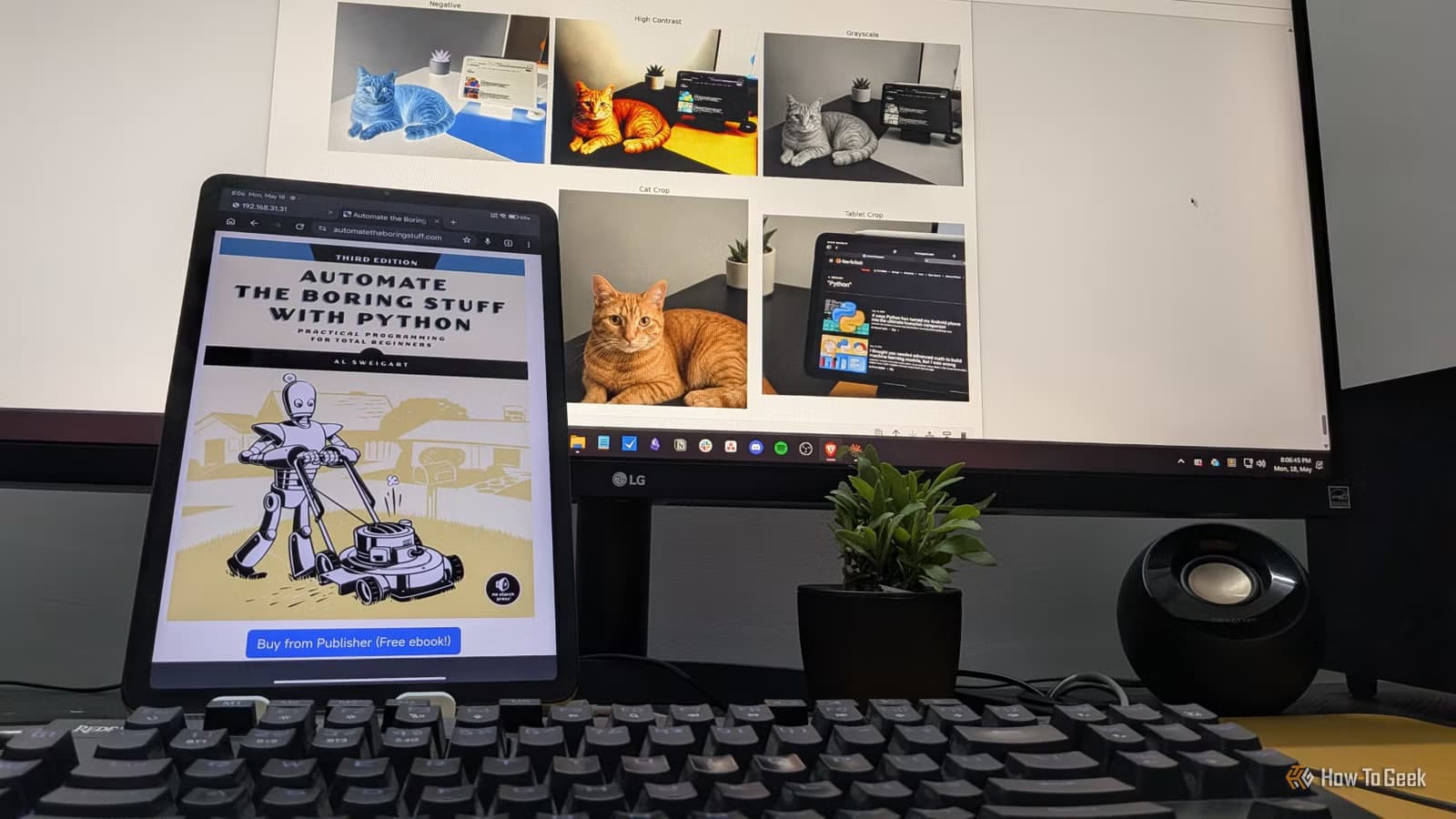
The Pillow library is the go-to tool for image work in Python. Combined with NumPy for array operations and rembg for AI-powered background removal, you can resize, crop, rotate, composite, and animate images. Here are seven practical techniques to get started.
Setup: Installing the Libraries
Before diving into the techniques, install the three libraries you'll need. Run this command in your terminal:
pip install Pillow numpy rembgPillow handles core image operations. NumPy helps with pixel-level manipulation. The rembg library uses AI to remove backgrounds without manual selection.
1. Resize Images
Resizing is the most common image operation. Pillow makes it simple. Import the Image module, load your file, and call resize() with your target dimensions.
from PIL import Image

img = Image.open("photo.jpg")
resized = img.resize((800, 600))
resized.save("resized.jpg")
The resize() method creates a new Image object. Your original stays untouched in memory. This non-destructive approach lets you experiment without losing source files.
2. Crop to Specific Dimensions
Cropping extracts a rectangular region from your image. You specify coordinates as a tuple: left edge, top edge, right edge, bottom edge.
from PIL import Image

img = Image.open("photo.jpg")
cropped = img.crop((100, 100, 500, 400))
cropped.save("cropped.jpg")
This example starts at pixel (100, 100) and ends at (500, 400), producing a 400x300 pixel image. Useful for batch-processing thumbnails or removing unwanted edges from screenshots.
3. Rotate Images
Rotation works the same way. Pass an angle in degrees to the rotate() method.
Code sample: from PIL import Image
img = Image.open("photo.jpg")
rotated = img.rotate(45)
rotated.save("rotated.jpg")
By default, rotation keeps the original image dimensions, which can cut off corners. Add expand=True to the rotate() call if you want the output canvas to grow and fit the entire rotated image.
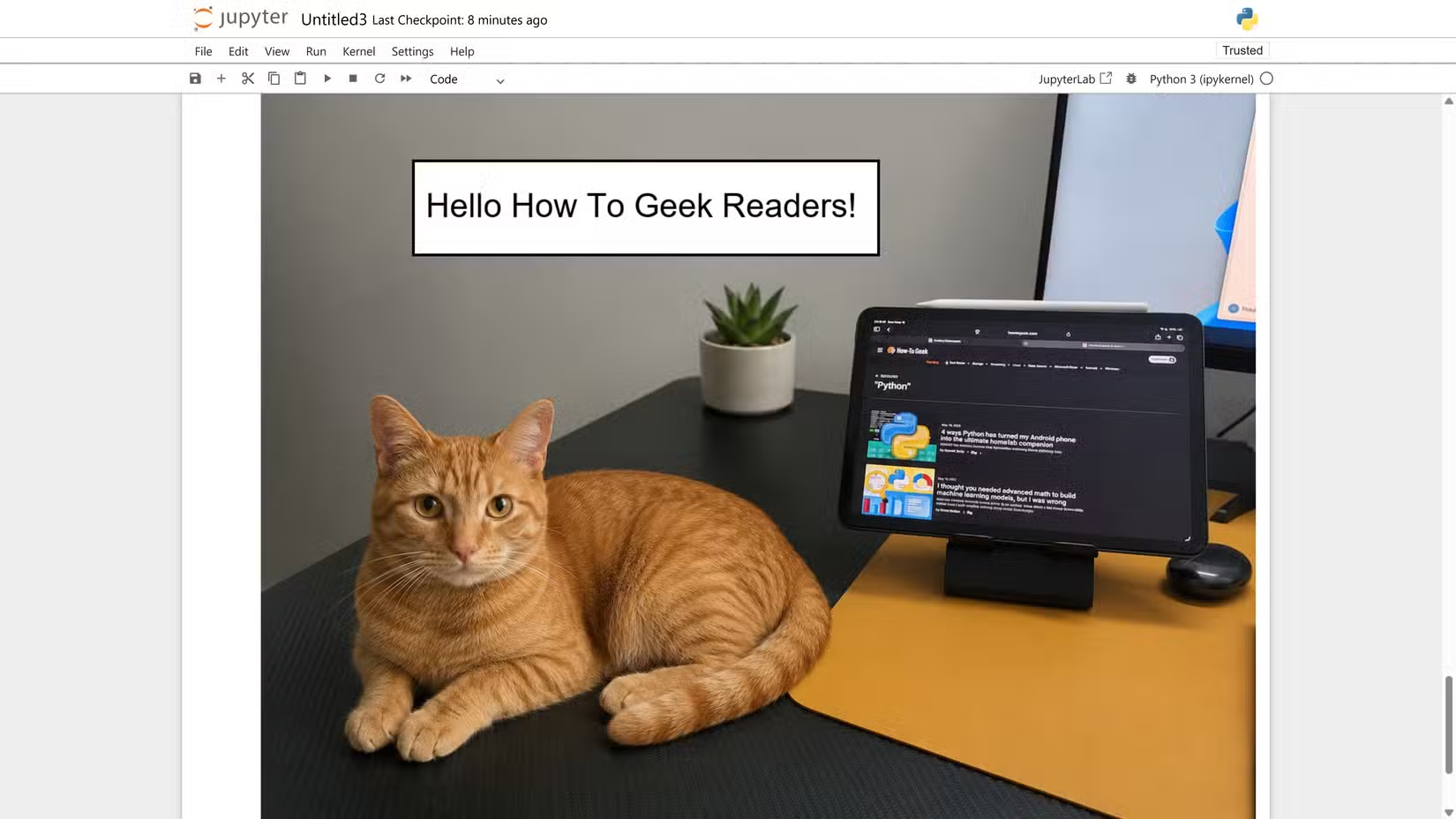
4. Add Text Annotations
Pillow's ImageDraw module lets you overlay text on images. This is useful for watermarks, captions, or labeling batches of photos automatically.
You create a Draw object from your image, then call text() with coordinates and your string. You can specify fonts, colors, and text size.
5. Remove Backgrounds with AI
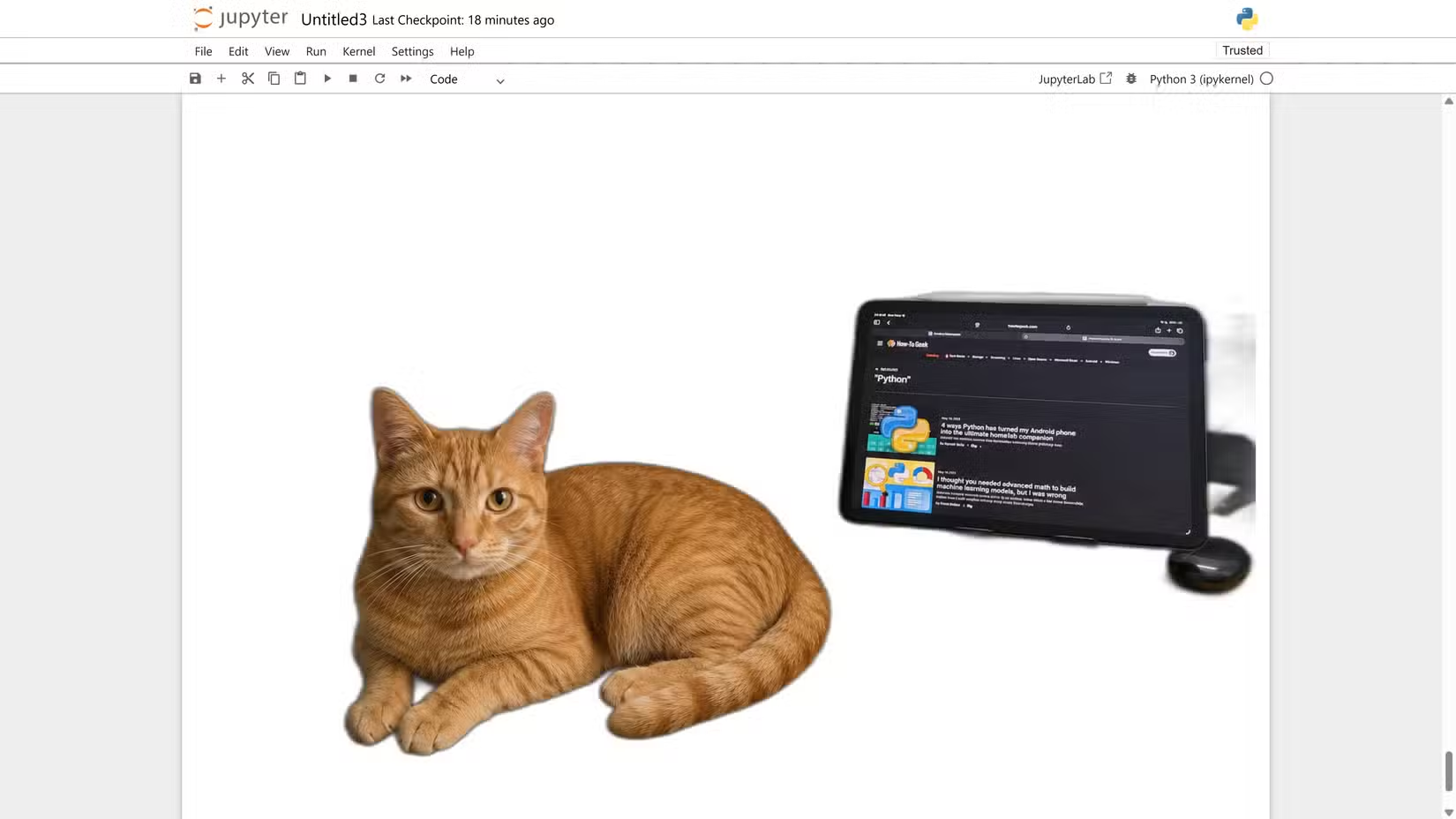
The rembg library uses a machine learning model to isolate foreground objects. No manual selection required. It works well for product photos, portraits, and objects with clear edges.
Point it at an image file, and it outputs a PNG with transparent background. The quality rivals online background removal tools, but runs locally on your machine.
More ways to replace proprietary software with open-source alternatives
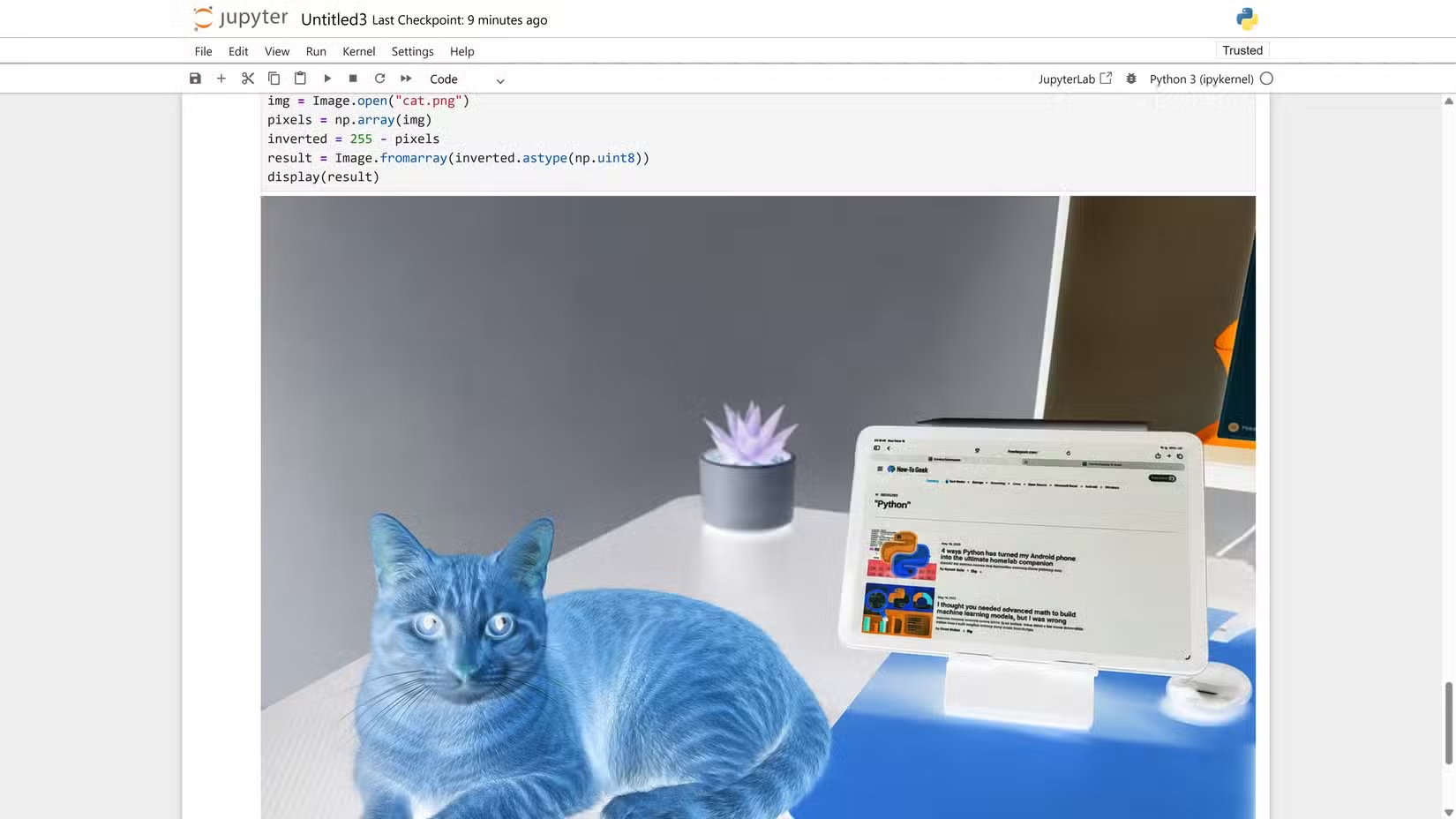
6. Composite and Blend Images
Pillow can blend two images together using transparency. This is how you create overlays, watermarks, or artistic double-exposure effects.
The composite() function takes two images and a mask. The mask controls which parts of each image show through. For simple blending without a mask, use blend() with an alpha value between 0 and 1.
7. Create Animated GIFs
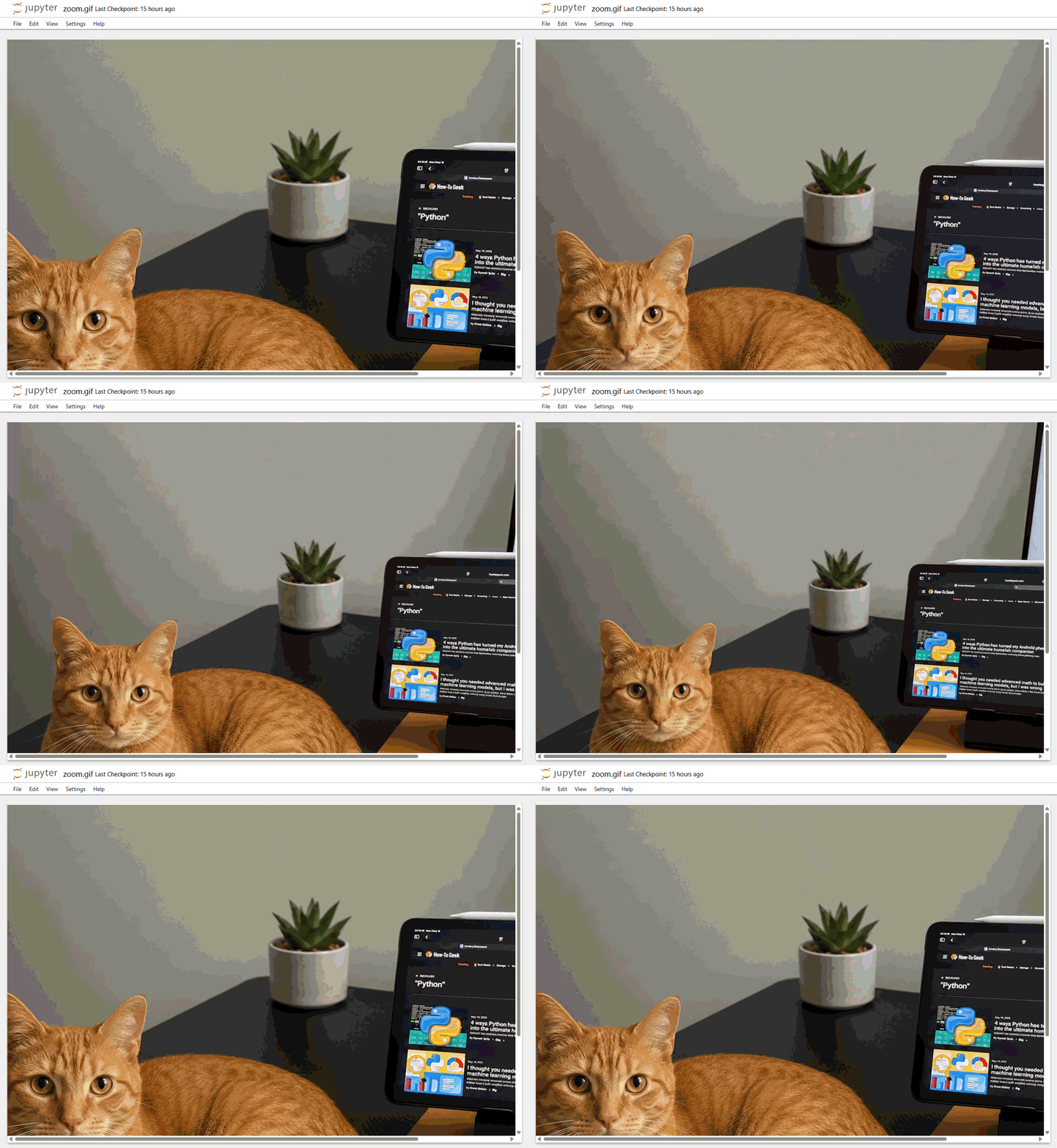
Python can turn a still image into an animated GIF. You create multiple frames programmatically, applying transformations to each, then save them as a single animated file.
A zoom effect, for example, works by cropping progressively smaller regions and resizing them back to full dimensions. Twenty frames with gradual changes creates a smooth push-in animation.
Save with save() and specify format='GIF', append_images for additional frames, save_all=True, and duration in milliseconds. Setting loop=0 makes the animation repeat forever.
When Python Beats Photoshop
These techniques shine for batch processing. Resizing 500 product images, adding watermarks to a photo library, or generating thumbnails for a video archive. Tasks that would take hours clicking through Photoshop become a script that runs in seconds.
The code is also version-controllable and reproducible. Need to change the watermark text? Edit one line and rerun. A Photoshop action requires re-recording.
Another approach to DIY automation using simple code
Logicity's Take
Frequently Asked Questions
Is Python fast enough for batch image processing?
Yes. Pillow uses optimized C libraries under the hood. Processing hundreds of images typically takes seconds to minutes depending on file size and operations.
Can Python edit RAW camera files?
Pillow doesn't support RAW formats directly. You'd need the rawpy library to read RAW files, then convert them to formats Pillow can handle.
Does rembg work offline?
Yes. The rembg library downloads its AI model on first use, then runs entirely locally. No internet connection required after setup.
What image formats does Pillow support?
Pillow handles JPEG, PNG, GIF, BMP, TIFF, WebP, and many others. The full list includes over 30 formats for reading and writing.
Need Help Implementing This?
Source: How-To Geek
Huma Shazia
Senior AI & Tech Writer
Produced with AI assistance and reviewed by the Logicity editorial team. Learn more in our Editorial Policy.