Key Takeaways
- The Connected User Experiences and Telemetry service collects data for Microsoft but provides no direct benefit to you
- Services tied to apps you don't use (like Microsoft Edge or OneDrive) run at every boot even if you use alternatives
- Disabling these services is reversible. If something breaks, just set the service back to Automatic
Windows runs hundreds of background services by default. Some keep your OS stable. Others run constantly for features you've never touched, eating memory, storage, bandwidth, and CPU cycles for nothing.
The good news: Windows lets you disable services you don't need. The process takes about 30 seconds per service, and it's completely reversible if something goes wrong.
How to Disable a Windows Service
Before we get to the list, here's the process you'll repeat for each service:
- Open the Windows Services app (press Win+R, type "services.msc", hit Enter)
- Find and double-click the service you want to disable
- Change the Startup type dropdown to "Disabled"
- Click Apply, then OK
That's it. The service won't start on your next boot. If you ever need it back, repeat the process and set Startup type to "Automatic" or "Manual."
1. Connected User Experiences and Telemetry
Microsoft collects a lot of data about how you use Windows. The Connected User Experiences and Telemetry service is the main pipeline for that collection. It gathers crash reports, app usage patterns, hardware information, and other system details.
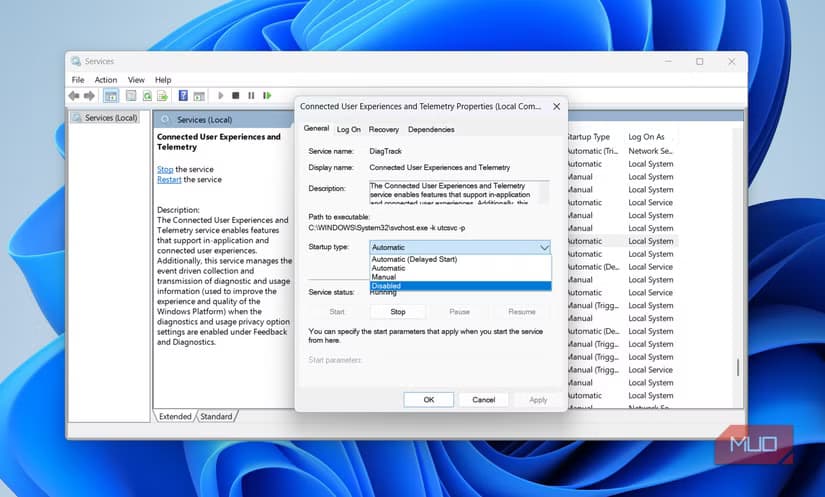
None of this benefits you directly. The service runs constantly in the background, using system resources to send data back to Microsoft. Disabling it is completely safe and cuts off a significant chunk of the telemetry Windows sends home.
This should be one of the first things you disable after setting up a new PC, right alongside reviewing your privacy settings.
2. Microsoft Edge Services
If you use Chrome, Firefox, or any browser other than Edge, Microsoft's browser services are still running at every boot. These services keep Edge updated and support its background features, even if you haven't opened Edge in months.
Look for services with "Edge" in the name in the Services app. If you've committed to a different browser, there's no reason to let Edge consume resources in the background.
3. OneDrive Updater Service
The OneDrive Updater Service runs in the background to keep Microsoft's cloud storage app updated. If you use Google Drive, Dropbox, or just don't do cloud storage, this service is wasting cycles.
Note that this is separate from the main OneDrive sync service. The updater specifically handles checking for and downloading app updates. If you've uninstalled OneDrive entirely, this service might still be hanging around.
4. Xbox Services
Windows comes with several Xbox-related services for gaming features. If you don't use Xbox Game Bar, Game Pass, or any Xbox integration, these services run for nothing.
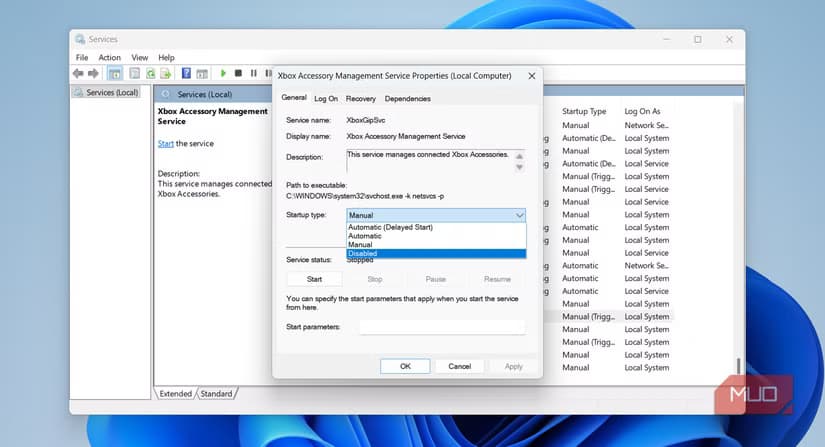
Search for services starting with "Xbox" in the Services app. You'll likely find Xbox Accessory Management, Xbox Live Auth Manager, and others. Disable the ones you don't need.
5. Third-Party App Services
This isn't a single service but a category worth checking. Many apps you've installed over the years have left services running that start at every boot. Printer software, old antivirus trials, device drivers for hardware you no longer own.
Scroll through the Services app and look for names of software you recognize but don't use anymore. Be cautious here: if you're not sure what a service does, leave it alone. But obvious ones like services for printers you don't have or software you uninstalled years ago are fair game.
Two More Worth Considering
Depending on your setup, you might also want to disable:
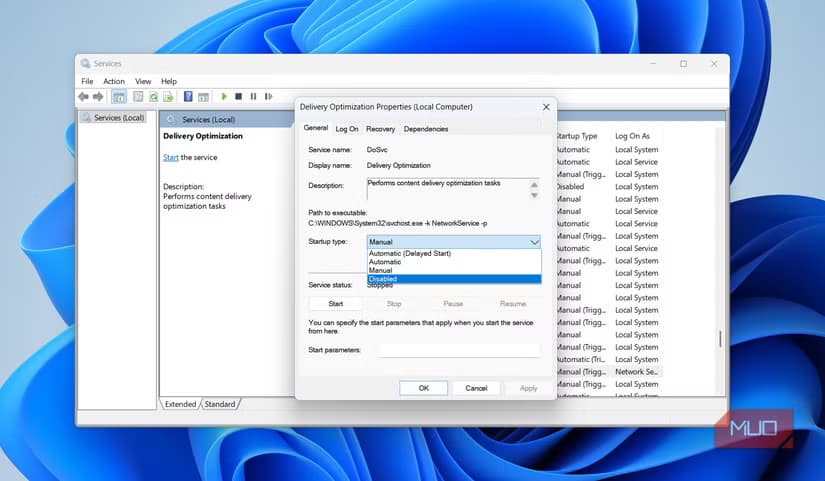
- Delivery Optimization: This service lets Windows share update files with other PCs on your network or the internet. If you're on a metered connection or just don't want to be part of Microsoft's peer-to-peer update network, disable it.
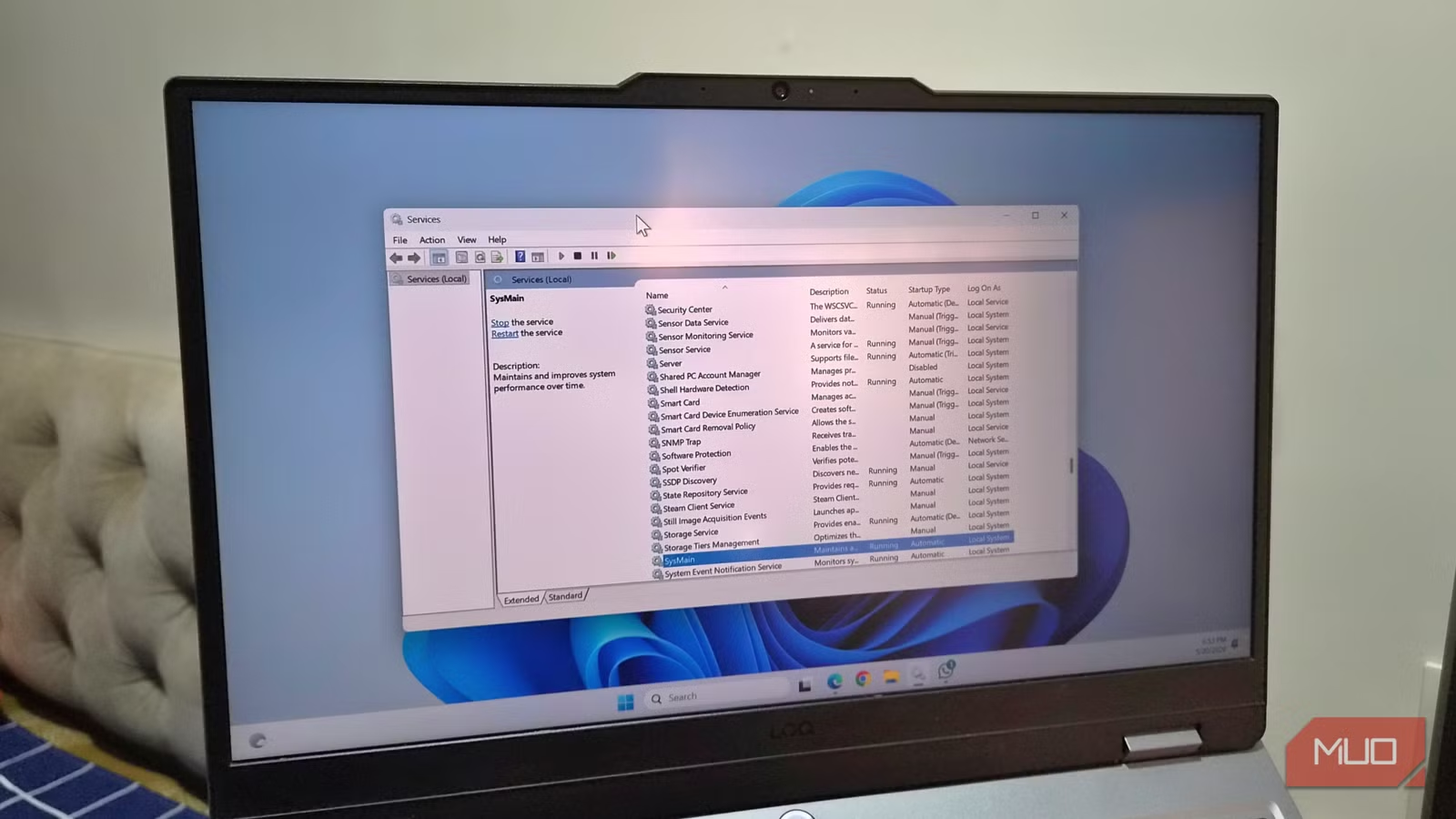
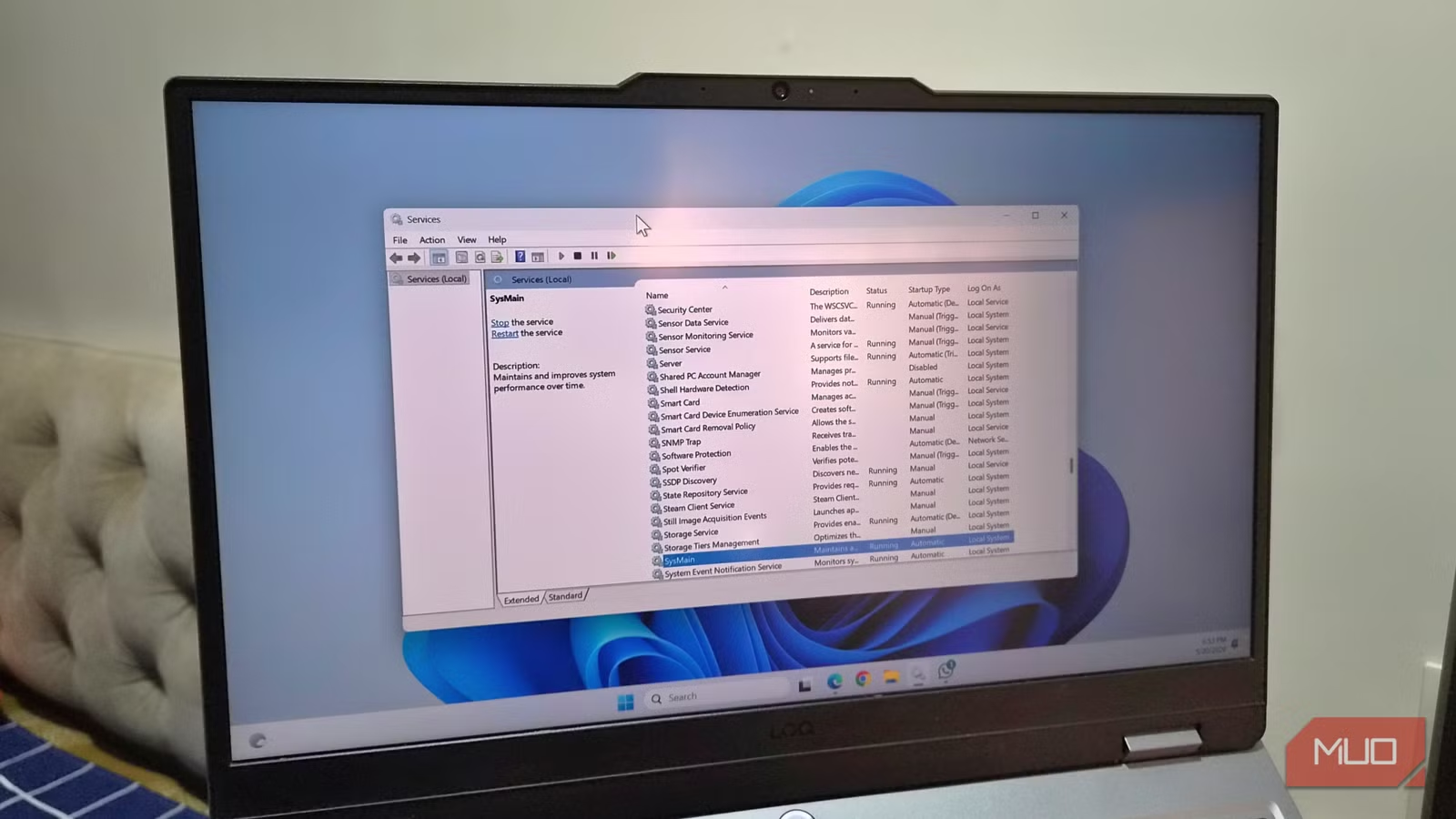
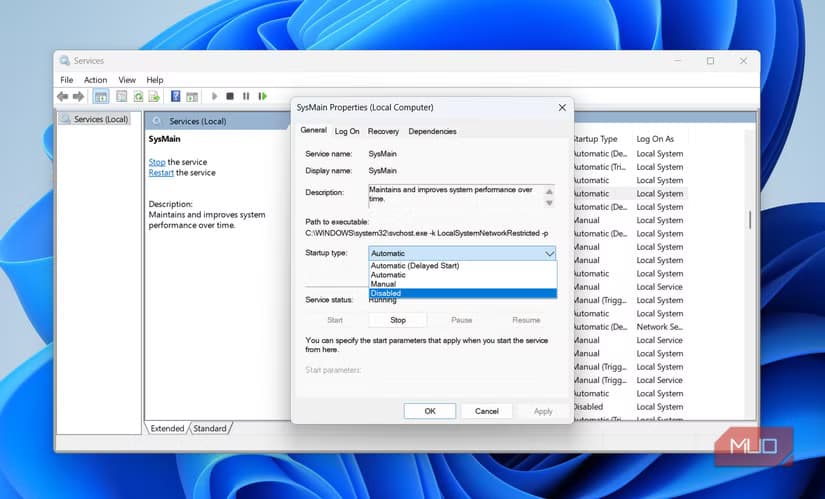
- SysMain (formerly Superfetch): This service preloads apps it thinks you'll use. On older PCs or systems with limited RAM, it can cause more slowdown than speedup. On modern SSDs with plenty of RAM, the benefit is minimal.
Logicity's Take
Another system-level tweak that makes a noticeable difference
Frequently Asked Questions
Will disabling Windows services break my computer?
Not if you stick to the services listed here. These are all safe to disable. If something does go wrong, just open Services and set the Startup type back to Automatic.
How much performance will I gain by disabling services?
It depends on your hardware. On older PCs with limited RAM, you might see noticeable improvement. On modern machines, the gains are smaller but still real, especially reduced background CPU and network usage.
Do disabled services stay disabled after Windows updates?
Usually yes, but major Windows updates occasionally reset some services. It's worth checking your disabled services after a big update like a feature release.
What's the difference between Disabled and Manual startup types?
Disabled means the service won't start at all, even if something requests it. Manual means it won't start automatically at boot, but Windows can start it if needed. For services you never want running, choose Disabled.
Need Help Implementing This?
Source: MakeUseOf
Huma Shazia
Senior AI & Tech Writer
Produced with AI assistance and reviewed by the Logicity editorial team. Learn more in our Editorial Policy.