Key Takeaways
- Auto-save with a 1-second delay eliminates the Ctrl+S habit and prevents lost work
- Format-on-save keeps code clean without breaking your flow
- Disabling minimap, breadcrumbs, and hints removes visual noise most developers don't use
VS Code ships with defaults that work for most people. But most people aren't you. If you've been hitting Ctrl+S every few seconds, scrolling horizontally to read long lines, or getting distracted by the minimap you never actually look at, these five settings.json tweaks will help.
All changes go into the same file. Open the Command Palette with Ctrl+Shift+P on Windows or Cmd+Shift+P on Mac. Type "JSON" and select "Preferences: Open User Settings (JSON)." Paste each snippet inside the curly braces.
1. Auto-Save: Stop Hitting Ctrl+S
If you're saving after every few lines of code, you're not paranoid. You've just been burned before. But that muscle memory is unnecessary friction. Auto-save removes it completely.
"files.autoSave": "afterDelay",
"files.autoSaveDelay": 1000
Now your files save automatically after a one-second pause. You write code, stop typing, and it's saved. This sounds small, but it changes how coding feels. No more debugging a problem for 20 minutes only to realize you forgot to save a file in a large codebase.
2. Format on Save: Clean Code Without Thinking
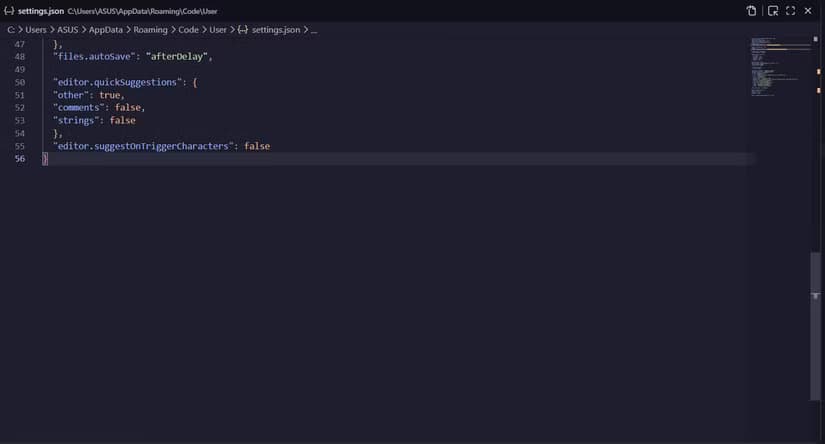
Manually formatting code is tedious. Reviewing pull requests where formatting is inconsistent is worse. Format-on-save fixes both problems by automatically applying your configured formatter every time you save a file.
"editor.formatOnSave": trueThis works with whatever formatter you have installed. Prettier, Black, ESLint, or VS Code's built-in options. The code reformats itself the moment the file saves. Combined with auto-save, your code stays consistently formatted without you ever thinking about it.
3. Word Wrap: No More Horizontal Scrolling
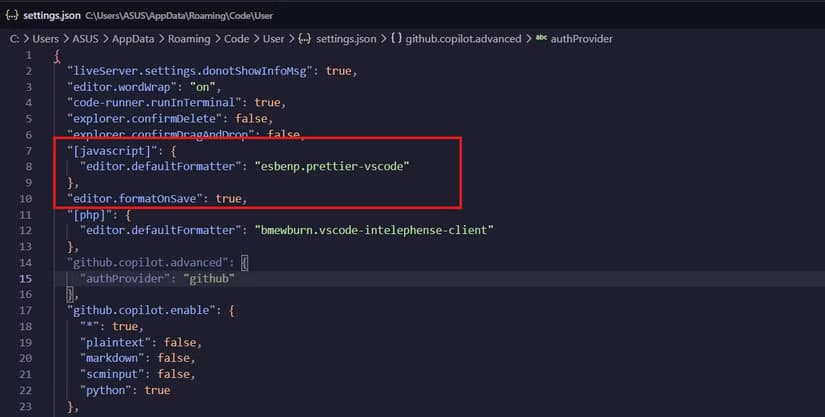
Long lines that run off the screen force you to scroll horizontally. That breaks your reading flow and makes it harder to scan code quickly. Word wrap keeps everything visible.
"editor.wordWrap": "on"Lines now wrap at the editor boundary. The actual file content stays unchanged. You just see it without needing to scroll sideways. This is especially useful on smaller screens or when you have multiple editor panes open.
4. Remove Visual Clutter: Minimap, Breadcrumbs, Hints
VS Code's interface includes several features that look useful but often just add noise. The minimap on the right side of the editor. Breadcrumbs at the top showing your file path. Inline hints that pop up constantly. If you don't actively use these, they're just distractions.
Code sample: "editor.minimap.enabled": false,
"breadcrumbs.enabled": false,
"editor.inlayHints.enabled": "off"
Disabling these three settings gives you a cleaner editor window. More space for actual code. Fewer things competing for your attention. You can always re-enable any of them if you find you miss them.
5. Reduce Autocomplete Noise
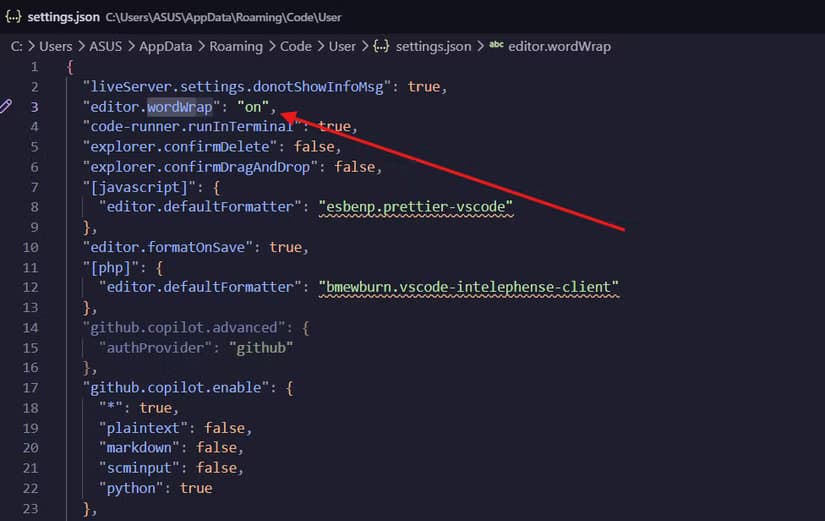
Autocomplete is helpful until it isn't. When suggestions pop up for every keystroke, including things you'd never type, it becomes more distraction than assistance. You can tune how aggressive autocomplete behaves.
Code sample: "editor.quickSuggestions": {
"other": "off",
"comments": "off",
"strings": "off"
}
This disables automatic suggestions in comments and strings, where they're rarely useful. You still get suggestions when typing actual code. But VS Code stops trying to autocomplete your comments or the text inside a string literal.
The Complete Settings Block
Here's everything combined. Copy this into your settings.json file to apply all five changes at once.
Code sample: {
"files.autoSave": "afterDelay",
"files.autoSaveDelay": 1000,
"editor.formatOnSave": true,
"editor.wordWrap": "on",
"editor.minimap.enabled": false,
"breadcrumbs.enabled": false,
"editor.inlayHints.enabled": "off",
"editor.quickSuggestions": {
"other": "off",
"comments": "off",
"strings": "off"
}
}
These changes take about 10 minutes to set up. Once you do, VS Code feels faster and calmer. The editor gets out of your way and lets you focus on writing code instead of managing the tool.
Logicity's Take
Another take on when paid tools beat free alternatives
More productivity tools for developers
Frequently Asked Questions
Will auto-save cause problems with version control?
No. Auto-save just writes to disk more frequently. Git still tracks changes based on your commits, not your saves. You might see more frequent file watchers triggering, but this rarely causes issues.
Can I apply different settings to different projects?
Yes. Create a .vscode folder in your project root with its own settings.json file. Project settings override user settings. This lets you have different formatting rules for different codebases.
What if format-on-save breaks my code?
This usually means your formatter has rules that conflict with your codebase's style. Configure your formatter (Prettier, ESLint, etc.) to match your project's conventions, or disable format-on-save for specific file types.
How do I undo these changes?
Delete the lines from settings.json or set them back to their defaults. VS Code will revert to built-in behavior. You can also use the Settings UI to toggle these options without editing JSON directly.
Need Help Implementing This?
Source: How-To Geek
Huma Shazia
Senior AI & Tech Writer
Produced with AI assistance and reviewed by the Logicity editorial team. Learn more in our Editorial Policy.