Key Takeaways
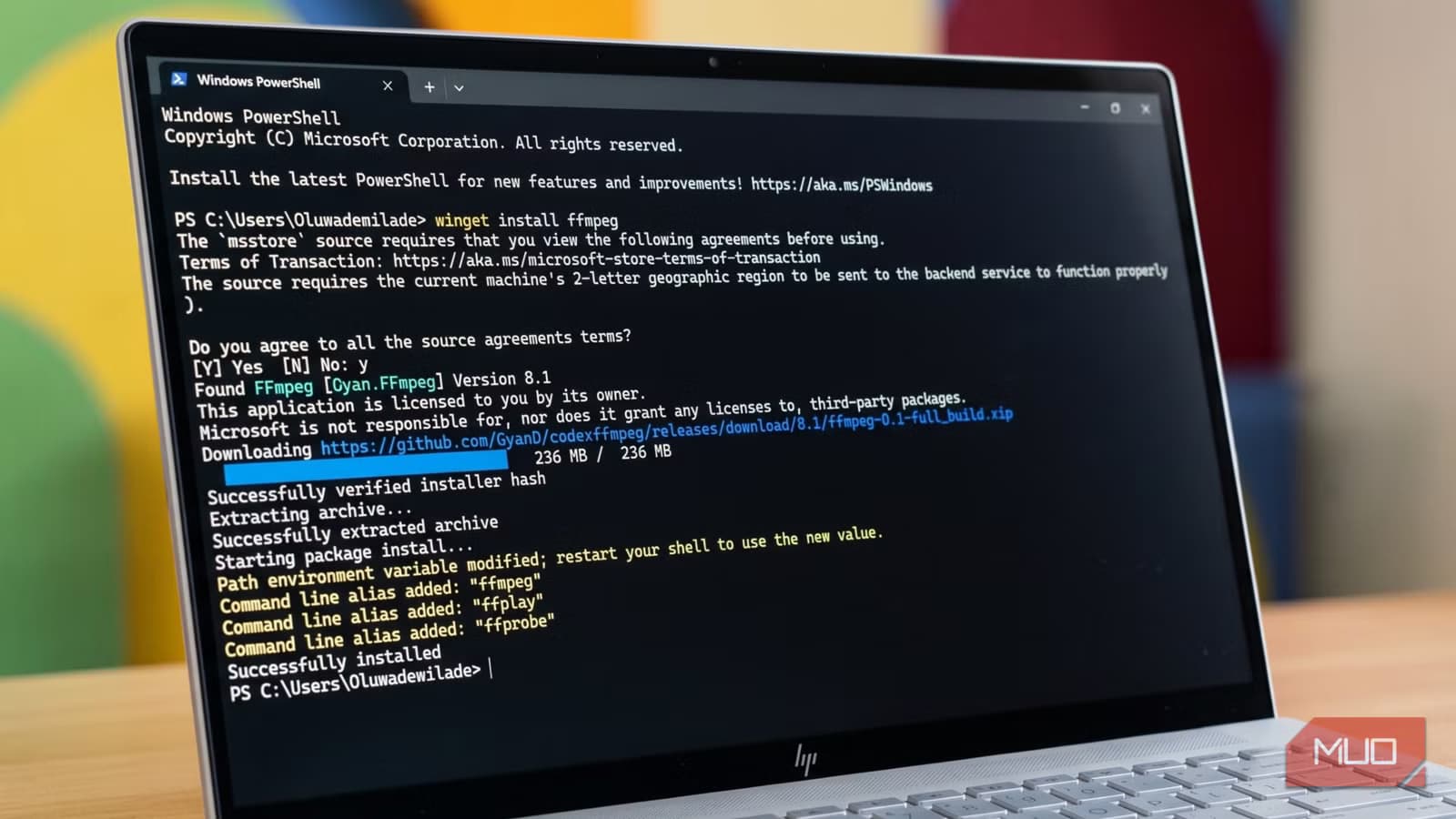
- FFmpeg is a free, open-source tool that powers YouTube, VLC, Chrome, Plex, and Kodi
- It can replace paid subscriptions for video conversion, audio extraction, and media processing
- Installation requires adding FFmpeg to your system PATH on Windows, or a single command on macOS and Linux
The Free Tool Running Behind Everything
There is a piece of software running behind YouTube, VLC, Chrome, Plex, and Kodi. It has been around since 2000. It costs nothing. And it could replace at least three subscriptions sitting on your credit card right now.
That tool is FFmpeg, a free, open-source command-line framework that handles pretty much any audio or video task a human or machine could dream up. Technically, it is a massive collection of libraries, including libavcodec and libavformat, that enable famous apps to understand and play almost any file format in existence.
Yes, there is a learning curve. Yes, it lives in a terminal window with no friendly buttons. But once you get past that, what you unlock is absurd in the best possible way.
How to Install FFmpeg
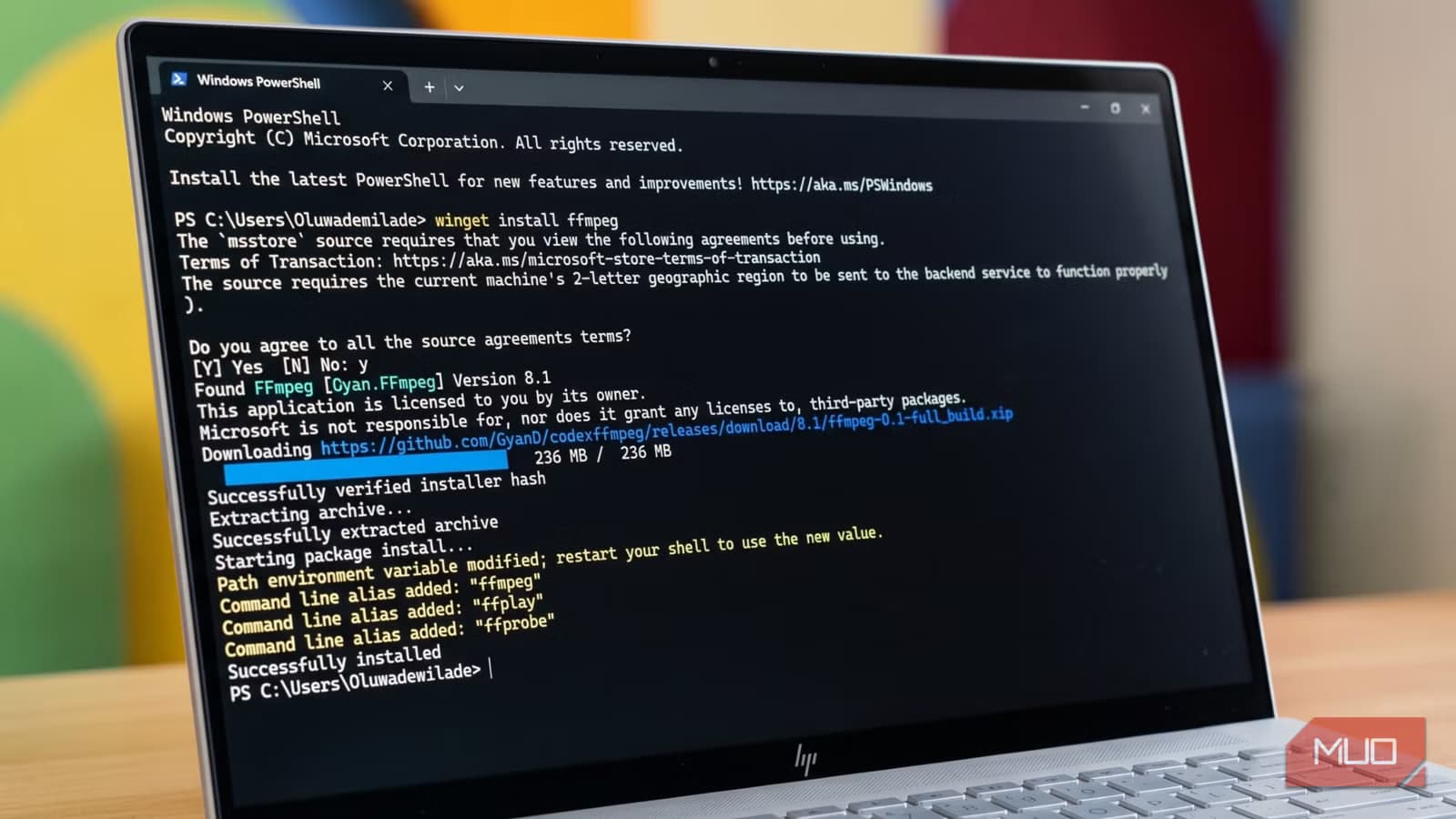
On Windows, installation is slightly more manual than a standard installer. You download a pre-built binary from the official FFmpeg website at ffmpeg.org, which typically points you to trusted community builds like gyan.dev. Extract the folder, then add its "bin" subfolder to your system's PATH environment variables so you can call it from any folder.
On macOS, the fastest route is Homebrew. Run brew install ffmpeg in your Terminal, and it handles everything else.
Linux users on Debian or Ubuntu can run sudo apt install ffmpeg and be done in seconds.
Once installed, every command goes into your terminal of choice: Command Prompt or PowerShell on Windows, Terminal on macOS, and whichever shell you prefer on Linux. You type the command, press Enter, and FFmpeg gets to work using your computer's CPU or GPU to process media with professional-grade precision.
What FFmpeg Can Replace
Here are the key capabilities that make FFmpeg a substitute for paid software:
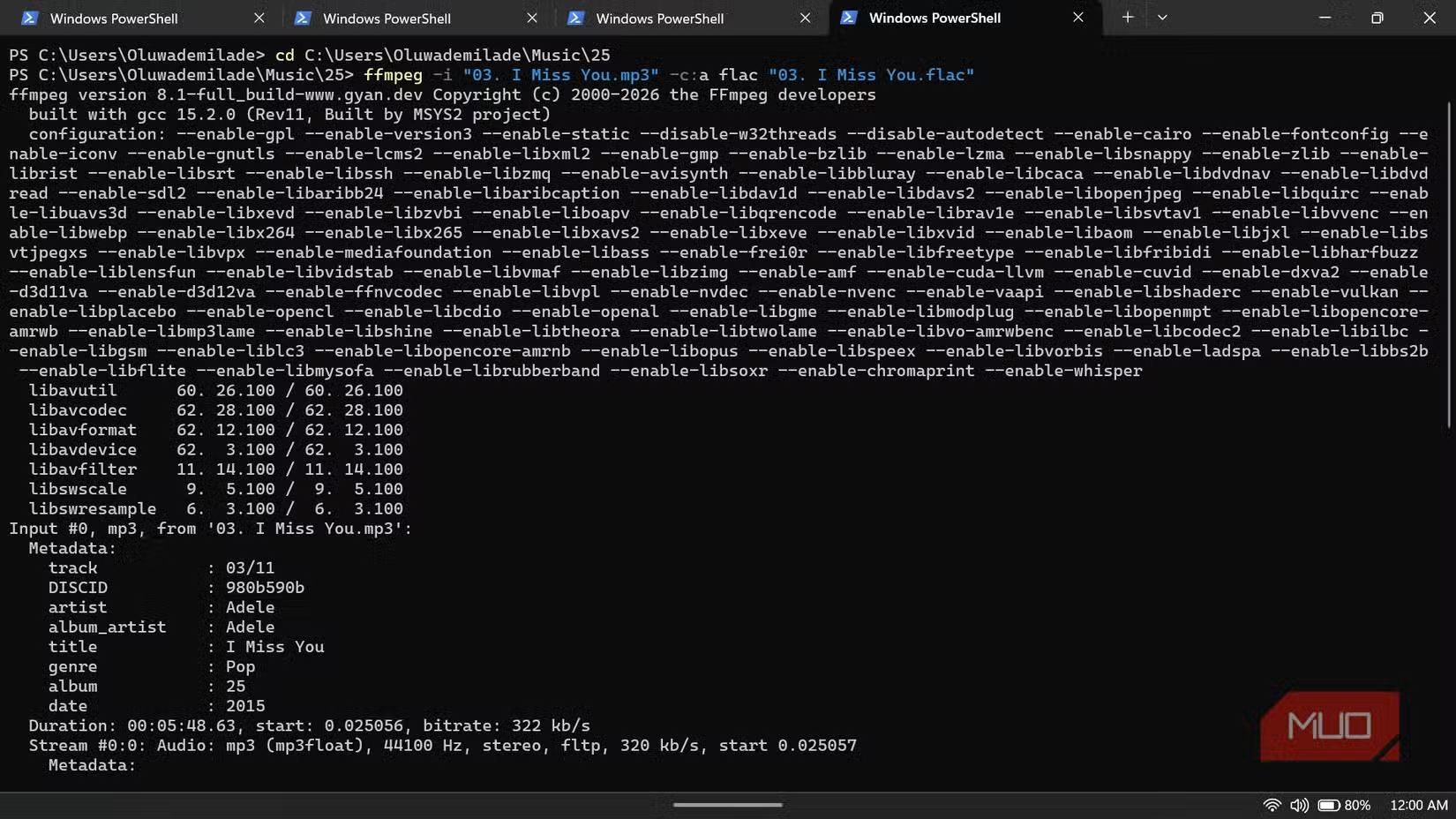
1. Universal Format Conversion
FFmpeg can convert virtually any audio or video format to any other format. MP4 to MKV, FLAC to MP3, AVI to WebM. If a format exists, FFmpeg probably supports it. Paid converters charge monthly fees for this same functionality.
2. Video Compression and Encoding
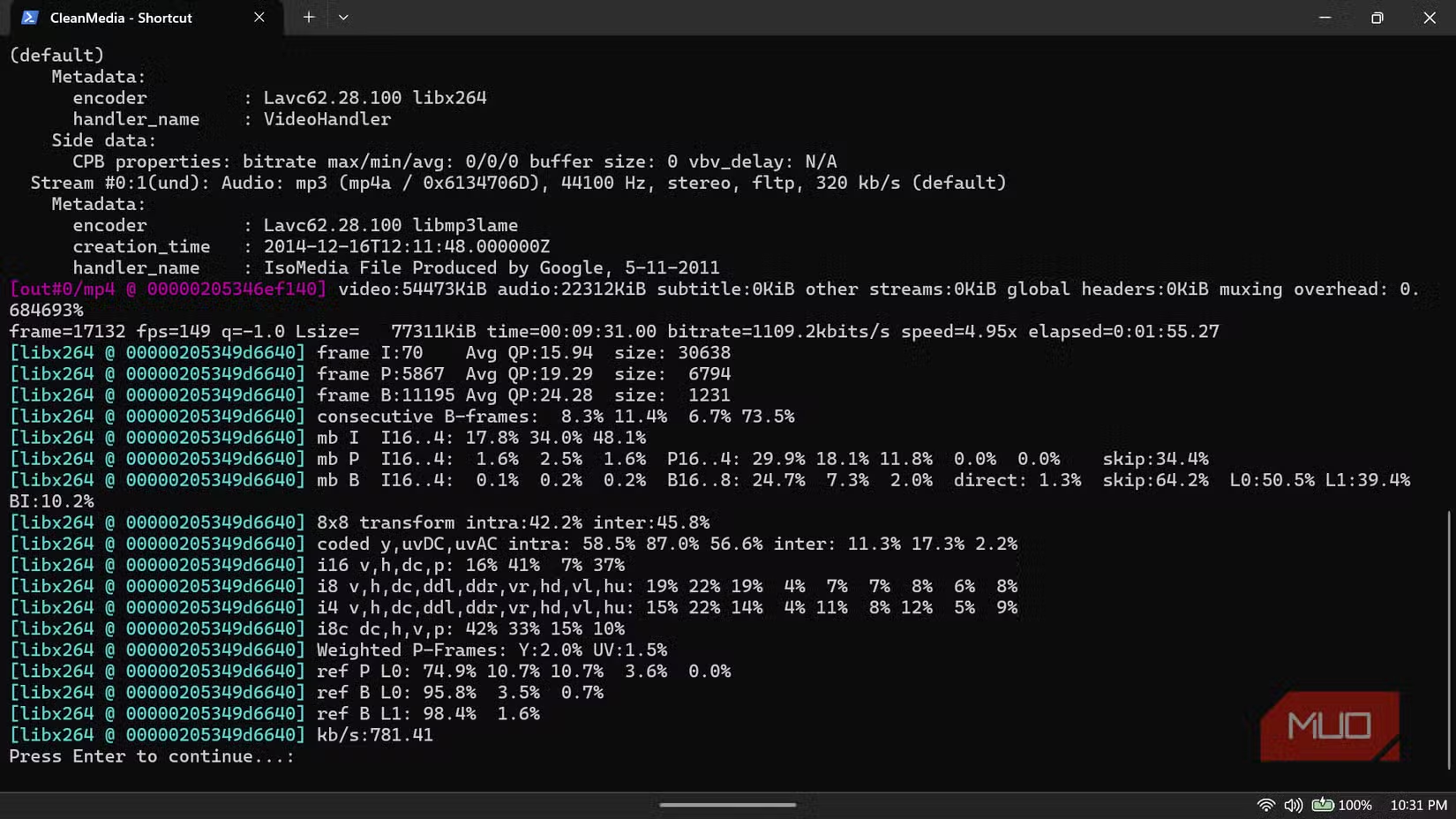
Need to shrink a 4GB video file to something email-friendly? FFmpeg handles compression with precise control over bitrate, resolution, and codec. You can encode with H.264, H.265, VP9, or AV1, depending on your needs.
3. Audio Extraction from Video
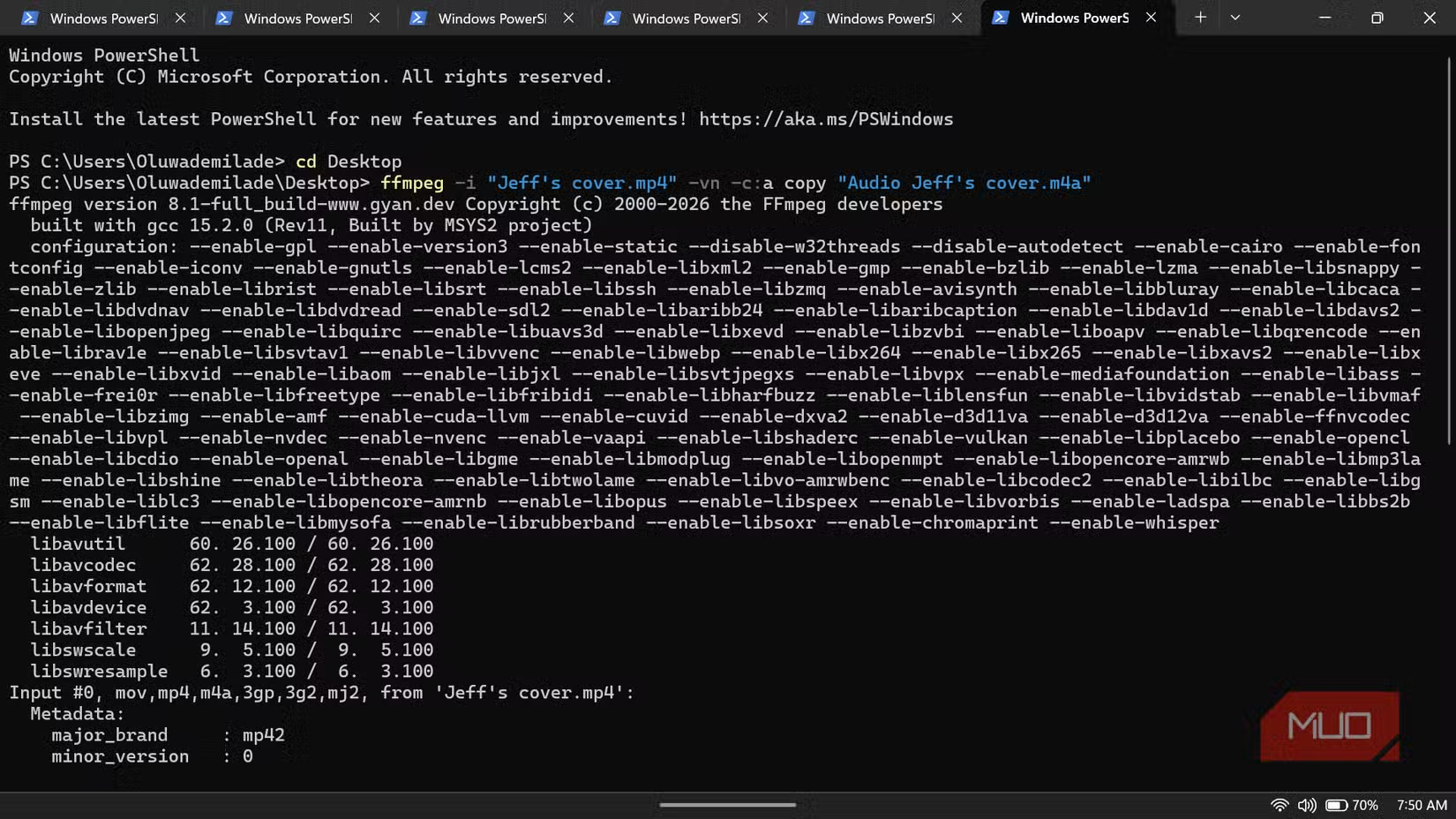
Want just the audio track from a video file? One command strips out the audio in whatever format you choose. No need for dedicated software or online tools that limit file sizes.
4. Video Trimming and Cutting
FFmpeg can cut videos to specific timestamps without re-encoding, which means near-instant processing. This is useful for extracting clips or removing unwanted sections.
5. Batch Processing
Because FFmpeg runs from the command line, you can script it to process hundreds of files in one go. Convert an entire folder of videos overnight while you sleep. Paid tools often charge extra for batch capabilities.
The Learning Curve Trade-off
FFmpeg's power comes with a cost: there are no buttons to click. Every operation requires typing a command with the right flags and parameters. The documentation is extensive but dense.
For those who prefer a graphical interface, tools like Shutter Encoder and Handbrake provide friendly front-ends that use FFmpeg under the hood. You get the same processing power with clickable buttons.
But learning the command line pays dividends. Once you understand the syntax, you can automate workflows that would take hours manually. And you can do it all without paying a cent.
Another deep dive into common tech misconceptions
Logicity's Take
Frequently Asked Questions
Is FFmpeg really free?
Yes. FFmpeg is free and open-source software licensed under LGPL or GPL, depending on the build. You can use it for personal and commercial purposes without paying anything.
Is FFmpeg safe to download?
FFmpeg is safe when downloaded from official sources. The main site is ffmpeg.org, which links to trusted community builds like gyan.dev for Windows. Avoid third-party download sites that may bundle unwanted software.
Can FFmpeg convert any video format?
FFmpeg supports virtually every audio and video format in existence, including MP4, MKV, AVI, MOV, WebM, MP3, FLAC, AAC, and hundreds more. If a format exists, FFmpeg almost certainly handles it.
Do I need to know programming to use FFmpeg?
No programming knowledge is required, but you do need to use the command line. Commands follow a consistent syntax that you can learn through documentation and examples. GUI tools like Shutter Encoder offer an alternative if you prefer clicking buttons.
What apps use FFmpeg?
YouTube, VLC Media Player, Chrome, Plex, Kodi, and many other media applications use FFmpeg's libraries to process audio and video. It's a foundational tool for the modern internet's media infrastructure.
Need Help Implementing This?
Source: MakeUseOf
Manaal Khan
Tech & Innovation Writer
Produced with AI assistance and reviewed by the Logicity editorial team. Learn more in our Editorial Policy.