Key Takeaways
- Test-NetConnection with -TraceRoute reveals exactly where your connection breaks down, hop by hop
- Get-NetAdapterStatistics exposes packet drops and errors that browser speed tests never detect
- PowerShell's object-based output makes it easier to script and automate network diagnostics
Speed tests are satisfying. You click a button, watch a needle climb, and get a number that confirms your internet is fast. But here's the problem: raw bandwidth is just one slice of network performance. A 500 Mbps connection means nothing when your Zoom calls freeze, certain websites crawl, or downloads stall at 80%.
The real culprits are often invisible to speed tests. Packet loss, DNS resolution delays, misconfigured routing, and quietly failing hardware all degrade your experience without touching your download speed. PowerShell exposes these issues with commands that go far deeper than any browser-based test.
Why Speed Tests Fall Short
A speed test measures throughput between your device and a nearby server. It answers one question: how fast can bits travel when conditions are ideal? It doesn't tell you why a specific website loads slowly while others work fine. It doesn't reveal the hop where packets start dropping. It doesn't flag the Ethernet adapter quietly corrupting data.
According to network diagnostics research, roughly 90% of latency issues in home environments stem from DNS problems or local congestion, not bandwidth limitations. Speed tests miss these entirely.
1. Test-NetConnection: Trace Where Connections Break Down
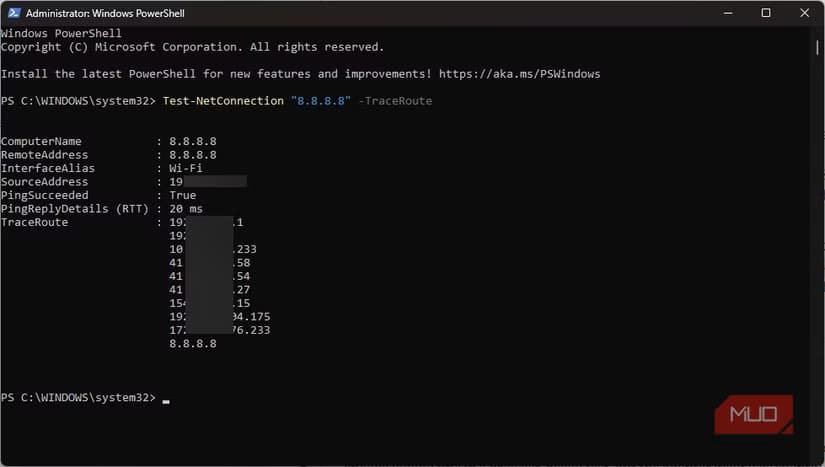
This command is the first stop when fast internet starts feeling slow. With the -TraceRoute flag, it maps every hop between your device and the destination, showing latency at each node.
Test-NetConnection "8.8.8.8" -TraceRouteThe output reveals where problems actually occur. Look for sharp latency spikes that persist across subsequent hops. That pattern usually indicates an issue beyond your local network, something your ISP or an upstream provider needs to address.
Use this command when you experience:
- Random gaming lag despite stable speed test results
- Voice or video calls cutting out
- Certain websites loading slowly while others work fine
- Downloads freezing partway through
For more detail, add the -InformationLevel Detailed flag. This exposes the actual round-trip time in milliseconds for the final destination, giving you a precise measurement rather than just pass/fail.
2. Get-NetAdapterStatistics: Find Hidden Packet Drops
Sometimes connectivity issues aren't your ISP's fault at all. A failing Ethernet cable, a noisy USB dock, or a misconfigured driver can drop packets without triggering any obvious error. Browser speed tests won't catch this.
Get-NetAdapterStatisticsThis command returns statistics for each network adapter, including received and sent bytes, but more importantly: error counts. Look for non-zero values in ReceivedErrors, ReceivedDiscards, OutboundErrors, or OutboundDiscards.
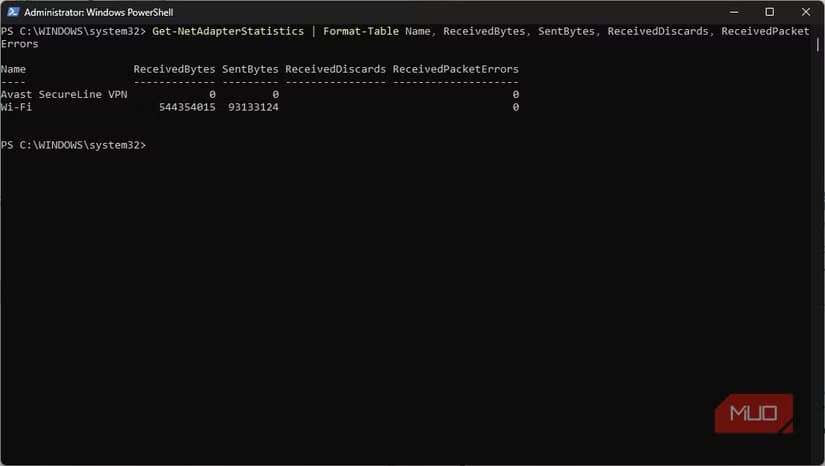
If error counts climb steadily, you've found your culprit. Swap cables, try a different port, or update drivers. These are physical-layer problems that no amount of ISP complaints will fix.
3. Resolve-DnsName: Measure DNS Response Time
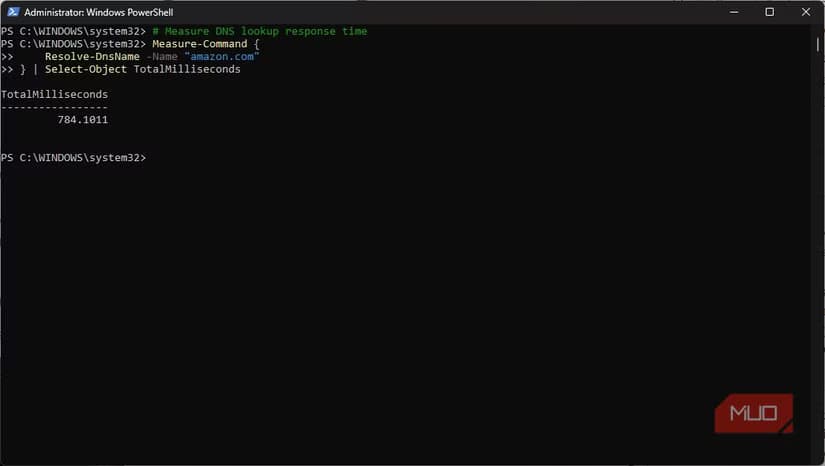
Slow DNS resolution makes every website feel laggy, even with gigabit bandwidth. The initial lookup adds delay before any content loads. PowerShell lets you measure exactly how long your DNS server takes to respond.
Measure-Command { Resolve-DnsName "google.com" }Run this against several domains. If results consistently exceed 50-100 milliseconds, consider switching DNS providers. Cloudflare (1.1.1.1) and Google (8.8.8.8) often outperform ISP defaults.
4. Get-NetTCPConnection: Find Apps Consuming Your Bandwidth
Background applications quietly eat bandwidth without asking. Cloud sync services, automatic updates, and poorly behaved apps maintain connections you never see. This command exposes them.
Code sample: Get-NetTCPConnection | Where-Object {$_.State -eq "Established"} | Select-Object LocalAddress, LocalPort, RemoteAddress, RemotePort, OwningProcess
The OwningProcess column shows which process ID holds each connection. Cross-reference with Get-Process to identify the application. You might find a game launcher maintaining dozens of connections or a backup tool saturating your upload.
5. Get-NetIPConfiguration: Verify Your Network Setup
This command replaces the old ipconfig with something more useful. Instead of raw text to parse, it returns structured objects showing your IP address, default gateway, DNS servers, and interface status.
Code sample: Get-NetIPConfiguration -Detailed
Check that your DNS servers are what you expect. Verify your gateway is correct. Confirm IPv6 settings if you're troubleshooting dual-stack issues. The structured output makes scripting and automation far easier than parsing ipconfig text.
“The move from text-based utilities like ipconfig to object-based cmdlets like Get-NetIPConfiguration is the single biggest upgrade in Windows administration history.”
— Jeffrey Snover, Technical Fellow at Microsoft and inventor of PowerShell
Combining Commands for Faster Diagnosis
PowerShell's real power emerges when you chain these together. A single one-liner can ping a target, check your adapter health, and verify DNS response time. Enterprise sysadmins often build "Swiss Army" scripts that combine Test-NetConnection, Get-NetTCPConnection, and adapter statistics to isolate faulty hardware in minutes.
Using native PowerShell objects instead of parsing CLI text output can increase troubleshooting efficiency by an estimated 30%. You spend less time grepping through output and more time fixing problems.
Logicity's Take
FAQ
Frequently Asked Questions
Do I need admin rights to run these PowerShell network commands?
Most commands like Test-NetConnection and Get-NetAdapterStatistics work without admin rights. Some detailed network configuration commands may require elevated privileges.
Can these commands replace professional network monitoring tools?
For troubleshooting and quick diagnostics, yes. For continuous monitoring, alerting, and historical analysis across multiple systems, dedicated tools still offer more features.
Why does Test-NetConnection show high latency on one hop but my connection still works?
Routers often deprioritize ICMP packets used for traceroute. High latency on a single hop doesn't indicate a problem unless subsequent hops also show elevated times.
What's the difference between Test-NetConnection and the old ping command?
Test-NetConnection returns structured objects, supports port testing, and includes traceroute. Ping returns plain text and only tests basic reachability.
How often should I run Get-NetAdapterStatistics to check for errors?
Run it when you notice connection issues. Compare error counts before and after the problem occurs. Steadily climbing errors indicate hardware or driver issues.
More practical tech workarounds for power users
Need Help Implementing This?
Source: MakeUseOf
Manaal Khan
Tech & Innovation Writer
Produced with AI assistance and reviewed by the Logicity editorial team. Learn more in our Editorial Policy.