Key Takeaways
- Accessibility Services can let malware read everything on screen, approve permissions automatically, and intercept two-factor codes
- Draw Over Other Apps enables fake login screens that steal banking credentials
- SMS and Camera permissions give apps access to authentication codes and can enable silent surveillance
Every time you install an Android app, you get a moment of power: accept or deny its permission requests. Most of us tap Allow without thinking. That habit can cost you.
Android separates permissions into two categories. Normal permissions are low risk and granted automatically. Dangerous permissions require your explicit approval. But some dangerous permissions go further. They hand over so much control that banking trojans, stalkerware, and SMS fraud campaigns specifically target them.
Here are five permissions that sit at the worst end of that spectrum. If an app you don't fully trust asks for any of these, stop and ask why.
1. Accessibility Services
Accessibility Services exists to help people with visual, hearing, or motor impairments use their phones. Apps with this permission can read everything on screen, simulate taps and swipes, and respond to UI events across any app. Even apps they shouldn't be able to access.
If malware gets this access, it can read text as you type it. It can approve permission requests on your behalf. It can intercept two-factor authentication codes before you see them.
Banking trojans like PlayPraetor and SpyNote trick users into granting Accessibility permissions, then perform fraudulent transactions while resisting uninstallation. Some malware apps have used this single permission to grant themselves every other permission on the device.
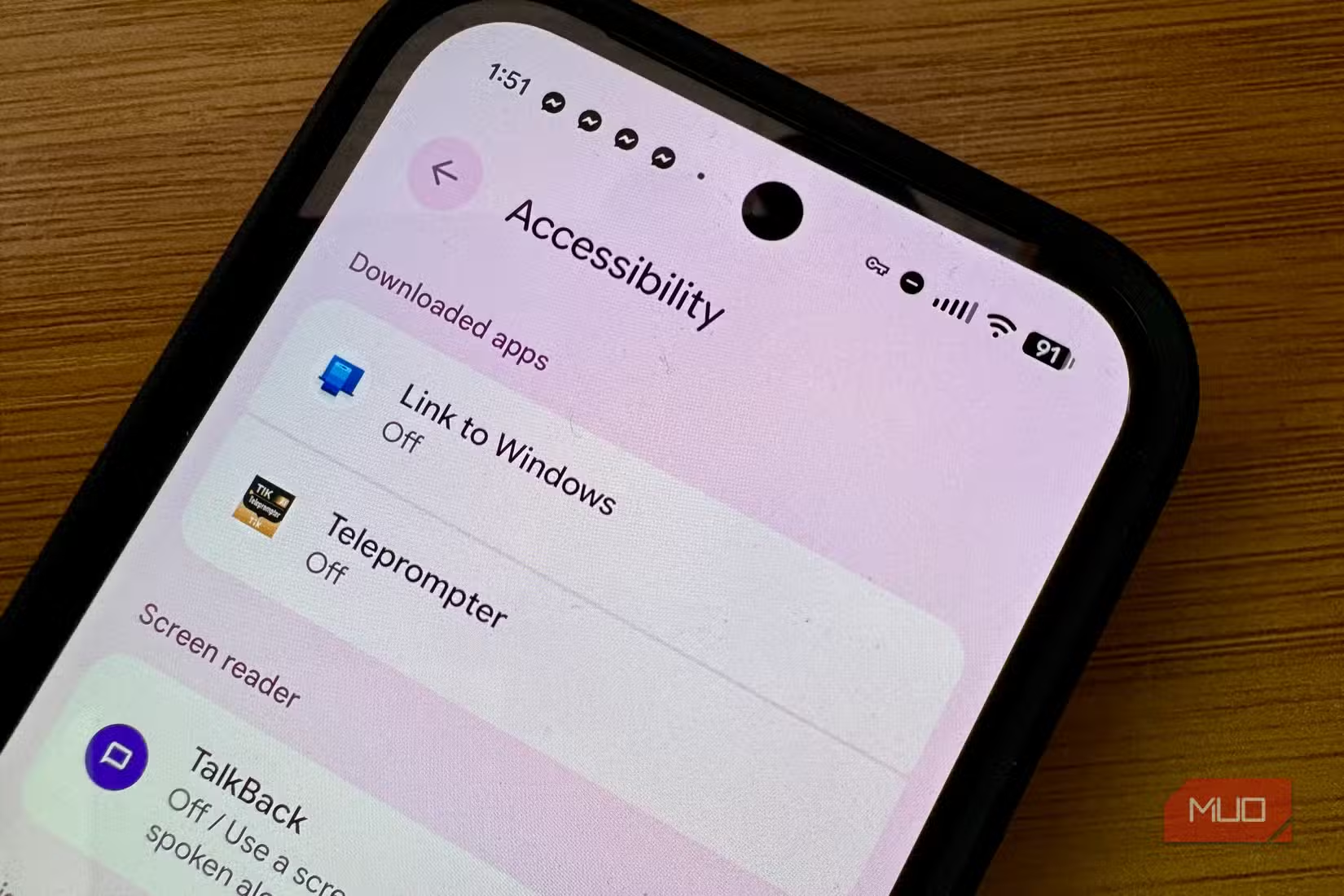
Screen readers and some autofill tools legitimately need this. A flashlight app, game, or "cleaner" app does not. If one asks for it, deny and delete.
To audit: On Pixel phones, go to Settings > Accessibility. Downloaded apps appears at the top. On OnePlus, it's Settings > Accessibility & convenience > Accessibility > Downloaded apps. Disable any app that shouldn't be there.
2. Draw Over Other Apps
Android calls this SYSTEM_ALERT_WINDOW. It lets an app display a floating window above everything else on your phone. Above your banking app. Above your password manager. Above the permission dialogs Android shows you.
A malicious app with this permission can overlay a fake login screen on top of your real banking app and capture your credentials. You think you're logging into Chase. You're actually typing your password into malware.
Legitimate uses include chat bubbles, screen recorders, and accessibility overlays. But if a utility app with no obvious reason to draw over other apps asks for this, treat it as a red flag.
3. SMS Permissions
SMS permissions let apps read, send, and receive text messages. Banks and services increasingly rely on SMS for two-factor authentication codes. An app with SMS access can intercept those codes the moment they arrive.
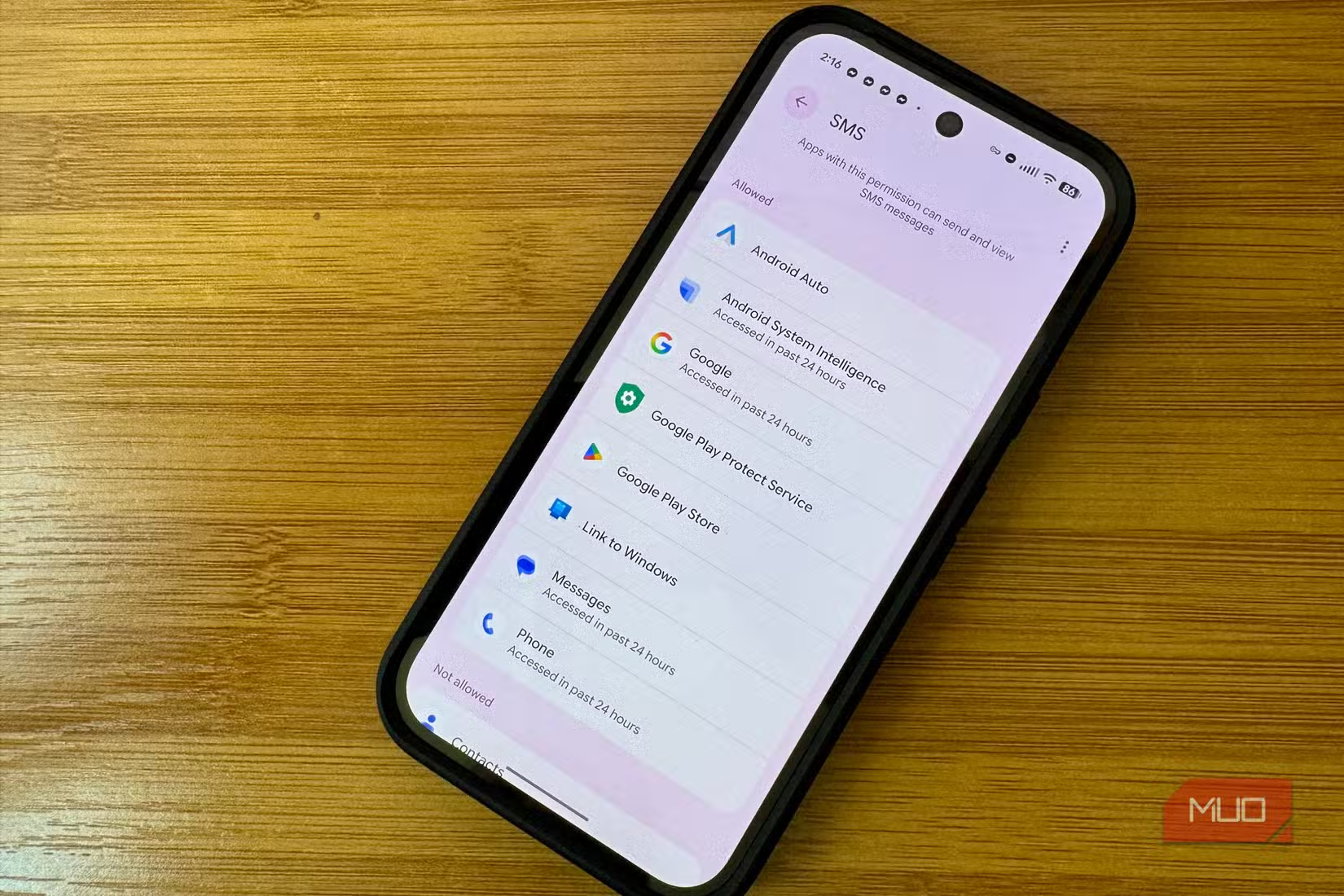
SMS fraud campaigns exploit this to drain bank accounts. The malware reads your incoming authentication code, forwards it to the attacker, and deletes the message so you never know it arrived.
Your default messaging app needs SMS access. A weather app or game does not.
4. Camera Permission
Camera access is self-explanatory in what it grants. What's less obvious is how it can be abused. An app with camera permission can capture photos and video without any visible indication, depending on how the permission is implemented.
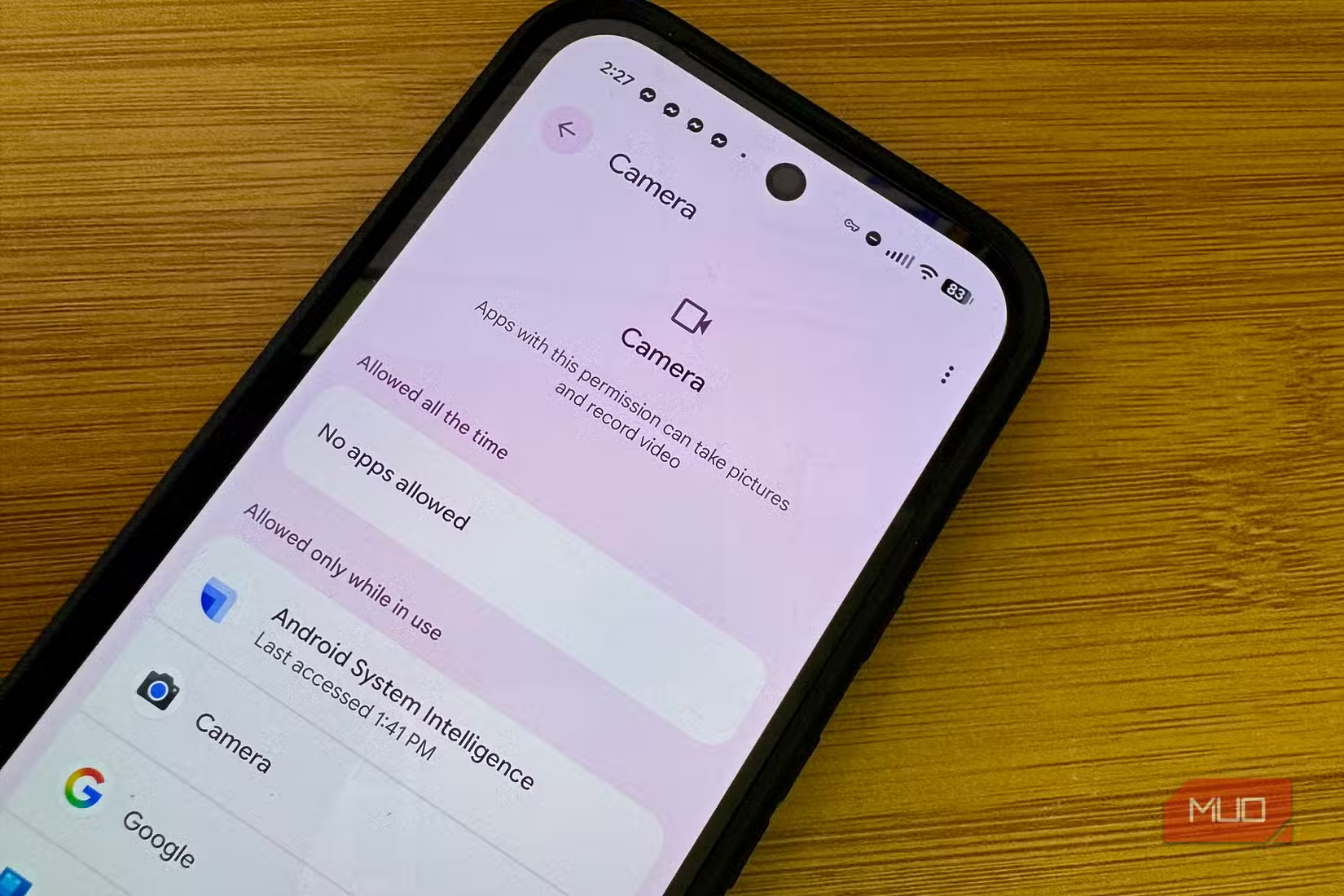
Stalkerware uses this for silent surveillance. Even apps that aren't explicitly malicious may abuse camera access for purposes you didn't intend when you granted it.
Grant camera access only to apps where you actively want to take photos or video. Revoke it from anything else.
5. Precise Location
Android now distinguishes between approximate location (city-level) and precise location (GPS coordinates). Many apps request precise location when approximate would serve them fine.
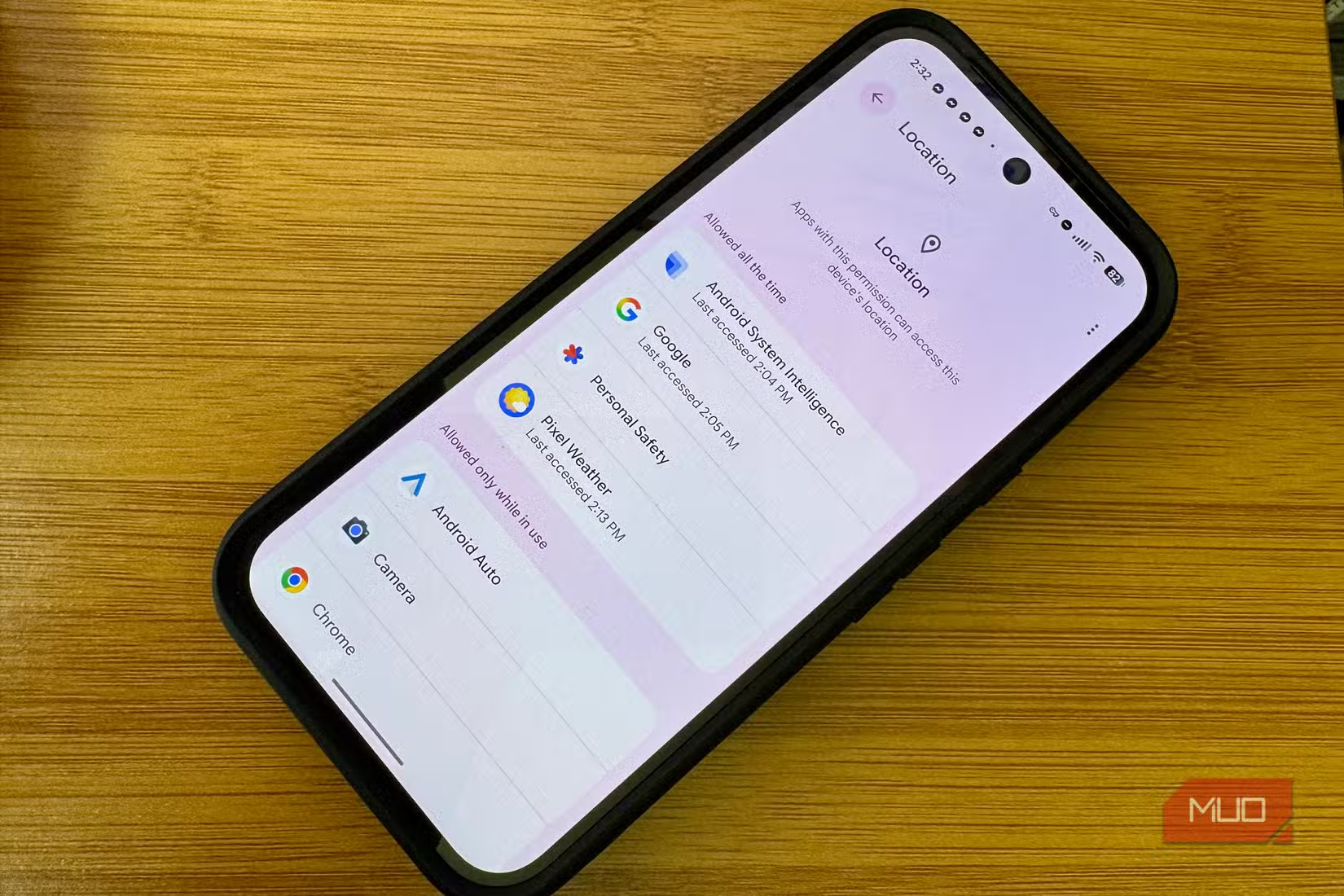
Precise location combined with background access lets an app track your movements 24/7. Stalkerware relies on this. Even legitimate apps may sell this data to brokers.
When an app asks for location, consider whether it actually needs to know your exact coordinates. Maps and ride-sharing apps do. A notes app does not.
How to Audit Your Current Permissions
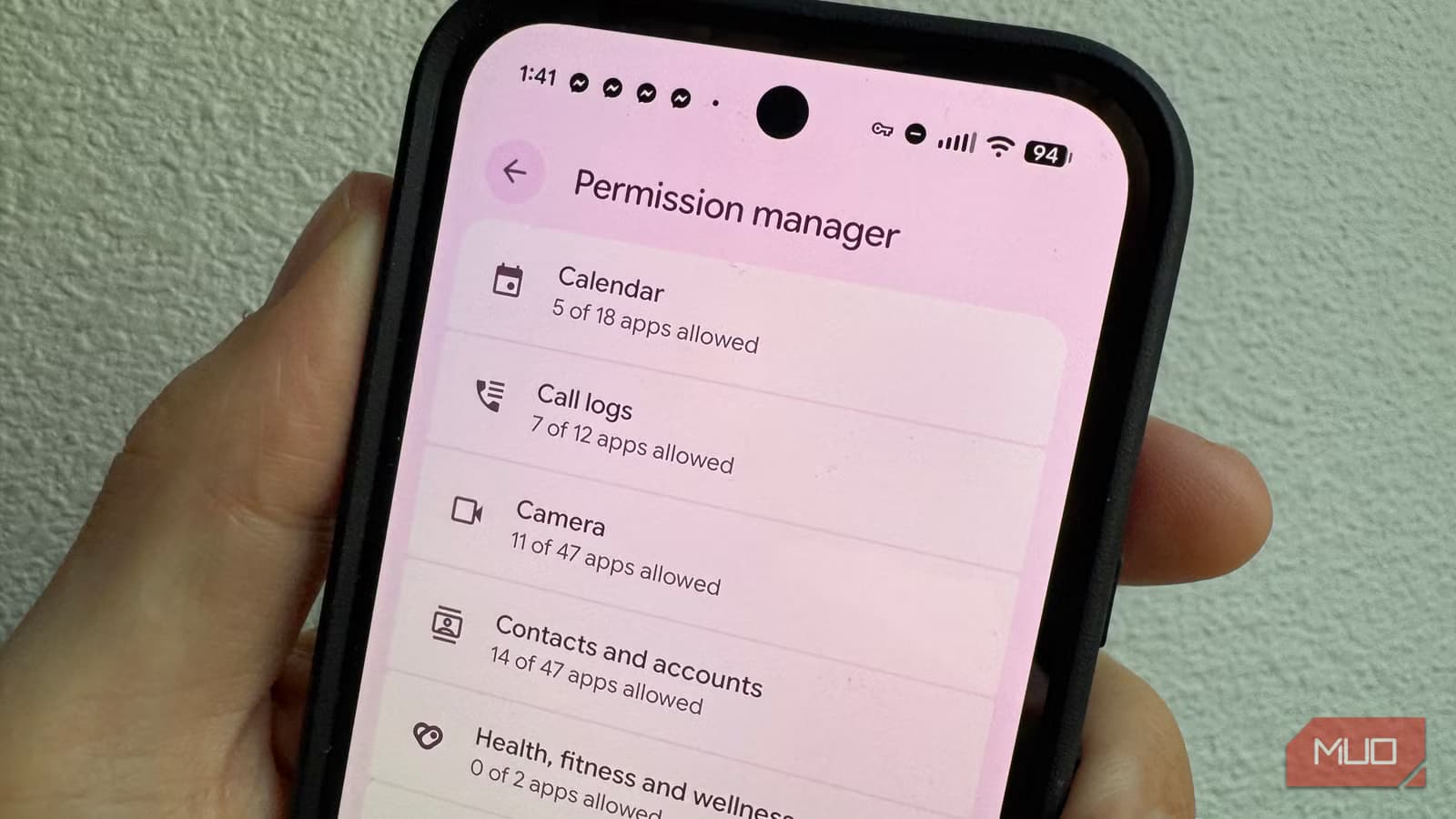
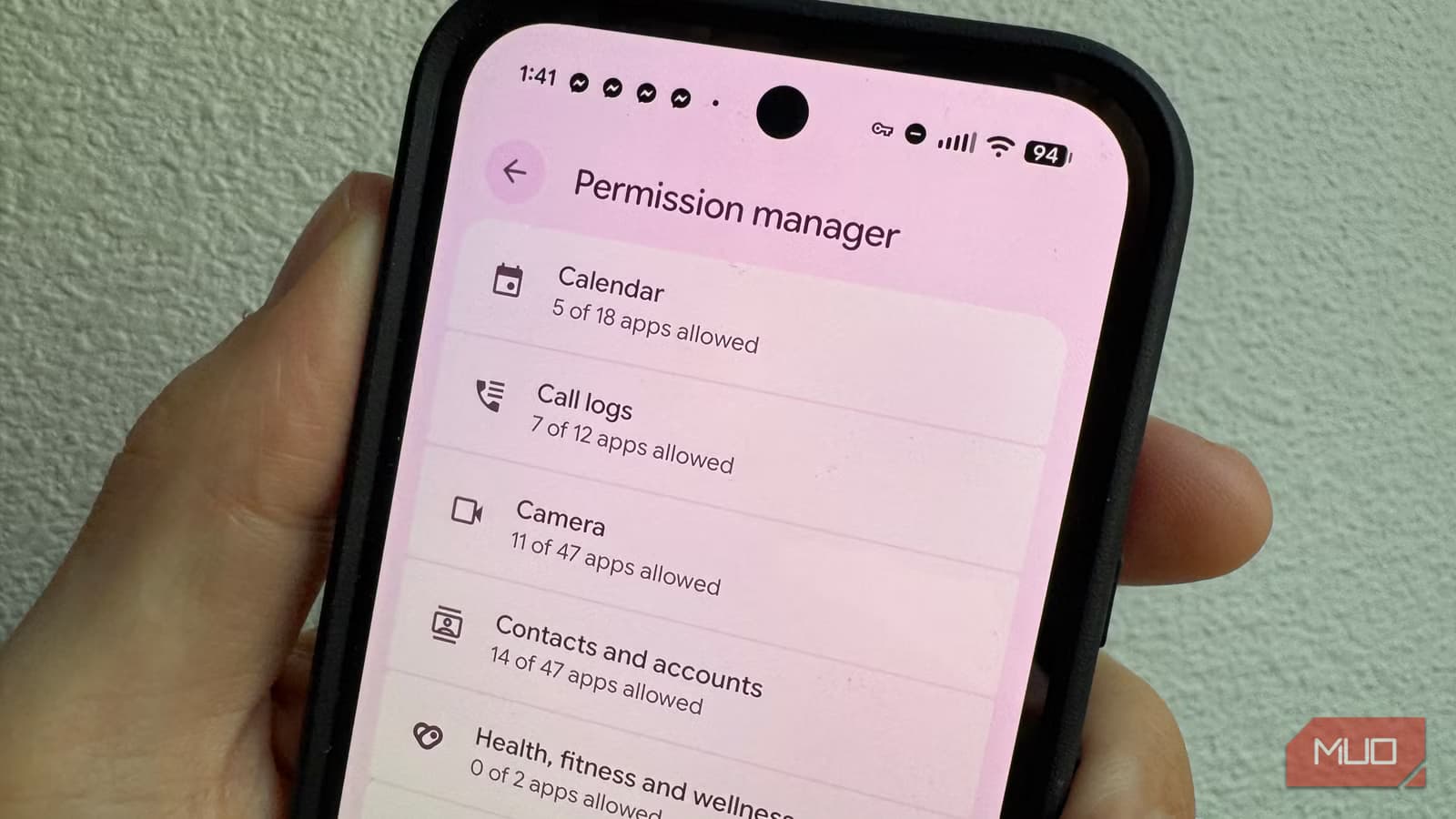
Android's Permission Manager shows every app that has access to sensitive permissions. On most phones, you'll find it at Settings > Privacy > Permission Manager. Walk through each category and ask yourself: does this app genuinely need this access?
Pay special attention to apps you installed months ago and forgot about. They may still have permissions you granted in a hurry.
Related guide to optimizing Android settings
The Bottom Line
These five permissions aren't inherently dangerous. They serve legitimate purposes. But they give apps so much control that malicious actors specifically target them. The common thread: each one lets an app act outside its sandbox, accessing data or capabilities that should belong to you or the system.
When you see a permission request, take the two seconds to ask: does this app need this to do what I'm using it for? If the answer isn't obviously yes, deny it. You can always grant it later if the app breaks.
Logicity's Take
Frequently Asked Questions
Can malware grant itself permissions without my approval?
Not directly. But if you grant Accessibility Services, some malware can use that to programmatically approve other permission requests by simulating taps on the Allow button.
How do I know if an app is using permissions in the background?
Android 12 and later show indicator dots when an app accesses camera or microphone. For location, check Settings > Privacy > Permission Manager > Location and look for apps with "allowed all the time" access.
Are apps from the Google Play Store safe to grant permissions to?
Not automatically. Google's review process catches some malware but not all. Banking trojans like PlayPraetor have appeared on the Play Store. Evaluate each permission request based on whether the app genuinely needs it.
What happens if I deny a permission an app requests?
The app may lose some functionality, or it may work fine. Many permission requests are optional or excessive. If an app stops working entirely after you deny a suspicious permission, that's a red flag about the app itself.
Should I use a third-party permissions manager app?
Android's built-in Permission Manager covers most needs. Third-party apps that promise to "manage" permissions often request extensive permissions themselves, creating the problem they claim to solve.
Need Help Implementing This?
Source: MakeUseOf
Manaal Khan
Tech & Innovation Writer
Produced with AI assistance and reviewed by the Logicity editorial team. Learn more in our Editorial Policy.