Key Takeaways
- A vacation tracker with countdown formulas and conditional formatting takes about 30 minutes to build
- Home inventory spreadsheets help track warranties, values, and insurance documentation
- Excel's table feature auto-expands formulas and formatting rules as you add rows
Two practical Excel projects, a vacation tracker and a home inventory, can transform how you organize travel plans and household items. Each takes under an hour to build and puts tables, formulas, drop-down lists, and conditional formatting to actual use.
The appeal here is straightforward: unlike dedicated apps that lock your data behind subscriptions or proprietary formats, an Excel workbook stays on your machine, syncs through OneDrive if you want, and bends to whatever structure you need. Both projects demonstrate core Excel skills that transfer to work contexts. Building them is a better use of a spare hour than another Netflix episode.
How to build a vacation tracker in Excel
Planning trips usually means booking confirmations scattered across email, travel dates in one calendar app, accommodation details in another, and a budget estimate somewhere in your head. A single Excel sheet consolidates everything: departure countdown, reservation status, booking links, and costs.
Start by creating a table with Ctrl+T or Insert > Table. Your column headers should be Destination, Departure, Return, Status, Board, Budget, Link, and Countdown. Format the Departure and Return columns as Date and the Budget column as Currency. The table structure matters because Excel automatically extends formulas and formatting rules when you add new rows.
Next, add data validation to create drop-down lists. For the Status column, go to Data > Data Validation and enter options: Not Booked, Reserved, Confirmed. For the Board column, use SC, B&B, HB, FB, AI. These abbreviations cover self-catering through all-inclusive options and prevent typos that break filtering later.
The countdown formula is where the tracker gets useful. In the Countdown column, paste this:
=IF([@Departure]-TODAY()>=0, [@Departure]-TODAY(), "-")This formula calculates days until departure and displays a dash for past trips. The [@Departure] syntax references the same row's Departure cell, so the formula works automatically as the table grows.
Adding conditional formatting to highlight upcoming trips
Color-coding makes the tracker scannable at a glance. Select the Countdown column, then open Home > Conditional Formatting > New Rule. Choose "Only format cells that contain" and create three rules:
- Cell value between 15 and 30: light yellow fill (departure within 30 days)
- Cell value between 8 and 14: light orange fill (departure within two weeks)
- Cell value between 1 and 7: light pink fill (departure within a week)
For row-level highlighting, select the entire table excluding headers. Use "Use a formula to determine which cells to format" and apply these rules:
- Currently on vacation: =AND($B2<=TODAY(), $C2>=TODAY()) with light green fill
- Vacation completed: =$C2<TODAY() with light gray fill and dark gray text
The dollar signs lock the column references while letting the row number float, so each row evaluates its own dates.
Building a home inventory spreadsheet
A home inventory serves two purposes: insurance claims and warranty tracking. When something breaks or gets stolen, you need to know what you paid, when you bought it, and where the receipt lives. Most people discover this need after a loss, which is the worst time to reconstruct the information.
The structure mirrors the vacation tracker approach. Create a table with columns for Item, Category, Purchase Date, Purchase Price, Warranty Expiry, Location, Receipt Link, and Notes. Format Purchase Date and Warranty Expiry as Date, and Purchase Price as Currency.
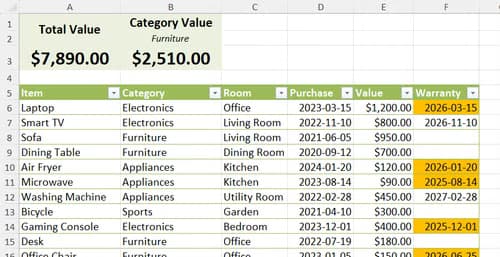
Category drop-downs keep your data consistent. Common options: Electronics, Furniture, Appliances, Jewelry, Tools, Clothing, Other. Consistent categories let you filter and sum by type, which matters when an insurance adjuster asks for a breakdown.
Apply conditional formatting to the Warranty Expiry column to flag items approaching or past their warranty period. Orange fill for warranties expiring within 30 days, red for expired. This turns passive documentation into active reminders.
Add a simple dashboard above or beside the table using SUMIF formulas to calculate total value by category. A single cell with =SUM(Table1[Purchase Price]) gives you the overall household value for insurance purposes.
Why these projects beat dedicated apps
Travel planning apps and home inventory services exist, but they come with tradeoffs. Subscription fees, feature bloat, data export limitations, and the risk that the company shuts down and takes your data with it. Excel files are portable. You can open a workbook from 2010 today without issues.
The customization advantage matters too. Maybe you want to track visa requirements for international trips, or pet-sitting arrangements, or which items are covered under a specific insurance policy. A spreadsheet accommodates whatever columns you need. An app gives you what its developers decided you need.
Both projects also build transferable skills. The formula patterns, conditional formatting logic, and table structures apply directly to work scenarios like project tracking, expense management, and client databases.
Another weekend project using accessible tools to build something useful
Frequently Asked Questions
How long does it take to build a vacation tracker in Excel?
About 30 minutes if you follow the table structure, formula, and conditional formatting steps. Most time goes into setting up the formatting rules correctly.
Can I use these Excel projects without Microsoft 365?
Yes. The formulas and features work in Excel 2016 and later, including the free web version of Excel. Some conditional formatting options differ slightly between versions.
What should I include in a home inventory for insurance?
Item name, purchase date, purchase price, category, location in your home, warranty expiry if applicable, and a link or note pointing to the receipt or proof of purchase.
How do I make Excel formulas automatically apply to new rows?
Use Excel tables (Ctrl+T). When you add data below the last row, the table expands and copies formulas from the column above automatically.
Why use conditional formatting instead of manual color-coding?
Conditional formatting updates automatically. When a trip countdown drops below seven days, the cell turns pink without you touching it. Manual formatting requires constant maintenance.
Logicity's Take
These projects illustrate a broader point about productivity tools: the best system is one you build yourself. Pre-made apps optimize for the average user, which means they fit no one perfectly. Excel's learning curve pays compound interest because every technique applies to the next problem you solve. If you run a startup or manage a team, encouraging staff to build their own tracking tools often produces better adoption than mandating a SaaS product.
Need Help Implementing This?
Want to automate spreadsheet workflows or build custom dashboards for your team? Get in touch with us at Logicity.in for productivity consulting and Excel training tailored to your business needs.
Source: How-To Geek
Manaal Khan
Tech & Innovation Writer
Produced with AI assistance and reviewed by the Logicity editorial team. Learn more in our Editorial Policy.