Key Takeaways
- You can reorganize or remove apps from Android Auto's launcher to reduce scrolling and distraction
- Media controls can be moved to the driver's side of the screen for easier access
- Custom Assistant shortcuts let you trigger complex actions with a single tap
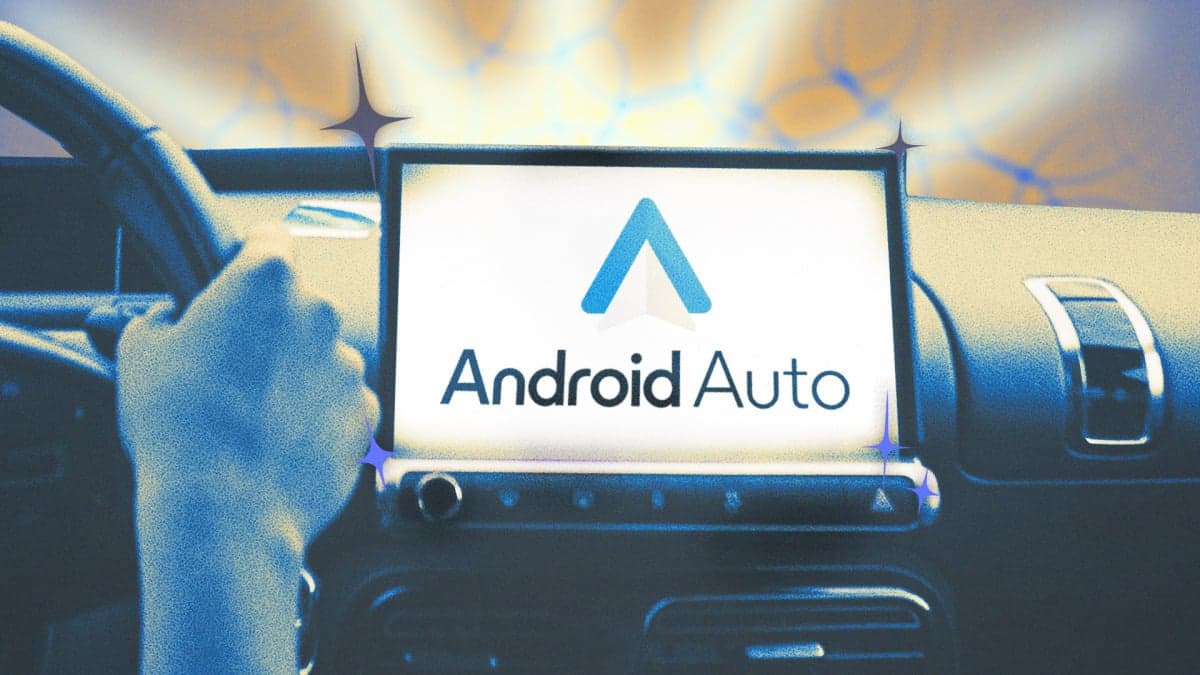
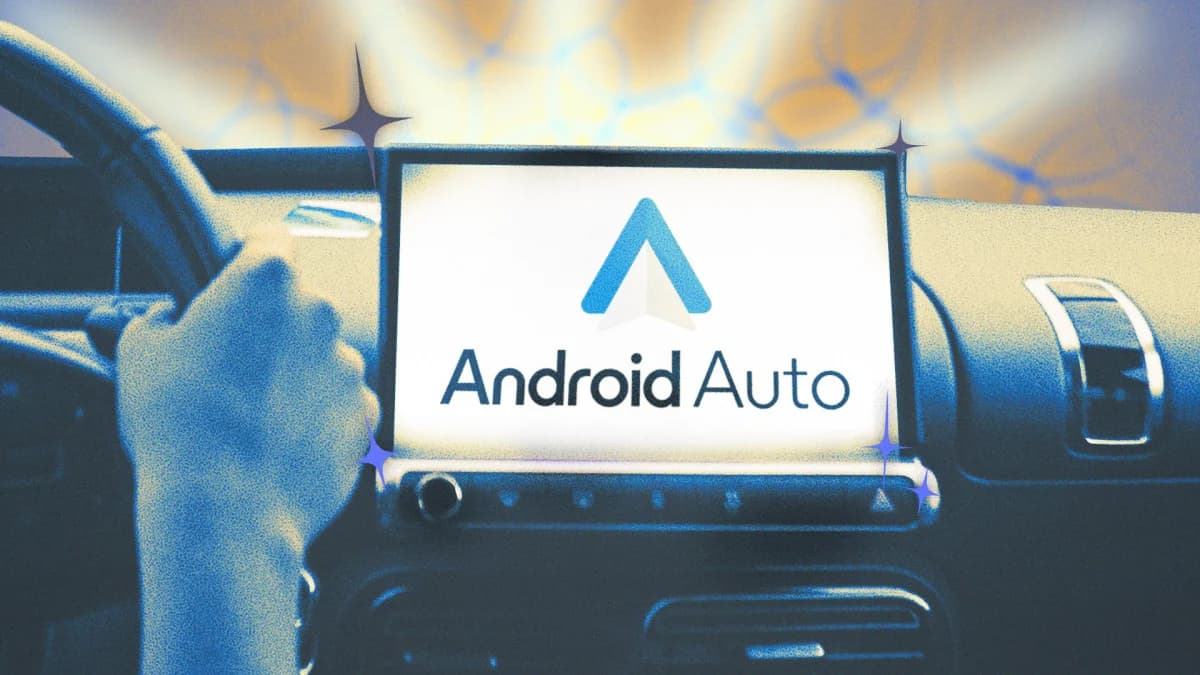
Android Auto does more than mirror your phone onto your car's screen. The system includes hidden settings that let you customize notifications, reorganize the app launcher, and create voice command shortcuts. Most drivers never touch these options.
Lifehacker published a guide to the best tweaks. Here are the ones worth your time.
Control Which Notifications Reach You
Too many alerts while driving are distracting. Too few mean you miss something urgent. Android Auto lets you choose exactly what gets through.
You can disable group chat alerts while keeping direct messages active. You can adjust how your phone's display behaves when connected. You can even change how your phone detects that you're driving in the first place.
The exact steps depend on your phone model. Google Pixel and Samsung Galaxy devices have slightly different paths through the settings menu, but both let you fine-tune notification behavior.
Reorganize the App Launcher
The default Android Auto home screen shows apps you might never use. Scrolling through them while driving is not ideal.
You can fix this by opening Settings > Connected Devices > Connection Preferences > Android Auto > Customize Launcher on your phone. From there, uncheck apps you don't need. Tap and drag to reorder the ones you keep.
Put your preferred map app, music app, and messaging app at the front. Remove everything else.
Create One-Tap Shortcuts
Custom Assistant shortcuts let you trigger complex actions with a single tap. You can create shortcuts for navigating to the nearest gas station, sending a preset message, calling a specific contact, or running a series of home automations when you leave for work.
To set one up, go to Settings > Connected Devices > Connection Preferences > Android Auto > Customize Launcher. Tap "Add a shortcut to the launcher." Select an Assistant action, type the command, and save it.
These shortcuts appear on your Android Auto home screen. You can rearrange them the same way you reorder apps.
Move Media Controls to the Driver's Side
Android Auto places media controls on the right side of the screen by default. That means reaching across to change a song or adjust volume.
You can flip this. Go to Settings > Connected Devices > Connection Preferences > Android Auto. Set your driver seat location. Then choose whether to place media or navigation closer to the driver.
If you prefer maps within easy reach, you can put navigation on the driver's side instead. The choice depends on what you adjust more often while driving.
Why These Settings Stay Hidden
Google buries these options several menus deep. The likely reason: most users never need them. The defaults work fine for casual use.
But if you drive daily and use Android Auto for navigation, calls, and music, these tweaks add up. Less scrolling. Fewer distractions. Faster access to the controls you actually use.
Logicity's Take
Related Android optimization tips
More device customization tips
Frequently Asked Questions
How do I customize the Android Auto launcher?
Go to Settings > Connected Devices > Connection Preferences > Android Auto > Customize Launcher. You can uncheck apps to hide them and drag to reorder the ones you keep.
Can I move media controls to the left side in Android Auto?
Yes. In Android Auto settings, set your driver seat location and choose to place media closer to the driver. This puts playback controls on the left side of the screen.
How do I create shortcuts in Android Auto?
In the Customize Launcher settings, tap "Add a shortcut to the launcher." Select an Assistant action, type your command, and save it. The shortcut appears on your home screen.
Can I disable group chat notifications in Android Auto?
Yes. Android Auto's notification settings let you disable group chat alerts while keeping direct message notifications active.
Does Android Auto customization work the same on all phones?
The core features are the same, but exact menu paths vary by phone model. Google Pixel and Samsung Galaxy devices have slightly different settings layouts.
Need Help Implementing This?
Source: Lifehacker
Manaal Khan
Tech & Innovation Writer
Produced with AI assistance and reviewed by the Logicity editorial team. Learn more in our Editorial Policy.






