Key Takeaways
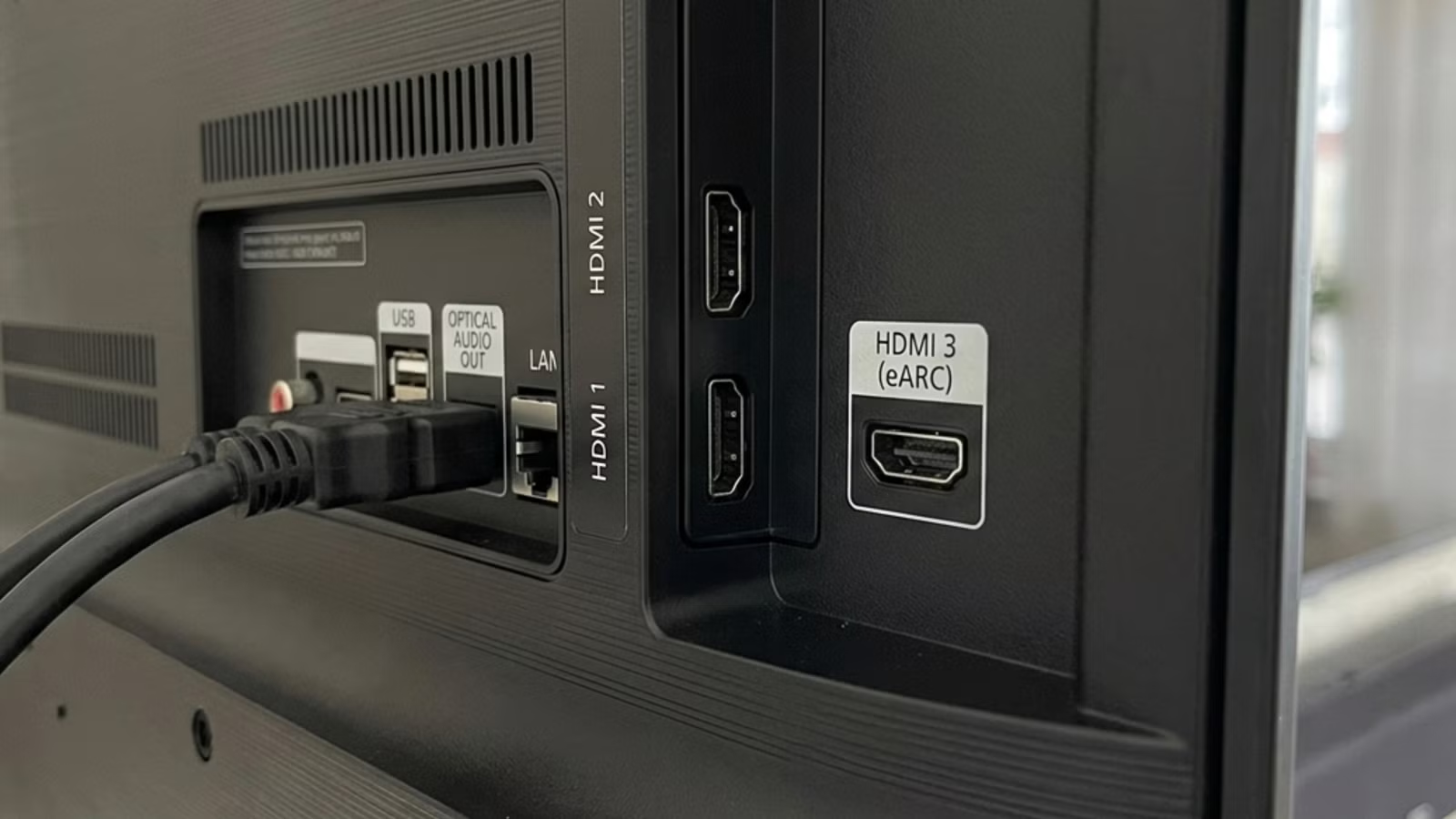
- Look for the HDMI port labeled ARC or eARC on your TV for connecting soundbars
- eARC supports 37 Mbps bandwidth for uncompressed Dolby Atmos, compared to just 1 Mbps on standard ARC
- Using the wrong HDMI port can bottleneck your gaming console or streaming device performance
Every HDMI port on your TV looks identical. Same size, same shape, same black rectangle. So when you set up a new streaming stick or gaming console, you probably just plug it into whichever port is easiest to reach.
That's the mistake. Your HDMI ports have different capabilities, and using the wrong one means you're leaving performance on the table.
Why Your HDMI Ports Are Different
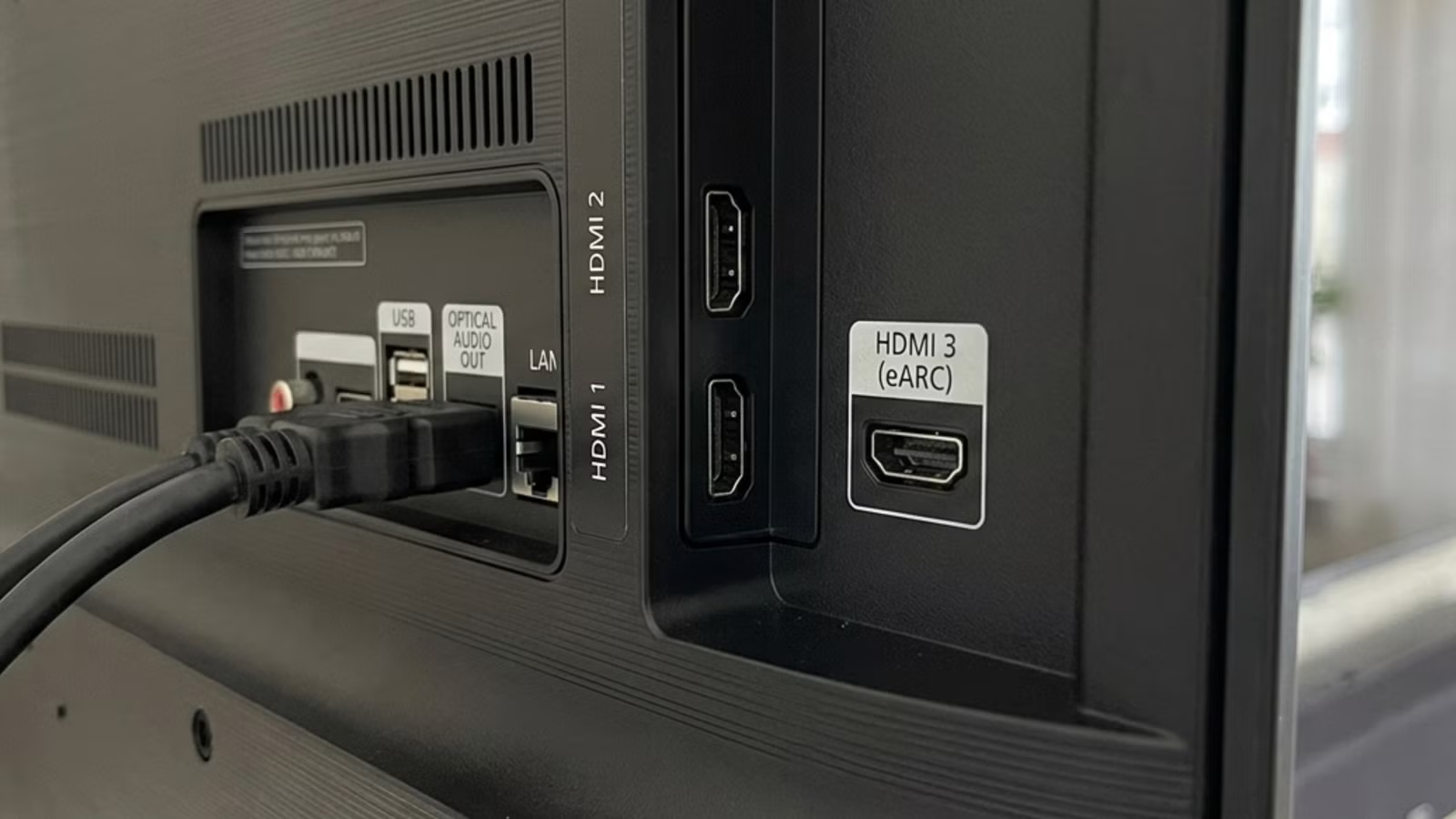
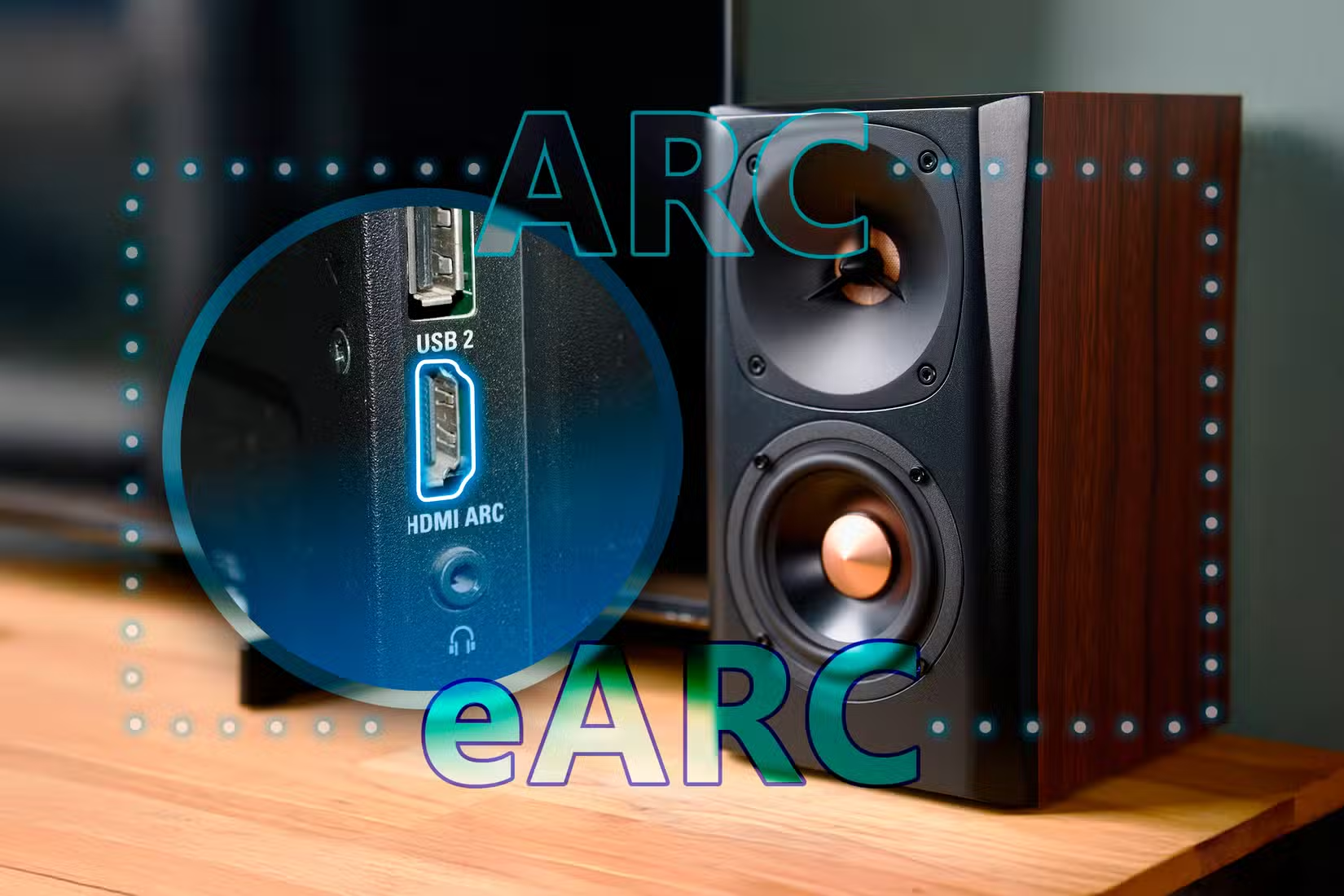
Check the back or side of your TV. Next to at least one HDMI port, you'll see the letters "ARC" or "eARC." If your TV is from the past few years, there's a good chance one of these labels exists.
ARC stands for Audio Return Channel. It allows your TV and soundbar to communicate in both directions over a single HDMI cable. Instead of running a separate audio cable from your TV to your sound system, ARC sends audio back through the same cable that carries video.
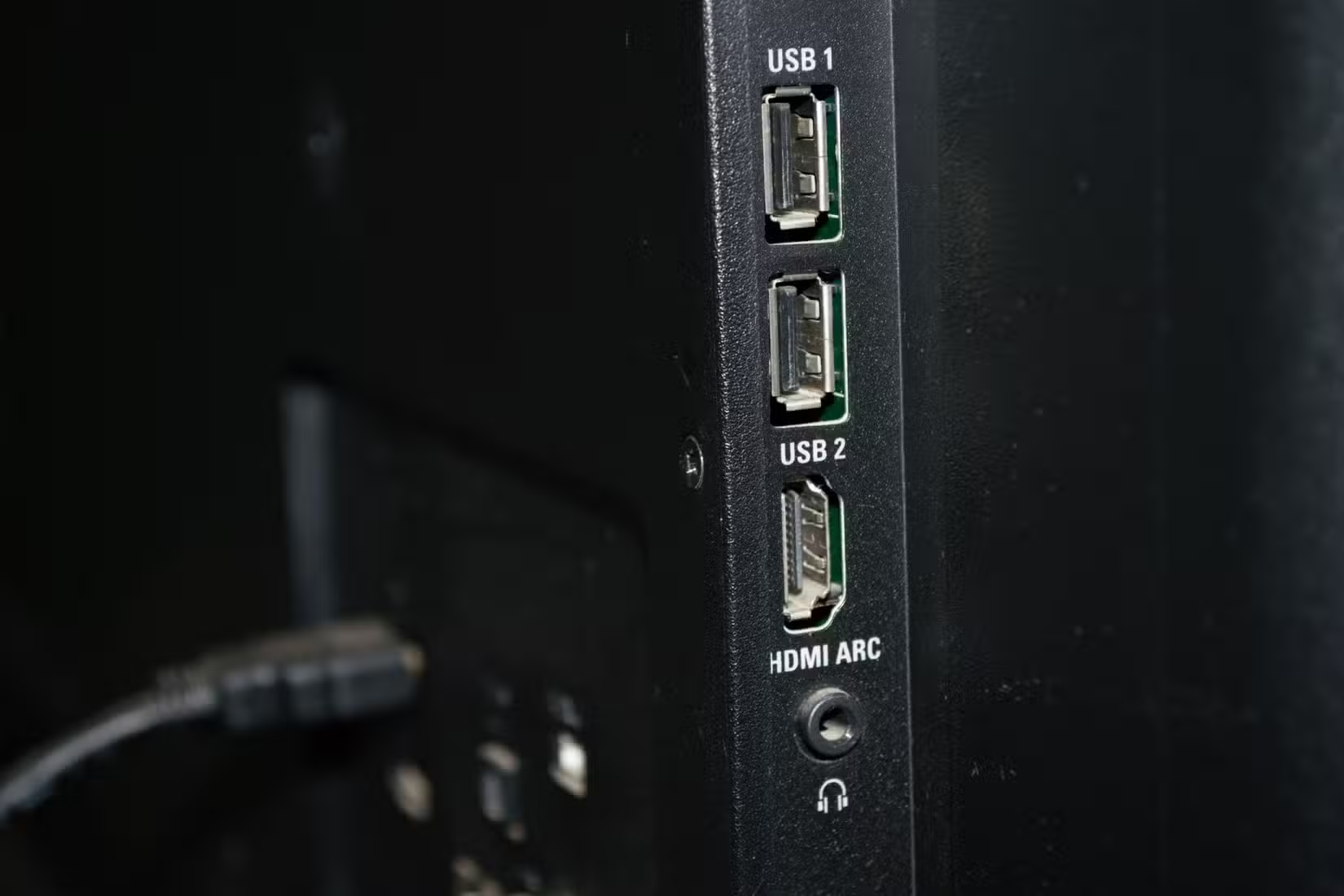
eARC, or Enhanced Audio Return Channel, does the same thing but with much higher bandwidth. Standard ARC maxes out at about 1 Mbps. eARC supports up to 37 Mbps. That difference matters if you want uncompressed Dolby Atmos or high-resolution audio formats.
The Port Bottleneck Problem
Here's where it gets tricky. On many TVs, the eARC port is also one of the few HDMI 2.1 ports capable of 4K at 120Hz. If you plug your soundbar into that port, you might be using your only high-bandwidth port for audio when your PS5 or Xbox Series X needs it for gaming.
"Many users treat all HDMI ports as identical, which leads to suboptimal performance and bottlenecks for high-end gaming and audio," says Nate Pangaro, staff writer at How-To Geek.
The HDMI 2.1 labeling situation makes this worse. Manufacturers can call a port HDMI 2.1 even if it doesn't support the full spec. Vincent Teoh, lead reviewer at HDTVTest, puts it bluntly: "HDMI 2.1 is a mess. The licensing standards allow manufacturers to label ports as 2.1 even if they lack the bandwidth for 4K/120Hz."
How to Set Up Your Ports Correctly
First, count your HDMI 2.1 ports. Check your TV's manual or spec sheet. If you have multiple high-bandwidth ports, use one for your soundbar (via eARC) and another for your gaming console.
If you only have one HDMI 2.1 port and it's also the eARC port, you have a choice to make. For serious gamers, prioritize the console. Connect your soundbar using optical audio or a lower-spec HDMI port with standard ARC. You'll lose some audio quality but keep your 4K/120Hz gaming.
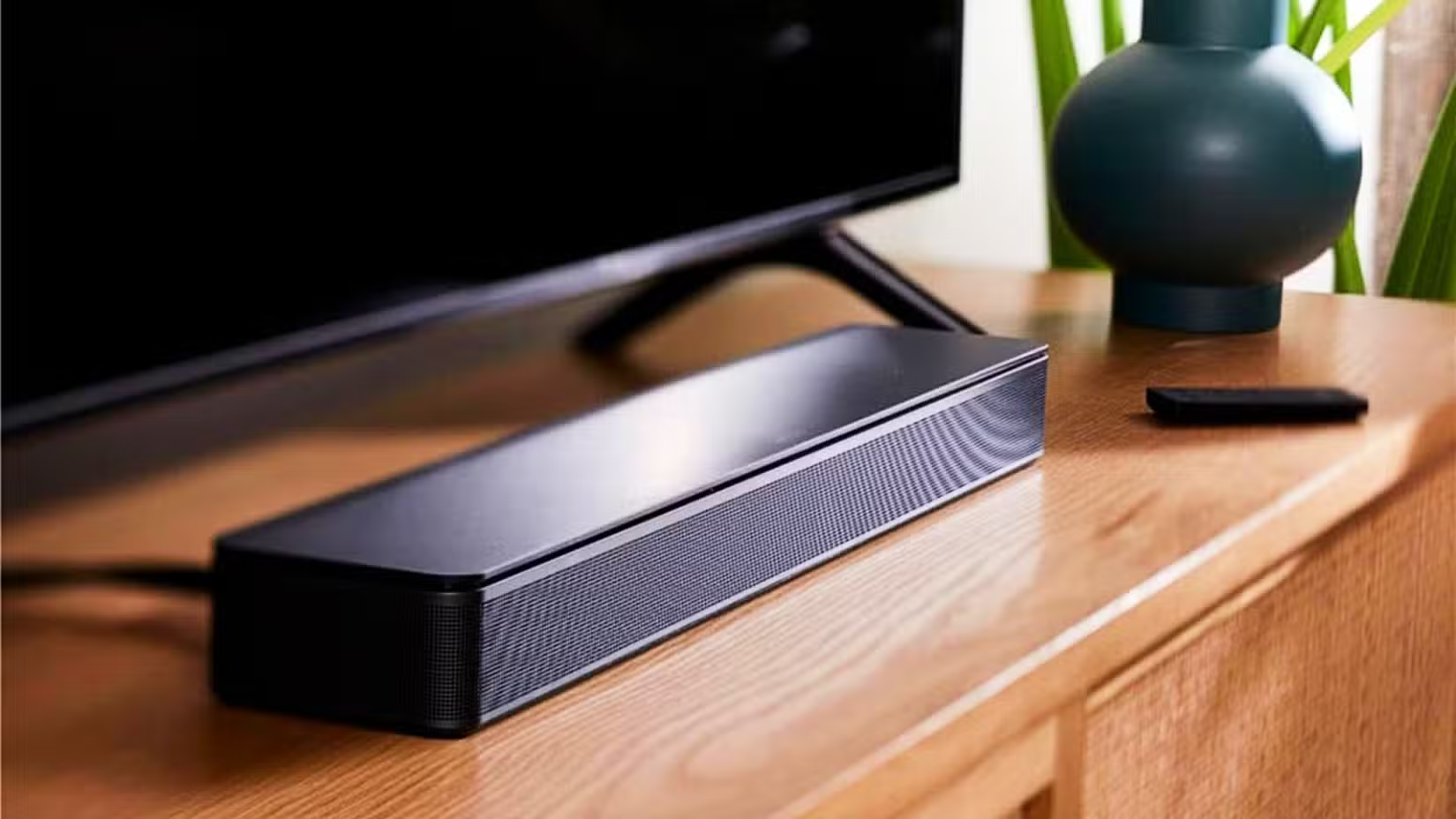
- Soundbar or AV receiver: Connect to the port labeled ARC or eARC
- PS5, Xbox Series X, or gaming PC: Connect to an HDMI 2.1 port (may be the same as eARC)
- Streaming devices (Roku, Fire TV, Apple TV): Any HDMI port works, as these max out at 4K/60Hz
- Older consoles or Blu-ray players: Any available HDMI port
Checking Your TV's Settings
Even with the right port, you might need to enable eARC in your TV's settings. This varies by manufacturer, but look in your audio or sound settings menu for an option called "HDMI ARC," "eARC," or "Audio Return Channel." Some TVs also require you to enable "CEC" or "HDMI-CEC" for ARC to work properly.
If your soundbar supports eARC but your TV only has ARC, you'll still get a connection. It just won't deliver the highest-quality audio formats. The devices negotiate down to the lowest common standard automatically.
The Cable Matters Less Than You Think
You don't need expensive HDMI cables for ARC or eARC to work. Any standard HDMI cable supports ARC. For eARC's full bandwidth, you need an "Ultra High Speed" HDMI cable, but even a cheap one will do the job if it meets the spec.
The exception: very long cable runs over 15 feet. At those lengths, cable quality starts to matter more. But for a soundbar sitting below your TV, a basic cable works fine.
| Feature | Standard HDMI | ARC | eARC |
|---|---|---|---|
| Audio direction | One-way (to TV) | Two-way | Two-way |
| Bandwidth | Varies by spec | 1 Mbps | 37 Mbps |
| Dolby Atmos | Lossy only | Lossy only | Uncompressed |
| Cable requirement | Any HDMI | Any HDMI | Ultra High Speed recommended |
| Single cable setup | No | Yes | Yes |

Logicity's Take
When to Rethink Your Setup
If you're already using ARC and your sound is fine, there's no urgent reason to change anything. The benefits of eARC only matter if you're watching content with high-resolution audio formats and have a sound system that supports them.
But if you're experiencing audio sync issues, missing channels, or your Dolby Atmos content sounds flat, check your port connections first. The fix might be as simple as swapping cables between ports.
Another comparison of modern vs. legacy tech where the "right" choice depends on your specific use case
Frequently Asked Questions
Do I need eARC if I only use my TV's built-in speakers?
No. ARC and eARC only matter when connecting external audio devices like soundbars or AV receivers. If you use your TV's speakers, any HDMI port works the same.
Can I use a regular HDMI cable for eARC?
For basic eARC functionality, yes. For full 37 Mbps bandwidth with uncompressed Dolby Atmos, you need an Ultra High Speed HDMI cable. Most cables sold in the past few years meet this spec.
Why isn't my ARC connection working?
Check three things: make sure you're using the port labeled ARC or eARC, enable CEC/HDMI-CEC in your TV's settings, and confirm ARC is enabled in your soundbar's settings. Some TVs also require you to select the correct audio output.
Is HDMI ARC better than optical audio?
Yes, in most cases. ARC supports Dolby Digital Plus and DTS-HD, while optical maxes out at basic Dolby Digital and DTS. eARC goes further with uncompressed audio that optical can't handle at all.
Can I use ARC for gaming audio?
Yes, but watch for lag. ARC can add a few milliseconds of audio delay. Most modern TVs and soundbars handle this well, but if you notice audio sync issues in games, check if your soundbar has a game mode that reduces latency.
Need Help Implementing This?
Source: How-To Geek
Manaal Khan
Tech & Innovation Writer
Produced with AI assistance and reviewed by the Logicity editorial team. Learn more in our Editorial Policy.