Key Takeaways
- Using a 100W USB-C charger instead of the 180-200W barrel connector can completely disable HDR on gaming laptops
- The power limitation affects both internal displays and external monitors like ultrawide screens
- Always use the highest-wattage adapter bundled with your laptop for HDR gaming
Windows 11 HDR has a reputation for being finicky. But sometimes the problem isn't software at all. It's the power cable you plugged in without thinking.
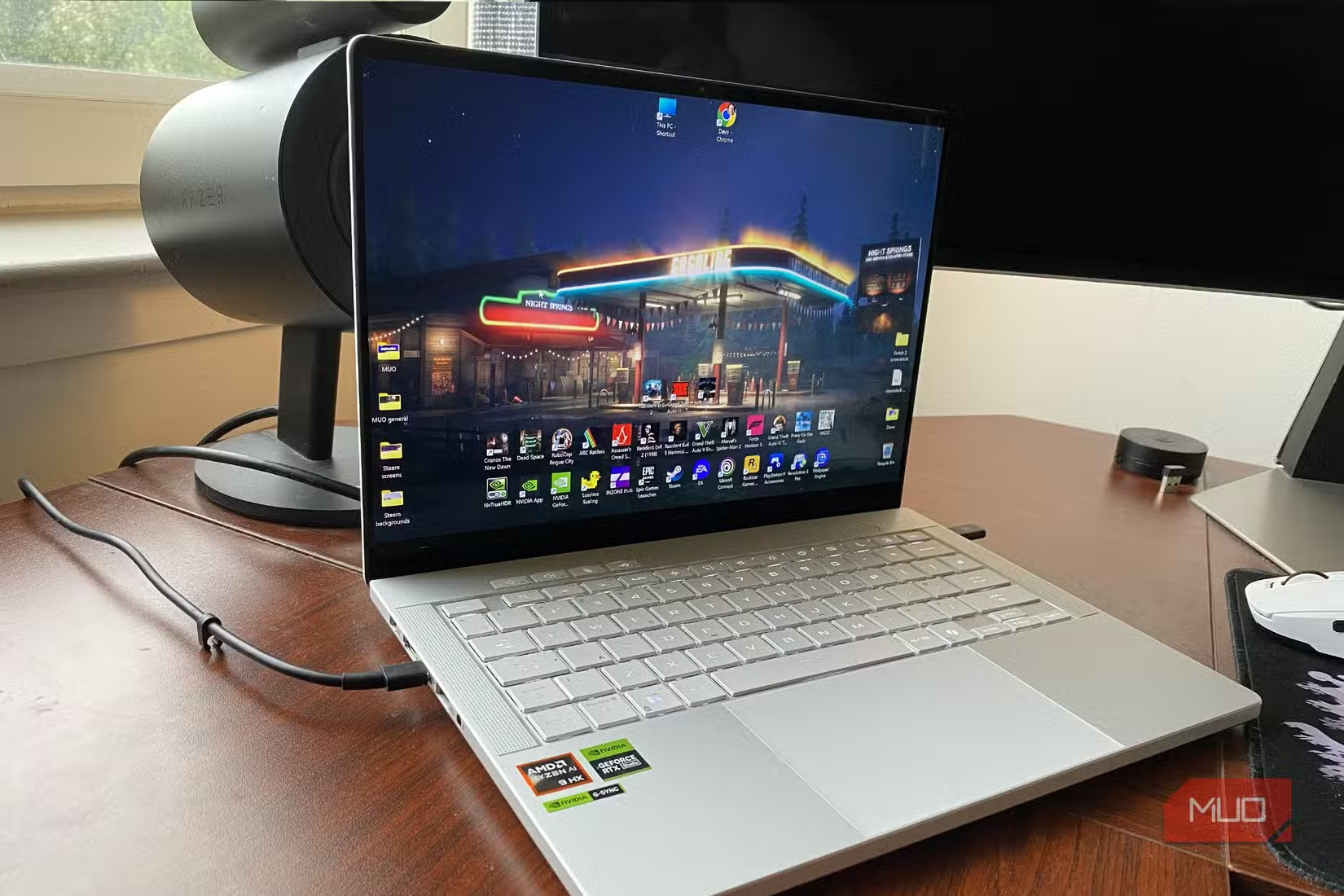
Dave Meikleham, a veteran tech journalist, discovered this the hard way. His RTX 5080 gaming laptop refused to display HDR properly. The culprit wasn't a driver bug or a Windows setting. It was a 100W USB-C charger that couldn't feed his machine enough power.
The 100W Trap
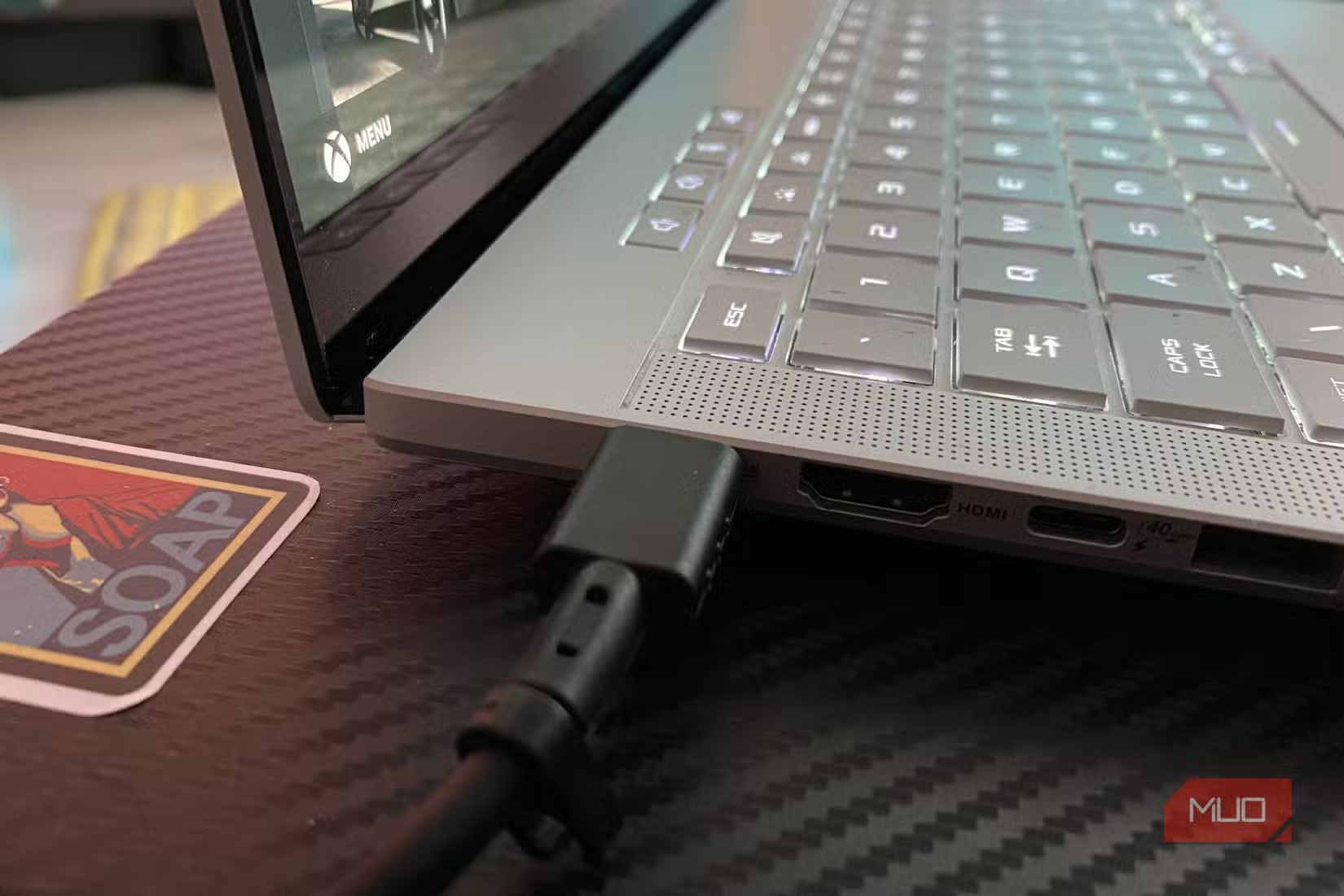
Many gaming laptops ship with two power options. There's the primary barrel connector rated at 180-200W. Then there's a secondary USB-C adapter that tops out around 100W. The USB-C option works fine for basic tasks. It charges the battery. It runs your browser and email.
But HDR needs power. Lots of it. The backlight has to push harder. The GPU works overtime processing the wider color range. When you're running at half the intended power draw, something has to give. On Meikleham's Asus G14, HDR was the first casualty.
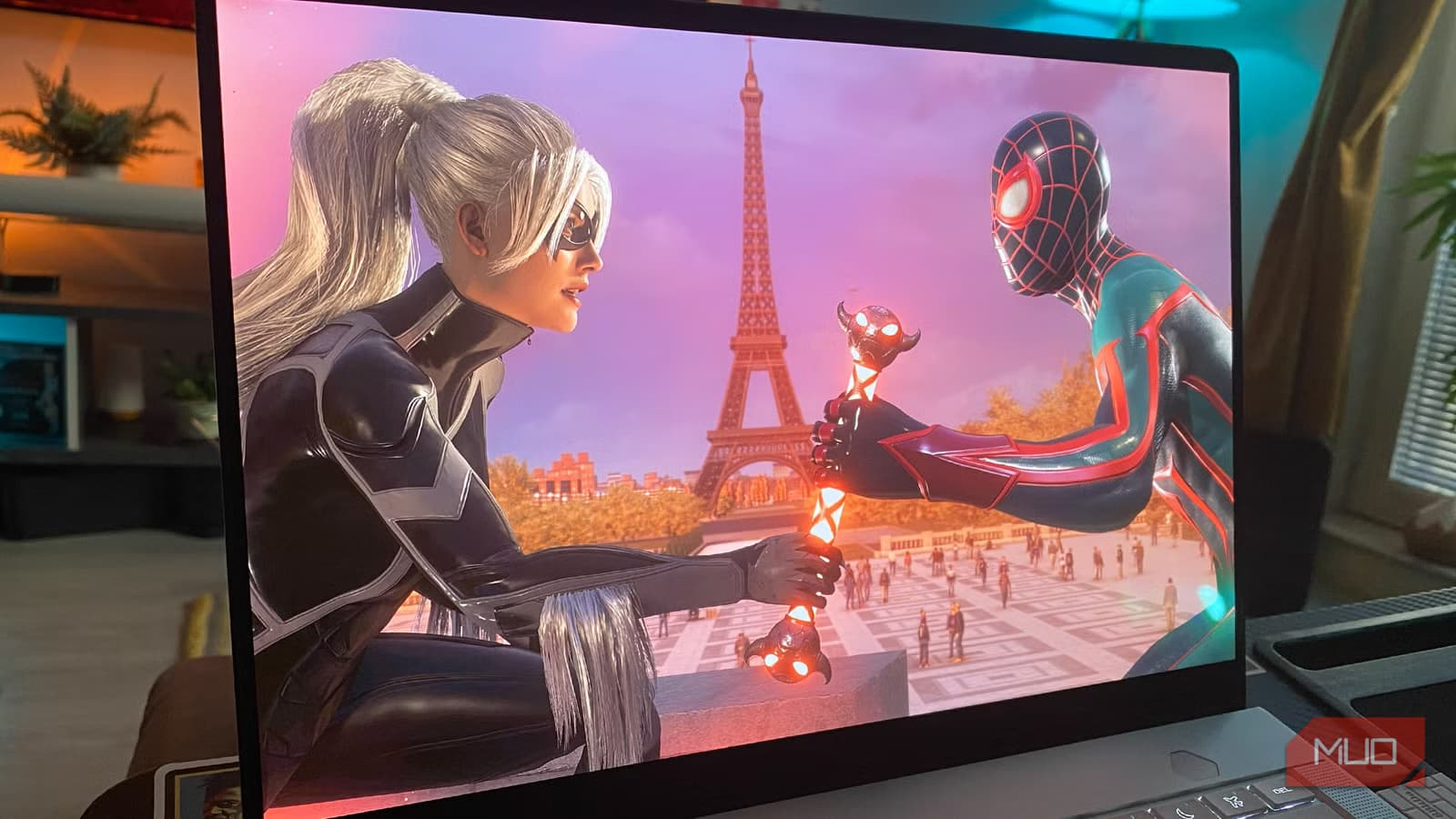
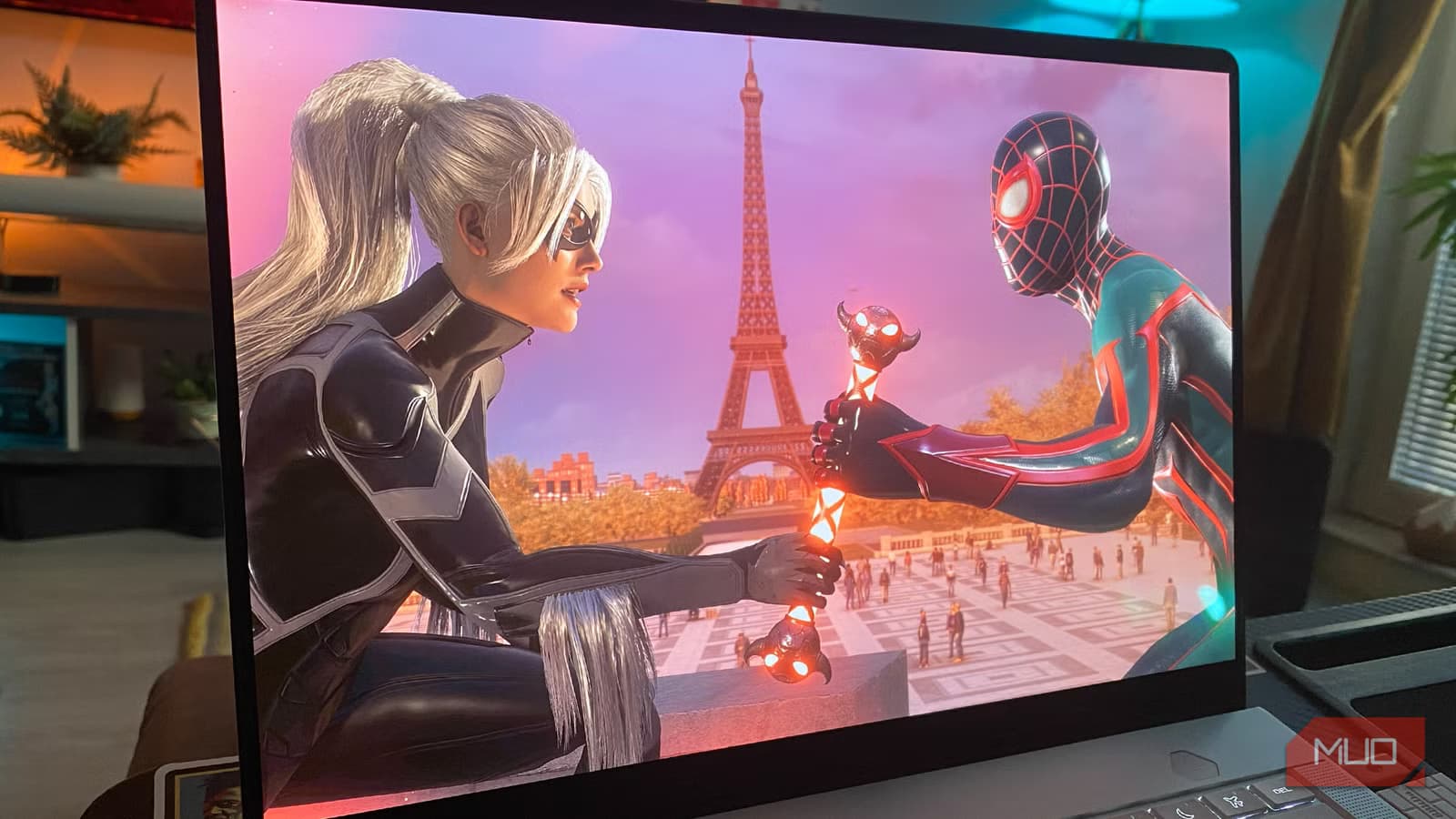
He noticed frame rates dropping first. That was easy to spot. What took longer to diagnose was the washed-out HDR on his laptop's 2.8K display. The system technically had HDR enabled. It just looked awful because the hardware couldn't sustain proper brightness levels.
The Problem Gets Worse With External Monitors
Meikleham's setup split his laptop between two locations. The living room had the proper barrel connector for gaming. His home office used the USB-C charger for work. This created an accidental experiment in power management.
When he connected a Samsung Odyssey ultrawide monitor in the office, the HDR problems multiplied. The laptop now had to drive both its internal panel and a demanding external display. The 100W charger couldn't keep up. HDR performance was, in his words, "kneecapped."
The Fix Is Obvious Once You Know
The solution is simple. Use the highest-wattage adapter your laptop came with. If that means running a barrel connector to your desk instead of a sleek USB-C cable, accept the tradeoff.
Check your laptop's documentation for the recommended wattage. Most gaming machines need at least 140W for full performance. Some require 200W or more. If you're using a third-party charger, verify it matches the original spec.
- Check both adapters that came with your laptop for wattage ratings
- Use the higher-wattage option for gaming and HDR content
- Save the USB-C charger for travel and basic productivity tasks
- If buying a replacement charger, match or exceed the original wattage
Why This Happens
Modern laptops throttle performance when power is limited. This protects the battery and prevents overheating. But the system doesn't always warn you that HDR is being disabled. You just get mediocre visuals and assume Windows is being Windows.
HDR requires sustained brightness that can exceed 1000 nits on capable displays. That brightness draws significant power. When the system detects insufficient supply, it quietly dials back display capabilities. The HDR toggle stays on. The actual HDR experience disappears.
Logicity's Take
Other HDR Troubleshooting Steps
If you're already using the correct charger and HDR still looks wrong, Windows 11 has other known issues. Make sure your display cable supports HDMI 2.1 or DisplayPort 1.4 for full HDR bandwidth. Check that Windows HDR settings are properly calibrated in Display Settings. Update your GPU drivers.
But start with the power cable. It's the fastest thing to check and the easiest to overlook.
Frequently Asked Questions
Why does Windows 11 HDR look washed out on my laptop?
The most common hardware cause is insufficient power from your charger. Using a USB-C adapter with lower wattage than your laptop's main power supply can disable or degrade HDR performance.
How much power does a gaming laptop need for HDR?
Most gaming laptops require 140-200W for full performance including HDR. Check your laptop's original power adapter rating and use that wattage or higher.
Can I use USB-C charging for HDR gaming?
Only if your USB-C charger matches the wattage of your laptop's primary adapter. Most USB-C chargers top out at 100W, which isn't enough for high-performance gaming laptops.
Will this power issue affect external HDR monitors?
Yes. Driving an external HDR monitor increases power demands on your laptop. Using an underpowered charger makes the problem worse, not better.
Does Windows tell you when HDR is power-limited?
No. Windows 11 may show HDR as enabled even when power limitations prevent it from functioning properly. You have to diagnose this manually.
Need Help Implementing This?
Source: MakeUseOf
Manaal Khan
Tech & Innovation Writer
Produced with AI assistance and reviewed by the Logicity editorial team. Learn more in our Editorial Policy.