Key Takeaways
- Task Manager consolidates services under svchost.exe, hiding which processes actually consume RAM
- Resource Monitor provides granular memory data that can cut troubleshooting time by 50% or more
- Proactive monitoring prevents the productivity losses that slow systems cause across your workforce
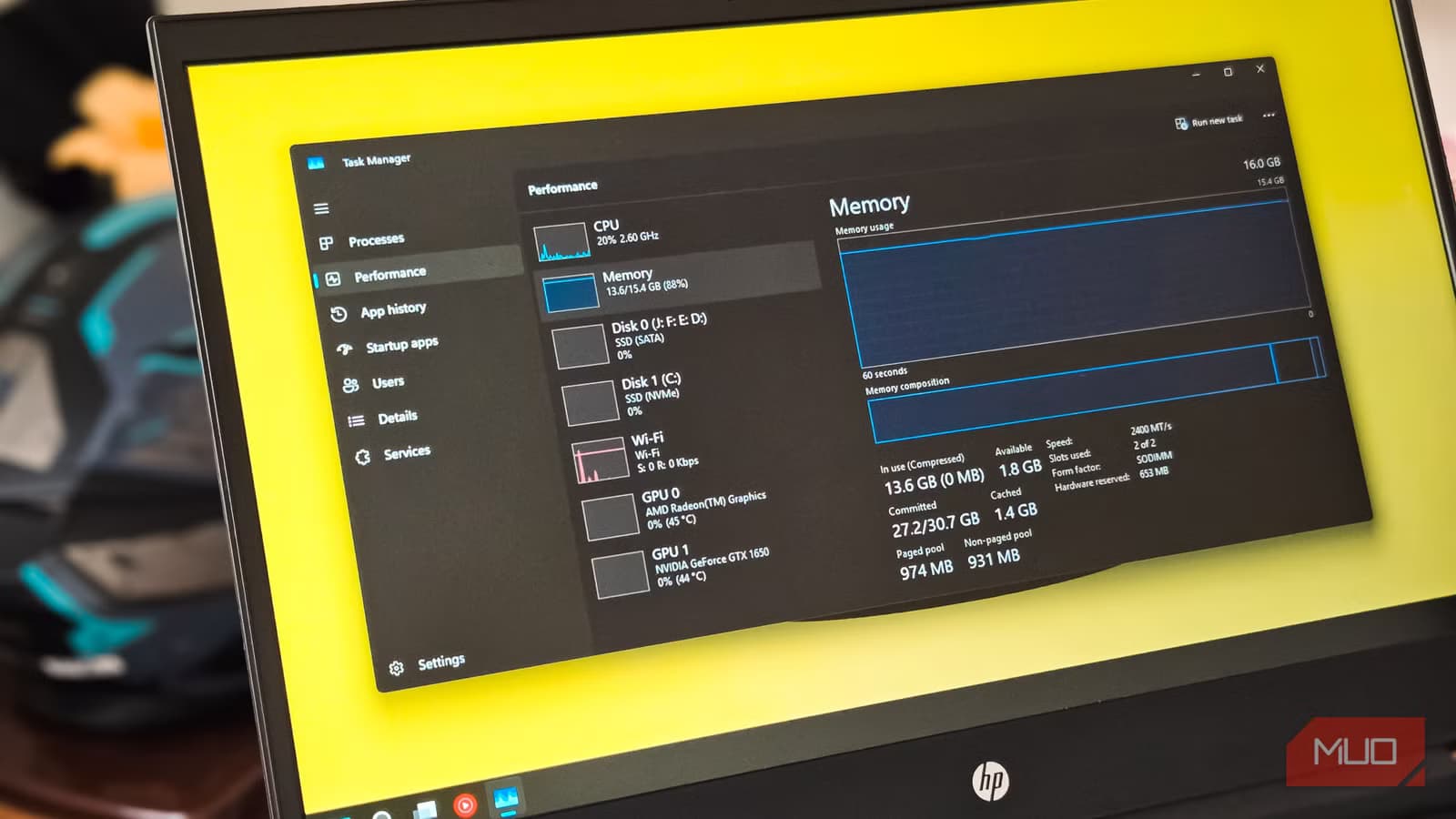
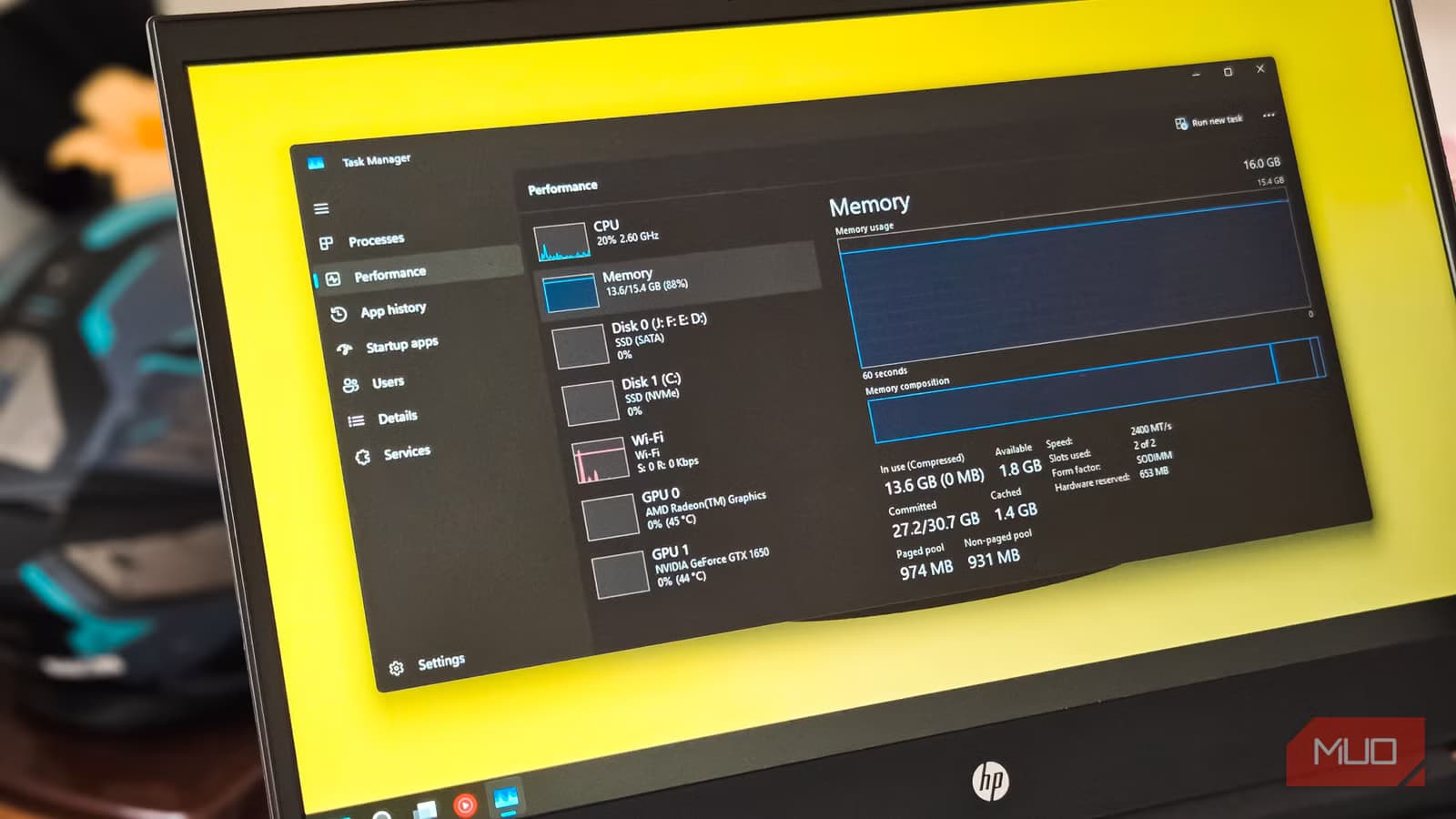
According to [MakeUseOf](https://www.makeuseof.com/task-manager-is-lying-to-you-about-ram-heres-how-to-find-out-whats-really-happening/), Windows Task Manager doesn't show you the full picture of what's consuming your system's RAM because it consolidates dozens of background services under generic svchost.exe entries. For IT teams managing fleets of employee machines, this design choice turns simple diagnostics into time-consuming guesswork.
Here's the business problem: when an employee's computer slows to a crawl, they open a ticket. Your IT staff checks Task Manager, sees nothing obviously wrong, and starts a wild goose chase. Meanwhile, that employee loses 30 minutes to an hour of productivity. Multiply that across dozens of incidents per month, and you're looking at real money walking out the door.
Why Does Task Manager Hide Windows RAM Usage Details?
This isn't a bug. It's a deliberate design decision that dates back to Windows 2000. Microsoft bundles background services like Windows Update, print spoolers, Bluetooth support, and telemetry collection under shared host processes called svchost.exe. This architecture makes Windows more efficient by reducing process overhead.
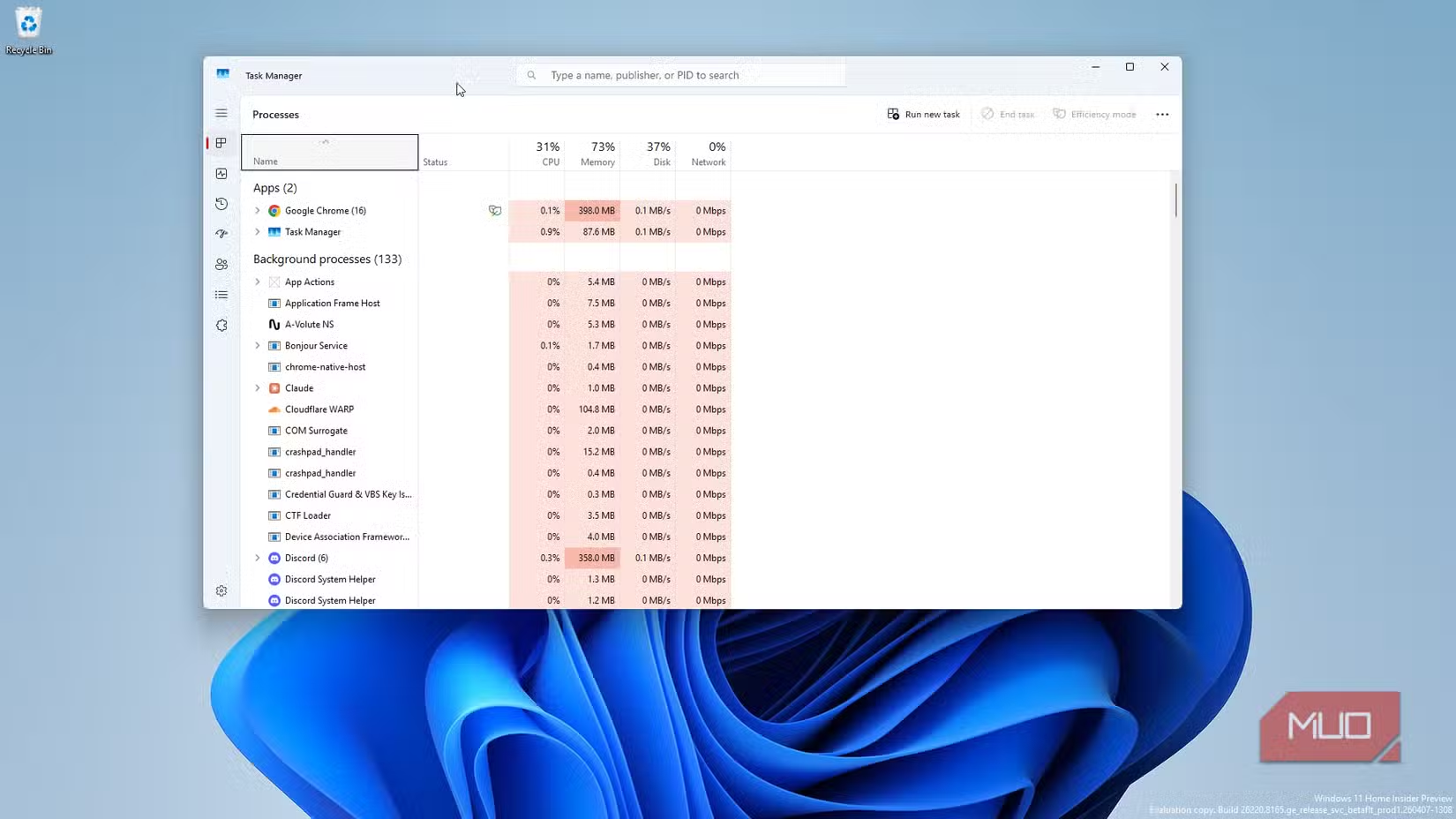
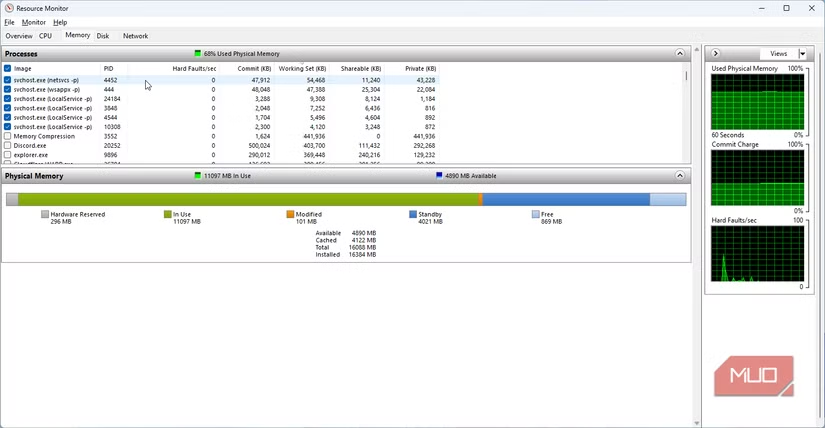
The tradeoff? Visibility. When you open Task Manager, you might see eight or more entries all labeled svchost.exe, each showing different memory and CPU footprints. There's no obvious way to tell them apart. Even expanding the Details tab won't reveal which specific service inside that shared process is eating your RAM.
What This Means for IT Leaders
Your helpdesk tickets for 'slow computer' complaints likely take longer to resolve than necessary. The standard diagnostic tool (Task Manager) simply wasn't designed for granular troubleshooting. Training your IT staff on Resource Monitor can reduce average resolution time significantly.
How to Find Real RAM Usage With Resource Monitor
Resource Monitor has been built into Windows for years, but most users and even many IT professionals don't know it exists. It provides the granular breakdown that Task Manager hides, separating data into CPU, Memory, Disk, and Network tabs with per-service visibility.
- Press Win + R, type 'resmon', and hit Enter
- Alternatively, open Task Manager, go to Performance tab, click the three-dot menu, then select Resource Monitor
- Or simply search for 'Resource Monitor' in the Start menu
Once open, click the Memory tab. You'll see every process listed with its actual memory consumption, not bundled under opaque parent processes. This is the data your IT team needs to identify whether Windows Update is hogging resources, whether a print spooler has gone haywire, or whether a third-party service is the real culprit.
Task Manager vs Resource Monitor: Which Tool for Which Job?
Both tools have their place in your IT toolkit. Understanding when to use each one can streamline your troubleshooting workflow and get employees back to productive work faster.
| Feature | Task Manager | Resource Monitor |
|---|---|---|
| Quick overview of system health | Excellent | Overkill |
| Identifying specific service RAM usage | Poor | Excellent |
| Killing unresponsive applications | Excellent | Possible but slower |
| Network connection analysis | Basic | Detailed per-process |
| Disk I/O by process | Limited | Comprehensive |
| Learning curve | Minimal | Moderate |
| Best use case | End-user troubleshooting | IT diagnostics |
Think of Task Manager as the check engine light. It tells you something's wrong. Resource Monitor is the diagnostic scanner that tells you exactly what's wrong. For IT teams handling multiple incidents daily, the difference in troubleshooting speed adds up fast.
The Hidden Cost of Slow Computers in Your Organization
Let's run some numbers. If an employee earning $75,000 annually loses 15 minutes per day to system slowdowns, that's roughly $2,300 in lost productivity per year. For a 100-person company where half the workforce experiences occasional slowdowns, you're looking at over $100,000 annually in hidden productivity losses.
The fix isn't expensive hardware upgrades. Often, it's identifying and addressing a single misbehaving service that's consuming excessive RAM. Resource Monitor makes this diagnosis possible in minutes rather than hours.
Automation can handle routine IT diagnostics, freeing your team for complex problems
What Should IT Teams Monitor for Windows RAM Usage?
Not all memory consumption is problematic. Windows actively uses available RAM for caching and performance optimization. The issue arises when specific services consume disproportionate resources or when memory leaks cause gradual system degradation.
- Windows Update services during patch cycles (expected but can be scheduled)
- Antivirus real-time scanning (often configurable to reduce impact)
- Print spooler issues (common cause of memory leaks)
- Third-party backup software running during business hours
- Browser processes with excessive tabs (Chrome is notorious)
- Telemetry and diagnostic services (can be reduced in enterprise settings)
When you know what's consuming resources, you can make informed decisions. Maybe Windows Update should run overnight instead of during peak hours. Maybe that legacy backup tool needs replacement. These are business decisions that require technical visibility to make.
Building a Proactive Monitoring Strategy
Reactive troubleshooting is expensive. By the time an employee submits a ticket, they've already lost productivity. Enterprise monitoring tools can catch memory issues before users notice them, but even smaller organizations can benefit from simple proactive checks.
Consider scheduling weekly Resource Monitor reviews on a sample of machines. Look for patterns: are the same services causing problems across multiple computers? That's a systemic issue worth addressing at the configuration or policy level, not machine by machine.
Quick Win for IT Managers
Create a simple documentation guide for your helpdesk team showing how to use Resource Monitor. Include screenshots of the Memory tab and a checklist of common culprits. This single training asset can reduce average ticket resolution time for memory-related complaints by 30-50%.
Building technical skills across your team pays dividends in faster problem-solving
When Hardware Upgrades Actually Make Sense
Sometimes the problem isn't a misbehaving service. It's genuinely insufficient RAM for modern workloads. Resource Monitor helps you make this determination with confidence rather than guessing.
If Resource Monitor shows that legitimate, necessary services consistently push memory usage above 85-90%, and there's no obvious waste to eliminate, then hardware upgrades become a justified expense. You can present this data to finance with specific numbers rather than vague complaints about 'slow computers.'
The cost-benefit math is straightforward. If a $100 RAM upgrade prevents 20 hours of lost productivity per year, and your fully-loaded employee cost is $50/hour, that upgrade pays for itself in a month. But you need the diagnostic data to make that case.
Frequently Asked Questions
Frequently Asked Questions
Is Resource Monitor free or does it require additional licensing?
Resource Monitor is built into Windows and requires no additional licensing. It's available on Windows 10, Windows 11, and Windows Server editions. Your organization already has access to it.
How much time does Resource Monitor training take for IT staff?
Most IT professionals can become proficient with Resource Monitor in 30-60 minutes. The interface is intuitive once you understand what each tab displays. Create a simple internal guide and your team is ready.
Can Resource Monitor data be exported for reporting?
Resource Monitor provides real-time data but doesn't have built-in export. For ongoing monitoring and reporting, consider Performance Monitor (perfmon) or third-party solutions that can log historical data for trend analysis.
Should we replace Task Manager entirely with Resource Monitor?
No. Task Manager remains excellent for quick overviews and killing unresponsive applications. Resource Monitor is the escalation tool when Task Manager doesn't provide enough detail. Train your team to use both appropriately.
What's the ROI on improving our memory troubleshooting process?
Conservative estimates suggest reducing average resolution time from 45 minutes to 20 minutes per memory-related ticket. If your helpdesk handles 50 such tickets monthly, that's over 20 hours saved per month in IT staff time alone, not counting employee productivity gains.
Logicity's Take
At Logicity, we build automation systems and internal tools for startups and growing companies. While Windows diagnostics isn't our core expertise, we've seen this pattern repeatedly: the gap between what default tools show and what teams actually need to make decisions. The broader lesson here matters for any technical leader. Your standard dashboards, whether Windows Task Manager, cloud provider consoles, or SaaS admin panels, are designed for the average case. They hide complexity to seem approachable. That's fine for casual use, but it creates blind spots when something goes wrong. We apply this principle when building internal tools for our clients. Don't just surface the happy-path metrics. Build in the diagnostic views that your team will need at 2 AM when something breaks. The 30 minutes spent adding granular logging or detailed error reporting saves hours of panicked troubleshooting later. For Indian tech businesses specifically, where IT budgets often run lean, knowing these built-in tools exist is valuable. You don't always need expensive monitoring suites. Sometimes the answer is a free utility that's been sitting in Windows since 2000.
Need Help Implementing This?
Logicity helps growing companies build internal tools, automation workflows, and monitoring systems that give your team the visibility they need. If you're struggling with IT efficiency or want to automate routine diagnostics, let's talk about what's possible.
Source: MakeUseOf
Huma Shazia
Senior AI & Tech Writer
Produced with AI assistance and reviewed by the Logicity editorial team. Learn more in our Editorial Policy.