Key Takeaways
- A NAS needs stability and uptime; a homelab needs freedom to experiment and break
- Running both on one machine means every homelab change risks your data access
- Separating them lets you reboot, upgrade, or crash your homelab without touching your files
The All-in-One Trap
When you first build a homelab, combining everything on one machine feels like smart engineering. Why buy two boxes when one can handle your NAS, Docker containers, and virtual machines? The logic is hard to argue with, at least until you live with it for a few months.
Tech journalist Dibakar Ghosh at How-To Geek recently explained why he reversed course after running a combined setup. His reasoning comes down to a fundamental conflict: a NAS and a homelab have opposite goals.
A NAS Wants Boring Stability
A NAS has one job: store files and serve them to devices on your network. That's it. It doesn't need to run containers, host VMs, or experiment with new software. It needs to sit there, stay online, and deliver your files when asked.
This sounds obvious when stated directly, but it's easy to forget when you're excited about maximizing hardware. A good NAS is boring. It runs the same stable software for months or years. Updates are rare and cautious. Reboots are scheduled, not spontaneous.
A Homelab Wants Freedom to Break
A homelab is the opposite. It's where you run Docker containers, spin up VMs, test self-hosted apps, and try whatever caught your attention this week. The whole point is that it's powerful, constantly changing, and something you're always working on.
Homelabs break. That's not a bug. It's the point. You learn by breaking things, fixing them, and trying again. But when your NAS lives on the same machine, every experiment puts your data access at risk.
The Practical Conflicts
When both systems share hardware, you face constant tradeoffs:
- Rebooting for a kernel update means your media server goes offline mid-movie
- A misconfigured container can eat all your RAM, slowing file access to a crawl
- Testing a new hypervisor means scheduling downtime for your file storage
- A failed experiment that crashes the system takes your backups offline too
These aren't theoretical problems. Anyone who has run a combined setup hits them within weeks. The question becomes: how much downtime are you willing to accept for your files?
The Separation Solution
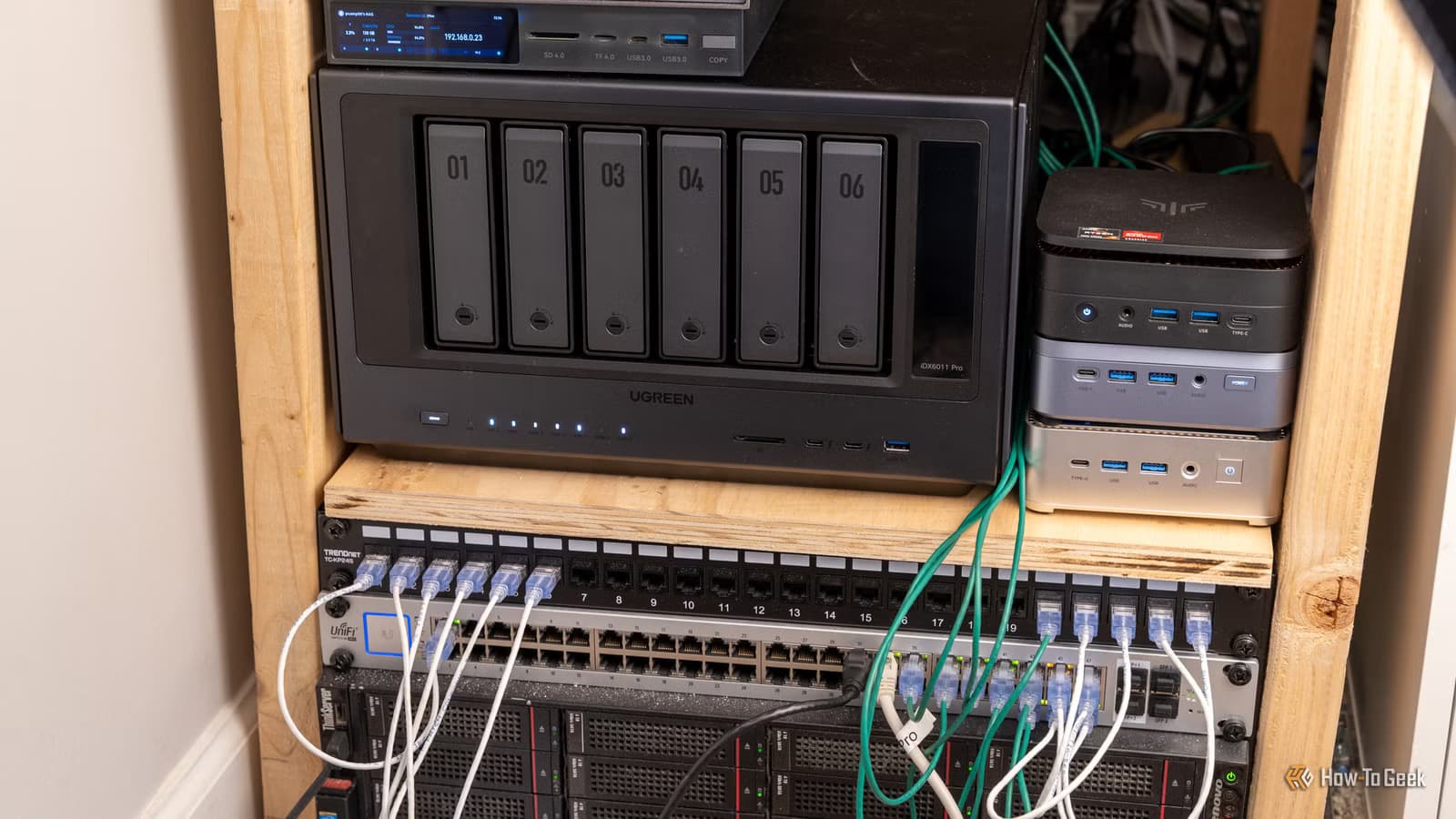
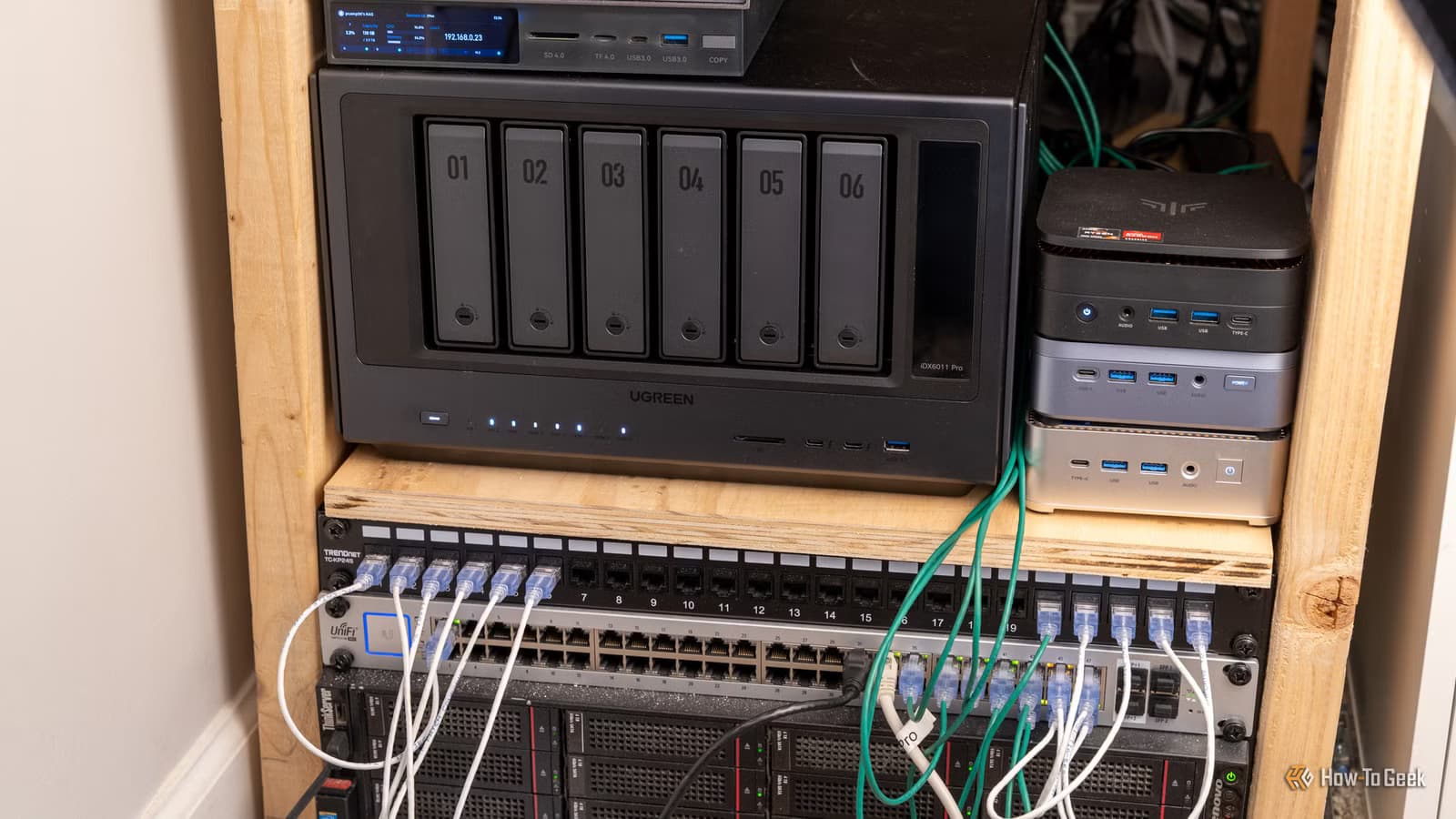
Running your NAS on dedicated hardware solves these conflicts. Your files stay accessible whether your homelab is up, down, or in pieces. You can reboot your experimental server at 2 AM without worrying about interrupting someone streaming a movie.
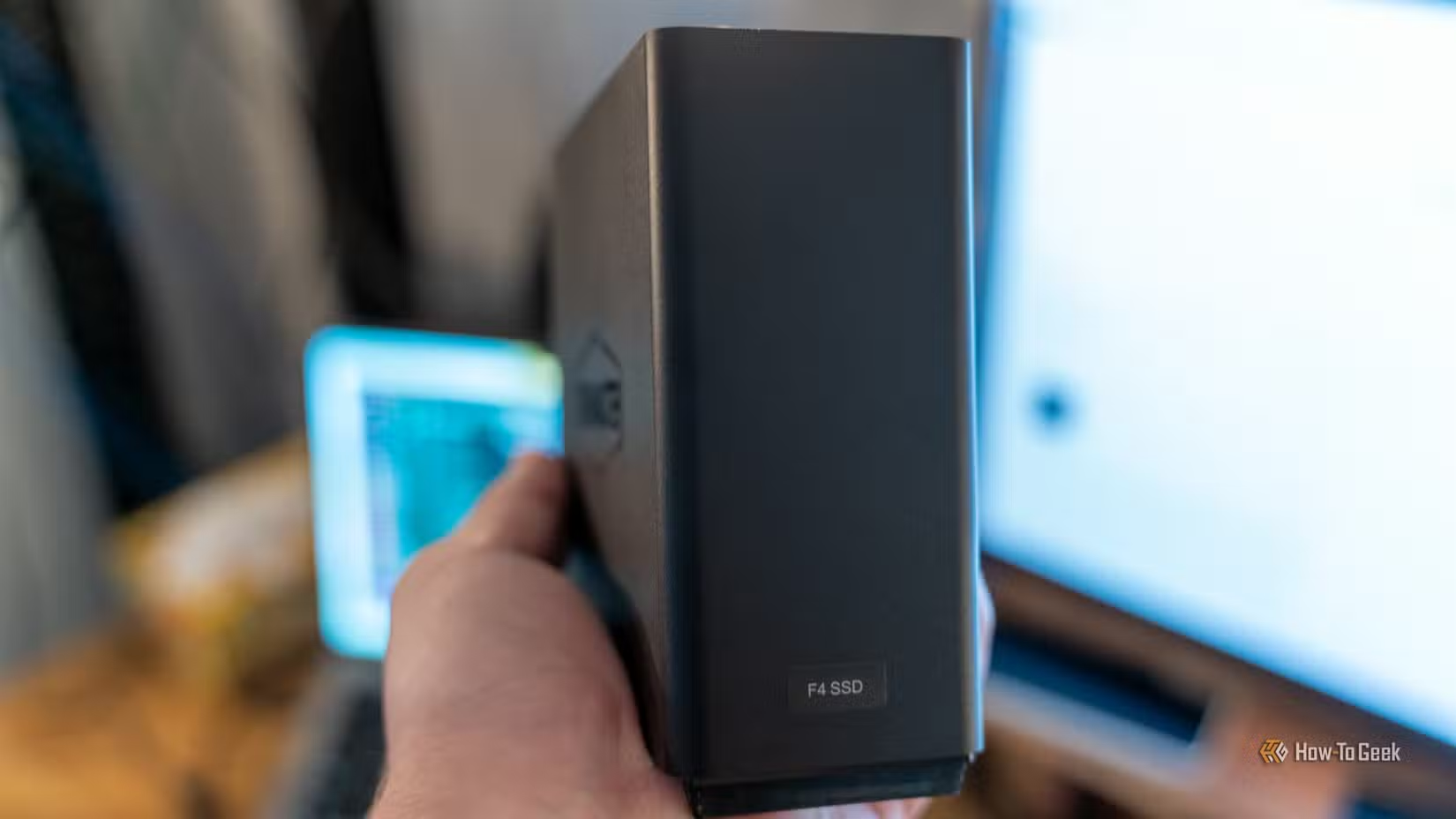
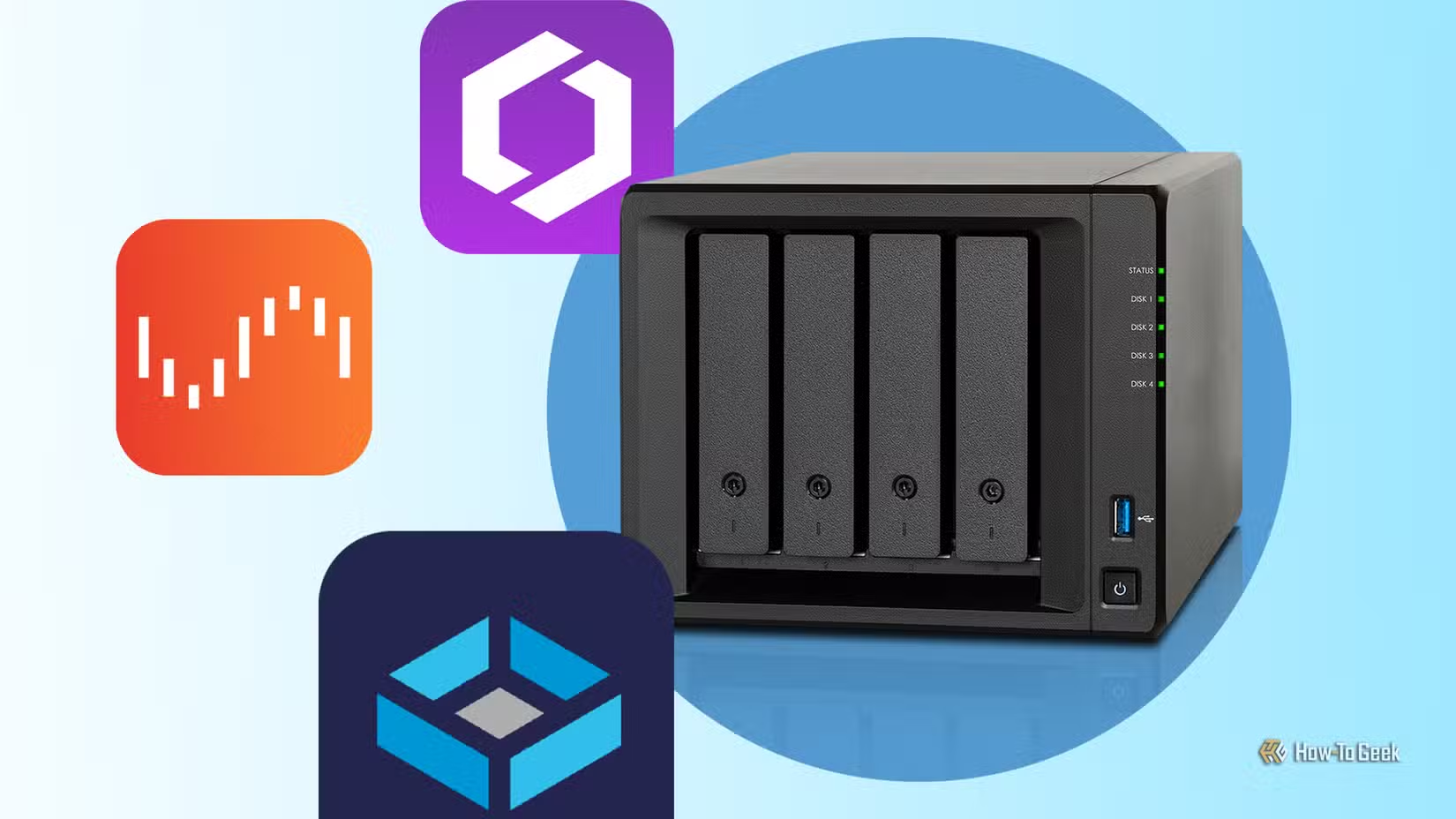
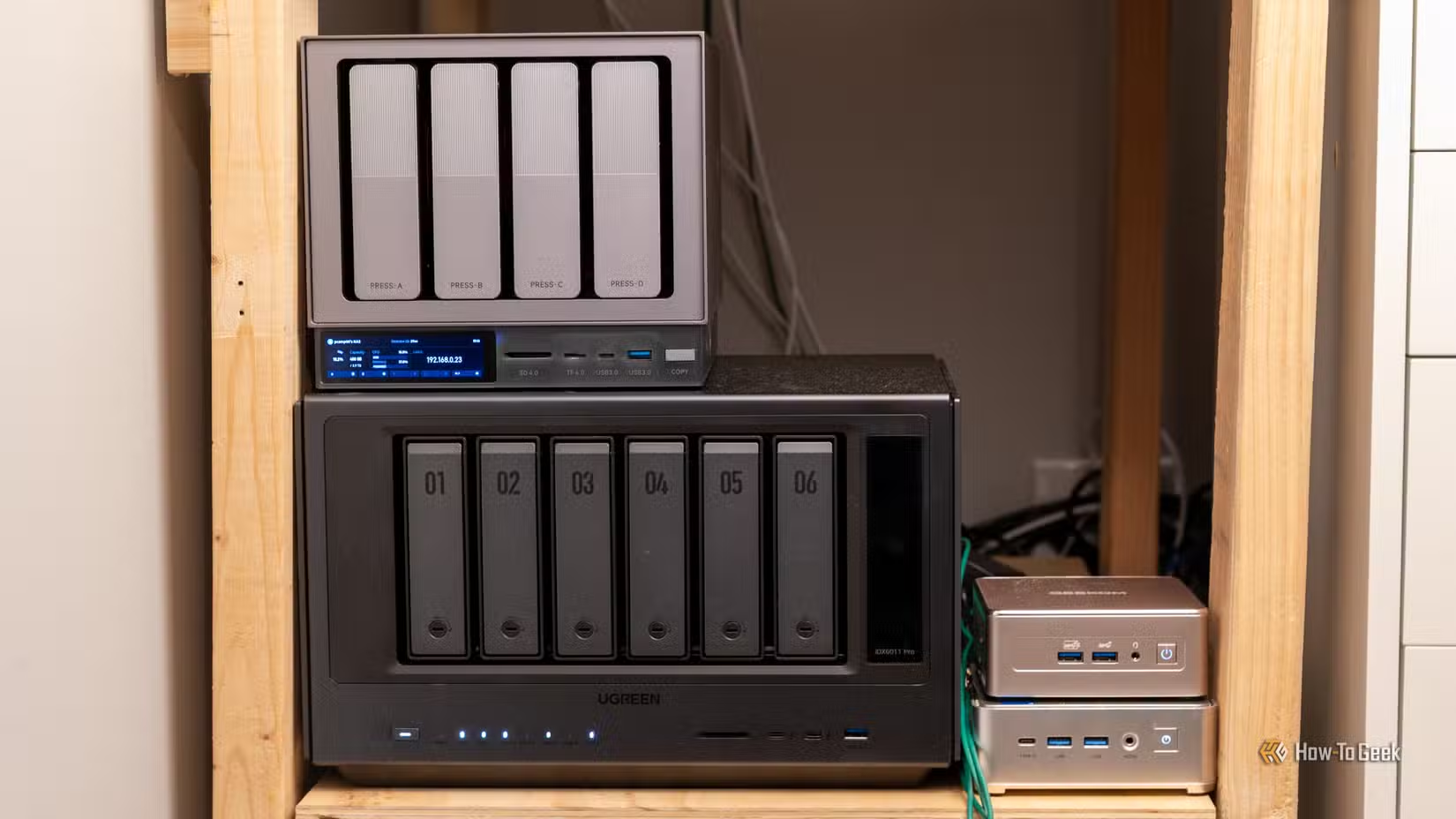
The cost isn't as steep as it seems. A dedicated NAS doesn't need powerful hardware. Entry-level options from Synology, QNAP, or UGREEN start under $300 without drives. You can even repurpose an old mini PC with external storage.
What About Resource Efficiency?
The counterargument is wasted resources. Two machines use more power than one. Two machines mean two sets of updates, two points of failure, two things to monitor.
These concerns are valid but often overstated. A NAS idles most of the time, drawing minimal power. A dedicated NAS box might add $20-40 per year to your electric bill. Compare that to the hours lost recovering from a homelab mishap that took your storage offline.
As for complexity, modern NAS operating systems are set-and-forget. Once configured, they need attention maybe once a month. Your homelab will demand far more of your time regardless of whether it shares hardware with your NAS.
When Combining Makes Sense
Not everyone needs separation. If you're running a stable, mature homelab with changes measured in months rather than days, a combined setup works fine. If your homelab is production infrastructure rather than a playground, the stability requirement applies to both anyway.
But if you're actively experimenting, learning, or using your homelab as a test environment, separation is worth the extra hardware cost. The freedom to break things without consequences is what makes a homelab useful.
Logicity's Take
For homelab users managing multiple Windows machines
Frequently Asked Questions
What's the difference between a NAS and a homelab?
A NAS (Network Attached Storage) stores and serves files to your network. A homelab is a personal server environment for running services, containers, VMs, and experiments. They have different stability requirements.
Can I run a NAS on the same machine as my homelab?
Yes, but you'll face tradeoffs. Every reboot, crash, or experiment on your homelab affects your file storage. Most experienced users recommend separation.
How much does a dedicated NAS cost?
Entry-level NAS enclosures from Synology, QNAP, or UGREEN start around $200-300 without drives. You can also repurpose an old PC with external drives for even less.
Does running two machines use significantly more power?
A NAS idles most of the time, drawing minimal power. Expect roughly $20-40 per year in additional electricity costs for a basic NAS device.
What if I rarely change my homelab setup?
If your homelab is stable and changes are infrequent, a combined setup can work well. Separation matters most when you're actively experimenting.
Need Help Implementing This?
Source: How-To Geek
Huma Shazia
Senior AI & Tech Writer
Produced with AI assistance and reviewed by the Logicity editorial team. Learn more in our Editorial Policy.