Key Takeaways
- Fast Start-up saves almost no time on modern SSDs, with cold boots already under 20 seconds
- The feature prevents true shutdowns, causing driver issues, dual-boot conflicts, and filesystem errors
- Disabling Fast Start-up is a simple fix that eliminates a common source of mysterious Windows problems
Windows Fast Start-up is a legacy feature that made sense when mechanical hard drives took minutes to boot. In 2026, it's causing more problems than it solves. With SSDs now standard in nearly every PC, the time savings are negligible. The trade-off? A long list of strange issues that are notoriously difficult to diagnose.
What Fast Start-up Actually Does
Fast Start-up is essentially a partial hibernation. When you click Shut Down with Fast Start-up enabled, Windows doesn't actually close the operating system. Instead, it saves the kernel and driver state to your disk, then reloads that snapshot when you turn the PC back on.
This approach was designed to speed up boot times on spinning hard drives, where loading the OS from scratch could take well over a minute. The feature shipped with Windows 8 and has been enabled by default ever since.
SSDs Made This Feature Obsolete
The problem is simple: the hardware landscape has changed completely. In 2026, almost every PC ships with a solid-state drive. Cold boot times on modern NVMe drives are already extremely short. A typical modern PC boots in less than 20 seconds without any hibernation tricks.
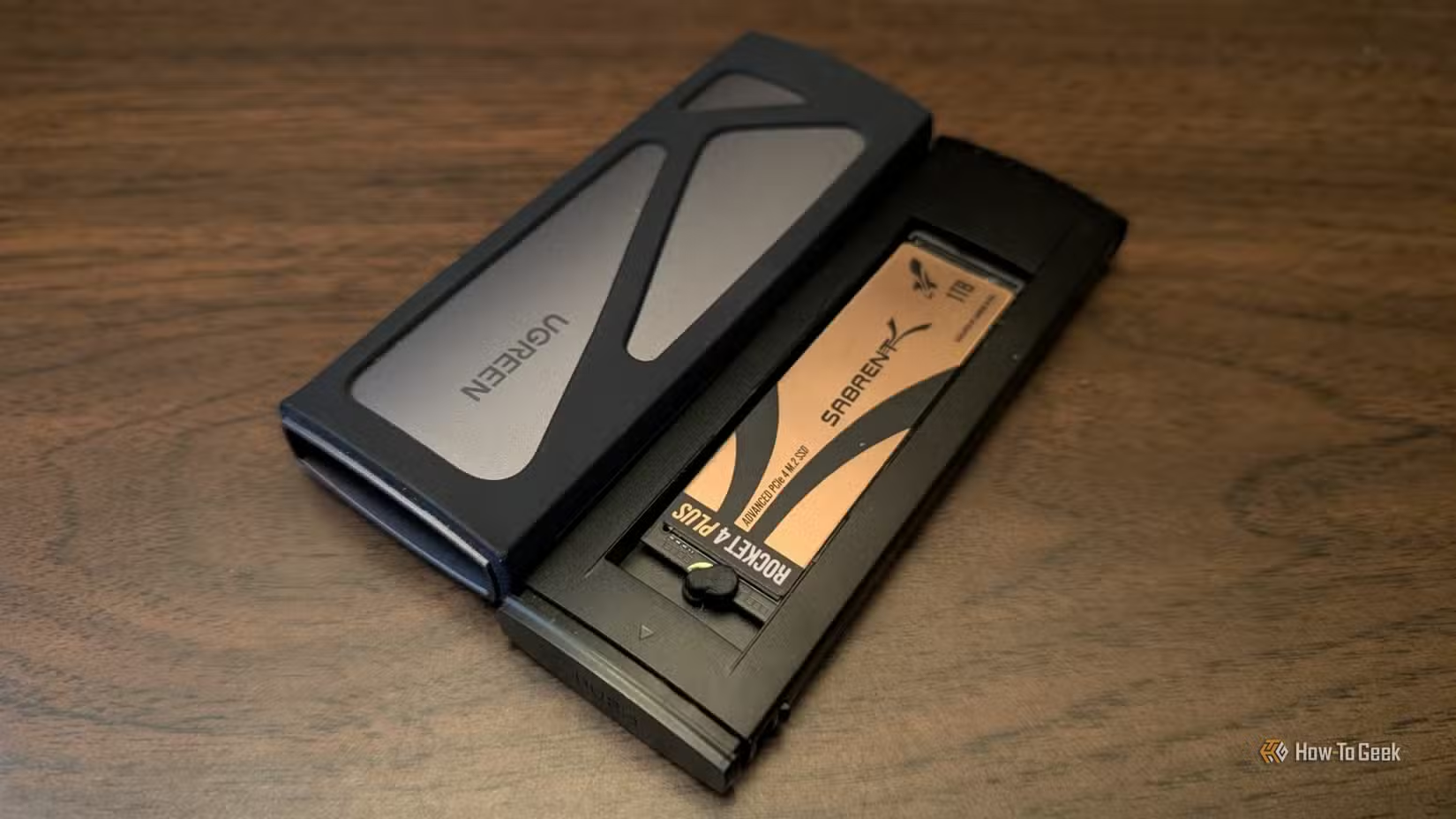
Even older SATA SSDs will get you to the desktop in under 45 seconds. The amount of time you save by using Fast Start-up on modern hardware is barely noticeable. We're talking about shaving a few seconds off a process that's already fast.
The Problems Fast Start-up Creates
The real issue is that Fast Start-up isn't a true shutdown. When you click Shut Down, you expect your computer to fully power off and start fresh next time. With Fast Start-up enabled, that's not what happens. The Windows kernel stays active in a hibernated state.
This causes several categories of problems:
- Driver issues that persist across 'shutdowns' because the driver state is saved and restored
- Dual-boot conflicts where Windows locks NTFS partitions, preventing Linux from mounting them
- External drive corruption when you disconnect a drive after shutdown, then reconnect
- Windows Update failures that require a real restart to complete
- Blue screens and stability issues that a 'shutdown' doesn't fix

These problems are particularly frustrating because they seem random. You've shut down your computer. Why would issues from the previous session carry over? The answer is Fast Start-up, but it's rarely the first thing users suspect.
How to Disable Fast Start-up
Turning off Fast Start-up takes about 30 seconds:
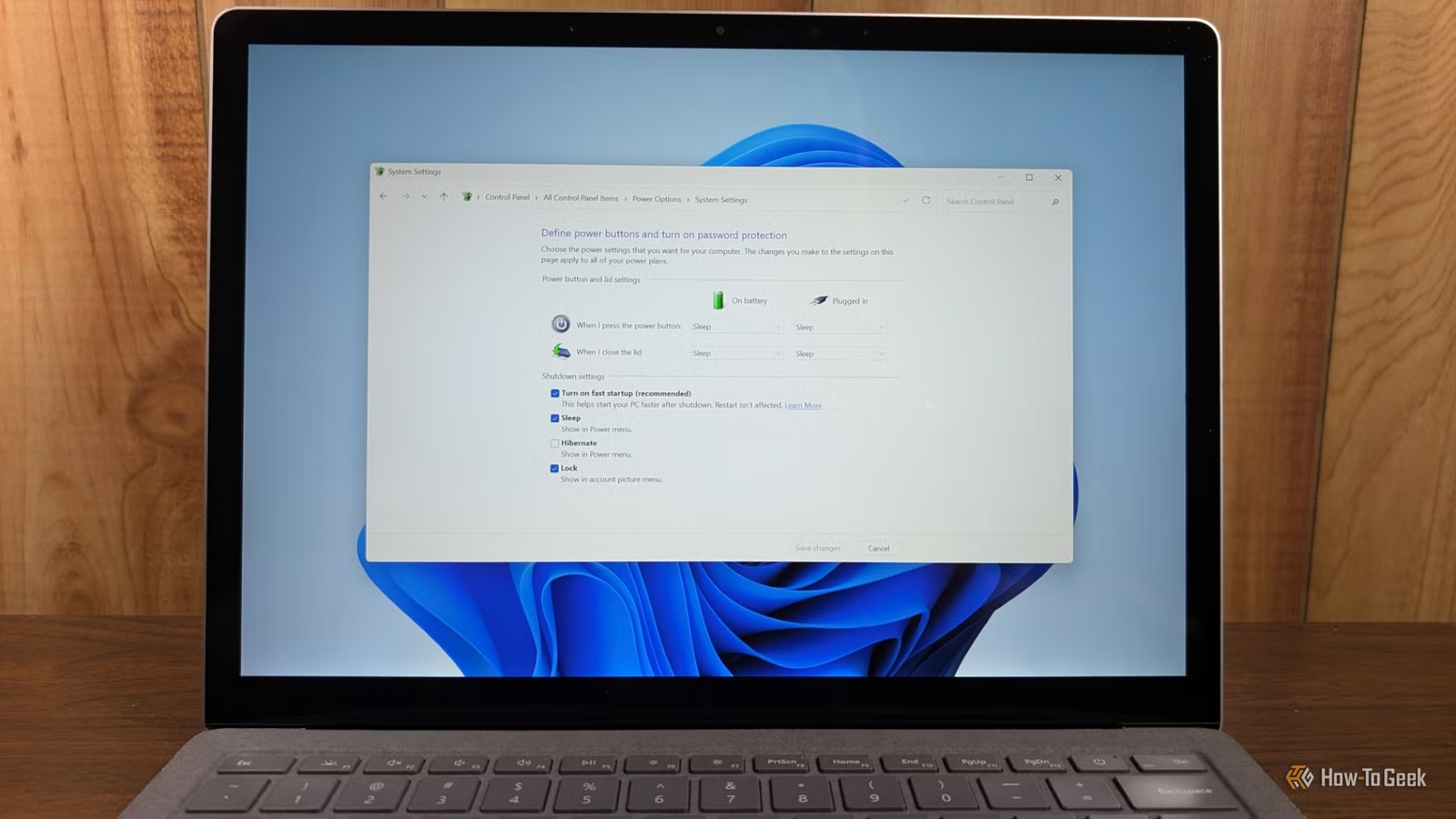
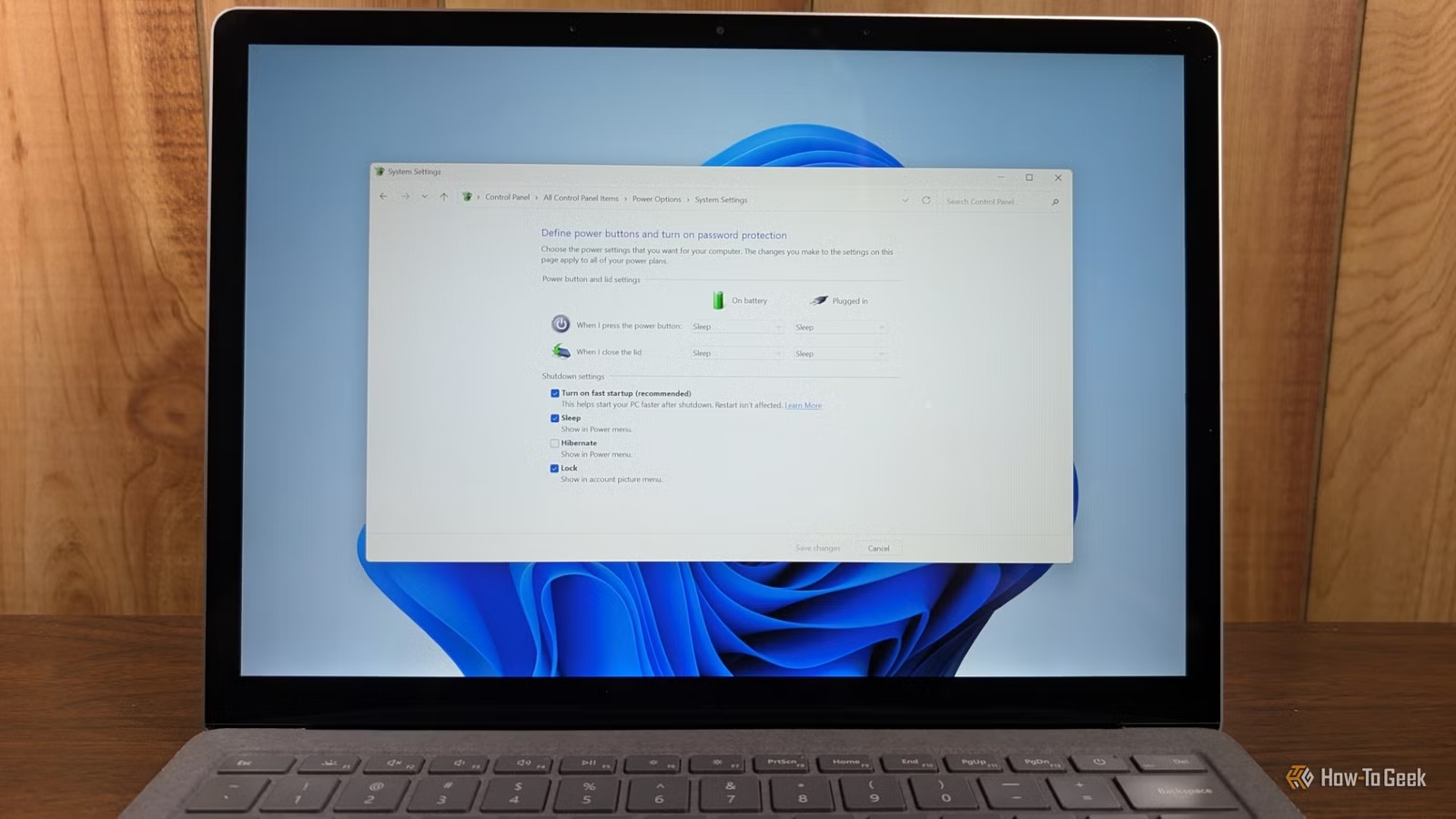
- Open Control Panel and go to Hardware and Sound > Power Options
- Click 'Choose what the power buttons do' in the left sidebar
- Click 'Change settings that are currently unavailable' at the top
- Uncheck 'Turn on fast start-up (recommended)'
- Click Save changes
After this change, Shut Down will actually shut down your computer. The kernel and drivers will load fresh on every boot. Your boot time might increase by a few seconds, but you'll eliminate an entire category of mysterious Windows problems.
When You Might Want to Keep It
There's one scenario where Fast Start-up still makes sense: if you're running Windows on a mechanical hard drive. In that case, the feature can cut boot times significantly. But if your system drive is any kind of SSD, the trade-offs no longer favor Fast Start-up.
Logicity's Take
More on optimizing your home computing setup
Frequently Asked Questions
Does disabling Fast Start-up affect sleep or hibernate?
No. Fast Start-up only affects the Shut Down option. Sleep, Hibernate, and Restart work the same regardless of this setting.
Will my computer boot slower without Fast Start-up?
Slightly. On a modern SSD, expect maybe 3-5 extra seconds. Most users won't notice the difference, and the improved reliability is worth it.
Why does Microsoft still enable Fast Start-up by default?
Windows still ships on some low-end devices with mechanical drives or eMMC storage, where Fast Start-up provides meaningful speed improvements. Microsoft hasn't implemented per-device defaults.
Can Fast Start-up cause data loss on external drives?
Yes. If you disconnect an external drive after a Fast Start-up shutdown, Windows may still have filesystem locks in memory. Reconnecting and using the drive can cause corruption.
Does Restart bypass Fast Start-up?
Yes. Restart always performs a full kernel shutdown and fresh boot, even with Fast Start-up enabled. If you need a clean restart, use Restart instead of Shut Down followed by power on.
Need Help Implementing This?
Source: How-To Geek
Manaal Khan
Tech & Innovation Writer
Produced with AI assistance and reviewed by the Logicity editorial team. Learn more in our Editorial Policy.