Key Takeaways
- Dolphin lets you configure every panel and toolbar element, while GNOME Files offers limited customization
- An integrated terminal panel in Dolphin eliminates constant app switching for power users
- Dolphin handles network shares and remote connections through a built-in interface
A GNOME User's Honest Assessment
Bertel King, writing for How-To Geek, opens with a confession: he prefers GNOME. But after years of switching between desktop environments, he considers Dolphin the best Linux file manager available. GNOME Files works fine, he says. Dolphin shows what's possible when a file manager gives users actual control.
The argument comes down to flexibility versus philosophy. GNOME takes an opinionated approach. If you don't like the layout, your options are to modify the source code or find another app. KDE takes the opposite stance. Everything is configurable, and the defaults are just suggestions.
Panels and Toolbars You Actually Control
In Dolphin, the interface is built from modular pieces. Panels and toolbars can be shown, hidden, or rearranged through the hamburger menu. Want the sidebar gone? Uncheck the Places panel. Need contextual metadata on every file? Enable the Information panel. Prefer a folder tree instead of bookmarked locations? Switch to the Folders panel.
The toolbar gets the same treatment. Every icon can be removed, added, or repositioned. If you never use the Split view button, delete it. If you want Copy and Paste buttons visible for touchscreen use, add them. King compares it to configuring the toolbar in Mozilla Firefox. The browser gives you that control. So should your file manager.
GNOME Files does offer some configuration options, but the scope is limited. You can change view modes and toggle a few preferences. The fundamental layout stays fixed.
The Terminal Lives Inside Your File Manager
Power users often bounce between a file manager and terminal. Navigate to a directory graphically, then switch apps to run a command. Dolphin eliminates the context switch by embedding a terminal panel directly into the file manager window.
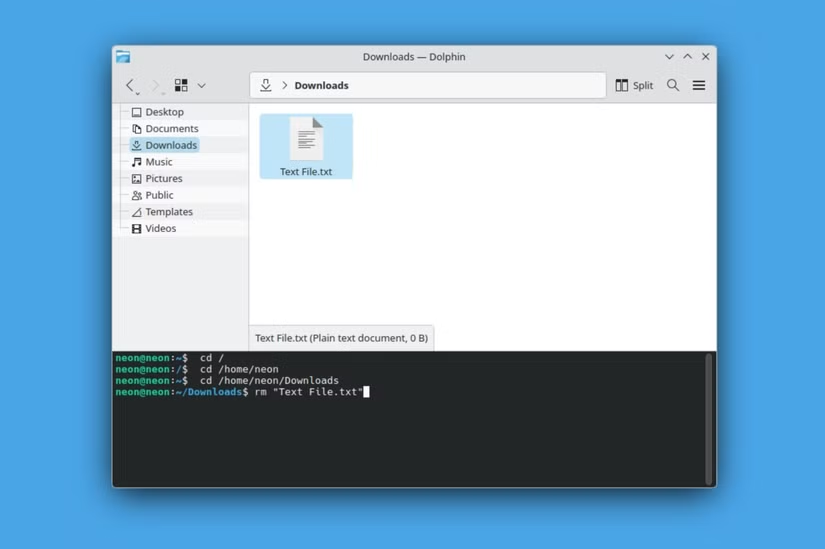
The terminal panel stays synchronized with your file browser. Navigate to a folder in Dolphin, and the terminal's working directory updates automatically. Run a command that creates files, and they appear in the file listing above. No copy-pasting paths. No mental tracking of which window is where.
This integration matters most for developers and system administrators who live in both worlds. A single window replaces two apps. The cognitive overhead drops.
Another tool that brings Linux-style power to desktop workflows
Network Shares Without Extra Apps
Connecting to network shares, SFTP servers, or remote machines often requires separate tools or terminal commands. Dolphin handles these connections natively through its interface.
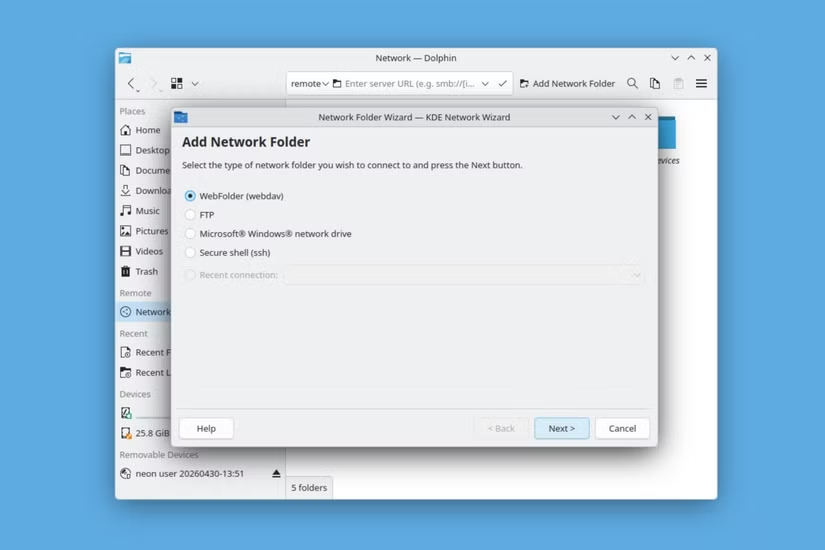
The Network panel shows available shares on your local network. Remote connections work through the address bar with protocols like sftp://, smb://, or fish://. You can browse a remote server the same way you browse your local drives. Bookmarking these locations adds them to your Places panel for quick access.
For anyone running a NAS or working with remote development servers, this removes friction from daily workflows. The file manager becomes the single interface for all your storage, local and remote.
Related guidance on managing network storage infrastructure
File Selection Gets Small Details Right
Dolphin includes selection helpers that save clicks during bulk operations. You can invert a selection, select all items matching a pattern, or use checkboxes on individual files. These aren't revolutionary features. They're quality-of-life improvements that add up over hundreds of file operations.
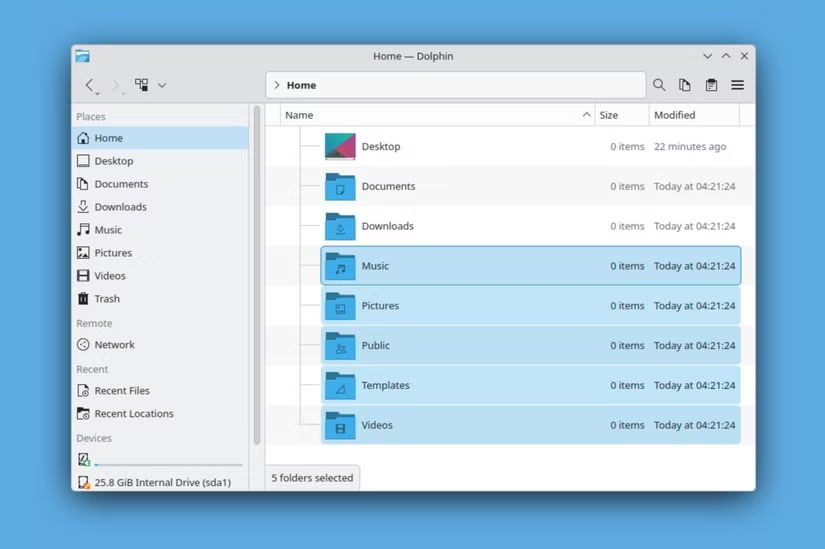
GNOME Files handles basic selection fine. Dolphin treats selection as a first-class feature worth optimizing.
| Feature | KDE Dolphin | GNOME Files |
|---|---|---|
| Panel customization | Full control over all panels | Limited options |
| Toolbar editing | Add, remove, rearrange any icon | Fixed layout |
| Integrated terminal | Built-in panel, syncs with navigation | Not available |
| Network shares | Native protocol support in address bar | Basic support |
| Selection tools | Invert, pattern match, checkboxes | Standard selection |
The Philosophy Difference
This comparison reflects a deeper split between KDE and GNOME. GNOME prioritizes simplicity and consistency. The team makes design decisions and commits to them. Users who want different behavior are gently encouraged to find apps that match their preferences.
KDE prioritizes user agency. The defaults work fine for most people. Power users get switches and knobs for everything. The tradeoff is complexity. More options mean more decisions, and the settings panels can overwhelm new users.
Neither approach is wrong. They serve different audiences. But for file management specifically, King argues the flexibility matters. File operations are frequent, varied, and personal. A configurable tool adapts to your workflow. A fixed tool asks you to adapt.
Logicity's Take
How to Try Dolphin
On KDE Plasma distributions like Kubuntu, Dolphin comes preinstalled. On GNOME systems, you can install it through your package manager. Running Dolphin on GNOME works fine, though it pulls in some KDE libraries.
Dolphin also runs on Windows through KDE's cross-platform efforts. The experience isn't as polished as on Linux, but it works for users who want consistent tooling across operating systems.
Frequently Asked Questions
Can I run KDE Dolphin on GNOME?
Yes. Install Dolphin through your distribution's package manager. It will pull in some KDE libraries but runs alongside GNOME apps without issues.
Does Dolphin work on Windows?
KDE maintains a Windows build of Dolphin. The integration isn't as smooth as on Linux, but core features work.
Is Dolphin harder to learn than GNOME Files?
The basics work identically. Dolphin's extra features are optional. You can ignore the configurability and use it like any other file manager.
What protocols does Dolphin support for remote access?
Dolphin handles SFTP, SMB, FTP, WebDAV, and Fish (SSH-based file transfer) natively through the address bar.
Need Help Implementing This?
Source: How-To Geek
Huma Shazia
Senior AI & Tech Writer
Produced with AI assistance and reviewed by the Logicity editorial team. Learn more in our Editorial Policy.