Key Takeaways

- Jupyter notebooks enable exploratory programming where you test ideas before committing to a full script
- IPython adds tab completion, command history, and magic commands that the standard Python interpreter lacks
- The interactive workflow matches how data scientists actually work: examine data first, then decide what to do with it
The case for exploratory programming
When you're building software, you usually know what you want. You write code, run it, fix bugs, repeat. VS Code, Vim, or any traditional IDE works fine for this.
Data science is different. You often start with a dataset and no clear idea what's inside it. You need to poke at it, summarize it, graph it, then figure out what questions you can even ask. The edit-save-run cycle of traditional development gets in the way.
IPython and Jupyter notebooks flip this around. You type a line of code, hit Enter, and see what happens. No script files. No run commands. Just instant feedback. This style of working, called exploratory programming, matches how statisticians and data scientists actually think.
What IPython adds to Python's interpreter
Python ships with a built-in interactive interpreter. It's useful for quick tests, but it has problems. No tab completion. No easy way to re-run previous commands. No history search.
IPython fixes all of this. Hit Tab and it autocompletes function names, variable names, even file paths. Use the up arrow to scroll through your command history. Search previous commands the same way you would in a Linux shell, thanks to GNU Readline support.
Then there are magic commands. These are IPython-specific tools prefaced with a percent sign. They handle tasks that would otherwise require external scripts or manual timing.
Practical example: timing code execution
Say you want to know how long a computation takes. In a traditional workflow, you'd import the time module, wrap your code, calculate the difference. In IPython, you use the timeit magic command.
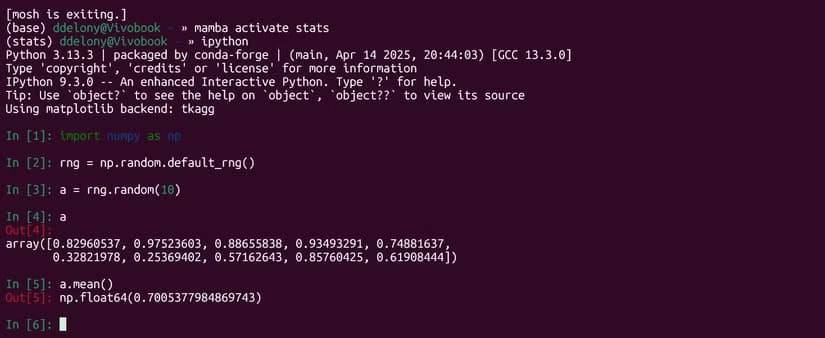
Here's how it works. First, generate some test data with NumPy:
import numpy as np
rng = np.random.default_rng()
X = rng.random((10,3))
y = rng.random(10)
Now time a least-squares computation:
%timeit np.linalg.lstsq(X,y)IPython runs the code multiple times and returns the average execution time. For a small 10x3 matrix, it takes about 12 microseconds. Scale up to a 500x3 matrix and you'll see the difference immediately. No boilerplate code required.

From IPython to Jupyter notebooks
IPython runs in a terminal. Jupyter notebooks take the same concept and put it in a browser-based interface with cells. Each cell can contain code, output, or formatted text. You can run cells in any order, re-run them, and see results inline.
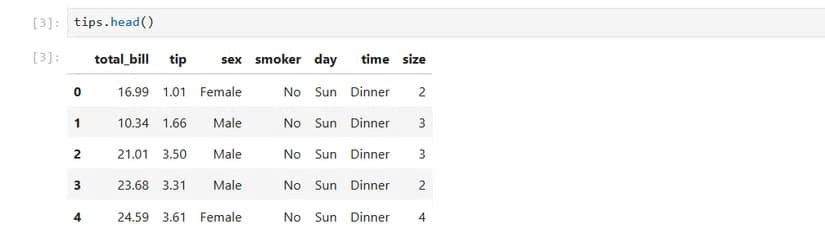
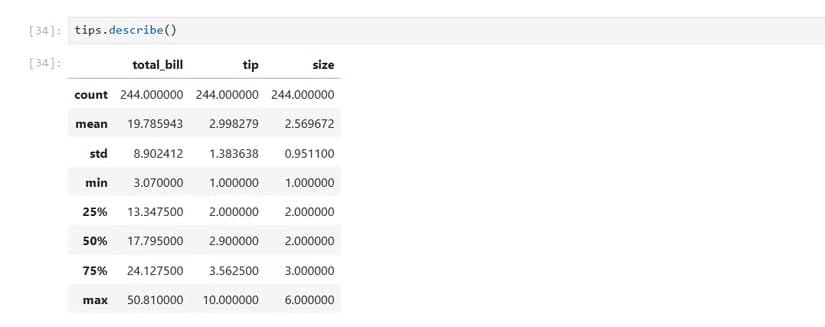
This matters for data exploration. Load a dataset, run df.head() to see the first few rows, then df.describe() to get summary statistics. All the output stays visible as you work. You're building a record of your exploration, not just a pile of scripts.
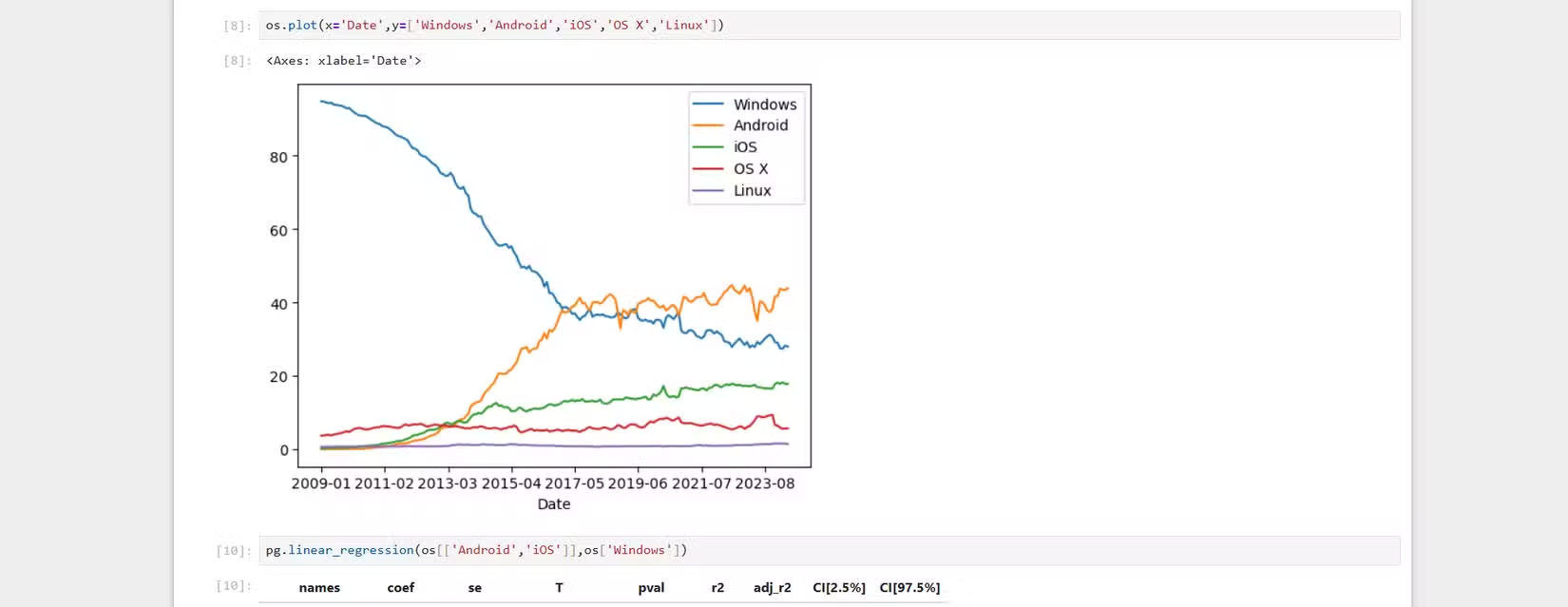
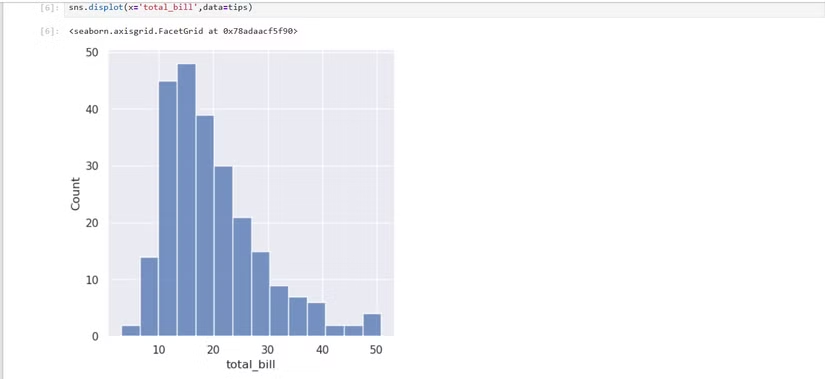
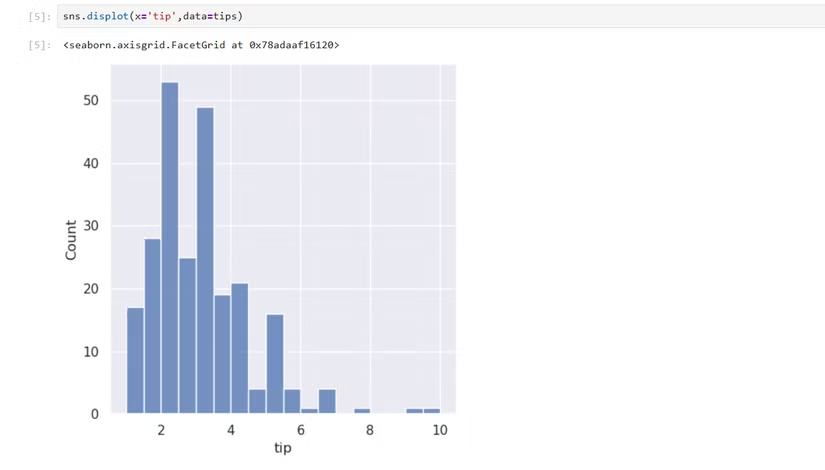
Graphs render inline too. Run a matplotlib plot and it appears right below the code. No separate window. No saved image files to manage. The visualization lives next to the code that created it.
When to use notebooks vs traditional editors
Notebooks aren't a replacement for VS Code or Vim. They're a different tool for a different job.
Use notebooks when you're exploring data, testing hypotheses, or building prototypes. Use traditional editors when you're writing production code, building libraries, or working on larger software projects.
Many data scientists switch between both. Explore in a notebook, then extract the working code into a proper Python module. The notebook becomes documentation; the module becomes production code.
Logicity's Take
Getting started
IPython installs with pip install ipython. Run it by typing ipython in your terminal. Jupyter installs with pip install jupyter and launches with jupyter notebook or jupyter lab for the newer interface.
If you're doing serious data work, consider using conda or mamba to manage environments. They handle binary dependencies like NumPy and SciPy better than pip alone.
Frequently Asked Questions
What's the difference between IPython and Jupyter?
IPython is a terminal-based interactive Python shell with enhanced features. Jupyter notebooks use IPython as their kernel but add a browser-based interface with cells, inline output, and rich text formatting.
Can I use Jupyter notebooks with languages other than Python?
Yes. Jupyter supports multiple kernels including R, Julia, and Scala. The name Jupyter comes from Julia, Python, and R.
Are Jupyter notebooks suitable for production code?
Generally no. Notebooks are best for exploration and prototyping. For production, extract working code into proper Python modules with version control, testing, and documentation.
How do IPython magic commands work?
Magic commands are prefixed with % for line magics or %% for cell magics. They provide shortcuts for common tasks like timing code, running shell commands, or loading extensions.
Need Help Implementing This?
Source: How-To Geek
Huma Shazia
Senior AI & Tech Writer
Produced with AI assistance and reviewed by the Logicity editorial team. Learn more in our Editorial Policy.