Key Takeaways
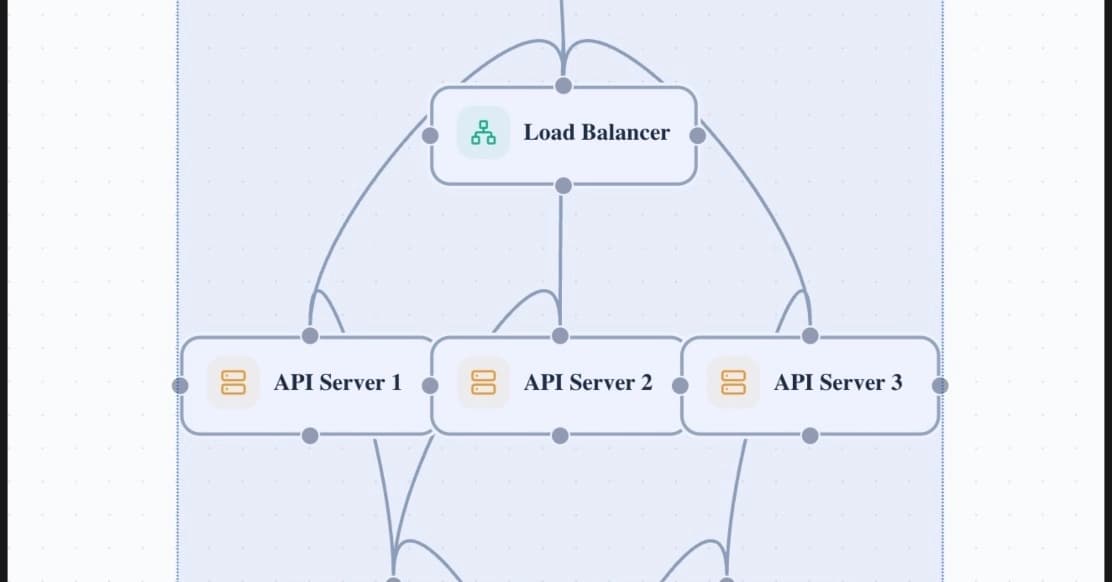
- ReactFlow's built-in event system can conflict with custom selection logic, requiring precise target detection
- Coordinate transformation between screen coordinates and ReactFlow's viewport system is tricky but solvable
- Simple state snapshots for undo/redo don't play well with ReactFlow's internal state management
- Shift+drag is the cleanest UX pattern for box selection that doesn't break existing interactions
Read in Short
The ArchScope team just dropped a technical deep-dive on implementing multi-selection and undo/redo in ReactFlow. Spoiler: it's harder than it looks. Between coordinate transformation headaches and ReactFlow's aggressive event capturing, there's a lot that can go wrong. Here's what they learned.
If you've ever tried to build anything beyond basic node connections in ReactFlow, you know the library has opinions. Strong opinions. And those opinions can make implementing seemingly simple features like "select multiple things with a box" surprisingly painful.
The ArchScope engineering team recently tackled this exact problem, and their April 2026 update is honestly one of the more useful technical writeups I've seen in a while. They needed to build the kind of selection system you'd find in Figma or your file explorer. Click, drag, box appears, everything inside gets selected. Should be straightforward, right?
The Design Requirements
Before diving into code, let's look at what they were actually trying to build. This wasn't just "draw a rectangle." The full feature set included:
- Visual selection box triggered by Shift+drag
- Multi-component selection with visual feedback showing what's selected
- Group movement so selected items move as a single unit
- Keyboard shortcuts for power users
- Full undo/redo for all operations
- Copy/paste support for selected components
That last requirement, undo/redo, is where things got really messy. But we'll get there.
Problem #1: ReactFlow Really Wants to Handle Your Events
Here's the thing about ReactFlow. It's doing a lot under the hood. Panning, zooming, node selection, connection handling. All of that requires capturing mouse events at multiple levels of the DOM tree. So when you try to inject your own selection logic? Conflicts everywhere.
The ArchScope team's first attempt at showing a selection box just... didn't work. Either the box wouldn't appear at all, or dragging would trigger ReactFlow's pan behavior instead of their custom selection. Classic.
The Root Cause
ReactFlow's event system captures mouse events before your custom handlers can process them. You can't just slap an onMouseDown on the canvas and expect it to work cleanly.
Their solution was surgical event target detection. Before starting any selection logic, they check exactly what element received the click:
const isReactFlowPane = target.classList.contains('react-flow__pane');
const isNode = target.closest('.react-flow__node');
const isHandle = target.closest('.react-flow__handle');
const isControl = target.closest('.react-flow__controls');
const isMiniMap = target.closest('.react-flow__minimap');

// Only start selection on empty canvas with Shift key
if (
  event.button === 0 &&
  isReactFlowPane &&
  !isNode &&
  !isHandle &&
  !isControl &&
  !isMiniMap &&
  event.shiftKey
) {
  // Start selection logic
}
See what they're doing here? They're checking that the click happened on the actual canvas pane, not on any node, handle, control, or minimap. And they're requiring the Shift key, which sidesteps the conflict with ReactFlow's default drag-to-pan behavior entirely.
It's not the most elegant solution, but it works. Sometimes defensive coding beats clever coding.
Problem #2: Coordinate Transformation Hell
Okay so now you can draw a selection box. Cool. But here's a fun question: how do you know which nodes are inside it?
Your mouse events give you screen coordinates. But ReactFlow nodes exist in their own coordinate system that accounts for viewport transformations. If the user has zoomed in or panned the canvas, those coordinate systems don't match up at all.
The ArchScope team's fix involves manually transforming node positions to screen coordinates:
const viewport = reactFlowRef.current?.getViewport();

const nodeScreenX = node.position.x * (viewport?.zoom || 1) + (viewport?.x || 0);
const nodeScreenY = node.position.y * (viewport?.zoom || 1) + (viewport?.y || 0);
You grab the current viewport (which includes zoom level and pan offset), then transform each node's position accordingly. Now you can compare apples to apples when checking if a node falls inside your selection rectangle.
If you're building complex features like this, you might be using AI coding assistants. Here's how the major players compare.
Problem #3: Undo/Redo Was a Nightmare
This is where the engineering update gets really interesting. The ArchScope team admits this became "the most challenging part of the implementation." And honestly? I believe them.
Their first attempt was the obvious one: store snapshots of nodes and edges in a history array. Every time something changes, push the current state onto the stack. Undo pops the stack and restores the previous snapshot. Simple, right?
Why Simple Snapshots Failed
ReactFlow maintains its own internal state that doesn't automatically sync with your snapshots. Restoring a snapshot can leave ReactFlow's internal state out of sync with what you think you just restored.
The source material cuts off before revealing their final solution, but based on the problem description, I can tell you what likely worked. You need to either:
- Use ReactFlow's built-in state management methods (setNodes, setEdges) when restoring state, not direct state replacement
- Track changes at the action level rather than full snapshots, so you can replay or reverse specific operations
- Integrate with ReactFlow's onNodesChange and onEdgesChange callbacks to ensure your history stays in sync
The action-based approach is generally more robust for complex editors. Instead of storing "here's what the entire canvas looked like," you store "user moved node X from position A to position B." Undoing means reversing that specific action, which plays nicer with ReactFlow's expectations.
Key Takeaways for Your Own Implementation
If you're building something similar, here's the condensed wisdom from the ArchScope team's experience:
- Use Shift+drag for custom selection to avoid fighting ReactFlow's default interactions
- Always transform coordinates when comparing mouse positions to node positions
- Don't trust that your state snapshots will "just work" with ReactFlow's internals
- Test zoom and pan scenarios early. They'll break things you thought were working
- Consider action-based history over snapshot-based for better compatibility
The Bigger Picture
What I appreciate about this engineering update is the honesty. Too many technical posts pretend everything went smoothly. "We implemented feature X using approach Y." No mention of the three approaches that failed first.
The reality of building on top of complex libraries like ReactFlow is that you're constantly negotiating with their assumptions. They made decisions about event handling and coordinate systems that made sense for their core use cases. When you need something outside those use cases, you're doing archaeology as much as engineering.
That's not a criticism of ReactFlow. It's just the nature of building sophisticated features on top of sophisticated tools. The ArchScope team's willingness to document their wrong turns makes this update genuinely useful for anyone walking the same path.
Frequently Asked Questions
Can I use ReactFlow's built-in selection instead?
ReactFlow does have selection capabilities, but they're limited. If you need box selection with Shift+drag, group movement, or integration with undo/redo, you'll likely need custom implementation.
Does this approach work with nested groups?
The coordinate transformation logic would need adjustment for nested groups since child nodes have positions relative to their parent. Add parent offset calculation to the transformation.
What about performance with hundreds of nodes?
The selection box check runs against all nodes, so consider spatial indexing (like a quadtree) if you're dealing with very large diagrams.
The full ArchScope engineering update is worth reading if you're knee-deep in ReactFlow development. Sometimes knowing that a problem was hard for other experienced developers is half the battle.
Source: DEV Community
Huma Shazia
Senior AI & Tech Writer
Produced with AI assistance and reviewed by the Logicity editorial team. Learn more in our Editorial Policy.