Key Takeaways
- Clipboard History (Win + V) stores your last 25 copied items including images
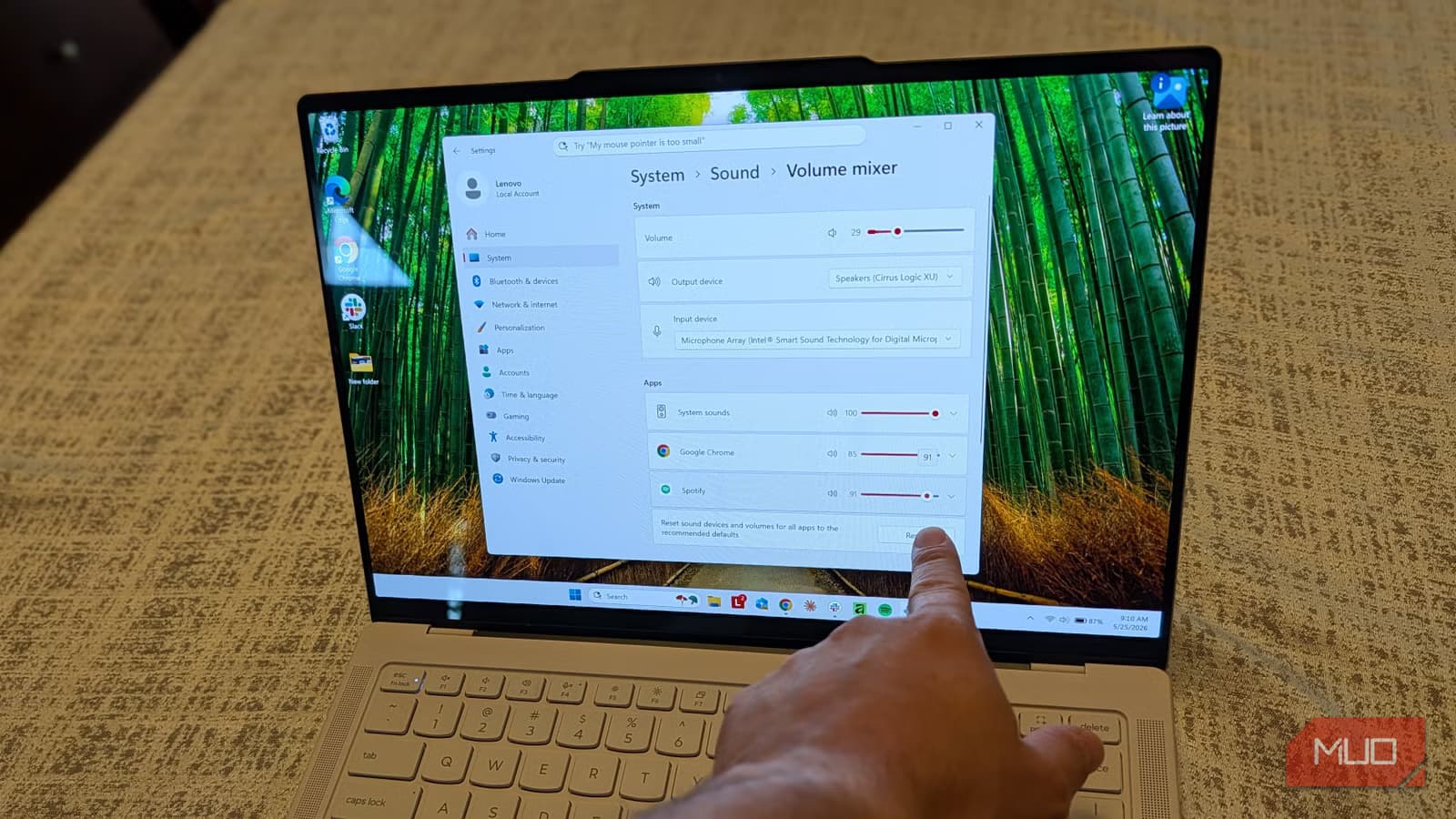
- Volume Mixer lets you route each app's audio to different speakers or headphones
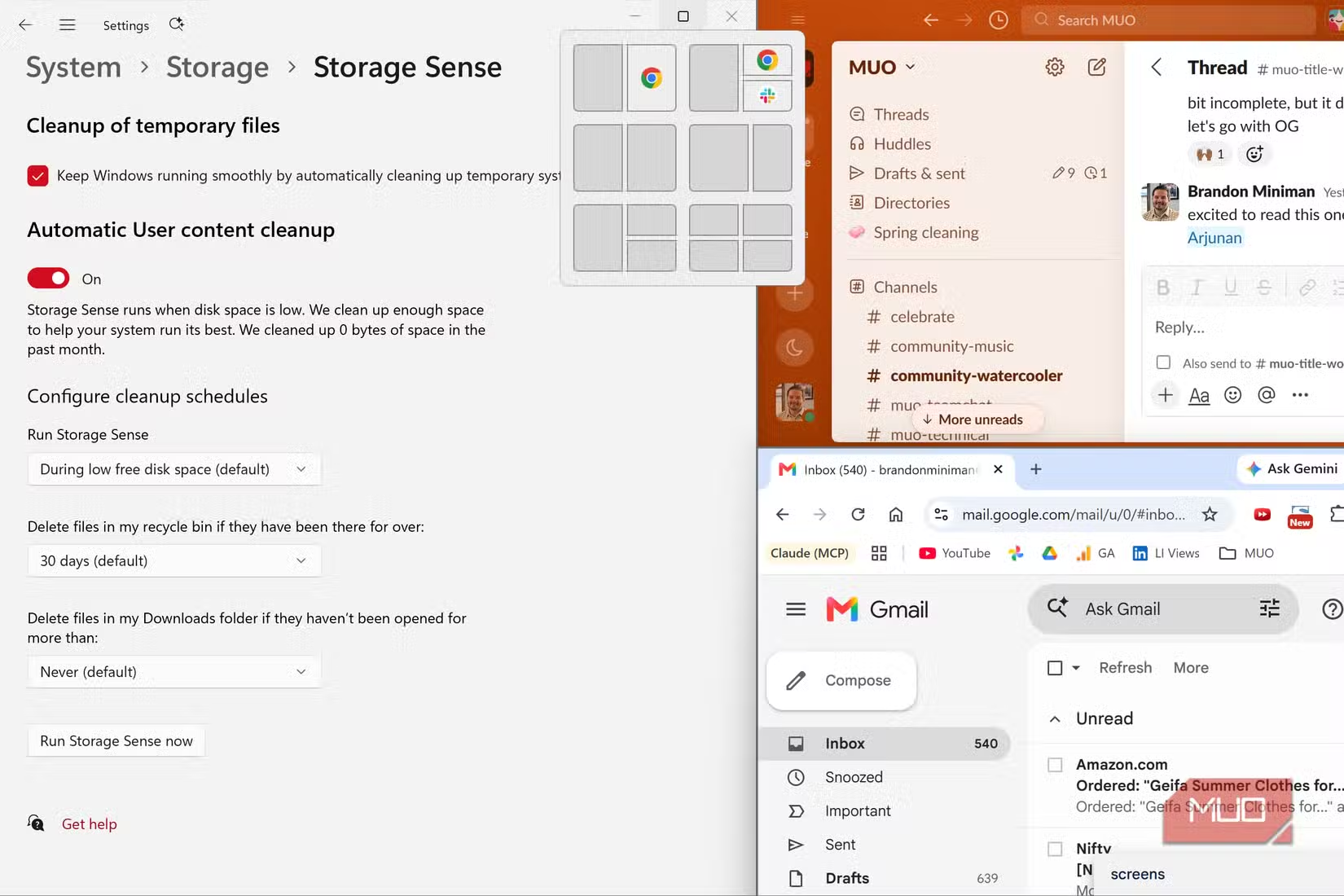
- Storage Sense automatically cleans temporary files and reclaims gigabytes of space
Windows 11 runs on over 400 million devices. Most of those users have never touched the settings that would make their daily work faster. Microsoft buries some of its best productivity features by default, keeping the out-of-box experience simple for casual users. The result: power users and professionals miss tools that reduce repetitive clicks, manage storage automatically, and give precise control over audio routing.
Four settings stand out as immediate wins. None require third-party software. All take less than a minute to enable. Here's what they do and where to find them.
1. Clipboard History: Your Last 25 Copies, One Keystroke Away
The default clipboard holds one item. Copy something new, and the previous item is gone. Windows 11 has a built-in clipboard manager that stores your last 25 copied items, including images. It's off by default.
Press Win + V to open it. The first time, Windows will prompt you to enable the feature. After that, the same shortcut opens a panel showing everything you've copied recently. Click any item to paste it. You can pin frequently used snippets so they persist across reboots.
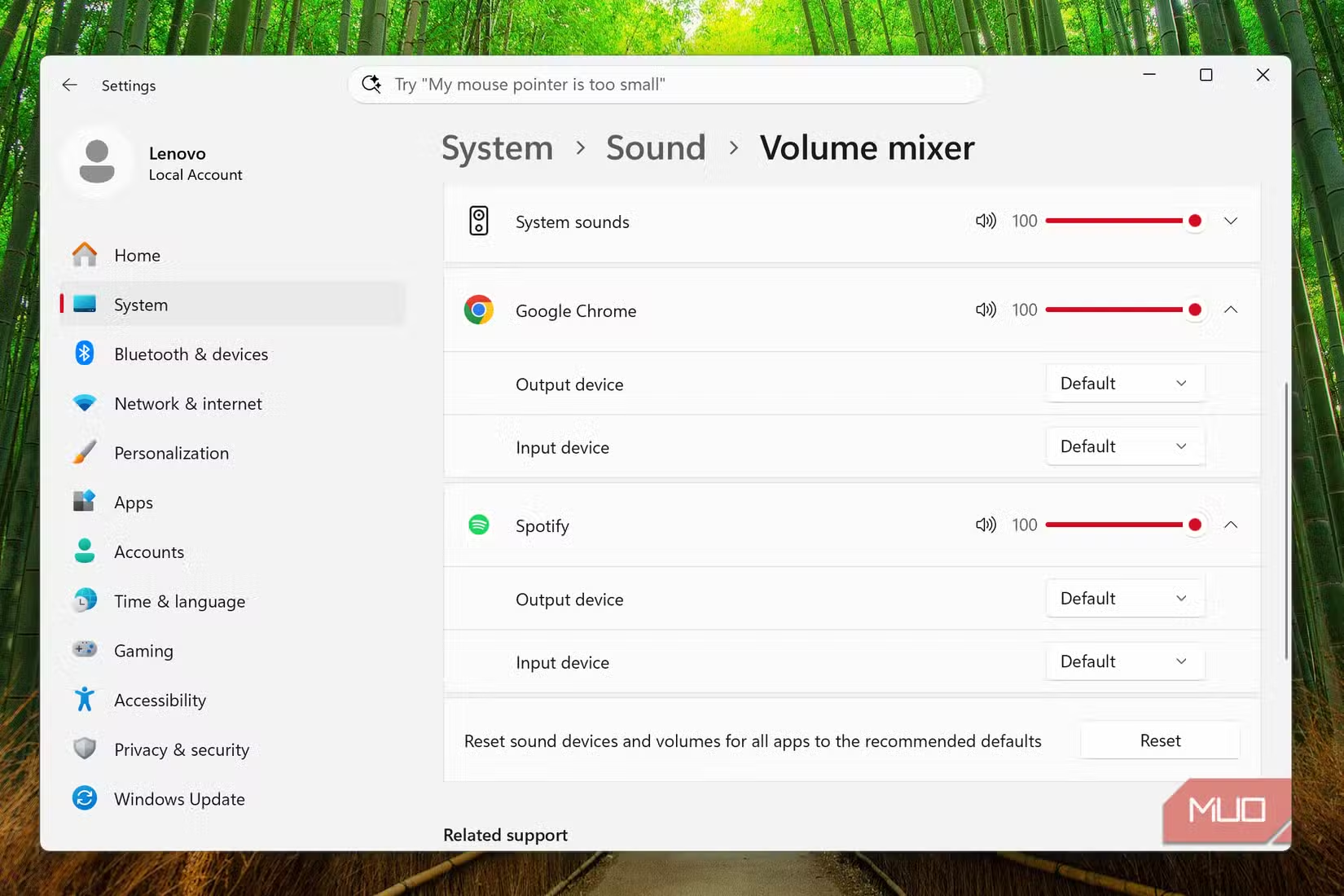
For anyone who copies text between documents, pastes code snippets, or moves data between apps, this eliminates the constant back-and-forth. No third-party tool needed.
2. Volume Mixer: Route Each App to a Different Speaker
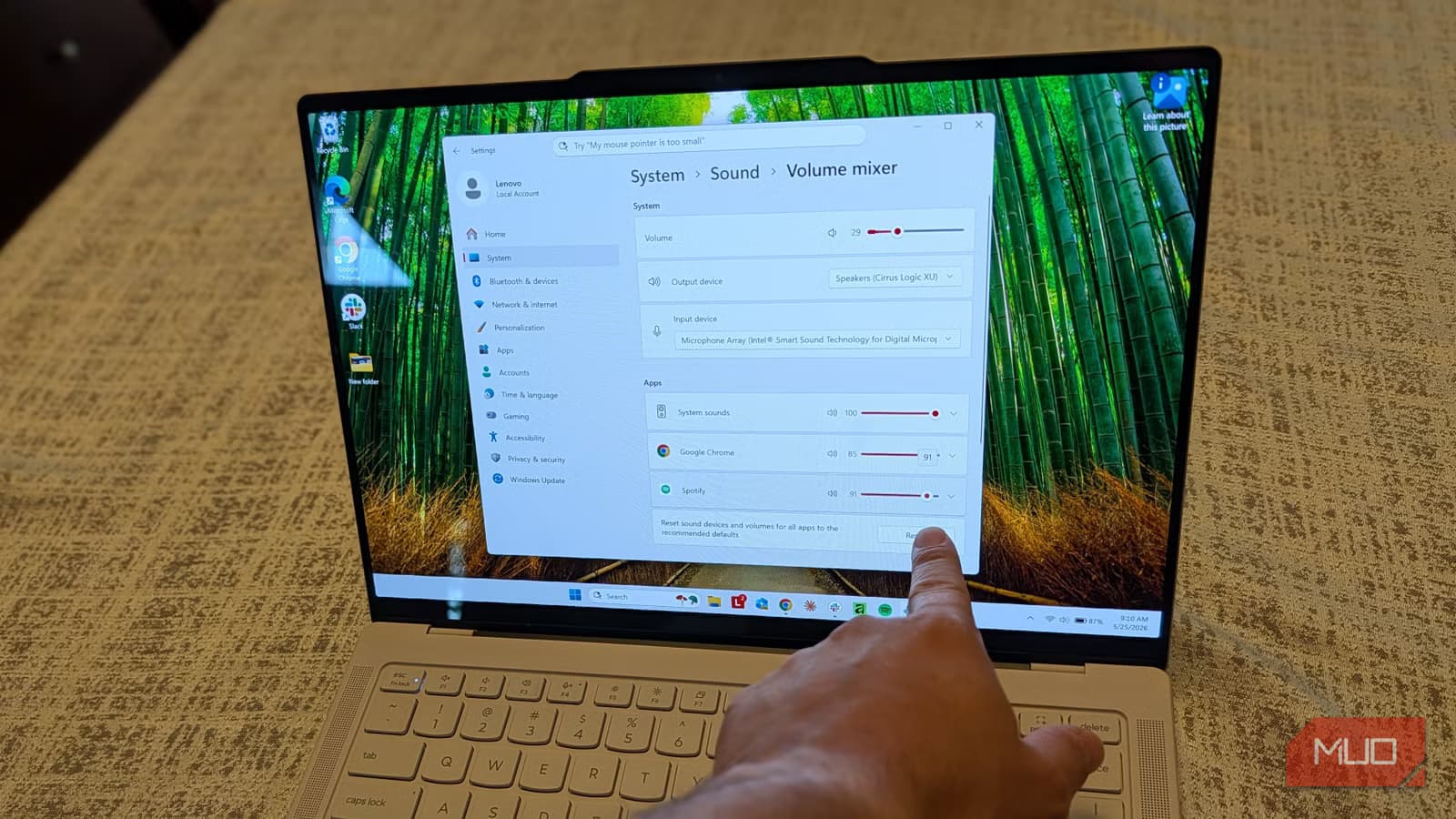
Here's a common scenario: you're playing background music while watching a video tutorial. Normally, both audio streams fight for the same output. Windows 11's Volume Mixer lets you send each app's audio to a different device. Your Spotify can play through Bluetooth headphones while a YouTube video plays through your laptop speakers.
To access it: right-click the volume icon in the taskbar, select Volume Mixer, then find the Apps section. Click the down arrow next to any app and choose which output device it should use. You'll only see devices you've already connected, so pair your Bluetooth speaker or plug in external speakers first.
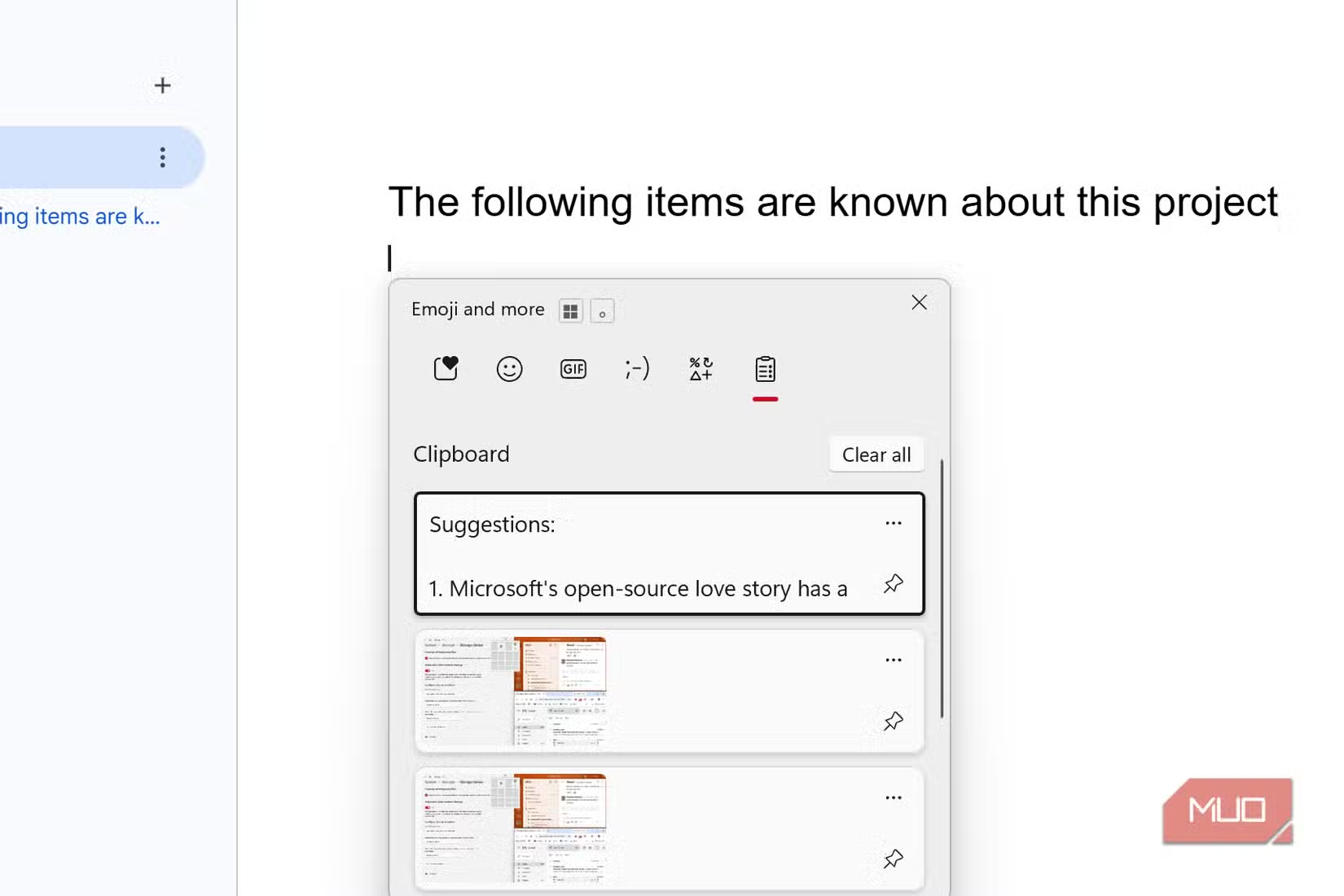
This is particularly useful in video calls. Route your meeting audio to a headset while keeping notification sounds on laptop speakers, so you don't miss alerts during a long Zoom session.
3. Storage Sense: Automatic Cleanup You Don't Have to Think About
Temporary files, old downloads, and emptied recycle bin contents pile up. Storage Sense deletes them automatically. It can reclaim gigabytes without you lifting a finger. Microsoft keeps it off by default, likely to avoid deleting something users wanted to keep.
Enable it at Settings > System > Storage > Storage Sense. Toggle it on, then click the arrow to configure what gets cleaned and how often. You can set it to run weekly, monthly, or only when disk space is low. Options include clearing temporary files, emptying the recycle bin after a set number of days, and removing files from your Downloads folder that haven't been opened recently.
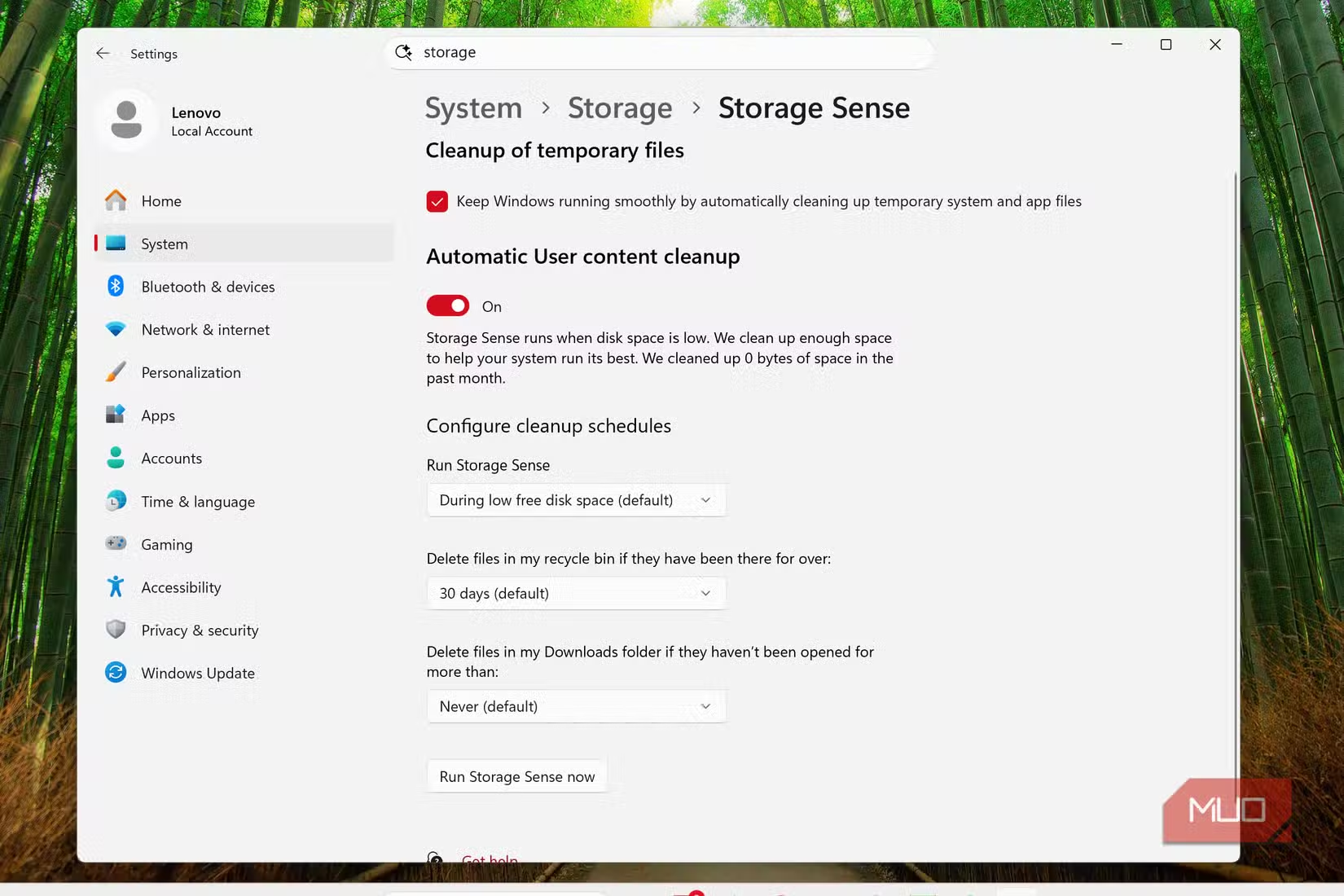
On laptops with smaller SSDs, this prevents the frustrating "disk full" warnings that seem to appear at the worst times. Set it and forget it.
4. Snap Assist: Precision Window Management
Windows has supported dragging windows to screen edges for years. Snap Assist adds more control. Hover over a window's maximize button, and a menu appears showing layout options: two windows side by side, three in columns, four in a grid. Click a zone, and Windows prompts you to fill the remaining spots.
The feature is partially enabled by default, but several useful sub-options are not. Go to Settings > System > Multitasking to find them. Enable "Show snap layouts when I hover over a window's maximize button" and "Show snap layouts when I drag a window to the top of my screen." You can also enable "When I snap a window, show what I can snap next to it" for a smoother workflow.
Studies on multitasking workflows suggest Snap Assist and virtual desktops can improve productivity by 30-40% for users who frequently juggle multiple windows. The time saved comes from reduced mouse travel and fewer alt-tab cycles.
Why Microsoft Keeps These Features Hidden
Microsoft optimizes the default Windows experience for first-time users who might be overwhelmed by too many options. Features that could confuse casual users, like clipboard history popping up unexpectedly, stay off. Storage Sense stays disabled to prevent accidental deletion of files users might want.
“Windows 11 isn't just an interface; it's a productivity engine that most users are running at half-throttle because they never open the advanced settings menu.”
— Mary Jo Foley, Veteran Tech Analyst
The Windows enthusiast community has noticed. Reddit's r/Windows11 regularly shares PowerShell scripts to bulk-enable these features on fresh installs. Users call it "de-bloating" or "optimizing" Windows, though technically they're just turning on what's already there.
The Quick Setup Checklist
- Press Win + V and enable Clipboard History when prompted
- Right-click the volume icon > Volume Mixer > configure per-app output
- Settings > System > Storage > enable Storage Sense and configure cleanup rules
- Settings > System > Multitasking > enable all Snap Assist options
Total time: about three minutes. The payoff compounds every day you use your PC.
Logicity's Take
Frequently Asked Questions
Does Clipboard History sync across devices?
Yes, if you enable cloud sync in Settings > System > Clipboard. Your copied items will appear on other Windows devices signed into the same Microsoft account.
Will Storage Sense delete files I need?
It only deletes temporary files, recycle bin contents, and optionally old downloads. It won't touch your documents, photos, or project files. You control the rules.
Can I use Snap Assist with more than four windows?
The built-in layouts support up to four windows. For more complex arrangements, you'd need third-party tools like Microsoft's PowerToys FancyZones.
Does Volume Mixer work with Bluetooth devices?
Yes. Connect your Bluetooth speaker or headphones first, then open Volume Mixer to see them as available output options for each app.
More productivity features for your daily workflow
Need Help Implementing This?
Source: MakeUseOf
Manaal Khan
Tech & Innovation Writer
Produced with AI assistance and reviewed by the Logicity editorial team. Learn more in our Editorial Policy.