Key Takeaways
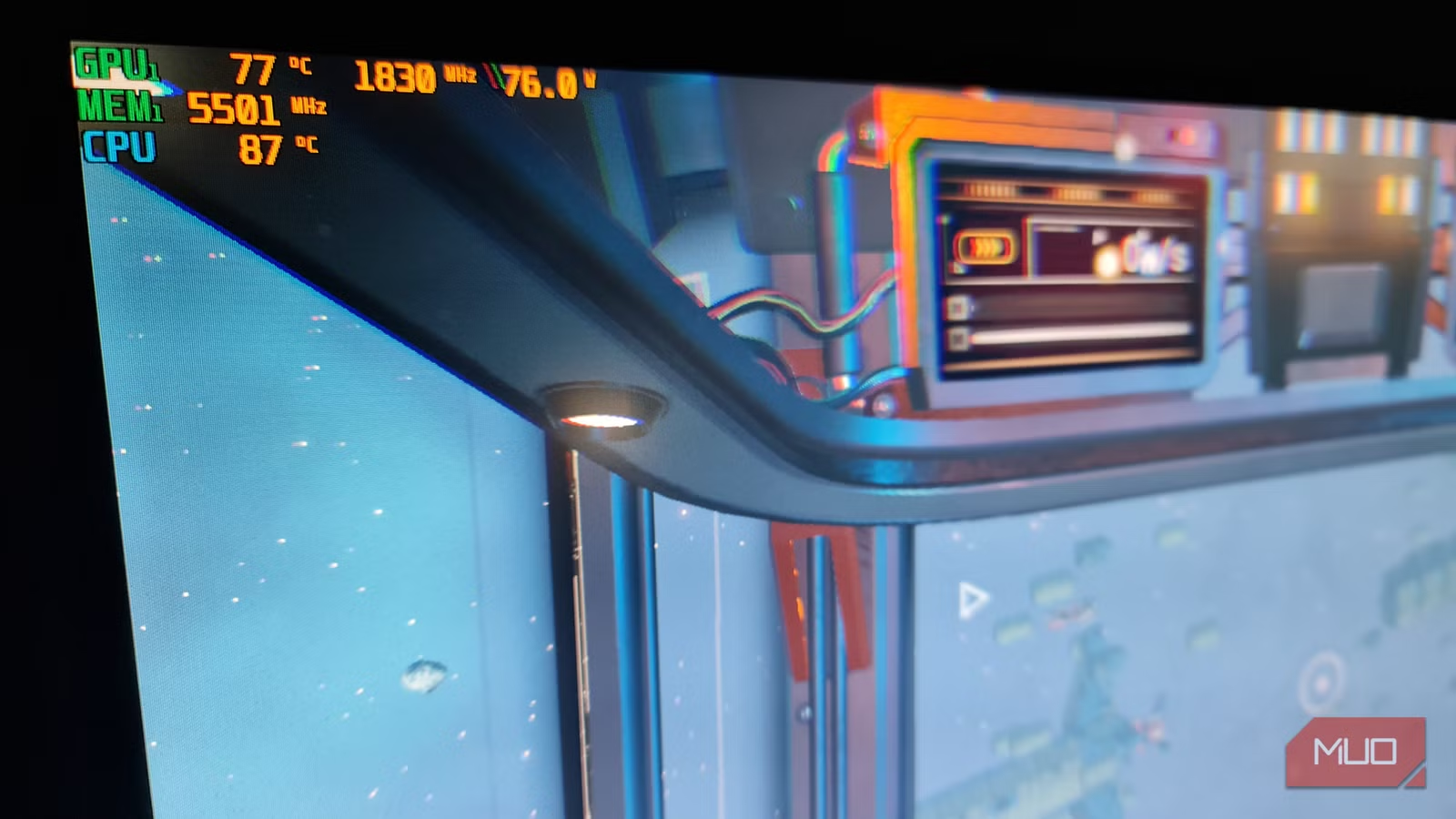
- Setting Maximum Processor State to 99% prevents aggressive CPU boost behavior
- The change dropped idle temps from 80-90°C to around 50°C
- Losing 1% boost speed eliminates constant thermal throttling, improving actual gaming performance
A single Windows power setting can cut laptop CPU temperatures nearly in half. Gregory Gibson at MakeUseOf discovered that changing Maximum Processor State from 100% to 99% dropped his gaming laptop from a dangerous 120°C down to 50°C at idle. The fix takes 30 seconds and costs almost nothing in real-world performance.
Gibson's laptop had been hitting 120°C during gaming sessions, well above Intel's typical 105°C maximum safe temperature. The thermal throttling turned his Skyrim into what he called "a PowerPoint presentation." He tried the standard fixes: new thermal paste, cleaned fans, better ventilation. None made a meaningful difference.
How to change Maximum Processor State in Windows
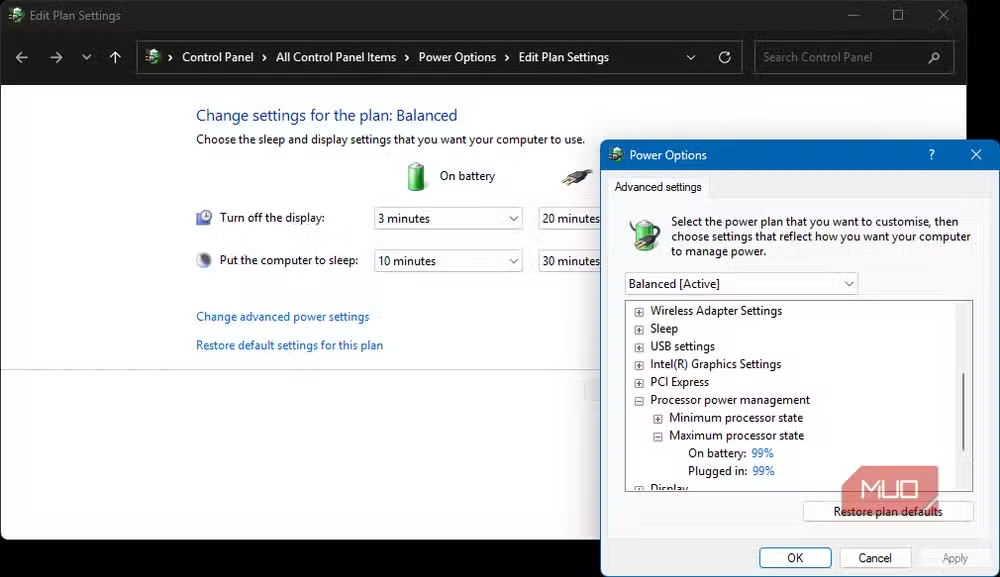
The setting hides in the old Control Panel, not the modern Settings app. Navigate to Control Panel, then Power Options, then Change plan settings, then Change advanced power settings. Open Processor power management and find Maximum processor state.
Set both values to 99%: On battery at 99%, Plugged in at 99%. Click Apply.
The effect was immediate. Gibson opened HWINFO and saw the CPU now idling at around 50°C instead of 80-90°C. That's a 30 to 40 degree drop from a checkbox that most users never see.
Why does 1% make such a big difference?
Modern laptop CPUs are designed to boost aggressively. Open the Start menu, and the processor might sprint to its maximum clock speed because Windows thinks it has thermal headroom. Then it overheats, throttles back, cools slightly, and sprints again. This cycle generates enormous heat for minimal benefit.
Setting maximum processor state to 99% disables this aggressive boost behavior. The CPU holds steadier clock speeds instead of constantly sprinting and recovering. The result is less heat, quieter fans, and paradoxically, smoother performance because the processor stops throttling itself every few seconds.
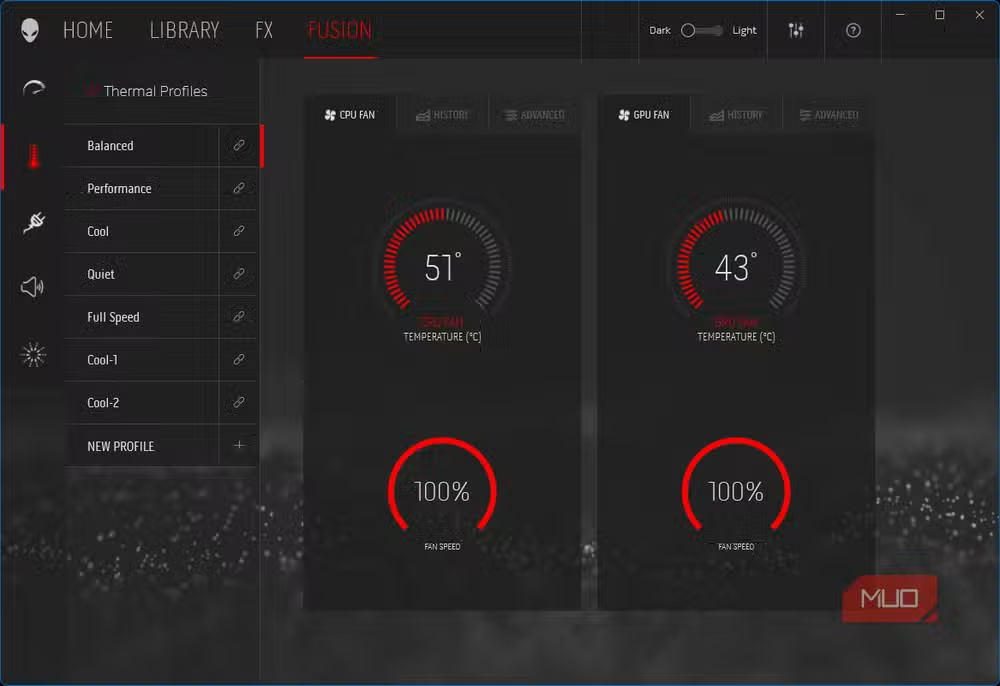
Gibson wasn't trying to extract more frames. He wanted stability. "Less drama, less heat, and a laptop that would just stay stable under stress." The 99% setting delivered exactly that.
The real-world performance tradeoff
In theory, you're giving up that top 1% of boost clock speed. In practice, Gibson reports barely noticing it. The reason is straightforward: a CPU that constantly thermal throttles never actually sustains its peak speed anyway. A slightly slower but stable CPU often delivers better sustained performance than one that spikes and crashes repeatedly.

Fan noise dropped dramatically too. At idle, the laptop was "almost nonexistent" in terms of noise. Under gaming load, it still spun up because physics applies to gaming laptops, but the constant thermal throttling stopped. For Gibson, that stability mattered more than theoretical peak performance he could never sustain.
When this fix works and when it doesn't
This approach works best on laptops with aggressive boost behavior and inadequate cooling, which describes most gaming laptops from the past five years. Manufacturers pack desktop-class power into thin chassis, then let Windows boost the CPU constantly because it looks good in benchmarks.
If your laptop already runs cool, or if you genuinely need that peak burst performance for specific workloads, the 99% cap might hurt. But for most users hitting thermal walls during gaming or heavy multitasking, it's a free improvement.
Gibson also notes that cooling pads don't help much. He links to testing showing they're "one of the biggest cold myths in tech." The heat comes from inside the chassis, and external airflow does little when the CPU itself won't stop sprinting.
Other settings worth checking
While you're in the advanced power settings, look at Minimum processor state too. The default 5% is usually fine, but some aggressive profiles set it higher, keeping the CPU from truly idling. System cooling policy can also affect fan behavior, though its impact varies by manufacturer.
The broader lesson here is that Windows power management defaults optimize for benchmark scores, not real-world usability. A gaming laptop that sounds like an Airbus A380 and burns your wrists isn't actually performing well, no matter what the clock speed says.
Another hidden Windows setting causing performance headaches
Logicity's Take
This is a design failure, not a user error. Laptop manufacturers ship machines that boost past their thermal capacity because it makes benchmark numbers look good. Windows enables this by default. The 99% workaround exists because nobody in the supply chain optimized for a laptop you can actually use for two hours without ear protection. Intel and AMD could fix this at the firmware level. They choose not to.
Frequently Asked Questions
Will setting processor state to 99% hurt gaming performance?
For most users, no. A thermally throttling CPU already can't sustain peak speeds. The 99% setting provides steadier performance by eliminating the constant sprint-throttle-sprint cycle.
Is 120°C dangerous for a laptop CPU?
Yes. Intel's typical maximum safe temperature is 105°C. Running at 120°C accelerates component degradation and risks permanent damage over time.
Why doesn't Windows set this to 99% by default?
Benchmark optimization. 100% looks better in synthetic tests even if sustained performance suffers. Microsoft defaults to what looks fastest on paper.
Does this work on AMD laptops too?
Yes. The setting affects both Intel and AMD processors. AMD Ryzen mobile chips boost aggressively and benefit similarly from the 99% cap.
Will this void my warranty?
No. This is a standard Windows power setting, not a firmware modification or hardware change. It's fully reversible by setting the value back to 100%.
Need Help Implementing This?
If you're managing a fleet of gaming laptops or workstations with thermal issues, this setting can be deployed via Group Policy. Contact your IT team or reach out to Logicity for guidance on enterprise power profile management.
Source: MakeUseOf
Manaal Khan
Tech & Innovation Writer
Produced with AI assistance and reviewed by the Logicity editorial team. Learn more in our Editorial Policy.






