Key Takeaways
- Your PC, phone, router, and browser can each use different DNS servers on the same network, causing inconsistent behavior
- DNS lookups happen before pages load, so a slow or misconfigured DNS bottlenecks everything regardless of your bandwidth
- Fixing this requires picking one authoritative DNS source and configuring every layer to respect it
DNS configuration conflicts cause the same Wi-Fi network to behave differently across devices. Your laptop, phone, router, and web browser can all use completely different DNS servers simultaneously, and none of them coordinate. When a site loads fine on your phone but times out on your PC, this invisible four-way disagreement is often the culprit.
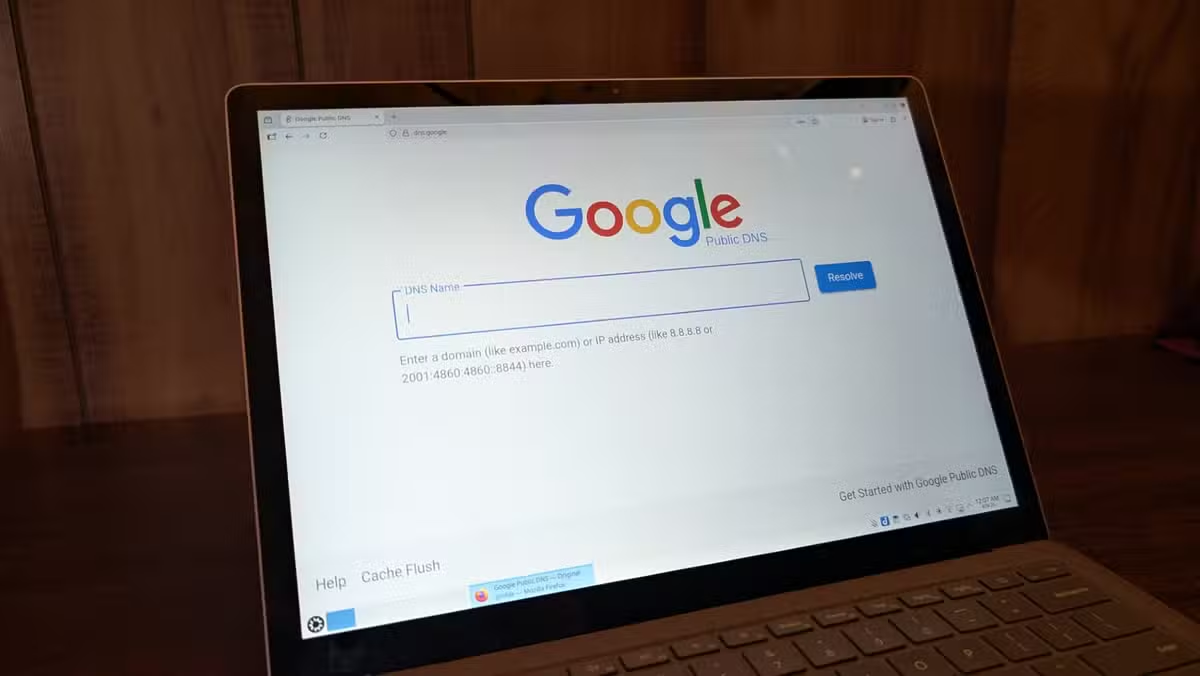
The problem isn't that DNS is complicated. It's that modern devices let you configure it at four separate layers, and each layer can override the one below it. Your router assigns DNS to your devices. Your operating system can override that. Your browser can override both. And your phone probably has its own private DNS setting enabled by default. The result: four different phonebooks for the same house, and nobody agrees on the correct number.
What DNS actually does (the 30-second version)
DNS translates human-readable addresses like google.com into the numeric IP addresses your devices need to connect. This lookup happens before anything else. Before the page loads. Before the first byte arrives. A typical household generates around 7,000 DNS queries per day across all its connected devices.
Here's the catch: you can have 900 Mbps bandwidth and still watch pages crawl. DNS happens before your connection speed matters. If the DNS lookup takes two seconds, you're waiting two seconds before your browser even knows where to go. That's why speed tests look great while browsing feels sluggish.
Where DNS gets configured (and why they fight)
The hierarchy looks simple on paper. Your router gets DNS settings from your ISP. Your router hands those to your devices. Done. Except every layer has its own ideas.
- Router level: About 85% of home routers still use ISP-assigned DNS by default. This is supposed to be the authority for your whole network.
- Operating system level: Windows, macOS, and Linux all let you override DNS per-adapter. Windows 11 added encrypted DNS options that can bypass your router entirely.
- Browser level: Chrome, Firefox, and Edge all support DNS-over-HTTPS, which sends lookups to Cloudflare or Google instead of your network's DNS. Often enabled by default.
- Mobile devices: Android's Private DNS and iOS's encrypted DNS features can ignore your Wi-Fi's settings completely.
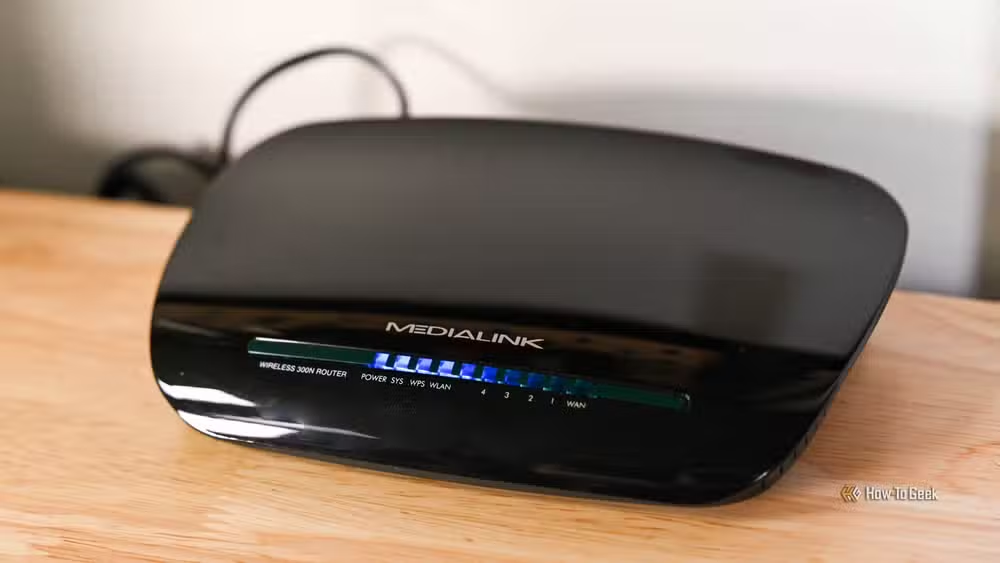
Each layer thinks it's helping. Browsers encrypt your DNS for privacy. Phones protect you from sketchy public Wi-Fi. But when you're on your own network running a Pi-hole for ad blocking, or you've set up specific DNS for parental controls, these overrides break everything. Your Pi-hole blocks nothing because your phone tunnels DNS elsewhere.
How to diagnose which DNS server a device is using
On Windows, open Command Prompt and run nslookup google.com. The first line shows which DNS server answered. On macOS and Linux, use dig google.com or cat /etc/resolv.conf. For browsers, check the network settings. Firefox: Settings > Privacy & Security > DNS over HTTPS. Chrome: Settings > Privacy and Security > Security > Use secure DNS.
If the server shown doesn't match what you configured on your router, something is overriding it. Check the OS network adapter settings next, then the browser. Work your way up the chain until you find the culprit.
Fixing the conflict: pick one DNS authority
The cleanest fix is to decide where DNS should be controlled and make everything else defer. For most home users, that means the router. Configure your preferred DNS servers there (Cloudflare's 1.1.1.1, Google's 8.8.8.8, or your own Pi-hole), then disable overrides everywhere else.
- Disable DNS-over-HTTPS in your browsers if you're running network-level filtering
- Set Windows network adapters to obtain DNS automatically (from the router)
- Turn off Android's Private DNS when on trusted home Wi-Fi
- For stricter control, configure your router's firewall to redirect all port 53 traffic to your chosen DNS server

The last option is heavy-handed but effective. Some devices ignore your DHCP-assigned DNS and hardcode their own servers. Google Chromecasts, for example, sometimes bypass local DNS. Forcing port 53 traffic through your router catches these too.
The performance angle most people miss
Switching from ISP DNS to an optimized public DNS can shave 28 milliseconds off average lookup times, according to Cloudflare research. That sounds small. It adds up. Every page load involves multiple DNS lookups. Every embedded resource, every ad server, every analytics script. Faster DNS makes the whole web feel snappier, independent of your bandwidth.
But that gain disappears if half your devices are using different servers with different caching behavior. A unified DNS setup is faster and more predictable than a fragmented one.
Logicity's Take
This problem gets worse as devices get 'smarter' about protecting user privacy. Every browser adding its own encrypted DNS, every phone enabling private DNS by default, creates another layer that can silently override your network configuration. For IT teams supporting remote workers, this is a compliance headache. For home users running ad blockers or parental controls, it's why the Pi-hole 'doesn't work' on some devices. The fix requires understanding that your network has become a negotiation, not a hierarchy.
Frequently Asked Questions
Why does the same website work on my phone but not my laptop?
Your phone and laptop may be using different DNS servers despite being on the same Wi-Fi. The phone might resolve the domain correctly while the laptop's DNS returns a stale or incorrect IP address.
Does changing DNS improve internet speed?
It won't increase your bandwidth, but faster DNS reduces the delay before pages start loading. This is most noticeable on sites with many external resources that each require separate lookups.
Why does my Pi-hole not block ads on some devices?
Those devices are likely bypassing your network DNS. Android's Private DNS, browser DNS-over-HTTPS, or hardcoded DNS in some smart devices can all ignore your Pi-hole.
Should I use my ISP's DNS or a public DNS like 8.8.8.8?
Public DNS servers like Google (8.8.8.8) or Cloudflare (1.1.1.1) are generally faster and more reliable than ISP DNS. They also don't log your queries the way some ISPs do.
How do I force all devices to use my router's DNS?
Configure your router's firewall to intercept and redirect all traffic on port 53 (standard DNS) to your chosen DNS server. This catches devices that ignore DHCP-assigned DNS.
Need Help Implementing This?
If you're managing a home lab, small office, or remote team, getting DNS right is the foundation of reliable network filtering and monitoring. Reach out to our team for guidance on setting up centralized DNS control that actually sticks across all your devices.
Source: How-To Geek
Huma Shazia
Senior AI & Tech Writer
Produced with AI assistance and reviewed by the Logicity editorial team. Learn more in our Editorial Policy.






