Key Takeaways
ChatGPT Tutorial for Beginners: How to Actually Get Work Done with AI

- ChatGPT now offers two modes: Chat for quick questions and Work for multi-step tasks across connected apps
- Deep research pulls from hundreds of sources and cites them, making it useful for vendor analysis and market research
- Business and Enterprise plans can connect apps like Google Drive and Slack, letting ChatGPT query company data directly
ChatGPT has grown beyond a chatbot into a work assistant that can research vendors, build reports, query your company's connected apps, and visualize data. For operations and RevOps teams, this means fewer browser tabs and less manual synthesis. Here's how to set it up and use its core features.
Disclosure
Some links in this post are affiliate links — Logicity earns a commission if you sign up, at no extra cost to you. We only link products we have used or actively recommend.
Step 1: Create an OpenAI account
Go to chat.com and click Sign up. You can use an email address or sign in with Google or Microsoft. Email signups require phone verification to confirm you're human. If you already have an account, click Log in.
Login issues? OpenAI recommends reloading the page first. For persistent problems, check their troubleshooting tips.
Step 2: Pick Chat or Work mode
By default, conversations start in Chat mode. This is fine for quick questions: "What's the renewal clause in a standard SaaS contract?" or "Summarize this CSV."
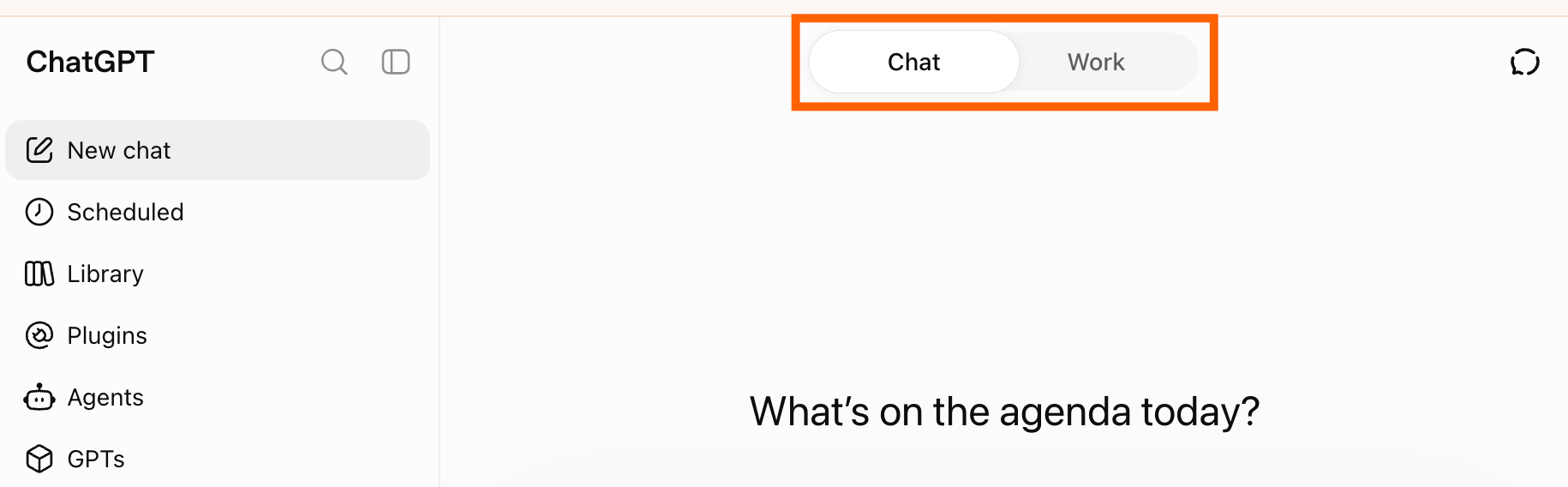
For longer, multi-step tasks, click Work at the top of the conversation window. Work mode (previously called ChatGPT Agent) is designed for research projects, document creation, and actions that span multiple apps. If you're building a competitor analysis or compiling data for a board deck, start here.
Step 3: Select an AI model
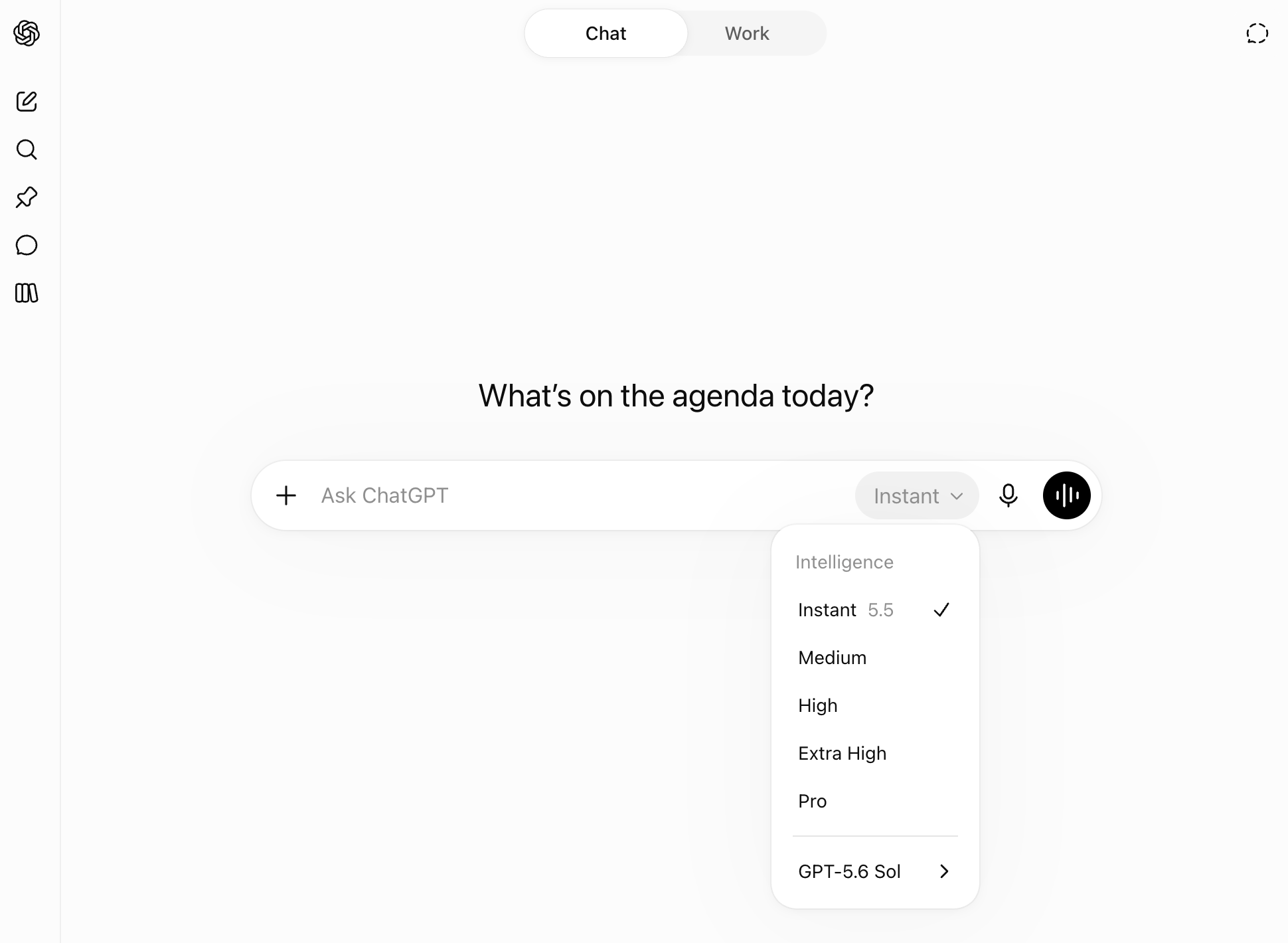
Paid users can choose which model powers their session. Click the model dropdown in your conversation window and select one. The current default handles most tasks, but switching to a reasoning-focused model can help with complex logic or code.
Free users don't see this dropdown. They get a rotating default model, which is capable but lacks some advanced features.
Step 4: Enter a prompt
Type your question in the message bar and hit Enter. That's the basic flow. But ChatGPT now offers several input modes that change how it processes your request.
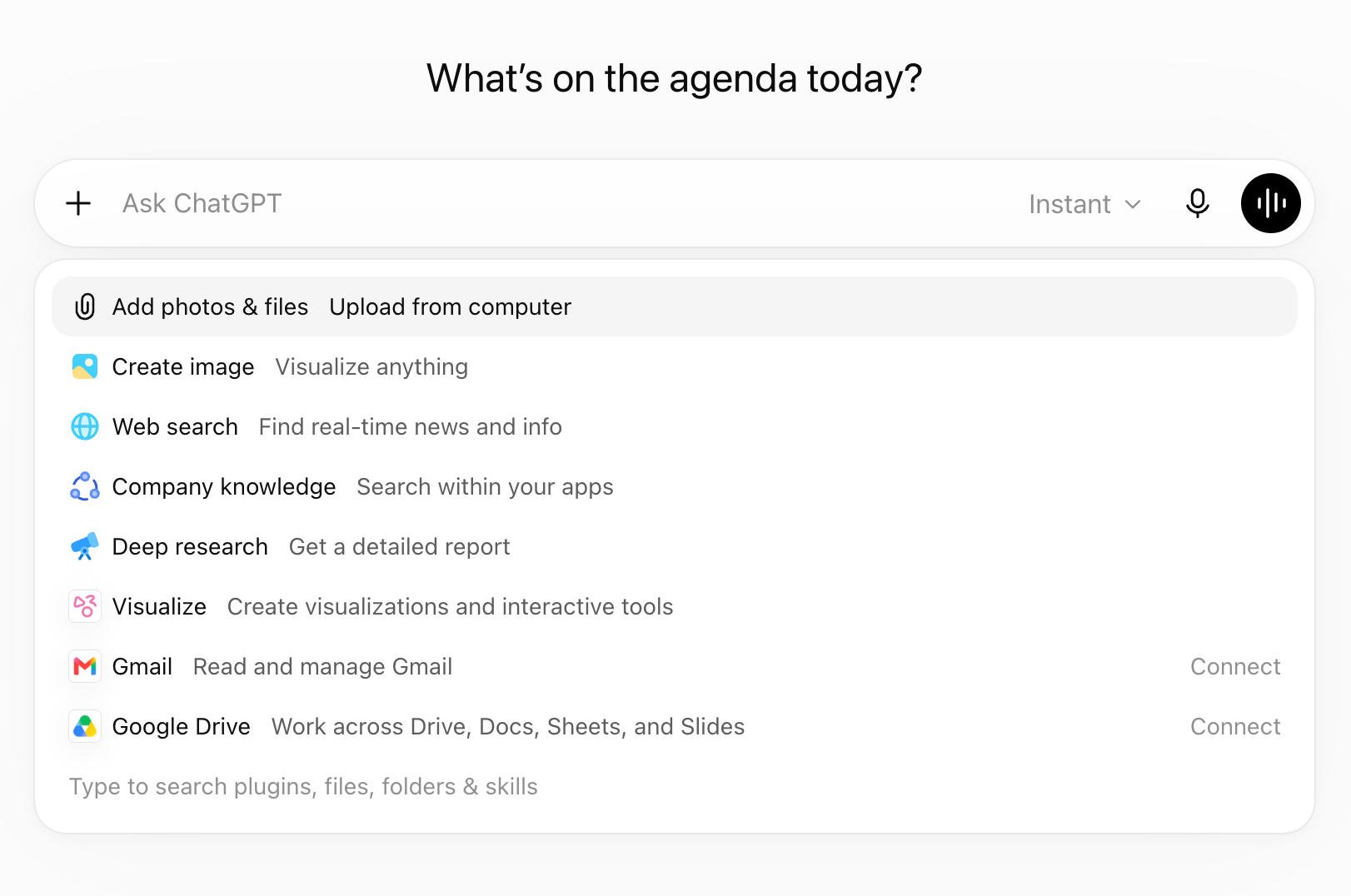
- Web search: Click the plus (+) icon, select Web search, and enter your prompt. ChatGPT will search live web sources rather than relying only on its training data. Useful for pricing updates, recent news, or vendor changes.
- Deep research: Same plus icon, but select Deep research. ChatGPT combs through hundreds of online sources and files, then returns a cited response. For operations teams, this is useful for vendor comparisons, market sizing, or policy research.
- Visualize: Click the plus icon and select Visualize. ChatGPT will turn your data into charts or graphs. Paste a table or describe what you need.
- Company knowledge: Business and Enterprise plans only. If you've connected apps like Google Drive, Slack, or Notion, click the plus icon and select Company knowledge. ChatGPT will search across your connected tools and return cited answers grounded in your own data.
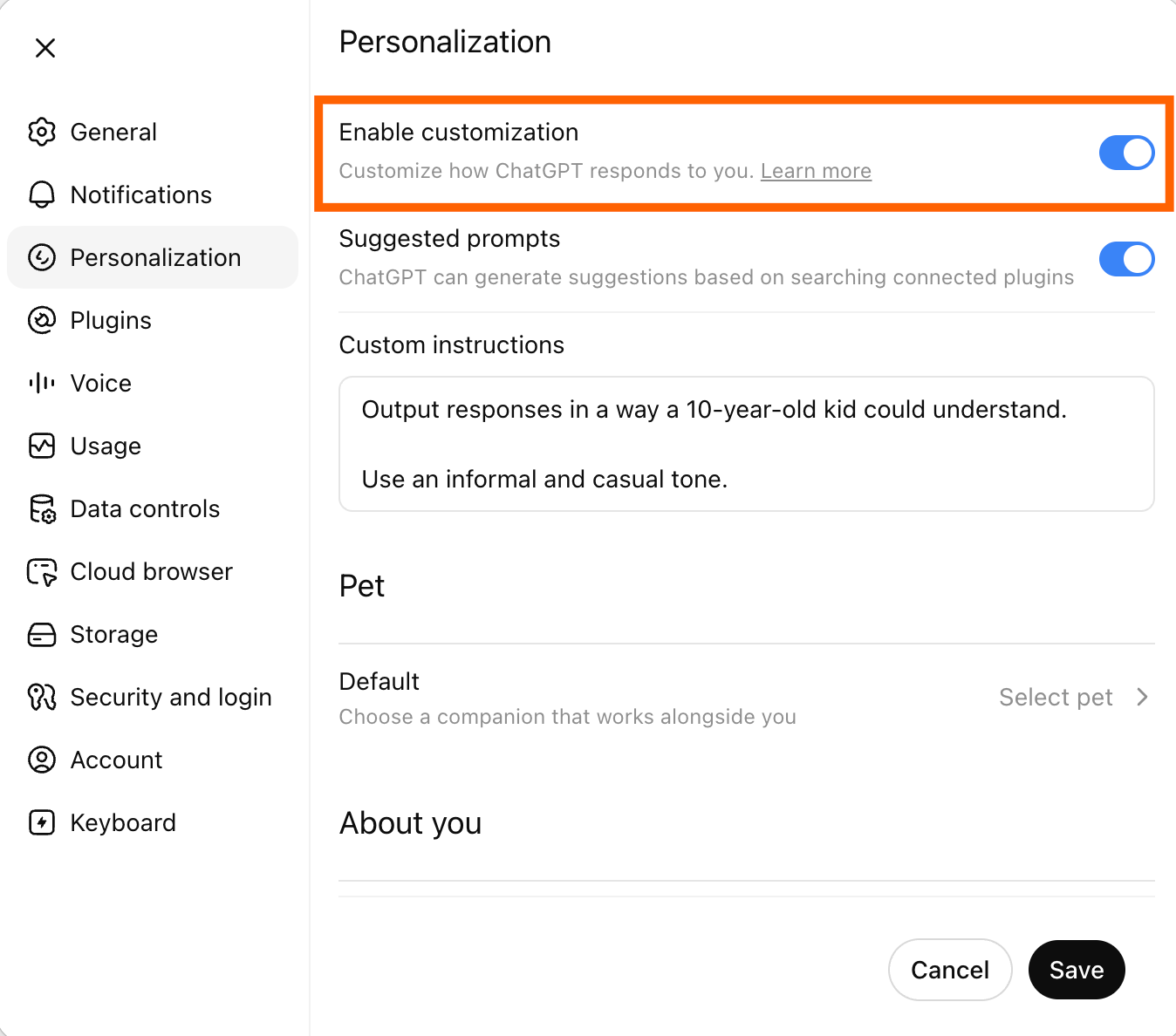
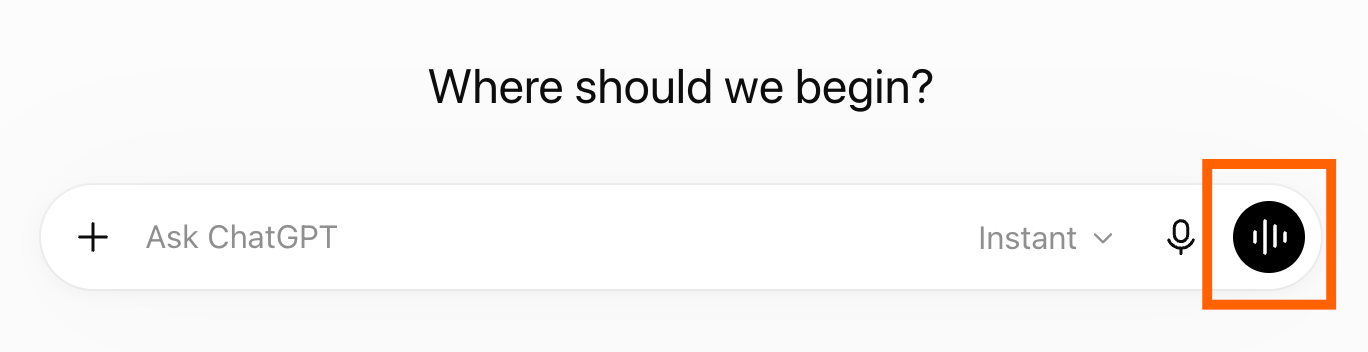
You can also use voice input. Press the Voice Mode icon in the message bar to have a conversation out loud, or press the microphone icon to dictate a single prompt.
What to do with ChatGPT's response
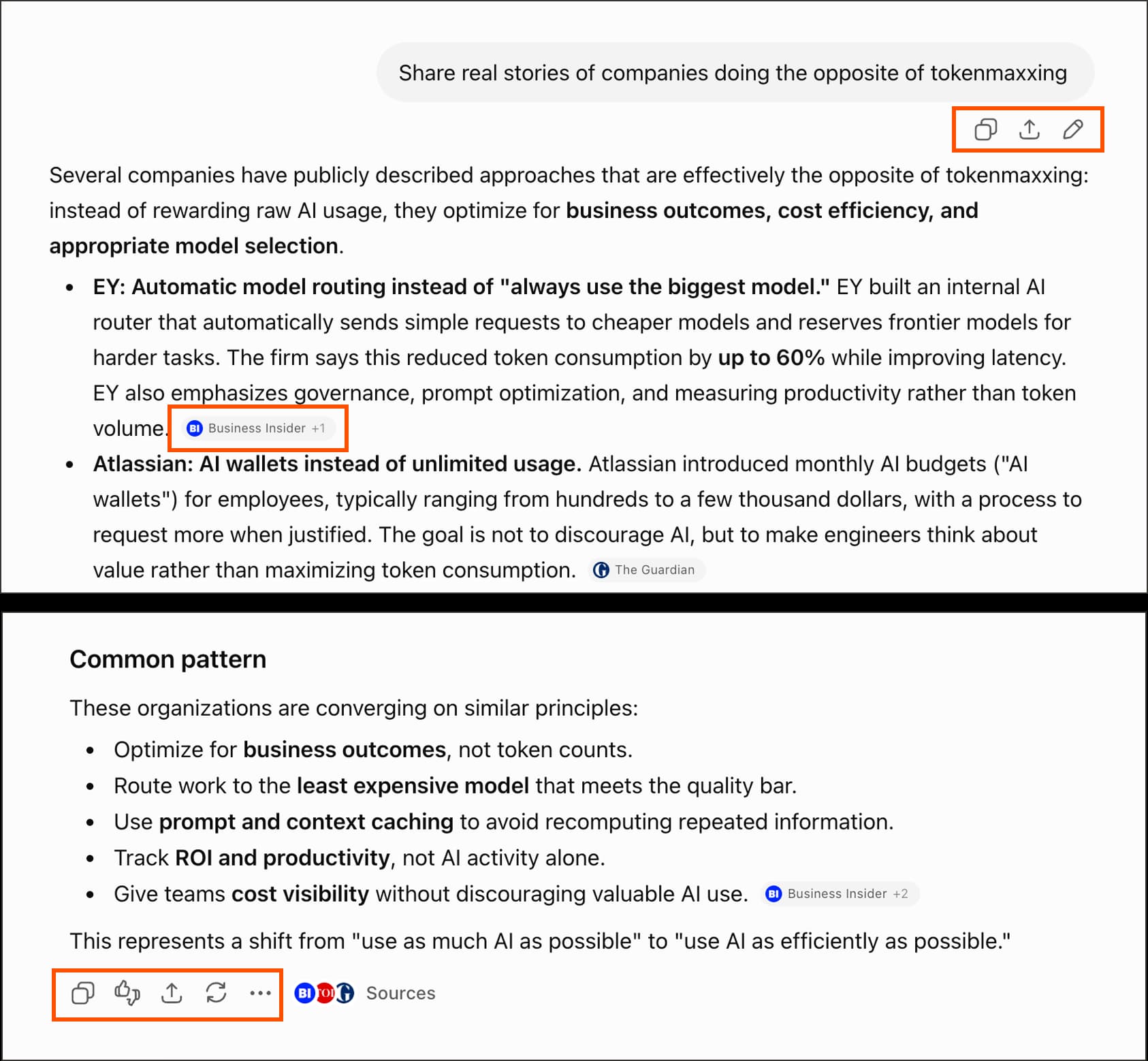
Once ChatGPT returns an answer, you have several options. You can edit your original prompt and regenerate. You can enter a follow-up question. You can copy the response, rate it, or share it. There's also a "branch" option that lets you spin off a new conversation from a particular point without losing the original thread.
For operations work, the branching feature is underrated. You can test two different approaches to a problem, or explore a tangent without cluttering your main research thread.
Connecting ChatGPT to your workflow tools
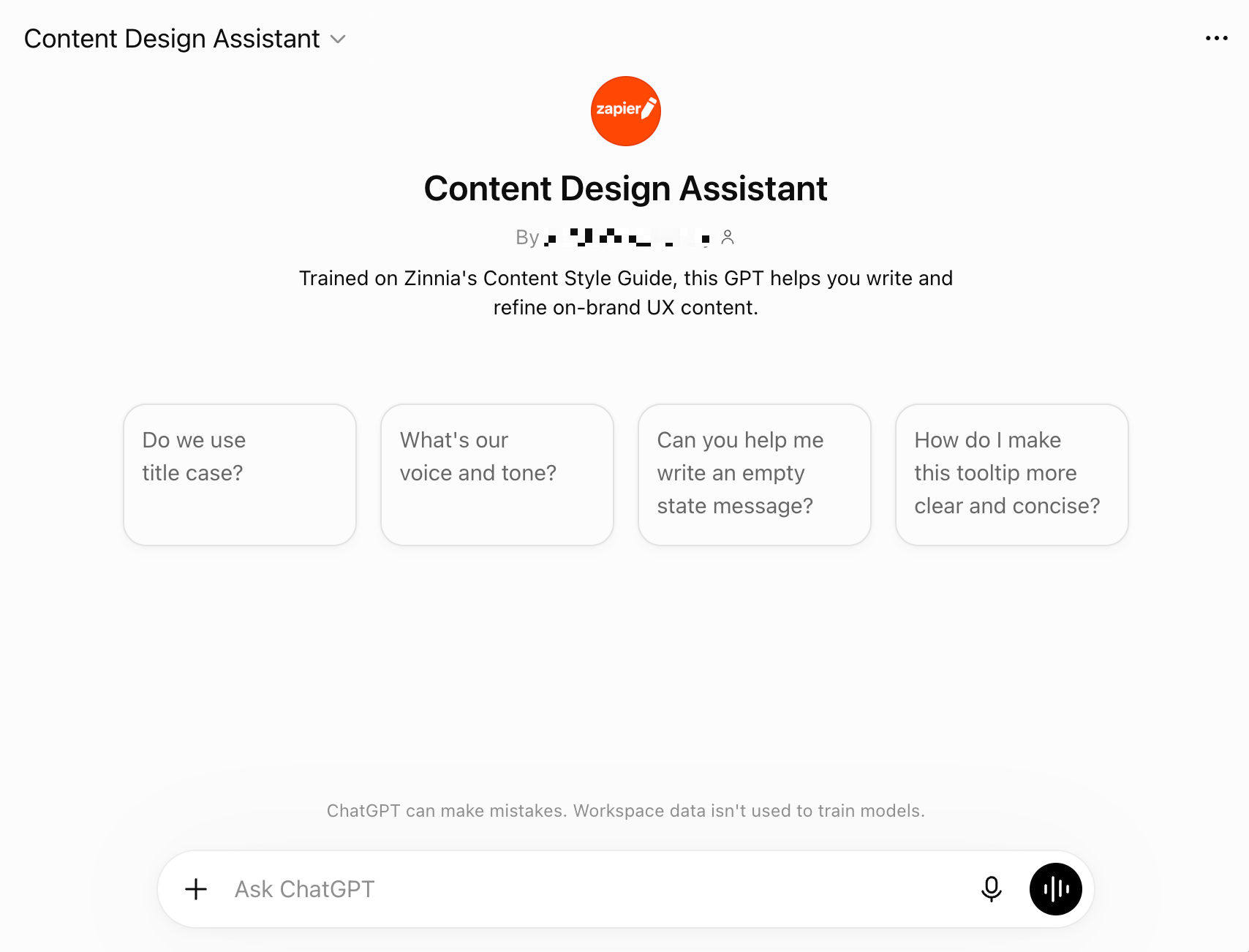
ChatGPT's value increases when it can act on your behalf. Business and Enterprise plans allow connecting apps like Google Drive, Slack, and others so that ChatGPT can pull information or take actions across them.
For deeper automation, Zapier lets you build workflows that trigger based on ChatGPT outputs or feed data into ChatGPT from other apps. For example: a new row in Airtable triggers a ChatGPT summary, which then posts to Slack. Alternatives like Make and n8n offer similar capabilities if you prefer different pricing models or self-hosting.

The combination of ChatGPT's built-in app connections and external automation tools means you can build what OpenAI calls "agentic workflows": multi-step processes where ChatGPT researches, synthesizes, and acts without constant human input.
Logicity's Take
For RevOps teams, the real shift is the Company knowledge feature. Instead of manually pulling data from Salesforce, Notion, and Slack to answer a question, you ask ChatGPT once. The catch: you need a Business or Enterprise plan ($25-30/user/month). Free and Plus tiers can't connect apps, which limits the tool to manual research. If your stack already includes [HubSpot](https://logicity.in/r/hubspot) or [Salesforce](https://logicity.in/r/salesforce), check whether their native AI features overlap before adding another subscription.
Can ChatGPT refuse to answer?
Yes. ChatGPT will decline prompts that violate OpenAI's content policies: requests for harmful content, illegal instructions, or certain sensitive topics. For most business use, you won't hit these limits. If you do, rephrase your prompt to clarify legitimate intent, or accept that the request falls outside the tool's guardrails.
Frequently Asked Questions
What's the difference between Chat and Work mode?
Chat mode is for quick, one-off questions. Work mode is for longer, multi-step tasks like research projects or document creation, and can execute actions across connected apps.
Can free users access deep research?
Free users have limited or no access to deep research. The feature is primarily available on paid plans.
Does ChatGPT search live web data by default?
No. You must explicitly select Web search or Deep research for ChatGPT to pull current information. Otherwise, it relies on its training data.
Which apps can I connect to ChatGPT?
Business and Enterprise plans support connections to Google Drive, Slack, and other tools. The exact list depends on your plan and region.
Understanding defaults helps when configuring AI tools across your org
Need Help Implementing This?
If you're setting up ChatGPT for your operations team and want guidance on integrations, prompts, or workflow design, reach out to us at Logicity.
Source: The Zapier Blog
Huma Shazia
Senior AI & Tech Writer
Produced with AI assistance and reviewed by the Logicity editorial team. Learn more in our Editorial Policy.