
Key Takeaways

- Excel's legacy Track Changes feature is gone because it couldn't handle real-time collaboration
- Version History in OneDrive and SharePoint replaces the old tracking system
- You must save files to the cloud to use modern change tracking features
You open an Excel spreadsheet and something's different. A number changed. A formula broke. A whole row disappeared. You didn't do it. Who did? The old Track Changes button would have told you, but it's gone. Microsoft quietly retired it, and finding its replacement takes some digging.
The good news: the new system actually works better. The bad news: it requires cloud storage. Here's how to trace edits in modern Excel.
Why Microsoft killed Track Changes
The legacy Shared Workbook feature had a reputation. File corruption. Merge conflicts. That special frustration of watching your edits vanish because a coworker saved three seconds before you did.
The old system saved a local log of edits inside the file itself. This worked fine when people took turns with spreadsheets, checking them in and out like library books. It fell apart once Microsoft pushed real-time collaboration, where five people edit the same cell simultaneously.
Microsoft's solution was to move change tracking to the cloud. OneDrive and SharePoint now handle version control, not the file itself. This fixes the corruption problems but creates a hard requirement: your spreadsheet must live in the cloud.
Logicity's Take
Microsoft made the right call here. The old Track Changes was unreliable enough that many teams avoided it entirely. Cloud-based version history is more robust, but the forced OneDrive/SharePoint dependency will frustrate anyone working offline or in locked-down corporate environments.
Use Version History to see what changed
Version History is the primary replacement for Track Changes. It saves snapshots of your workbook automatically and lets you browse, compare, and restore earlier versions.
To access it, save your file to OneDrive or SharePoint first. Then click File, then Info, then Version History. In Excel for the web, click the file name at the top and select Version History from the dropdown.
You'll see a list of saved versions with timestamps and the name of whoever made each save. Click any version to preview it. If you find the one you need, you can restore it entirely or copy specific data back into your current file.
- Versions save automatically during active editing sessions
- Each version shows who saved it and when
- You can open old versions in read-only mode to inspect them
- Restoring a version creates a new save, so you won't lose your current work
The cloud requirement is non-negotiable
Here's the catch: Version History only works for files stored in OneDrive or SharePoint. Local files get none of this. If you work offline or store spreadsheets on a network drive, you're back to manual backups.
Microsoft designed modern Excel around the assumption that you're connected. Real-time co-authoring, automatic saves, version tracking. All of it requires that cloud connection. Without it, Excel behaves like it did in 2010.
For teams still on local file servers, this creates a decision point. Migrate to SharePoint and get modern collaboration features. Or stay local and accept that change tracking means saving copies with dates in the filename.
What you can and can't track now
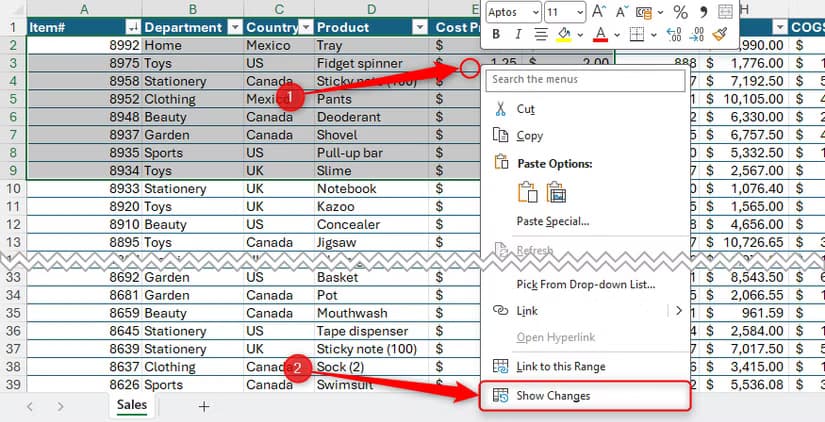
Version History shows you snapshots, not a cell-by-cell changelog. You can see that someone made changes at 2:47 PM, but you'll need to compare versions manually to find exactly which cells changed.
For cell-level tracking in real time, Excel for the web shows a small indicator when someone else is editing. You'll see their cursor move and their changes appear live. But once they finish, that granular view disappears into the version history.
If you need detailed audit trails, the kind where every single change is logged with user, timestamp, and old/new values, Excel alone won't do it. You'll need third-party add-ins or a move to more specialized tools like Google Sheets' built-in revision history or dedicated audit software.
Another practical guide for power users looking to work more efficiently
How to make this work for your team
If you haven't already, move shared spreadsheets to OneDrive or SharePoint. This is step one. No cloud, no version history.
Train your team to use the Version History panel when something looks wrong. It's faster than emailing around asking who touched the file. And set expectations: Version History shows who saved, not necessarily who made every individual change during a session.
For critical spreadsheets, consider manual version saves at key milestones. Click File, then Save a Copy, and add a date or version number. This creates explicit checkpoints beyond the automatic saves.
Frequently Asked Questions
Can I still use Track Changes in Excel?
The legacy Track Changes feature is no longer available in modern Excel. Microsoft replaced it with Version History, which requires files to be saved in OneDrive or SharePoint.
How do I see who edited my Excel spreadsheet?
Open Version History from the File menu. Each saved version shows the name of the person who saved it and the timestamp. For files on OneDrive or SharePoint only.
Does Excel version history work offline?
No. Version History requires your file to be stored in OneDrive or SharePoint. Local files don't have automatic version tracking.
Can I restore a previous version of my Excel file?
Yes. In Version History, click any previous version to preview it. You can then restore it entirely or copy specific data back to your current file.
How long does Excel keep version history?
OneDrive and SharePoint retain version history based on your subscription and settings. Microsoft 365 business plans typically keep versions for 500 saves or longer, depending on configuration.
Need Help Implementing This?
Migrating team workflows to cloud-based collaboration takes planning. If you're moving shared spreadsheets to SharePoint or OneDrive and need guidance on version control, permissions, or training, reach out to the Logicity team.
Source: How-To Geek
Huma Shazia
Senior AI & Tech Writer
Produced with AI assistance and reviewed by the Logicity editorial team. Learn more in our Editorial Policy.






