Key Takeaways
- Pre-2012 Kindles lost store access on May 20, 2026, but hardware remains fully functional
- Calibre software converts and transfers DRM-free ebooks via USB
- Project Gutenberg offers 70,000+ free public domain books compatible with older Kindles
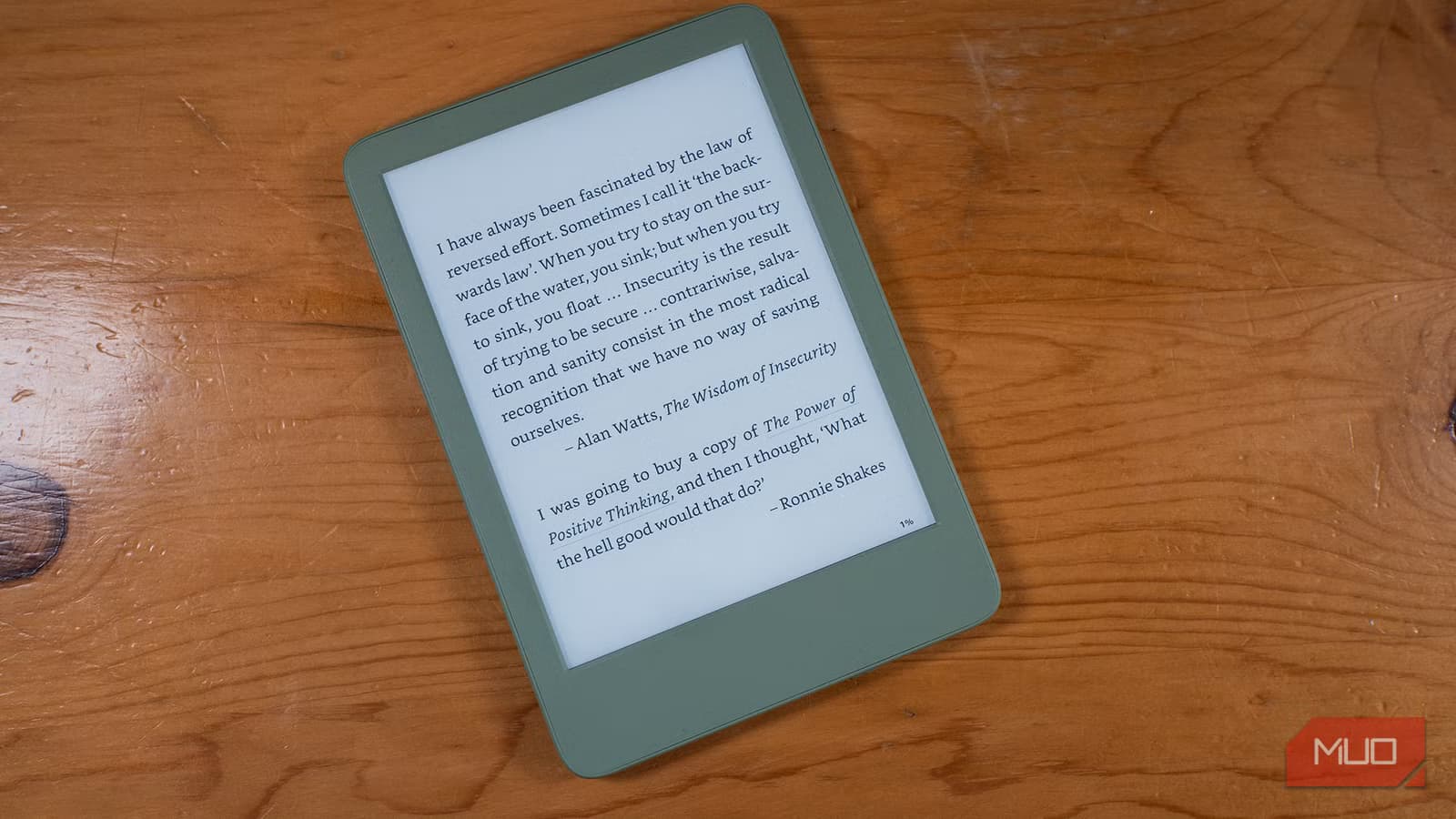
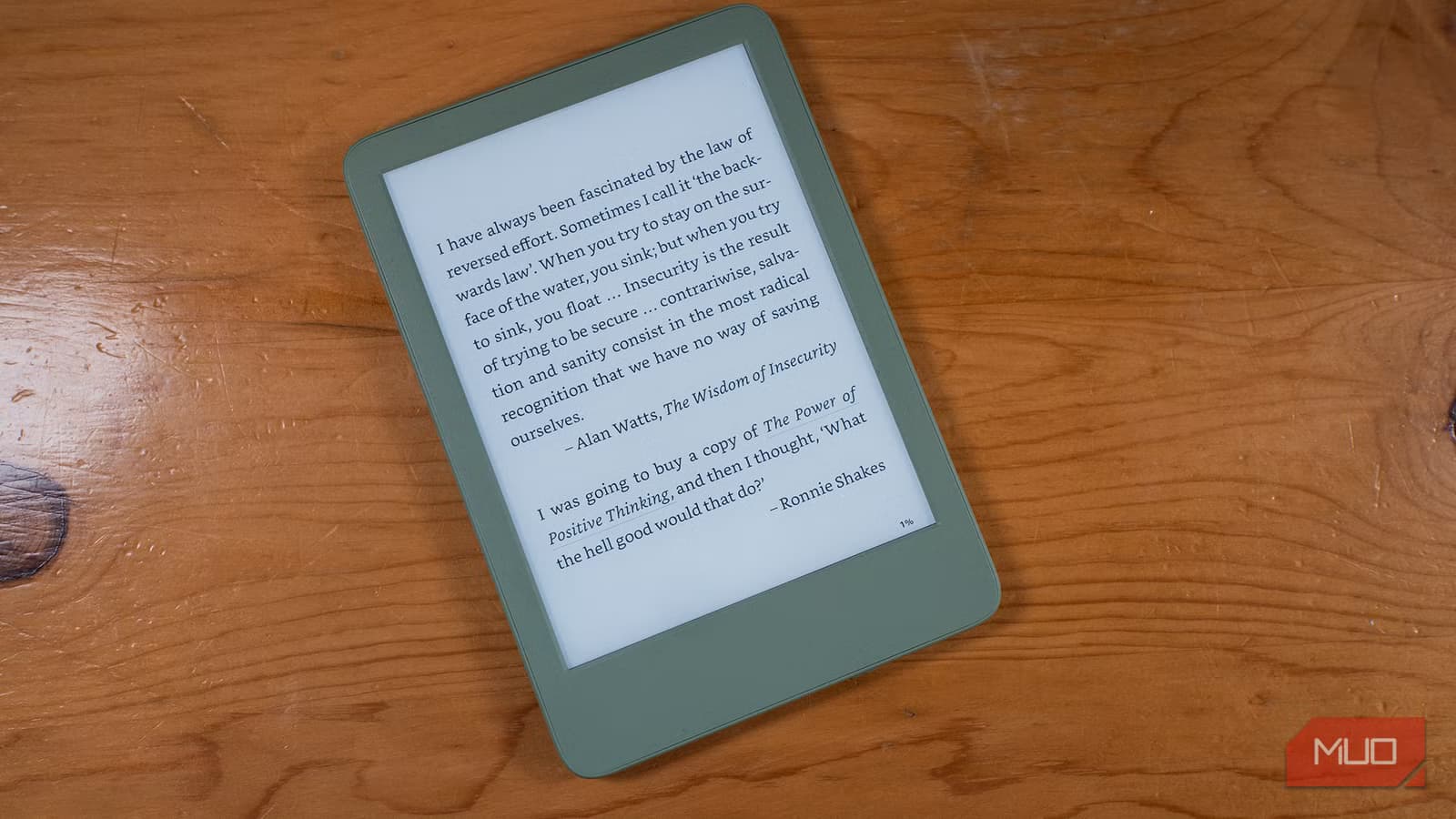
Amazon officially pulled the plug on the Kindle Store for devices manufactured in 2012 or earlier. As of May 20, 2026, owners of the first-generation Kindle Paperwhite, Kindle 4, Kindle 5, and early Kindle Fire tablets can no longer browse or buy books directly on their devices.
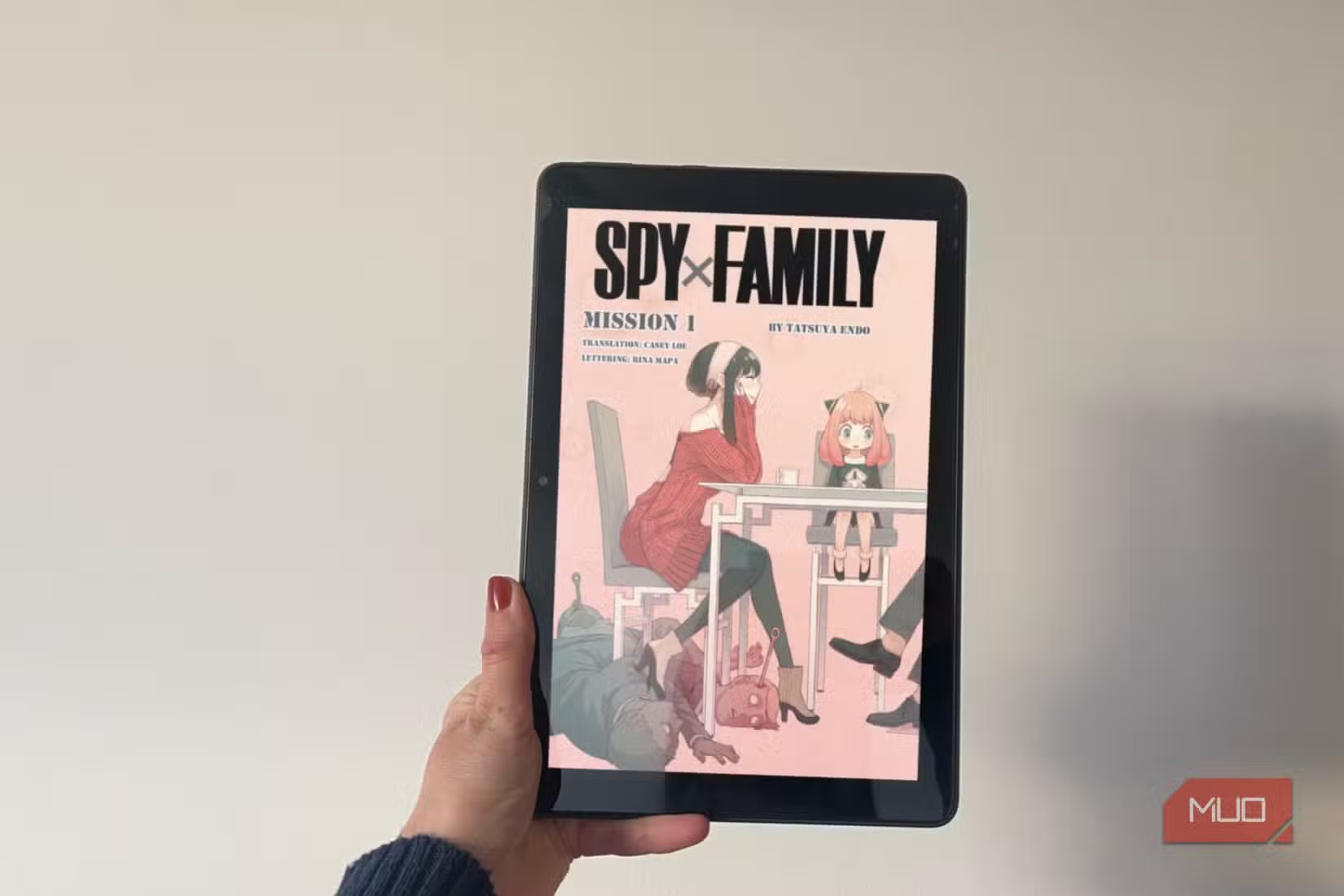
The good news: the hardware works fine. These e-readers just lost their wireless gateway to Amazon's catalog. You can still read every book already on the device, and you can add new ones manually.
“The hardware itself isn't broken, just the gateway. Sideloading via USB keeps these perfectly functional e-readers out of the landfill.”
— Tech Preservation Advocate, Analyst at E-Reader Daily
What You Can Still Do With Your Old Kindle
First, check your existing library. If you downloaded books over the years and never got around to reading them, they're still there. The device doesn't need internet access to display what's already stored locally.
You can also pass the device to someone else. It's like lending a stack of paperbacks, except it holds dozens of titles. Since the Kindle Store connection is gone anyway, there's no risk of accidental purchases.
How to Sideload Books via USB
Sideloading means transferring files from your computer to the Kindle using a USB cable. It's the same process you'd use to move photos to a phone or documents to a flash drive.
- Connect your Kindle to your computer with a USB cable
- The Kindle appears as an external drive
- Copy ebook files (MOBI, AZW3, or PDF) to the 'documents' folder
- Eject the device and disconnect
The catch: older Kindles don't support EPUB, the most common ebook format. You'll need to convert files first.
Using Calibre to Convert and Transfer Books
Calibre is free, open-source software that handles ebook management and format conversion. It runs on Windows, Mac, and Linux. Download it from calibre-ebook.com.
- Import ebooks in any format (EPUB, PDF, TXT, HTML)
- Convert to Kindle-compatible MOBI or AZW3
- Transfer directly to a connected Kindle
- Manage metadata like titles, authors, and cover images
The software also strips DRM from books you've legitimately purchased elsewhere, though the legal status of this varies by jurisdiction. For most users, the main value is format conversion and library organization.
Where to Find Free, DRM-Free Ebooks
Project Gutenberg remains the gold standard for free public domain books. The library includes over 70,000 titles: everything from Shakespeare to Jane Austen to early science fiction. All downloads are DRM-free and legal.
- Project Gutenberg (gutenberg.org): 70,000+ public domain classics
- Standard Ebooks (standardebooks.org): Beautifully formatted versions of public domain works
- ManyBooks (manybooks.net): Mix of public domain and free indie titles
- Open Library (openlibrary.org): Borrowable ebooks from a digital library
Many indie authors also sell DRM-free copies directly through their websites or platforms like Gumroad. Check the checkout page for format options before buying.
What the Community Is Doing
Reddit communities like r/kindle and r/ereader have responded to Amazon's cutoff by curating lists of DRM-free sources and troubleshooting guides. The prevailing mood is frustration at artificial obsolescence, tempered by satisfaction that workarounds exist.
E-waste advocates have pointed out that these devices work perfectly well for offline reading. The only thing that changed is Amazon's willingness to maintain server-side support.
Logicity's Take
Should You Upgrade?
If you read frequently and want access to Amazon's catalog without extra steps, a newer Kindle makes sense. Current models start around $100, and the Kindle Paperwhite remains a solid mid-range option.
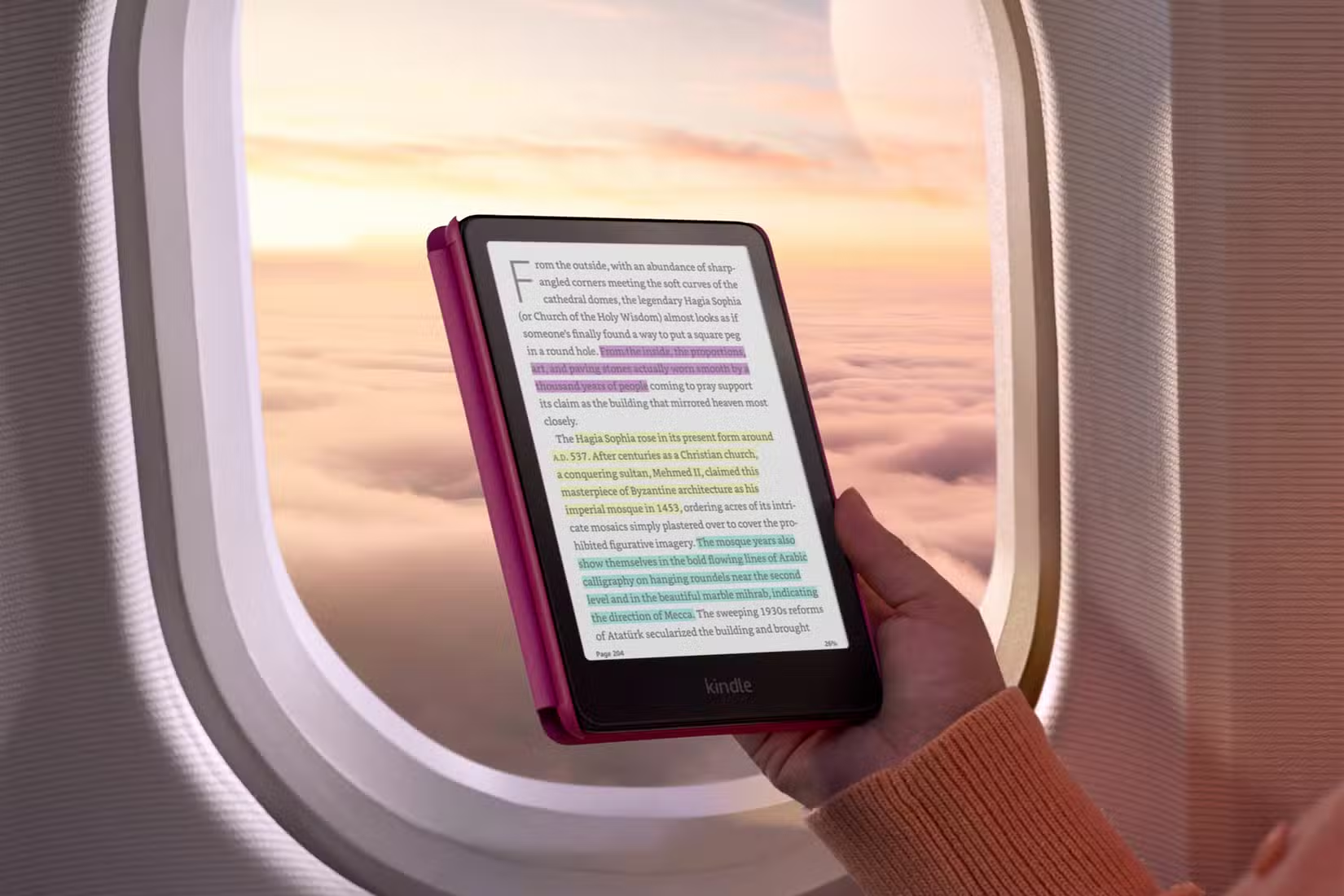
If you're happy with public domain books and DRM-free purchases, your old Kindle has years of life left. E-ink screens don't degrade the way phone displays do. The battery might hold less charge than it once did, but these devices sip power.
✅ Pros
- • Old Kindles still display ebooks perfectly
- • No subscription or ongoing cost
- • 70,000+ free books available from Project Gutenberg
- • Calibre handles all format conversion
❌ Cons
- • No direct Amazon Store access
- • Manual USB transfer required for new books
- • Some modern ebook formats need conversion
- • No firmware updates or security patches
Frequently Asked Questions
Which Kindle models lost store access?
Devices manufactured in 2012 or earlier, including the first-generation Kindle Paperwhite, Kindle 4, Kindle 5, and early Kindle Fire tablets.
Can I still read books already on my old Kindle?
Yes. All previously downloaded books remain on the device and work normally without internet access.
What file formats do older Kindles support?
MOBI, AZW3, PDF, and TXT. They don't support EPUB, but Calibre can convert EPUB files to compatible formats.
Is Calibre free?
Yes. Calibre is open-source software available for Windows, Mac, and Linux at no cost.
Where can I find free ebooks legally?
Project Gutenberg offers 70,000+ public domain books. Standard Ebooks, ManyBooks, and Open Library are also good sources.
Need Help Implementing This?
Source: MakeUseOf
Huma Shazia
Senior AI & Tech Writer
Produced with AI assistance and reviewed by the Logicity editorial team. Learn more in our Editorial Policy.