Key Takeaways
- Android 16 includes native screen mirroring via Google Cast, eliminating the need for third-party apps or cables
- Popular paid mirroring apps on the Play Store often deliver a worse experience than the free built-in feature
- You can choose to share a single app or your entire screen, with privacy controls to avoid showing sensitive data
Your Android phone can mirror its screen to your TV right now, without downloading an app or buying a cable. The feature ships with Android 16, and it works with most smart TVs, streaming sticks, and set-top boxes manufactured in the past five years. Yet millions of users still pay for third-party mirroring apps riddled with ads.
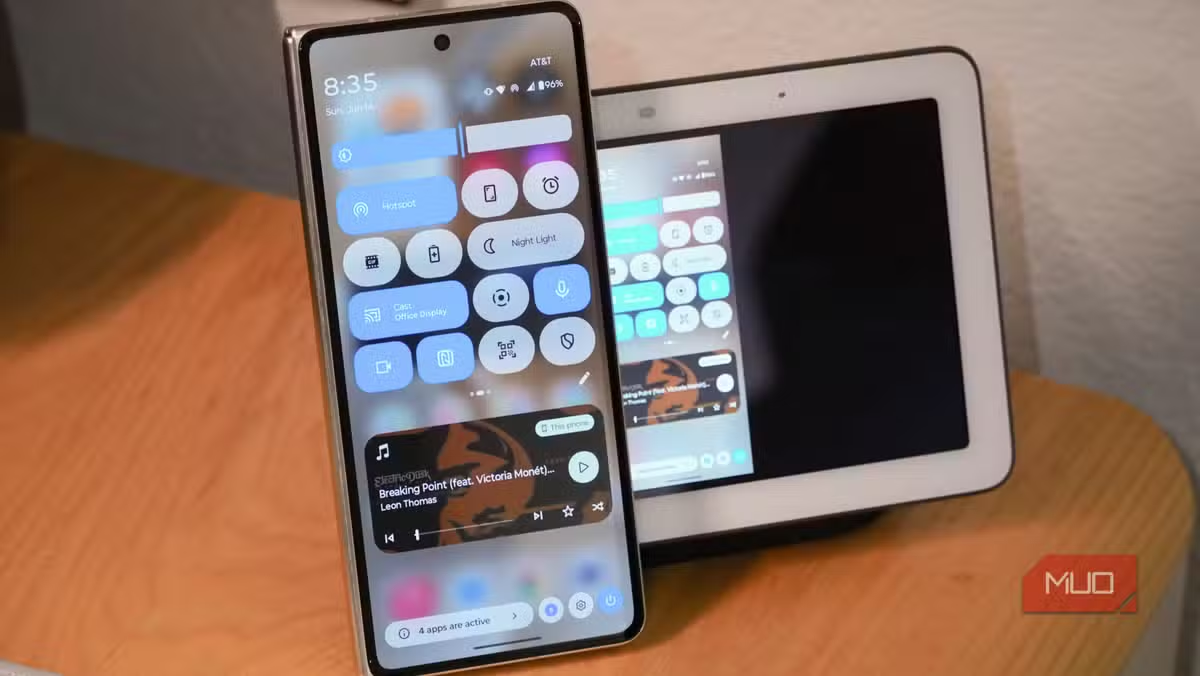
The disconnect is simple: people don't know the capability exists. Google Cast, the protocol that lets you beam Netflix or YouTube to your TV with a tap, also handles full screen mirroring. One toggle in your quick settings panel, a tap on your TV's name, and you're projecting your phone's display on a 65-inch screen.
Why are people still paying for mirroring apps?
Search "screen mirror" on the Play Store and you'll scroll for minutes through hundreds of apps. The most downloaded ones boast over 50 million installs. They charge subscription fees or hit you with ads after every button press. Reviews for apps like Cast for Chromecast and TV Cast complain about ad bombardment, yet downloads keep climbing.
The pattern repeats: someone needs to mirror their phone for a presentation or a quick demo. They search, download the first result, endure ads, then pay to remove them. The irony is brutal. They've just paid for a worse version of something their phone already does for free.
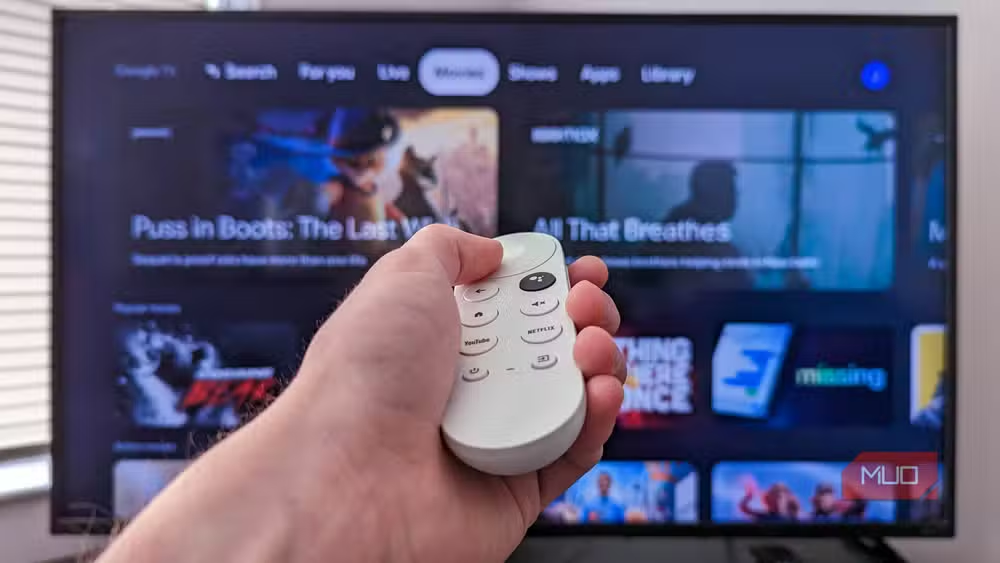
How to mirror your Android screen using Google Cast
The process takes about five seconds once you know where to look. Swipe down from the top of your screen to open the quick settings panel. Find the Cast toggle. If you don't see it, swipe to additional pages or tap the pencil icon to add it to your panel.
- Swipe down to open your Android quick settings panel
- Tap the Cast icon (or add it via the edit button if hidden)
- Select your TV, streaming stick, or display from the list
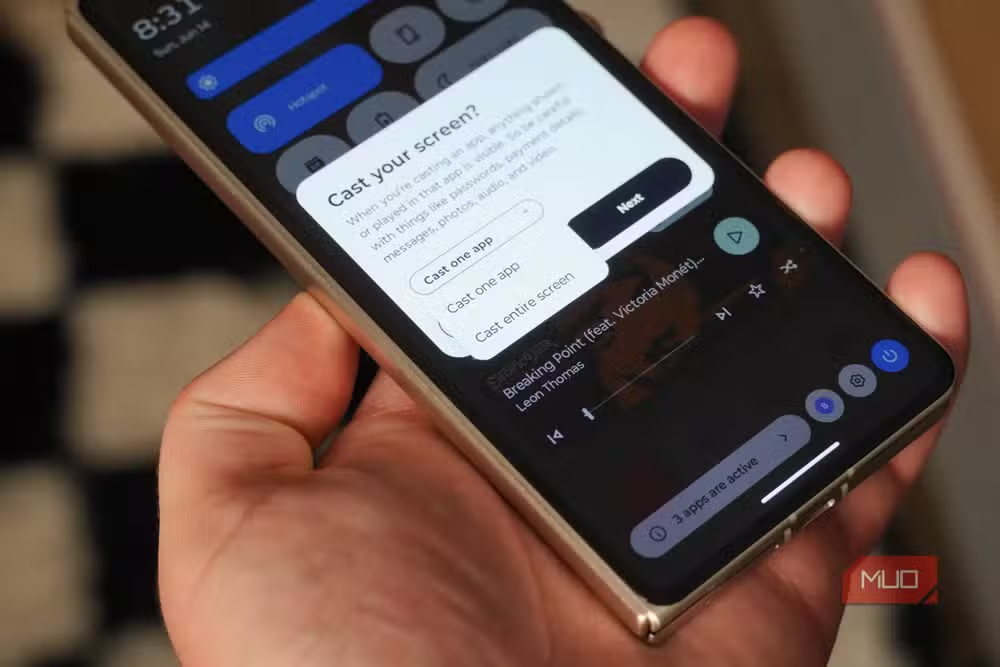
- Choose whether to share one app or your entire screen
Your phone shows every Google Cast-compatible device on your Wi-Fi network. That includes Chromecast dongles, Google TV Streamer boxes, Nest Hub displays, and most smart TVs with built-in Cast support. Select one, and mirroring begins instantly.
Single app vs. full screen: which should you pick?
Android gives you a choice. Sharing a single app keeps everything else private. Your notifications, messages, and other apps stay on your phone, not the TV. This matters when you're presenting at work or mirroring in a room full of people.
Full screen mirroring shows everything. It's useful for walking someone through phone settings or multitasking across apps during a demo. A persistent green notification badge appears in your status bar while mirroring, reminding you that your screen is being broadcast.
What devices work with Google Cast mirroring?
The list is long. Any Chromecast, any Google TV Streamer, most Android TV devices, and the majority of smart TVs from Samsung, LG, Sony, Hisense, TCL, and Vizio support the protocol. Nest Hub smart displays work too. In 2026, 89.2% of new smart TVs ship with integrated wireless display features, and Google Cast is among the most common.
If your TV doesn't appear in the Cast menu, check that it's connected to the same Wi-Fi network as your phone. A surprising number of connection failures trace back to one device on 5GHz and the other on 2.4GHz. VPNs can also block local network discovery, so disable yours temporarily if the TV won't show up.
When native mirroring isn't enough
Google Cast works great for casual use: photos, presentations, video calls on a bigger screen. But it's not perfect. Screen mirroring compresses video and introduces some latency. For 4K streaming, you're better off using the Cast button inside apps like YouTube or Netflix, which sends a direct stream to your TV rather than a mirror of your phone's display.
For professional or low-latency needs, power users on Reddit recommend scrcpy, an open-source tool that mirrors Android to a PC with minimal delay. But for the 99% of people who just need to show their screen on a TV, the built-in feature handles it.
The real cost of not knowing
With 3.9 billion active Android users globally, the scale of wasted money and frustration is staggering. Users pay for apps that deliver worse performance than native tools. They buy USB-C to HDMI cables they don't need. They assume mirroring requires extra hardware because no one told them otherwise.
The wireless screen mirroring hardware market hit $8.6 billion in 2025. Some of that spending is legitimate. But a meaningful chunk comes from people solving a problem that Android already solved for them.
Frequently Asked Questions
Do I need a Chromecast to mirror my Android phone to a TV?
No. Most smart TVs manufactured after 2020 support Google Cast natively. Chromecast works, but it's not required if your TV already has Cast built in.
Why won't my TV show up in the Cast menu?
Check that both devices are on the same Wi-Fi network and frequency band (both on 5GHz or both on 2.4GHz). Disable any active VPN on your phone, as VPNs can block local network discovery.
Is Google Cast screen mirroring the same as casting a video?
No. Screen mirroring sends a live view of your entire phone display. Casting a video from an app like YouTube sends the video stream directly to the TV at full quality while your phone acts as a remote.
Will screen mirroring work for gaming?
For casual games, yes. But mirroring introduces slight latency, so fast-paced or competitive games may feel sluggish. Wired connections or dedicated game streaming remain better for serious gaming.
Can I mirror to a TV that doesn't support Google Cast?
You'd need a Chromecast dongle, a streaming stick with Cast support, or a Miracast adapter. Some older TVs only support Miracast, which Android also handles but requires different setup steps.
Logicity's Take
Google has done a poor job marketing this feature. The company spends billions on Pixel hardware and AI announcements but lets a genuinely useful capability languish in obscurity. Third-party developers fill the gap with inferior apps because discoverability inside Android settings remains weak. A single onboarding prompt during device setup would eliminate confusion for millions of users and undercut an entire category of ad-stuffed apps.
Another Google feature that connects your devices more easily
Need Help Implementing This?
If you're deploying Android devices in a workplace or educational setting and need guidance on configuring Cast for presentations or digital signage, reach out to our team at Logicity.in for implementation support.
Source: MakeUseOf
Huma Shazia
Senior AI & Tech Writer
Produced with AI assistance and reviewed by the Logicity editorial team. Learn more in our Editorial Policy.






