Key Takeaways
- Append stacks tables with matching headers into one master list
- Merge joins tables horizontally based on shared data points like names or IDs
- Folder consolidation auto-imports and combines all files in a directory
The case for ditching copy-paste
If you spend Monday mornings copying data from email attachments into a master spreadsheet, you're not working in Excel. You're doing manual labor. Power Query fixes that.
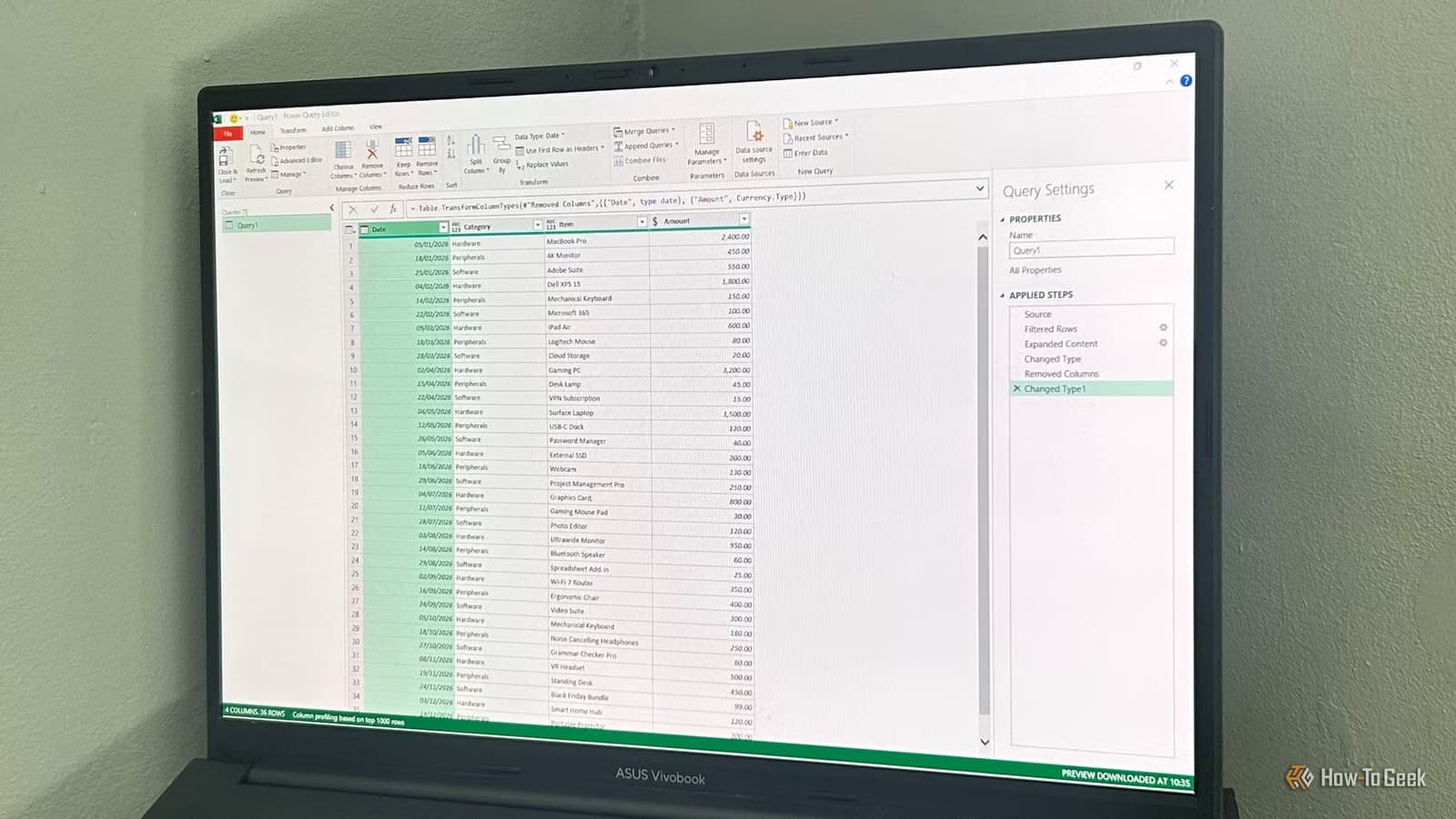
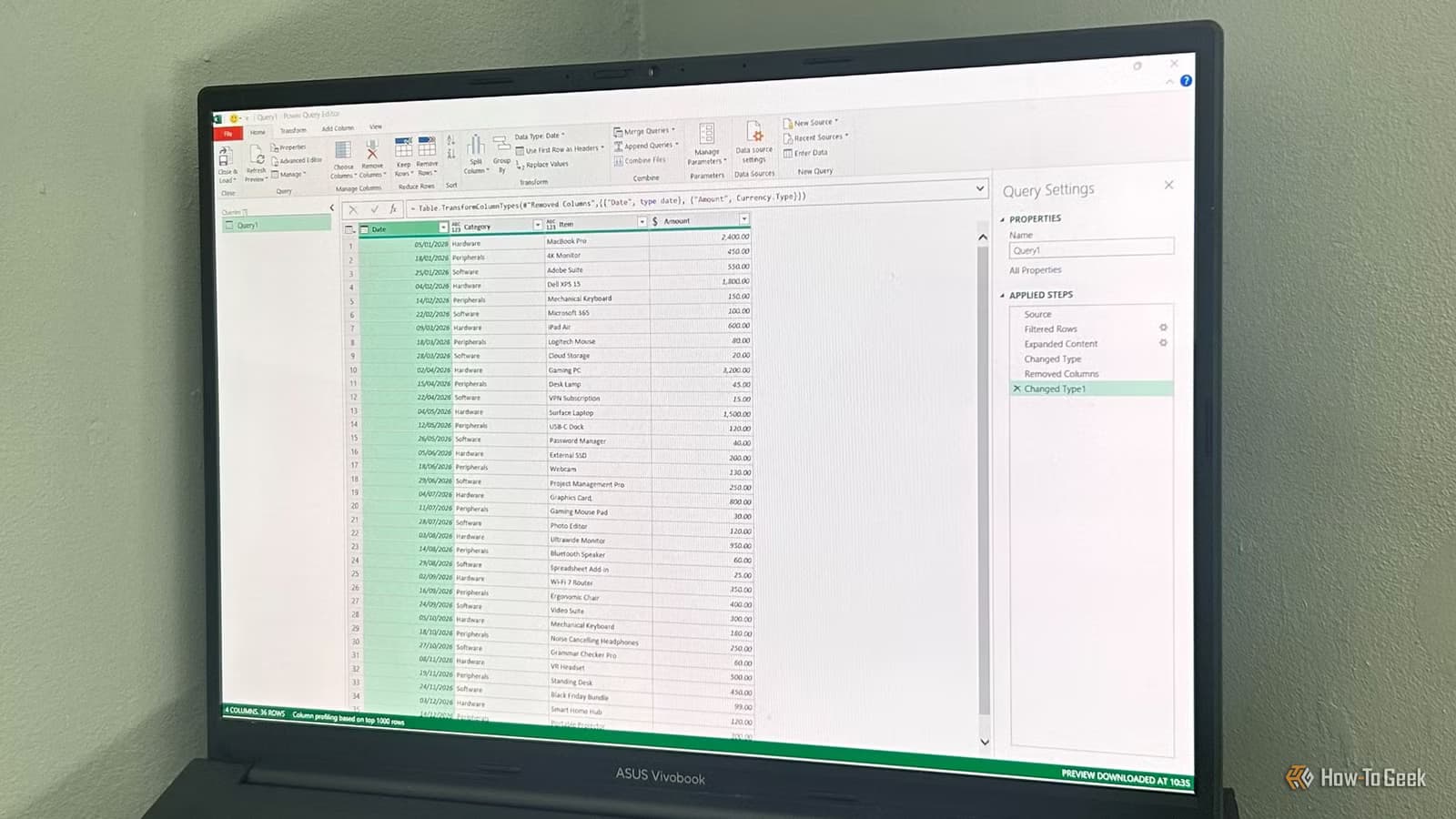
Cleaning data is a classic Power Query use case, but the real power comes when you stop thinking about individual tables. Start thinking at the system level. Most Excel users spend hours each week copy-pasting data or hunting down the latest CSV. Power Query eliminates this through three consolidation workflows.
- Appending tables: A vertical stack. Use this when you have multiple tables with identical headers, like monthly sales figures, and want to pile them into one long master list.
- Relational merging: A horizontal join. Use this to pull related information from one table into another based on a shared data point, such as an employee ID or customer name.
- Folder consolidation: The ultimate automation tool. Point Excel at a folder, and it grabs all files inside, cleans them, and stacks them into a single table.
Master these three and you turn Excel from a static calculator into a dynamic data hub.
Workflow 1: Appending tables from a single workbook
Power Query's Append feature lets you unify several local tables into a single continuous dataset. The classic scenario: you have a workbook with 12 separate tabs, one for each month, and you need to combine them into a single annual report.
To set this up, first convert each data range into a formal Excel Table (Ctrl+T). This gives Power Query named objects to work with. Then go to Data > Get Data > Combine Queries > Append.
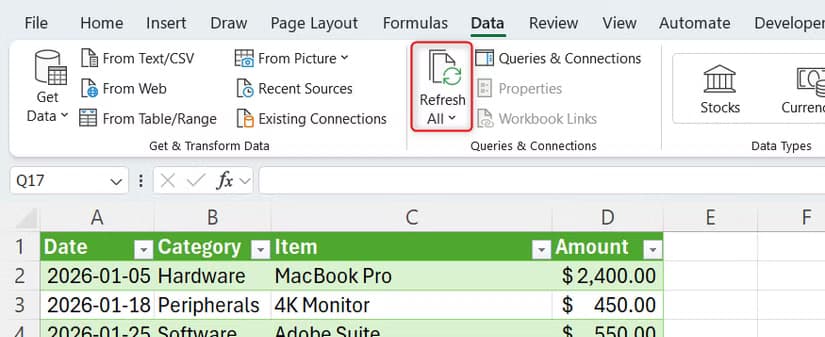
You can append two tables or three or more. Select your tables, and Power Query stacks them vertically. The output query updates automatically when source tables change. Hit Refresh All in the Data tab, and your master list pulls in any new rows.
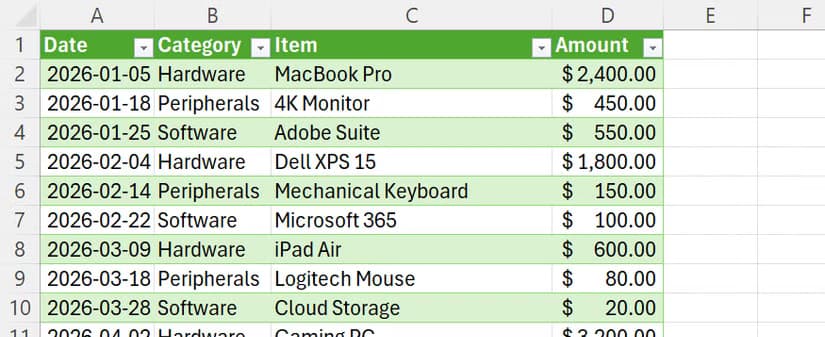
The key requirement: all source tables must share the same column headers. If one table has "Amount" and another has "Total", Power Query treats them as different columns. Standardize headers first.
Workflow 2: Merging tables with relational joins
Merging is horizontal, not vertical. You use it when you have two tables that share a common key, like an employee name or product ID, and you want to pull columns from one into the other.
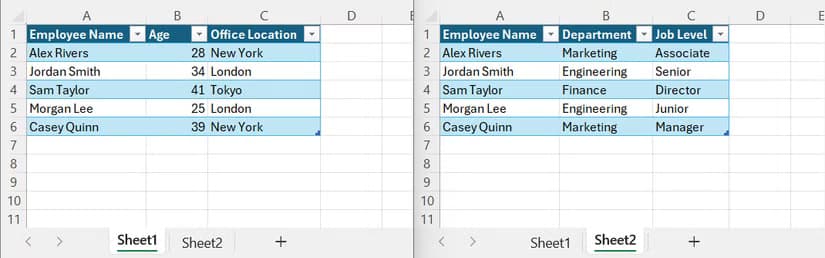
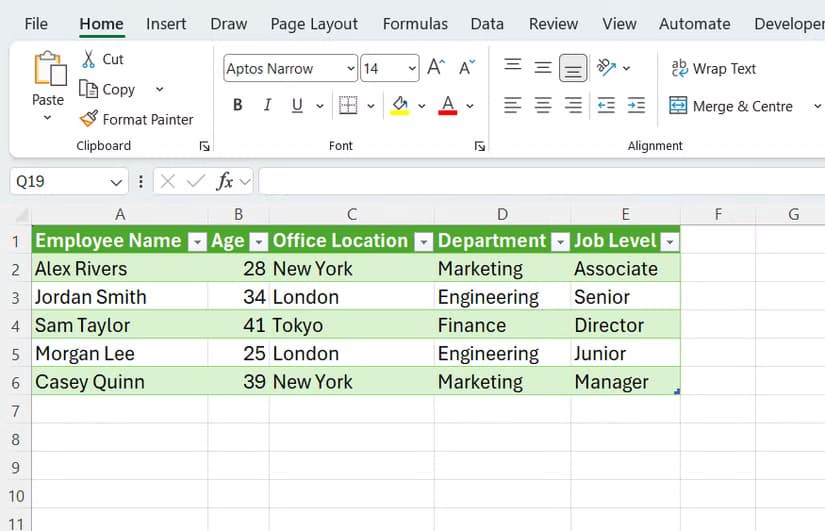
Say you have one table with employee names and departments, and another with employee names and salaries. A merge query matches rows by employee name and creates a combined output with both department and salary columns.
Go to Data > Get Data > Combine Queries > Merge. Select your first table, then your second. Click the shared column in each table to define the relationship. Power Query shows you how many rows matched before you commit.
You also choose the join type. Left Outer keeps all rows from the first table and pulls matching data from the second. Inner keeps only rows that exist in both. Full Outer keeps everything. This is the same logic as SQL joins, just with a visual interface.
After merging, Power Query returns a nested table column. Click the expand icon to select which columns you want to pull through. Then load the result to a new worksheet.
Workflow 3: Auto-importing files from a folder
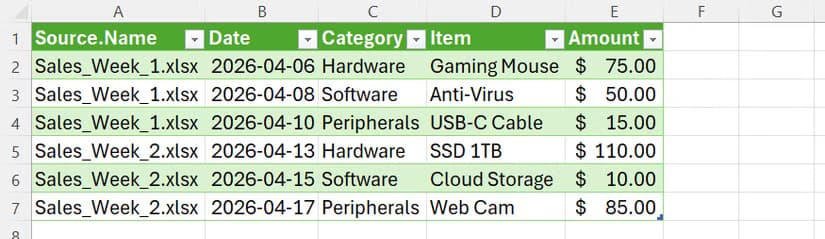
Folder consolidation is where Power Query becomes genuinely magical. Instead of importing files one by one, you point it at a folder. It grabs every file inside, transforms them identically, and stacks them into one table.
Go to Data > Get Data > From File > From Folder. Browse to your target directory. Power Query lists every file it finds. Click Combine & Transform to apply consistent cleaning steps across all files.
The best part: when you add new files to that folder, just click Refresh All. Power Query automatically picks up the new files and includes them in your output. No manual imports. No copy-pasting.
This works with Excel files, CSVs, text files, and more. For finance teams receiving weekly reports from multiple departments, or operations teams collecting daily logs from field systems, folder queries eliminate hours of repetitive work.
Keeping your queries current
All three workflows share one key behavior: the output is connected to the source. Change the source data, and your consolidated table updates when you refresh.
Click Refresh All in the Data tab to update every query in your workbook at once. You can also right-click individual queries in the Queries & Connections pane to refresh them selectively.
For automated refresh, save your workbook to SharePoint or OneDrive and schedule refreshes through Power Automate. Your Monday morning data consolidation can happen Sunday night without you touching anything.
When to use each workflow
Append when your tables have identical structures and you want to stack rows. Think monthly reports, regional sales figures, or survey responses from multiple teams.
Merge when your tables have different information about the same entities. Think adding department names to a payroll table, or pulling product categories into a sales log.
Use folder consolidation when data arrives as separate files. Think daily exports from a CRM, weekly reports from franchises, or monthly statements from banks.
In practice, you often combine these. Import files from a folder, append them into one master table, then merge that with a lookup table for additional context. Power Query chains these steps together.
Logicity's Take
Frequently Asked Questions
Can Power Query combine files from different folders?
Yes. Create separate folder queries and use Append to stack them together. Each folder query can have its own transformations before combining.
What happens if source files have different column names?
Power Query treats mismatched columns as separate fields. You'll get null values where data is missing. Standardize headers in the source files, or add a transformation step to rename columns.
Does Power Query work with Google Sheets?
Not directly. You can export Google Sheets as CSV or Excel files and import those. For live connections, consider using Power Automate to sync Google Sheets data to OneDrive.
Can I schedule automatic refreshes?
In desktop Excel, no. But if you save to SharePoint or OneDrive and connect through Power BI or Power Automate, you can schedule refreshes to run on any schedule you choose.
Is Power Query available in Excel for Mac?
Yes, but with limitations. Power Query is available in Excel for Mac 2019 and later, though some advanced features like folder imports may behave differently than on Windows.
More tools to streamline your workflow without added cost
Need Help Implementing This?
Source: How-To Geek
Manaal Khan
Tech & Innovation Writer
Produced with AI assistance and reviewed by the Logicity editorial team. Learn more in our Editorial Policy.