Key Takeaways
- The WinSxS folder stores old Windows update files and can grow to consume gigabytes of SSD space
- Never delete WinSxS files manually through File Explorer. It will break your system.
- The DISM /StartComponentCleanup command safely reclaims storage, with /ResetBase for maximum savings
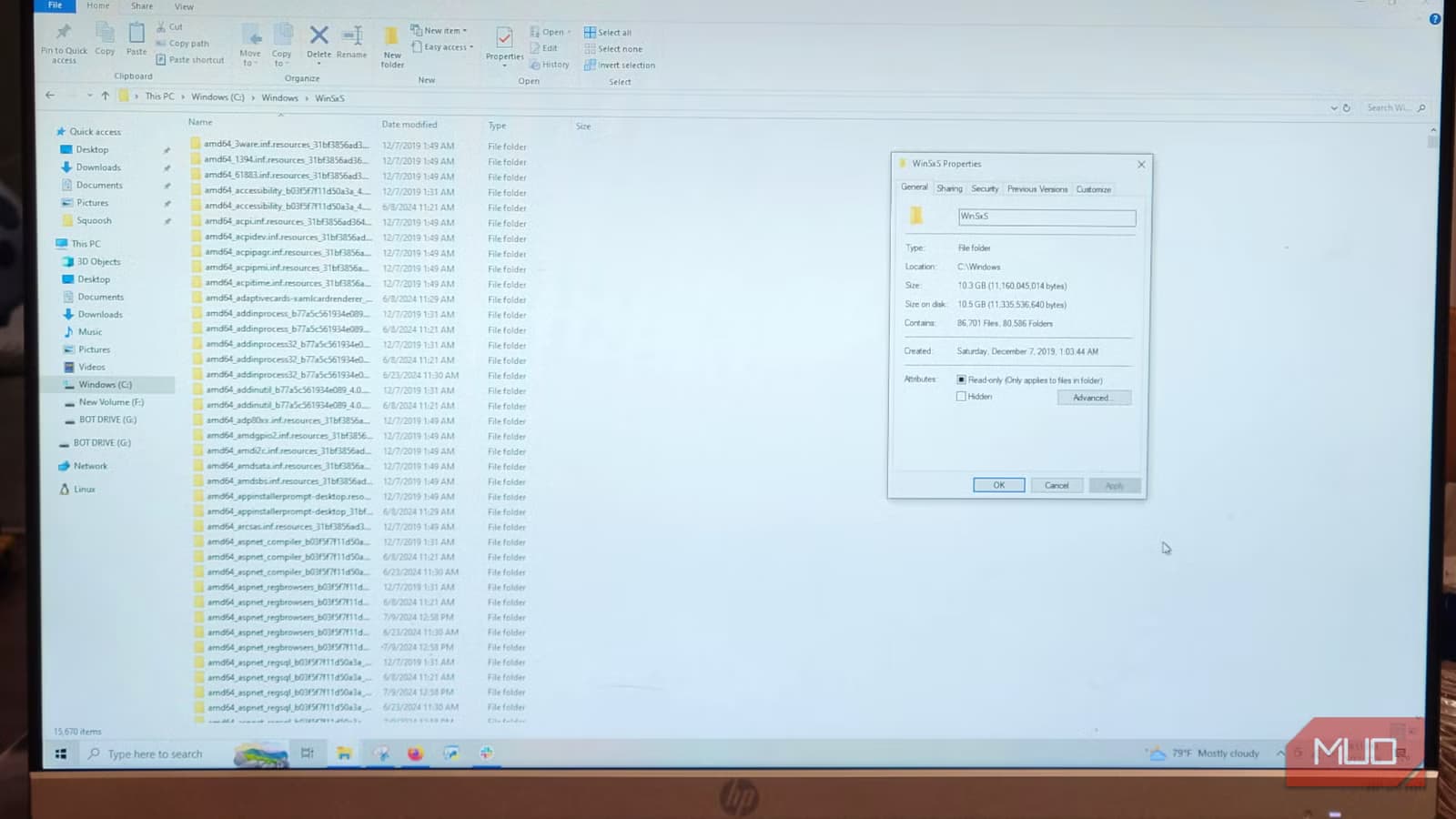
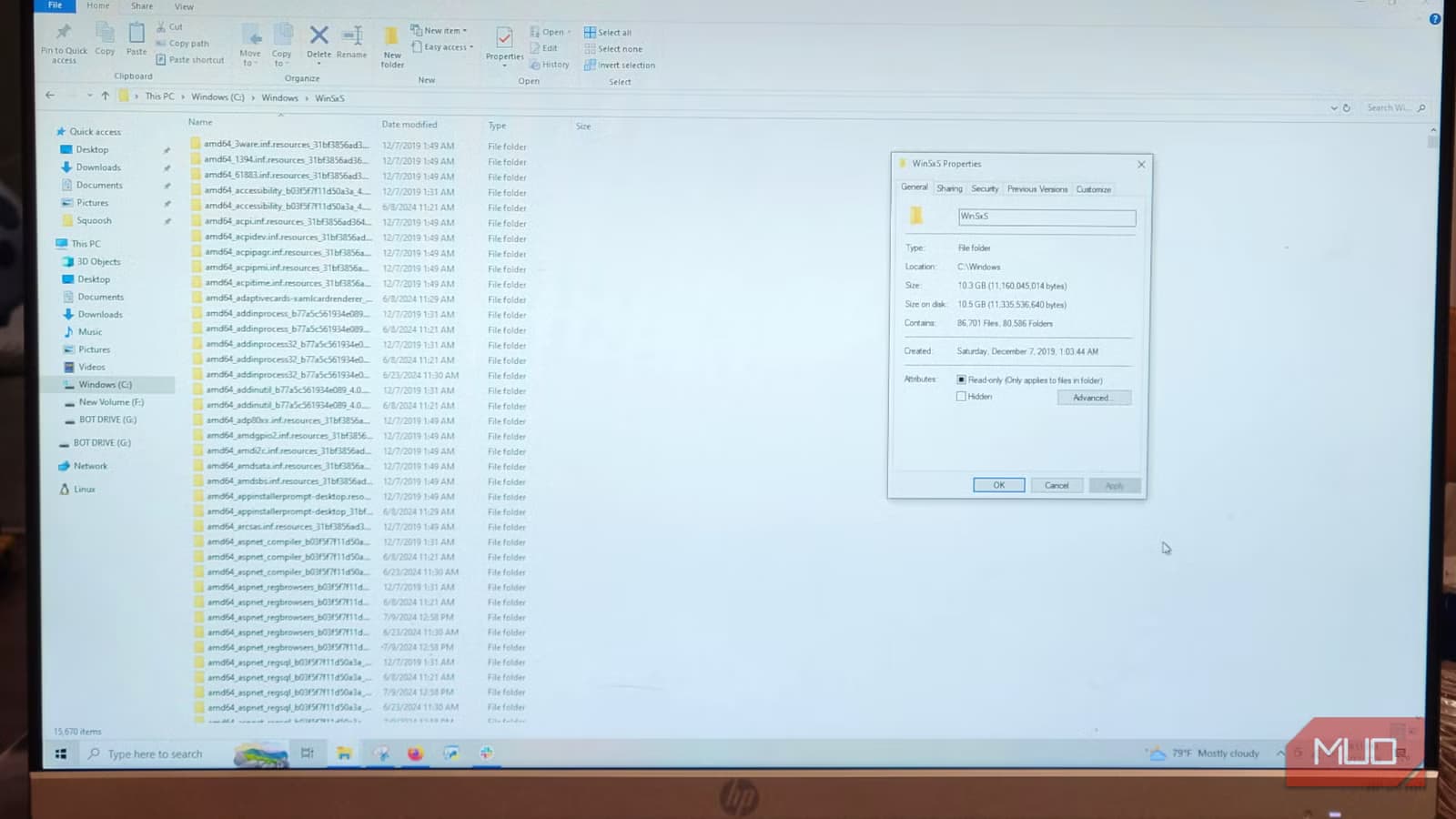
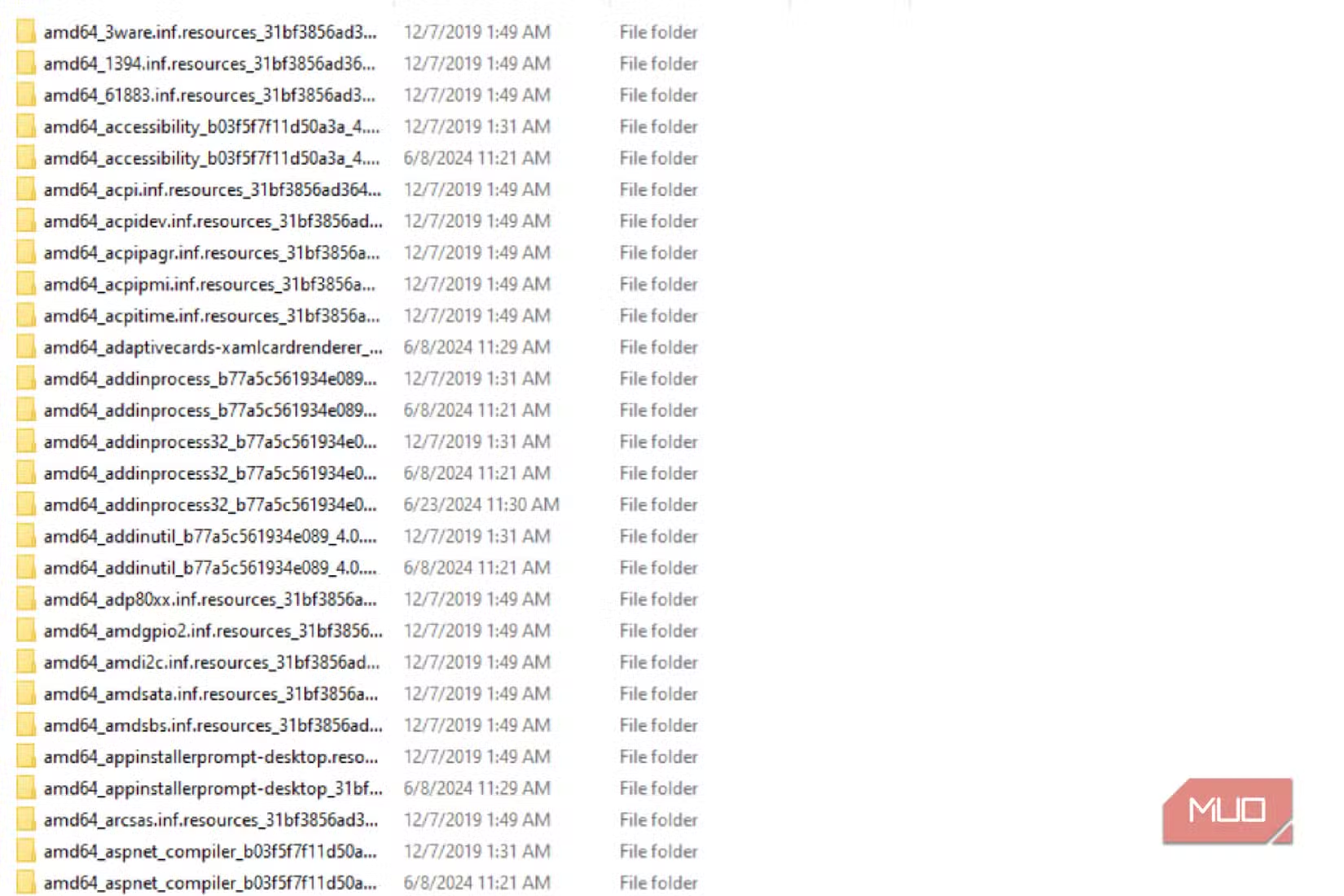
Every time Windows downloads a security patch, it archives the old system files in a hidden folder called WinSxS. This component store exists so you can roll back problematic updates. The problem: it never stops growing, and it can quietly consume 20GB or more of your SSD.
You cannot delete these files through File Explorer. Doing so will corrupt your Windows installation. But there is a safe way to clean this folder using a built-in Microsoft tool called DISM.
Why the WinSxS Folder Gets So Big
The WinSxS folder, short for Windows Side-by-Side, is the Windows Component Store. Think of it as a versioning system for your operating system's core files. Every time Microsoft pushes an update, Windows keeps the old versions in case something goes wrong.
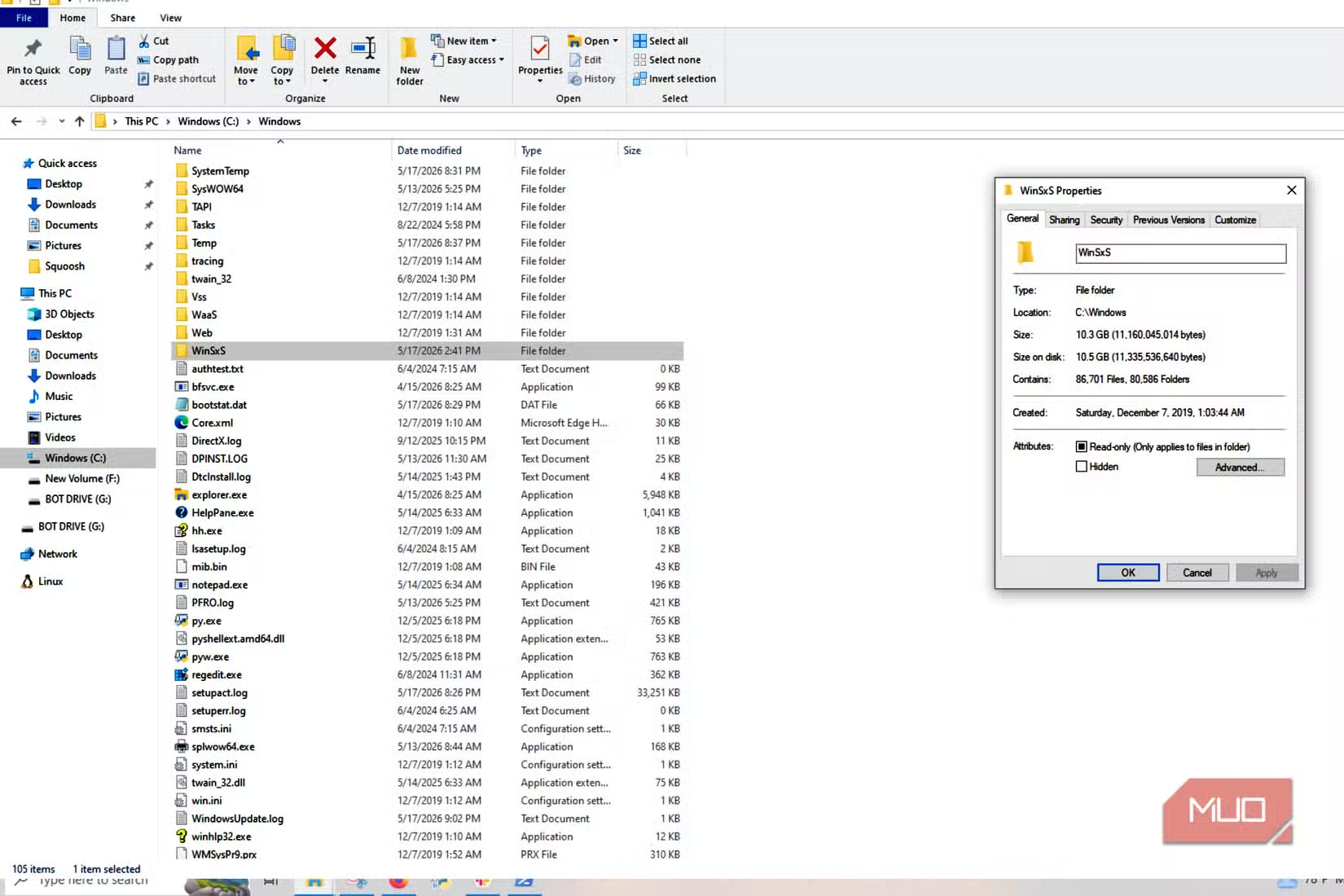
This design makes sense for stability. If a new update causes crashes or hardware conflicts, Windows can roll back to the previous version. But the tradeoff is storage. On a machine that has been running for a few years, the WinSxS folder can balloon to tens of gigabytes.
“The WinSxS folder is the component store. It keeps multiple versions of system files to allow for updates, rollbacks, and repairs.”
— Microsoft Support, Official Documentation
There is a catch that makes the folder appear even larger than it is. Many files inside WinSxS use hard links, which are references to files stored elsewhere on your drive. File Explorer reports the full size of these linked files, even though they only exist once on disk. Still, the actual storage consumed is substantial enough to warrant cleanup.
Why You Should Never Delete WinSxS Manually
It is tempting to open the folder and start deleting files. Do not do this. The WinSxS folder contains complex dependencies that your operating system needs to function. Deleting files directly will break Windows Update, cause system instability, and potentially brick your PC.
Reddit and HackerNews communities consistently warn against manual deletion. The consensus among advanced users: use Microsoft's built-in cleanup tools, or leave it alone.
Why Automatic Cleanup Often Fails
Modern versions of Windows include background tasks that periodically compress and remove old update files when the system is idle. In theory, this should keep the WinSxS folder manageable. In practice, these scheduled tasks often fail to run.
Power-saving sleep settings interrupt the cleanup. Sudden reboots stop it mid-process. If your laptop goes to sleep after 15 minutes of inactivity, the maintenance task never gets enough uninterrupted time to complete. The result: the component store keeps hoarding old data.
How to Clean WinSxS Safely with DISM
DISM, short for Deployment Image Servicing and Management, is a command-line tool built into Windows. It can safely clean the WinSxS folder without breaking your system. You do not need to be an IT professional to use it.
Step 1: Open PowerShell as Administrator
Press the Windows key and type "PowerShell." Right-click on Windows PowerShell and select "Run as administrator." Click Yes when prompted by User Account Control.
Step 2: Run the Basic Cleanup Command
For a standard cleanup that removes old update files while preserving rollback capability, run this command:
Dism.exe /Online /Cleanup-Image /StartComponentCleanupThis command analyzes the component store and removes files that are no longer needed. It typically takes a few minutes to complete. You will see progress updates in the terminal.
Step 3: Run the Aggressive Cleanup (Optional)
For maximum space savings, add the /ResetBase flag:
Dism.exe /Online /Cleanup-Image /StartComponentCleanup /ResetBaseThis command removes all superseded versions of every component. Users frequently report recovering 20GB or more from aging Windows installations. However, there is a tradeoff: you permanently lose the ability to uninstall currently installed Windows updates. Only run this if you are confident your system is stable.
Step 4: Verify the Results
After the command completes, you can check how much space the component store is using:
Dism.exe /Online /Cleanup-Image /AnalyzeComponentStoreThis shows the actual size of the component store, the size shared with Windows, and whether a cleanup is recommended.
When to Run This Command
You do not need to run DISM cleanup weekly. Once every few months is enough for most users. Consider running it after major Windows feature updates, or when you notice your SSD filling up faster than expected.
If you have a smaller SSD, say 256GB or less, regular cleanup becomes more important. The WinSxS folder can represent a significant percentage of your total storage on drives this size.
Logicity's Take
Frequently Asked Questions
Frequently Asked Questions
Is it safe to delete the WinSxS folder?
Never delete the WinSxS folder manually through File Explorer. It will cause system corruption and break Windows Update. Use the DISM command instead, which safely removes only unnecessary files.
How much space can I recover from WinSxS cleanup?
Results vary based on how long you have been using Windows and how many updates have accumulated. Users commonly report recovering 10GB to 20GB or more on older installations using the /ResetBase flag.
What does the /ResetBase flag do?
The /ResetBase flag removes all superseded component versions, maximizing space savings. The tradeoff is you can no longer uninstall currently installed Windows updates. Only use it if your system is stable.
How often should I run DISM cleanup?
Once every few months is sufficient for most users. Consider running it after major Windows feature updates or when you notice storage filling up unexpectedly.
Why does Windows not clean WinSxS automatically?
Windows does have automatic cleanup tasks, but they only run when the system is idle. Sleep settings, reboots, and other interruptions often prevent these tasks from completing.
Another technique for recovering SSD storage on Windows systems
Another command-line focused tutorial for Windows users
Need Help Implementing This?
Source: MakeUseOf
Manaal Khan
Tech & Innovation Writer
Produced with AI assistance and reviewed by the Logicity editorial team. Learn more in our Editorial Policy.