Key Takeaways
- Windows paging files can silently grow to 30GB+ and rarely shrink automatically
- Manual limits work best if you have 16GB+ RAM and don't run memory-intensive apps
- Disabling the paging file entirely causes app crashes, even with 32GB of RAM
The Hidden Storage Hog on Your Windows PC
If you've ever wondered where your SSD space disappeared to, the Windows paging file might be the culprit. This system file acts as overflow storage when your physical RAM fills up. Windows moves less-used data to the paging file temporarily, preventing apps from crashing when memory runs low.
The problem? Windows manages this file automatically and tends to play it safe. When you edit a video, run a virtual machine, or open 40 browser tabs, Windows expands the paging file to prepare for potential memory spikes. And it doesn't always shrink it back afterward.
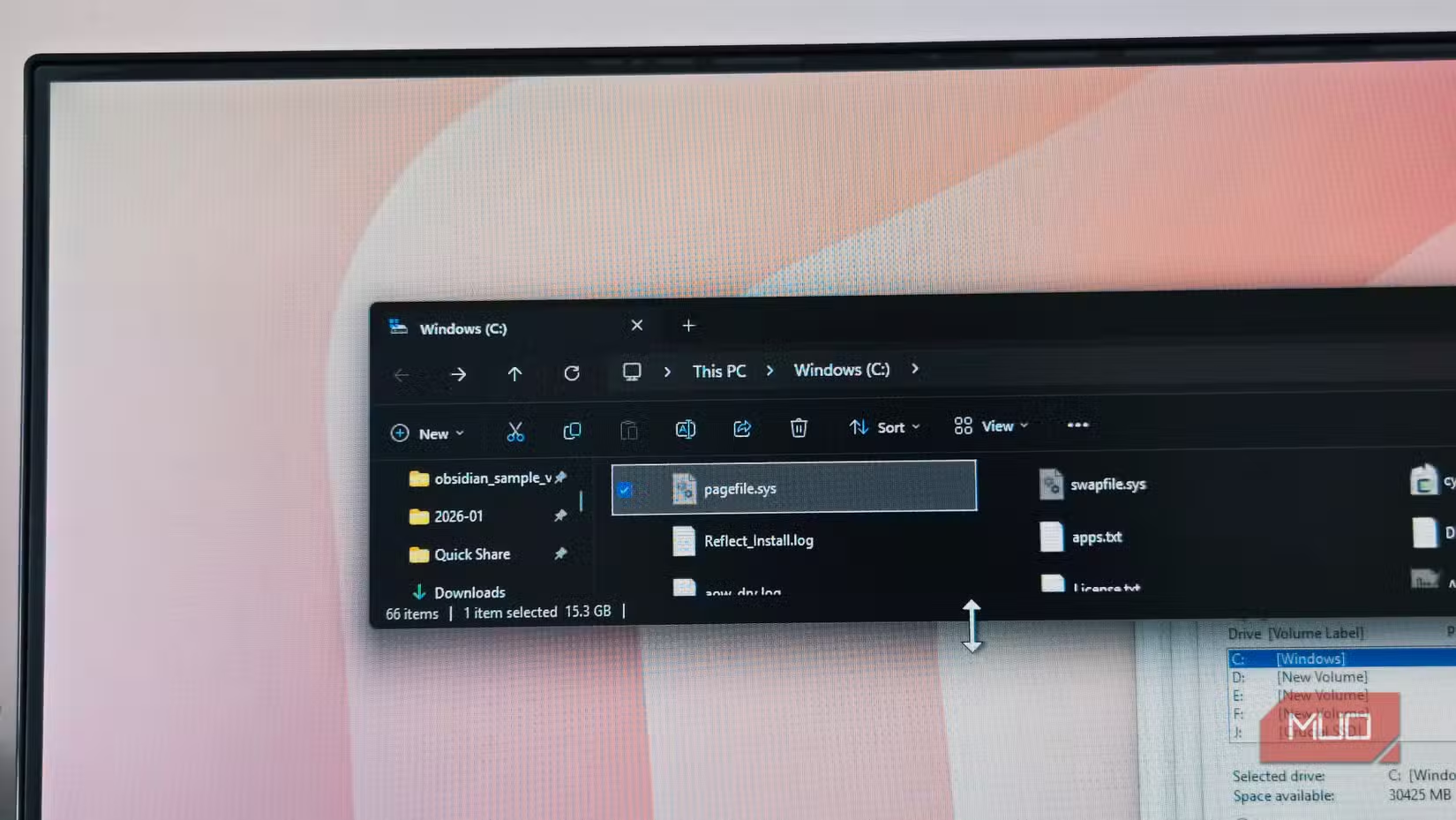
MakeUseOf writer Pankil Shah discovered his paging file had ballooned to 36GB on a 512GB laptop. That's 7% of total storage consumed by a file most users never see.
Why the Paging File Grows Out of Control
Windows constantly monitors memory usage and pre-allocates paging file space when it anticipates heavy workloads. This behavior made sense when RAM was expensive and 4GB was generous. Today, with 16GB or 32GB being common, the automatic expansion often overshoots what you actually need.
The file persists because Windows doesn't aggressively reclaim space. A video editing session from three weeks ago might have triggered a 20GB expansion that's still sitting there, doing nothing.
How to Find and Limit Your Paging File
The fix takes about two minutes. Here's how to access the settings:
- Press Win + R, type sysdm.cpl, and hit Enter
- Click the Advanced tab, then Settings under Performance
- In the new window, click the Advanced tab again
- Click Change under Virtual Memory
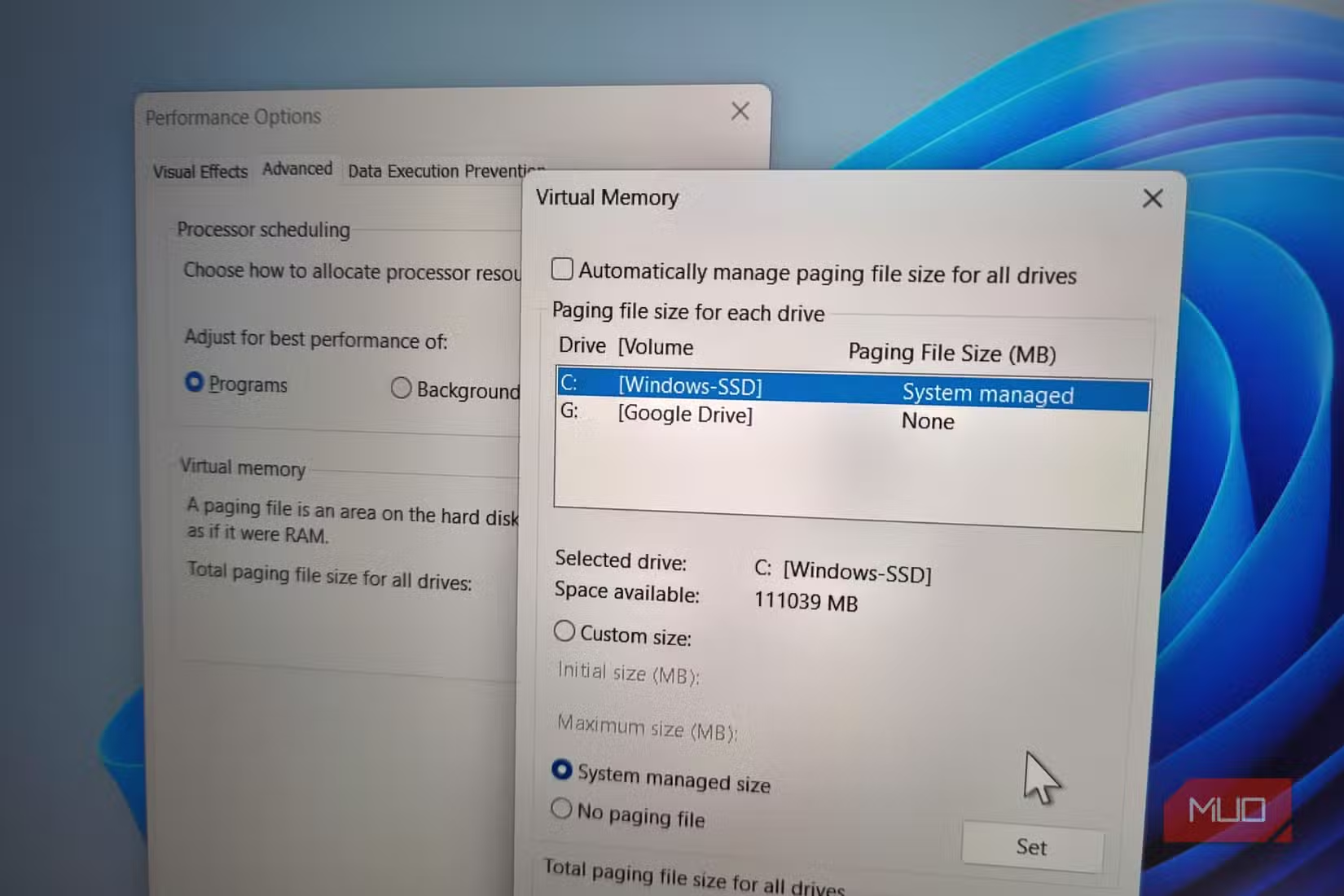
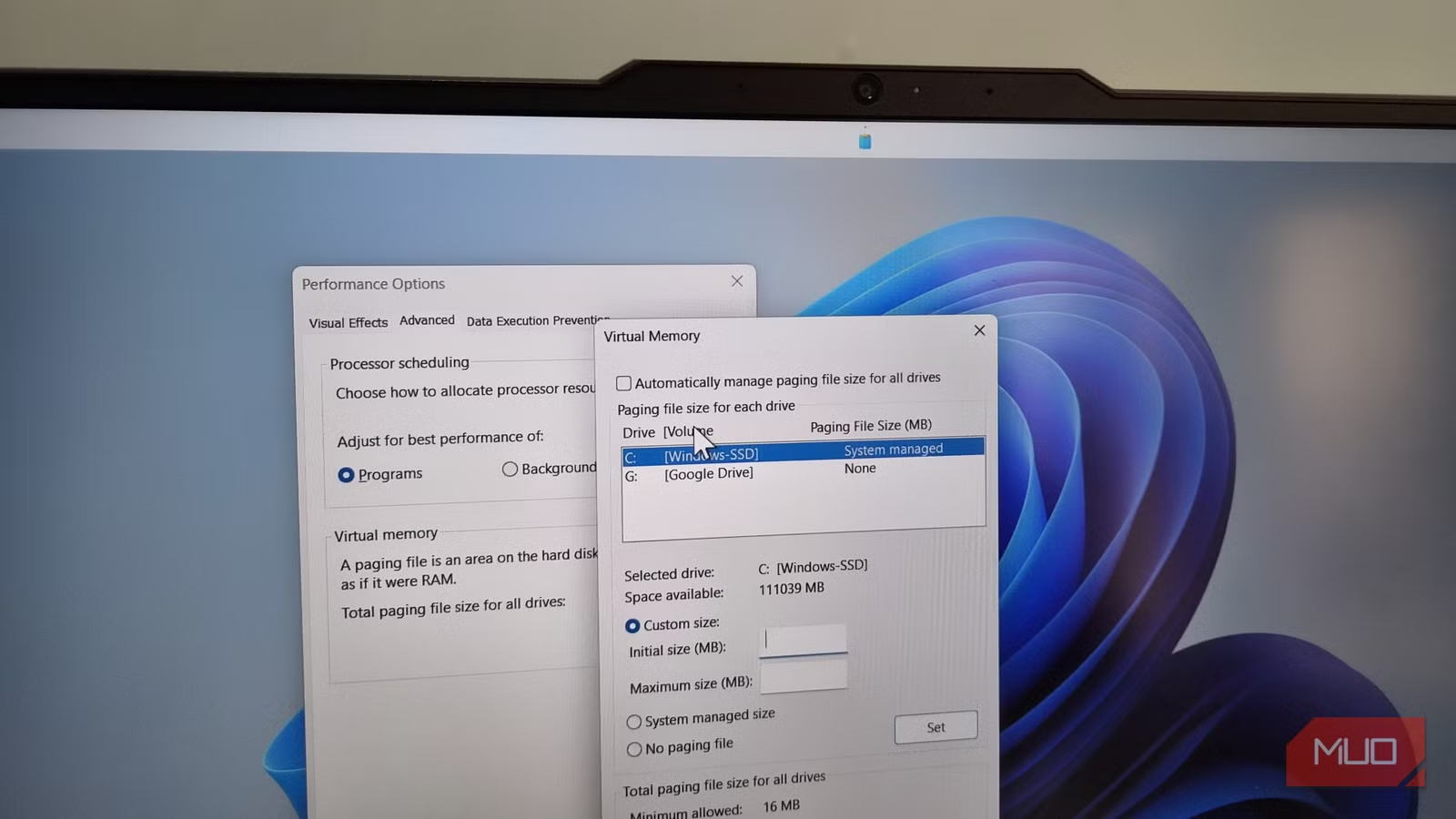
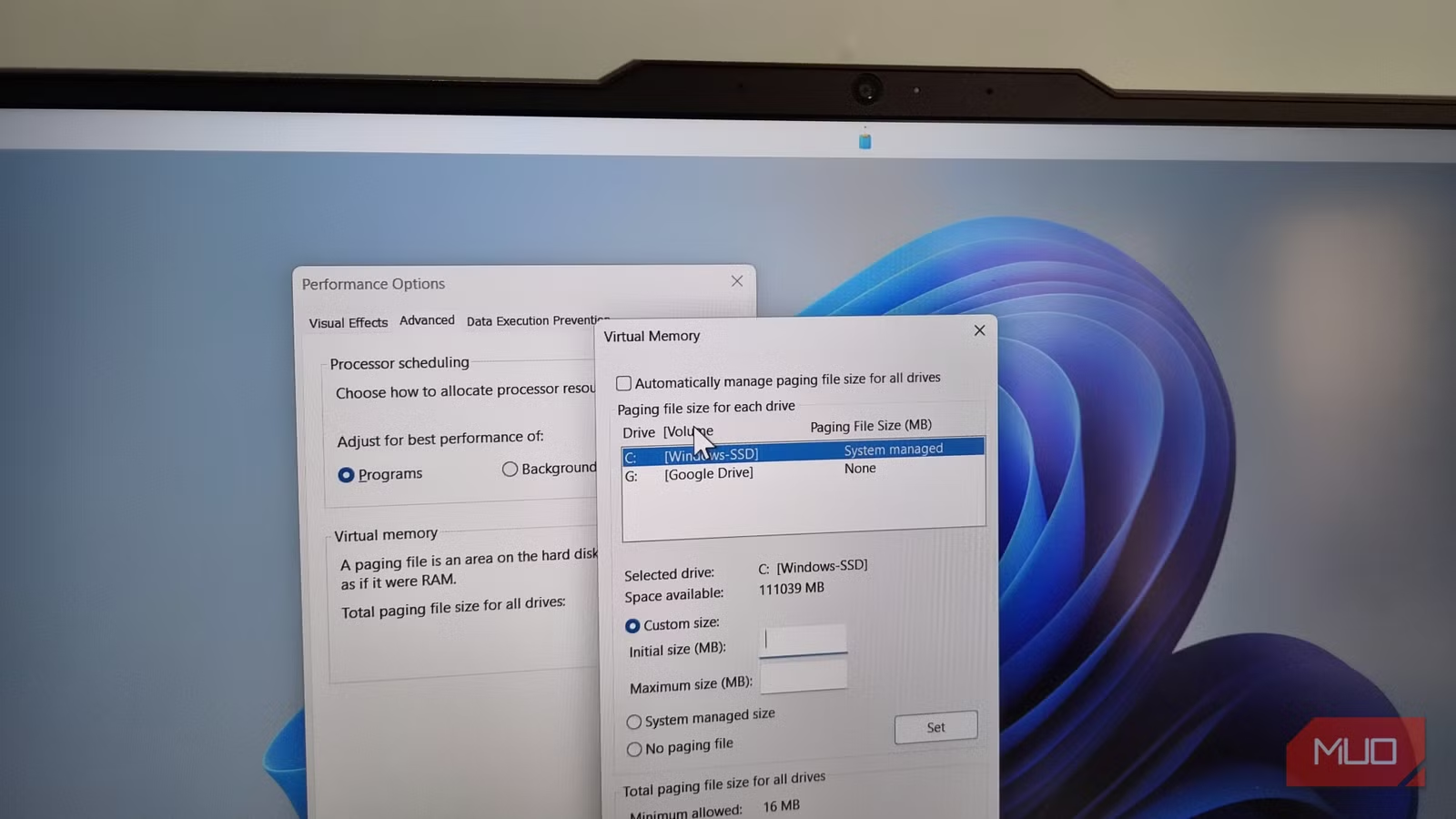
By default, 'Automatically manage paging file size for all drives' is checked. Uncheck it to take manual control.
Now you have options. You can set a custom size with both initial and maximum values, or you can let Windows manage it on a per-drive basis. For most users with 16GB+ RAM, setting a fixed size between 4GB and 8GB works well. The common recommendation is 1.5x your RAM for the initial size, but that's overkill if you rarely max out memory.
What Size Should You Choose?
Your ideal paging file size depends on your RAM and workload:
- 8GB RAM: Keep automatic management or set 8-12GB manually
- 16GB RAM: 4-8GB is usually sufficient for general use
- 32GB+ RAM: 2-4GB works for most workloads, but some apps still require it
After setting your values, click Set, then OK, and restart your PC. The change takes effect after reboot.
Why You Shouldn't Disable the Paging File Entirely
You might be tempted to turn off the paging file completely. Don't. Even with 32GB of RAM, some Windows applications expect a paging file to exist. Without one, you'll see random crashes, error messages, and potentially data loss.
“The best optimization for Windows pagefile is to have enough physical RAM and let the operating system handle the rest. Manual tuning is rarely the 'magic bullet' users hope for.”
— Mark Russinovich, Technical Fellow at Microsoft and creator of Sysinternals
Reddit communities like r/buildapc and r/techsupport regularly warn against disabling the paging file. The consensus: if you're desperate enough to eliminate it for space, you're better off buying a larger SSD.
What About SSD Wear?
Some users limit the paging file to reduce writes to their SSD, hoping to extend its lifespan. This concern is largely outdated. Modern SSDs handle far more write cycles than typical users will ever generate.
A more relevant concern is maintaining 10-15% free space on your SSD. This headroom lets the drive's controller manage wear leveling and garbage collection efficiently. Reclaiming paging file space helps here, but don't obsess over write reduction.
Alternative Ways to Reclaim Space
If tweaking the paging file feels risky, Windows has safer options for reclaiming storage:
- Run Disk Cleanup (search for it in Start) and select system files
- Clear Windows Update cache, which can grow to 10GB+
- Delete previous Windows installations after major updates
- Move files to external storage or cloud services
These methods free up space without touching core memory management. For most users, running Disk Cleanup monthly prevents the storage crunch that leads to paging file tinkering in the first place.
If Windows storage issues persist, AI assistants can help diagnose deeper problems
When Manual Limits Make Sense
Setting a fixed paging file size works well in specific scenarios:
- You have 16GB+ RAM and don't run memory-intensive software
- Your SSD is small (256GB-512GB) and every gigabyte matters
- You've monitored your actual memory usage and know your ceiling
- You understand the risk of out-of-memory errors and can troubleshoot them
For everyone else, the default automatic management is fine. Windows has gotten better at managing virtual memory over the years. The horror stories of runaway paging files are less common than they were in the Windows 7 era.
✅ Pros
- • Reclaim 10-30GB of SSD space immediately
- • Prevent unpredictable file growth during heavy workloads
- • More predictable disk usage for capacity planning
❌ Cons
- • Risk of out-of-memory crashes if set too low
- • Some apps may behave erratically without adequate virtual memory
- • Requires manual adjustment if your workload changes
Logicity's Take
Frequently Asked Questions
Can I completely disable the Windows paging file?
Technically yes, but you shouldn't. Even with 32GB+ RAM, some Windows applications expect a paging file and will crash without one. A small fixed size (2-4GB) is safer than disabling it entirely.
Will limiting the paging file speed up my PC?
Unlikely. Modern SSDs are fast enough that paging file access rarely causes noticeable slowdowns. The main benefit is reclaimed storage space, not performance.
How do I know if my paging file is too large?
Navigate to C:\pagefile.sys (you'll need to show hidden system files). If it's larger than your RAM and you don't run memory-intensive apps, it's probably oversized.
Does a large paging file wear out my SSD faster?
Not significantly. The paging file accounts for less than 10% of typical disk writes. Modern SSDs are rated for far more writes than normal use generates.
What happens if I set the paging file too small?
You'll see 'out of memory' errors and app crashes when RAM fills up. Windows won't have overflow space to work with. Start with a conservative limit (1x your RAM) and adjust downward only if you monitor actual usage.
Need Help Implementing This?
Source: MakeUseOf
Huma Shazia
Senior AI & Tech Writer
Produced with AI assistance and reviewed by the Logicity editorial team. Learn more in our Editorial Policy.