Key Takeaways
How to Create Gmail Signature with Image, Social Icons | Free Email Signature Templates
- 15 free templates are available to copy directly from a Google Doc, no design tools required
- Installation takes about 90 seconds: copy the template, paste into Gmail settings, save
- Some templates include extras like booking links, social icons, and product photo carousels
A bad email signature is a small thing that quietly undermines every message you send. Zapier's team recently released 15 free Gmail signature templates, ranging from minimalist layouts to industry-specific designs with booking links and social icons. You can copy any of them from a Google Doc and install it in Gmail in under two minutes.
Disclosure
Some links in this post are affiliate links — Logicity earns a commission if you sign up, at no extra cost to you. We only link products we have used or actively recommend.
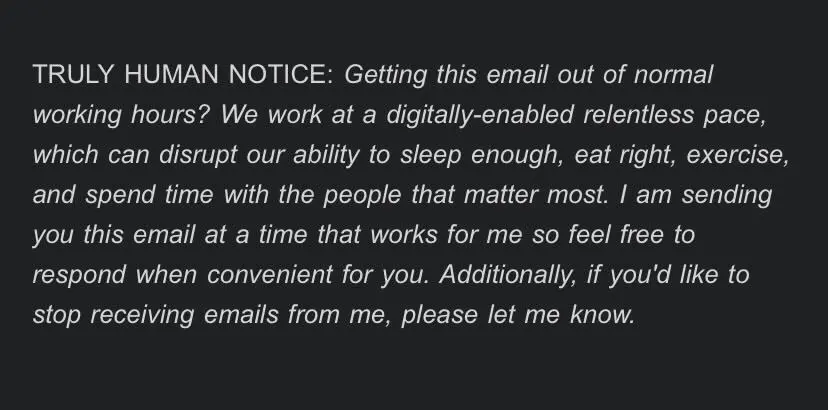
The templates fix a real problem: most people are not designers, and DIY signatures tend to drift into Comic Sans territory or worse. One example from Zapier's blog shows a signature lecturing recipients that "I send it when I'm available, you send it when you're available." That is, of course, just how email works. Using a template sidesteps the question of taste entirely.
What the templates include
The 15 templates live in a single Google Doc. Styles range from classic and minimal to fancier options built for specific use cases. Some include:
- Booking links (useful if you use Calendly or a similar scheduler)
- Social media icons with embedded links
- Product photo carousels for sales teams
- Legal disclosures and compliance text
Every template is editable. You copy the HTML-formatted block into your clipboard, paste it into Gmail's signature editor, then swap in your own name, title, phone number, and links.
How to install a Gmail signature template
The process takes about 90 seconds. Here is the full sequence.
- Open the Google Doc containing the templates. Make a copy so you can edit it.
- Scroll through and pick a style that fits your role and industry.
- Highlight the entire signature block (including images and links) and copy it to your clipboard.
- Open Gmail. Click the gear icon in the top right, then "See all settings."
- Scroll to the "Signature" section. Click "Create new" and name it.
- Paste the template into the signature editor. Gmail preserves the formatting.
- Replace placeholder text with your actual details: name, title, company, phone, links.
- Scroll down and click "Save Changes."
Gmail lets you create multiple signatures and assign different ones to different email addresses or use cases. You might want a formal signature for external emails and a shorter one for internal threads.
Where signatures fit in your email stack
For RevOps teams, a consistent signature across the company is not vanity. It is a touchpoint. If your reps are sending outbound from Gmail while your marketing team runs campaigns through Mailchimp or ActiveCampaign, the signature is one of the few elements that stays constant across channels.
Some CRMs, including HubSpot and Salesforce, let you set signature templates at the org level so new reps inherit the right branding automatically. But if your team just uses Gmail with Google Workspace, the manual copy-paste method here is the fastest path.
Logicity's Take
A signature template is a small win, but small wins compound. For ops leads rolling out a new sales playbook or onboarding a batch of SDRs, a standard signature removes one decision and one source of inconsistency. If you want to go further, HubSpot's free tier includes signature templates baked into its email sequences, while Salesforce requires a third-party app from the AppExchange for the same functionality.
If you are standardizing email signatures, you may also be evaluating email platforms for marketing automation.
Common mistakes to avoid
A template only helps if you use it correctly. A few things to watch:
- Leaving placeholder text. "Your Name Here" in production is worse than no signature at all.
- Overloading with links. Three links is plenty. Five or more looks desperate.
- Using images that do not load. Test your signature by emailing yourself before sending to clients.
- Adding a philosophical quote. It rarely lands the way you think it does.
If your signature includes a headshot, keep it small. A 400-pixel portrait dominates the email and can trigger spam filters when sent at scale.
Automating signature updates
Once you have a signature installed, you will eventually need to update it. A promotion, a new phone number, a rebrand. For a five-person team, manual updates are fine. For a 50-person team, they become a project.
Zapier can automate some of this. A workflow could pull employee data from a Google Sheet and push it into a signature generator, though the Gmail API does not allow direct signature writes without OAuth setup and admin consent. Most mid-size companies solve this with a dedicated signature management tool like Exclaimer or WiseStamp, which integrate with Google Workspace at the admin level.
Frequently Asked Questions
Can I use these templates with Outlook or Apple Mail?
The templates are formatted for Gmail's signature editor. You can paste them into Outlook or Apple Mail, but some formatting (especially images and tables) may break. Test before using.
Do the templates include social media icons?
Some do. The icons are embedded images with links. You will need to update the URLs to point to your actual profiles.
Can I add a booking link to my signature?
Yes. Several templates include a "Book a meeting" button. Replace the placeholder URL with your Calendly or HubSpot scheduling link.
How do I assign different signatures to different email addresses?
In Gmail settings, under the Signature section, you can create multiple signatures and set defaults for each address you send from.
Need Help Implementing This?
If your team needs help rolling out consistent email signatures across Google Workspace, or you want to automate the process with a signature management tool, reach out to us at Logicity. We help ops teams standardize their stacks.
Source: The Zapier Blog
Huma Shazia
Senior AI & Tech Writer
Produced with AI assistance and reviewed by the Logicity editorial team. Learn more in our Editorial Policy.