Key Takeaways
- Claude can generate Windows automation scripts from plain English descriptions
- The AI flags likely failure points like Task Scheduler running as a different user account
- You can request dry run modes to test scripts before committing
The Problem With DIY Windows Automation
Windows has powerful automation tools built in. Task Scheduler, PowerShell, robocopy, batch files. They're all free and sitting on your PC. The problem is getting them to work together without spending hours in forum threads that assume you know what "mapped drive context" means.
Rob LeFebvre, writing for MakeUseOf, describes this exact frustration. He wanted something simple: back up his Documents folder on a schedule so he wouldn't have to remember to do it himself. The tools existed. The knowledge didn't.
Here's the specific trap he kept hitting. You write a robocopy command that works perfectly in Terminal. You paste it into a .bat file. You schedule it with Task Scheduler. Then you wake up to find nothing happened, because Task Scheduler runs scripts as a background system account, not as you, and that account doesn't recognize your mapped drive letters.
What Claude Does Differently
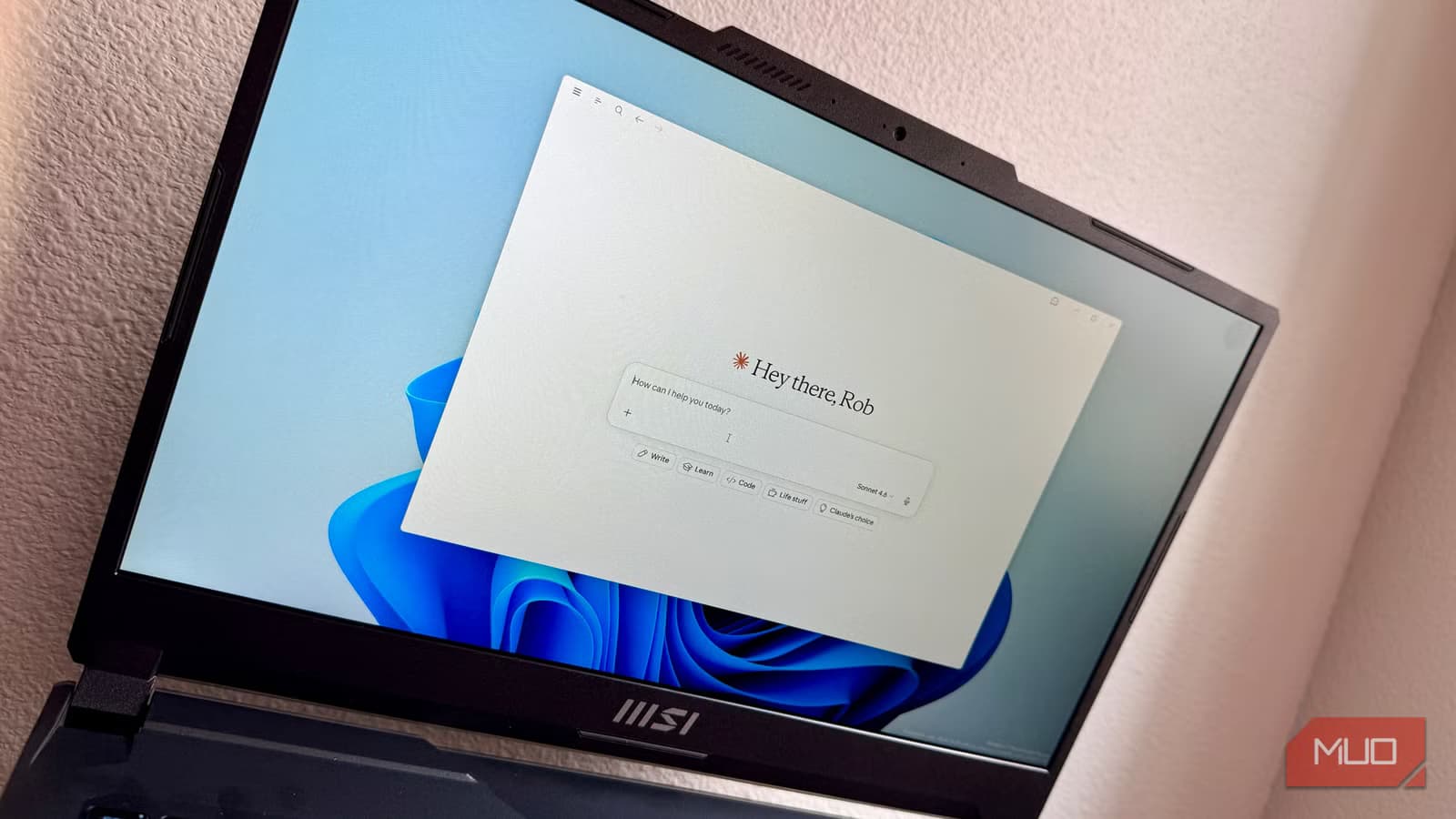
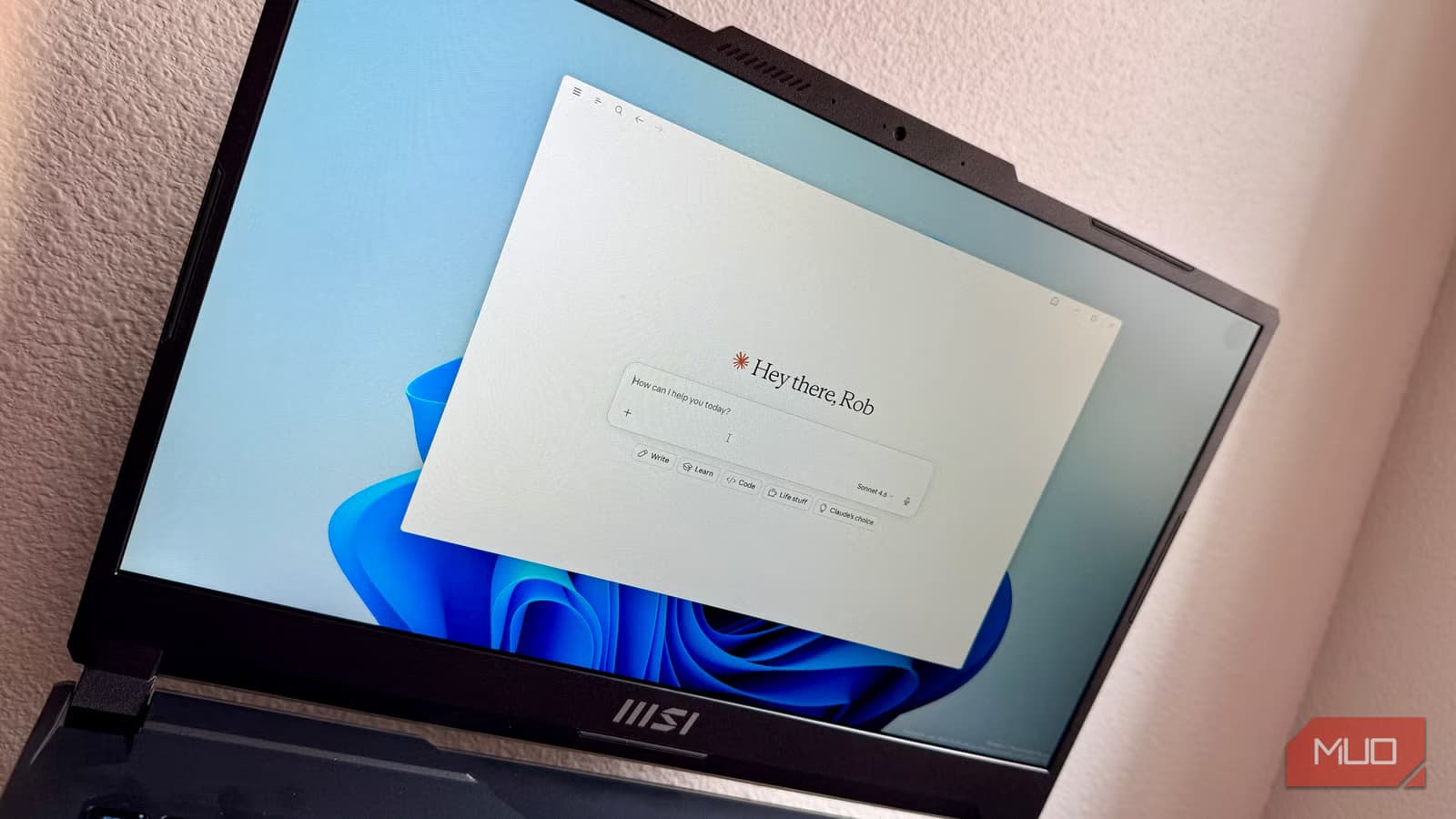
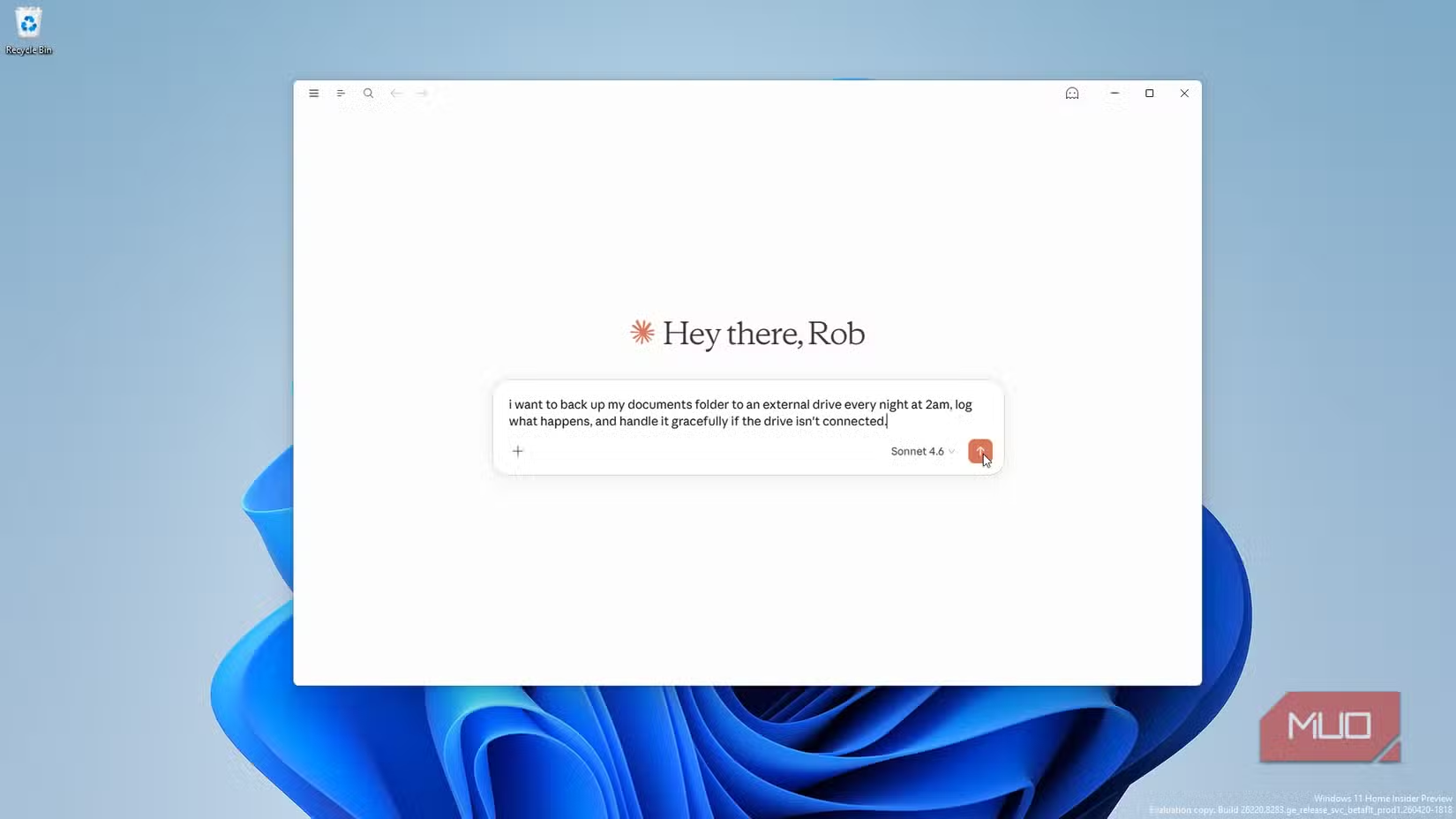
LeFebvre's solution was to describe what he wanted in plain English to Claude, Anthropic's AI assistant. Not "write me a robocopy command" but "Back up my Documents folder to my external drive every night at 2 am, log what happens, and handle it gracefully if the drive isn't connected."
Claude returned two files: backup_documents.bat (the script that does the work) and install_task.bat (which sets up the scheduled task correctly). More importantly, it flagged the Task Scheduler user account issue upfront, before LeFebvre could waste a night waiting for a backup that would never run.
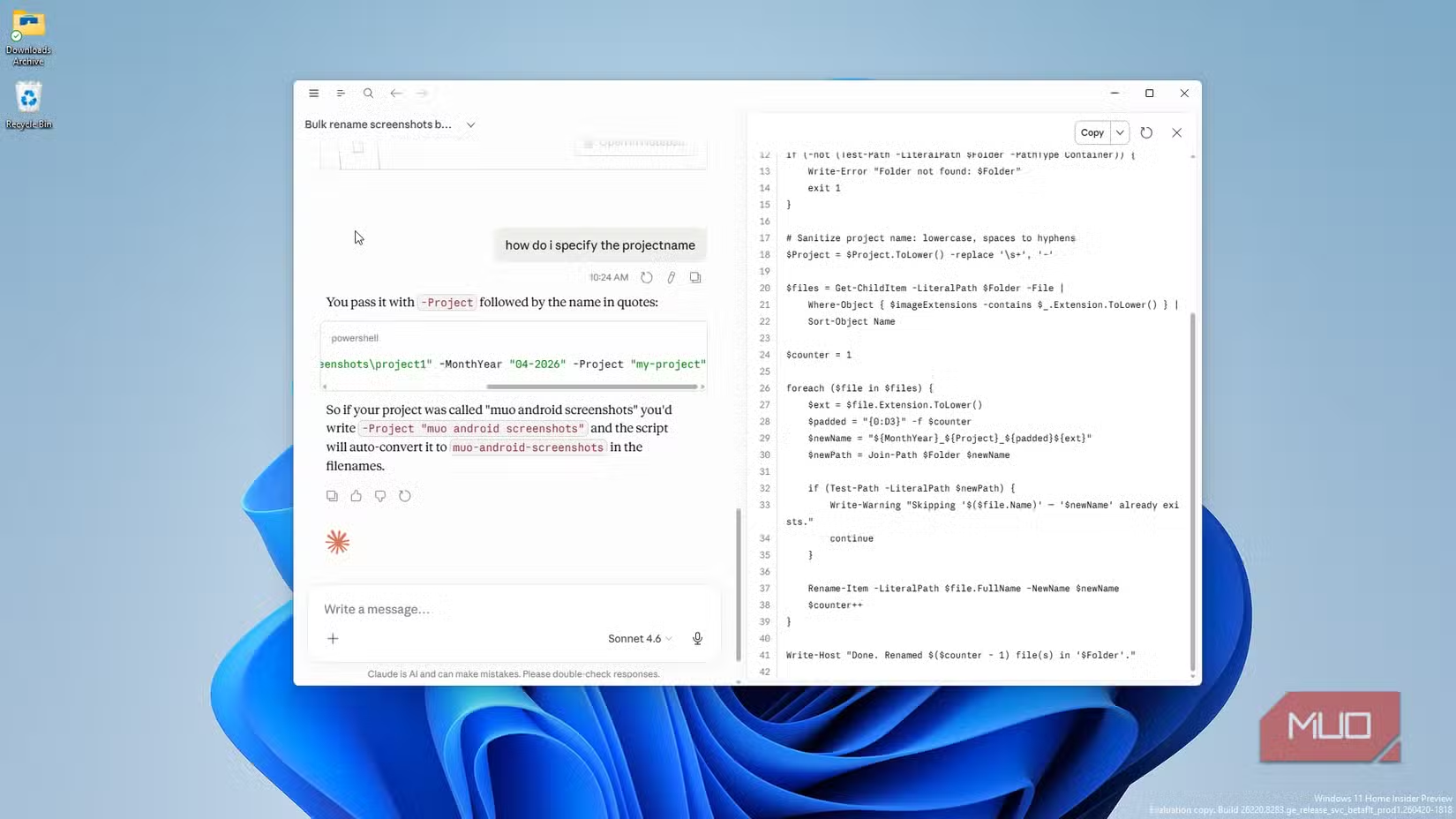
The AI also built in a dry run mode. Instead of waiting overnight to discover a silent failure, LeFebvre could test the script immediately and see exactly what it would copy, where, and whether the paths resolved correctly.
The Basic Robocopy Command
For context, here's the core robocopy syntax LeFebvre started with:
robocopy "C:\Users\[username]\Documents" "D:\Backup\Documents" /E /Z /MT:8This copies the Documents folder to an external drive, including subdirectories (/E), in restartable mode (/Z), using 8 threads (/MT:8). Simple enough. But adding logging, scheduling it for 2 am, and making it work when the system account runs it instead of your user account is where things get complicated fast.
Why This Approach Works
The value isn't just code generation. It's explanation. LeFebvre could ask Claude to walk through each line of the script before running it. That meant he understood what he was executing, not just blindly pasting commands from Stack Overflow.
This matters for debugging. When something breaks (and something always breaks), understanding the script's logic lets you describe the failure to Claude and get a targeted fix, rather than starting from scratch.
More practical AI automation workflows
Limitations to Know
Claude isn't infallible. It can generate scripts with bugs, especially for edge cases it wasn't explicitly told about. The dry run mode helps catch obvious issues, but you still need to verify the script does what you expect on your specific system.
There's also the question of security. Running scripts from any source, AI or otherwise, requires basic caution. Review the code. Understand what permissions it needs. Don't run anything that touches system files without knowing why.
Related: security risks in file operations

Logicity's Take
Getting Started
If you want to try this workflow, start with a low-stakes automation. Backing up a folder to a second drive is a good choice. You can test it immediately, see if files copy correctly, and adjust without risking data loss.
- Describe your goal in plain English, including edge cases (What if the drive isn't connected?)
- Ask Claude to explain each line of the generated script
- Request a dry run mode so you can test without waiting for scheduled execution
- Run the script manually first before scheduling it
Frequently Asked Questions
Can Claude write PowerShell scripts for any Windows automation?
Claude can generate PowerShell and batch scripts for most common automation tasks. Complex system administration or network-level scripting may require more iteration and testing.
Is it safe to run scripts generated by AI?
You should review any AI-generated script before running it. Ask the AI to explain each line, test with dry run modes when possible, and avoid running scripts with elevated permissions unless you understand exactly what they do.
Why does Task Scheduler fail when the same command works in Terminal?
Task Scheduler runs scripts as a system account, not your user account. This account doesn't have access to your mapped network drives or user-specific environment variables, causing scripts to fail silently.
Do I need a paid Claude subscription for this?
The free tier of Claude can handle basic script generation. Longer conversations or complex multi-file outputs may benefit from a paid subscription with higher usage limits.
Need Help Implementing This?
Source: MakeUseOf
Manaal Khan
Tech & Innovation Writer
Produced with AI assistance and reviewed by the Logicity editorial team. Learn more in our Editorial Policy.






