Key Takeaways

- Tabbed interface lets developers browse issues, PRs, and gists without leaving the terminal
- MCP tool configuration is now guided and in-session, no config file editing required
- Accessibility features include screen reader auto-detection and colorblind themes
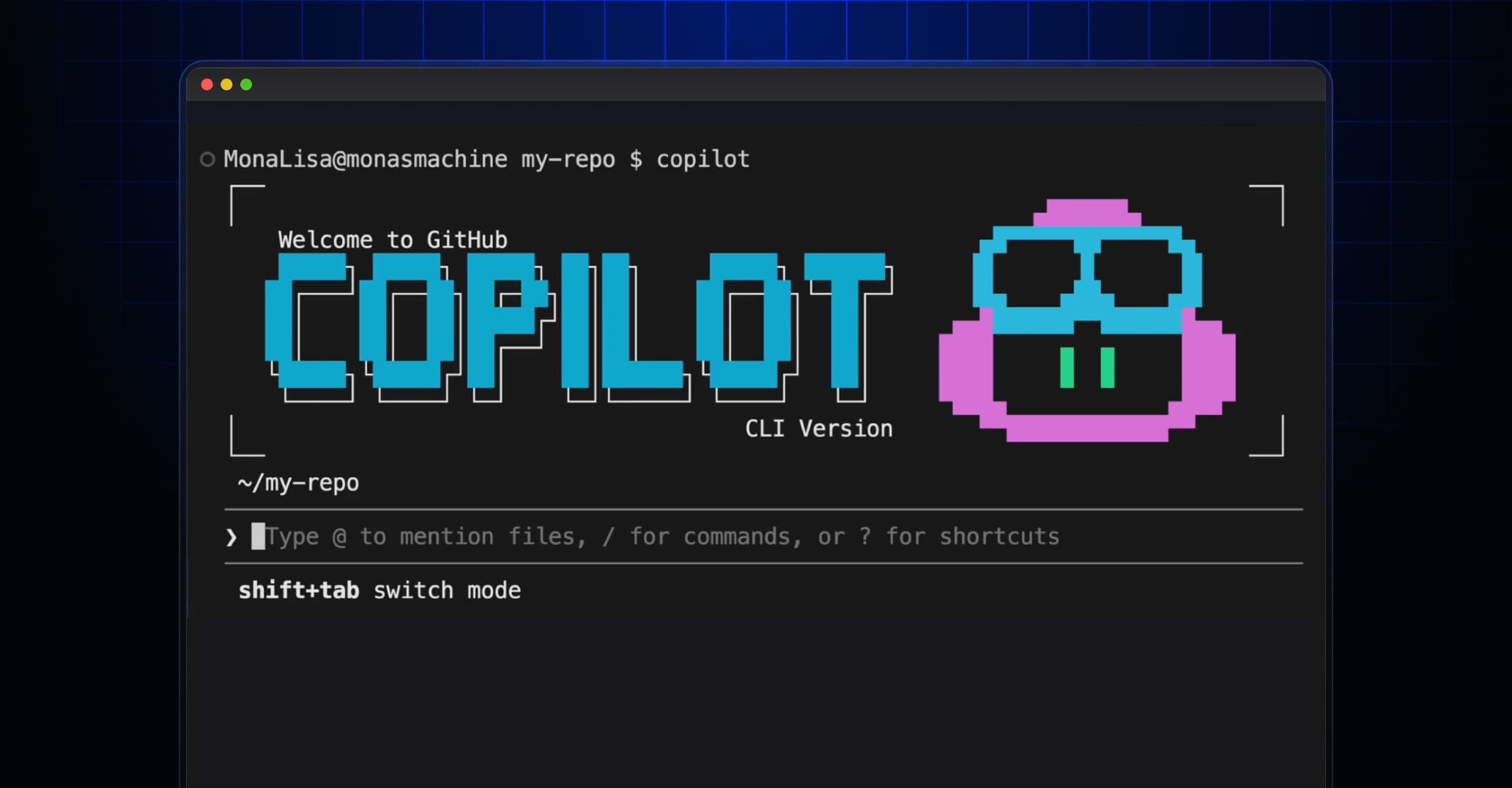
GitHub Copilot CLI's redesigned terminal interface is now generally available, five months after the CLI itself shipped in February 2026. The update adds a tabbed layout for browsing GitHub issues, pull requests, and gists directly from the command line, and replaces manual config file editing with an interactive setup flow for MCP tools.
What changed in the terminal UI?
The interface, previously available behind an /experimental flag since Microsoft Build 2026, puts tabs across the top of a Copilot CLI session. The default Session tab handles normal AI interactions. A Gists tab shows your personal gists. Run the CLI inside a repository and you get Issues and Pull requests tabs scoped to that repo.
Keyboard shortcuts tie these tabs to the AI. Highlight an issue or PR and press c to drop a reference into your prompt, then ask Copilot to investigate, fix, or review it. Press o to open the item in your browser. Press / to search GitHub with a custom query. Tabs can be reordered, hidden, or disabled entirely from settings.
How does in-session tool setup work?
Configuring the MCP servers and plugins that extend Copilot CLI no longer requires hand-editing JSON files. Developers run /mcp add and complete an interactive form. An experimental /mcp search command browses the GitHub MCP Registry and installs Model Context Protocol servers directly. GitHub says newly added servers are available immediately without restarting the CLI.
Other new commands fill out the configuration surface. /skills toggles individual skills on or off. /plugin installs plugins from a marketplace, a repository, or a local path. /settings opens an inline dialogue for viewing and changing configuration.
This matters for teams standardizing on AI tooling. Engineering managers can now onboard developers to a shared set of MCP servers without writing setup docs or debugging dotfiles. The tradeoff: less visibility into exactly what's configured compared to a version-controlled config file.
Accessibility gets first-class support
The redesign targets developers who use screen readers or need high-contrast displays. Screen reader support turns on automatically when a reader is detected, adding labelled icons and disabling animations. A /theme command offers modes including default, dim, high-contrast, and colorblind.
Theme-aware semantic colors and responsive components adapt to narrow terminals without truncating content. This sounds minor, but anyone who's SSHed into a server from a cramped tmux pane knows how frustrating a UI that assumes 120-column width can be.
Where Copilot CLI fits in the toolchain
GitHub Copilot CLI competes with tools like Warp's AI terminal, Amazon CodeWhisperer's CLI component, and open-source alternatives like aider. The difference is integration depth: Copilot CLI ties directly into GitHub's issue tracker, PR system, and now the MCP Registry for extensions.
Pricing remains bundled with GitHub Copilot subscriptions: $10 per month for individuals, $19 per month for Pro, or $39 per user per month for Enterprise. The CLI doesn't add extra cost.
For teams already using Copilot in VS Code or JetBrains, the CLI extends that coverage to shell workflows, CI debugging, and server-side work. For teams on other AI assistants, the tight GitHub integration may not justify switching.
Logicity's Take
The real story here isn't tabs or themes. It's that GitHub is positioning Copilot CLI as the single pane of glass for developer workflow: code, issues, PRs, gists, and now extensible MCP tools, all without leaving the terminal. This reduces context switching, but it also deepens lock-in. If your team standardizes on Copilot CLI's MCP setup flow, migrating to another AI assistant later means rebuilding that tooling from scratch. Engineering managers should weigh the productivity gains against the exit cost. The accessibility improvements, meanwhile, are genuinely good. Most developer tools treat accessibility as an afterthought; shipping screen reader auto-detection and colorblind themes at GA sets a higher bar.
How to upgrade
Developers on an existing Copilot CLI install can update by running copilot update in their terminal. The /feedback command sends feedback to the GitHub team, or you can open an issue in the public repository.
Frequently Asked Questions
Is GitHub Copilot CLI free?
No. Copilot CLI requires a GitHub Copilot subscription: $10/month for individuals, $19/month for Pro, or $39/user/month for Enterprise. The CLI itself adds no extra cost on top of those plans.
What are MCP servers in Copilot CLI?
MCP (Model Context Protocol) servers are extensions that give Copilot CLI access to additional tools and context. The new /mcp add and /mcp search commands let you install these servers interactively without editing config files.
Can I use Copilot CLI outside a GitHub repository?
Yes. The default Session and Gists tabs work anywhere. The Issues and Pull requests tabs only appear when you run the CLI inside a Git repository linked to GitHub.
Does Copilot CLI work with screen readers?
Yes. The redesigned interface auto-detects screen readers, adds labelled icons, and disables animations. You can also manually set high-contrast or colorblind themes with the /theme command.
If you're weighing Copilot's subscription cost against self-hosting AI tools, this analysis covers the GPU utilization threshold where self-hosting becomes viable.
Need Help Implementing This?
If your engineering team is evaluating AI developer tools or standardizing on Copilot CLI workflows, Logicity can help you assess integration options and exit costs. Contact us for a consultation.
Source: InfoQ
Manaal Khan
Tech & Innovation Writer
Produced with AI assistance and reviewed by the Logicity editorial team. Learn more in our Editorial Policy.