Key Takeaways
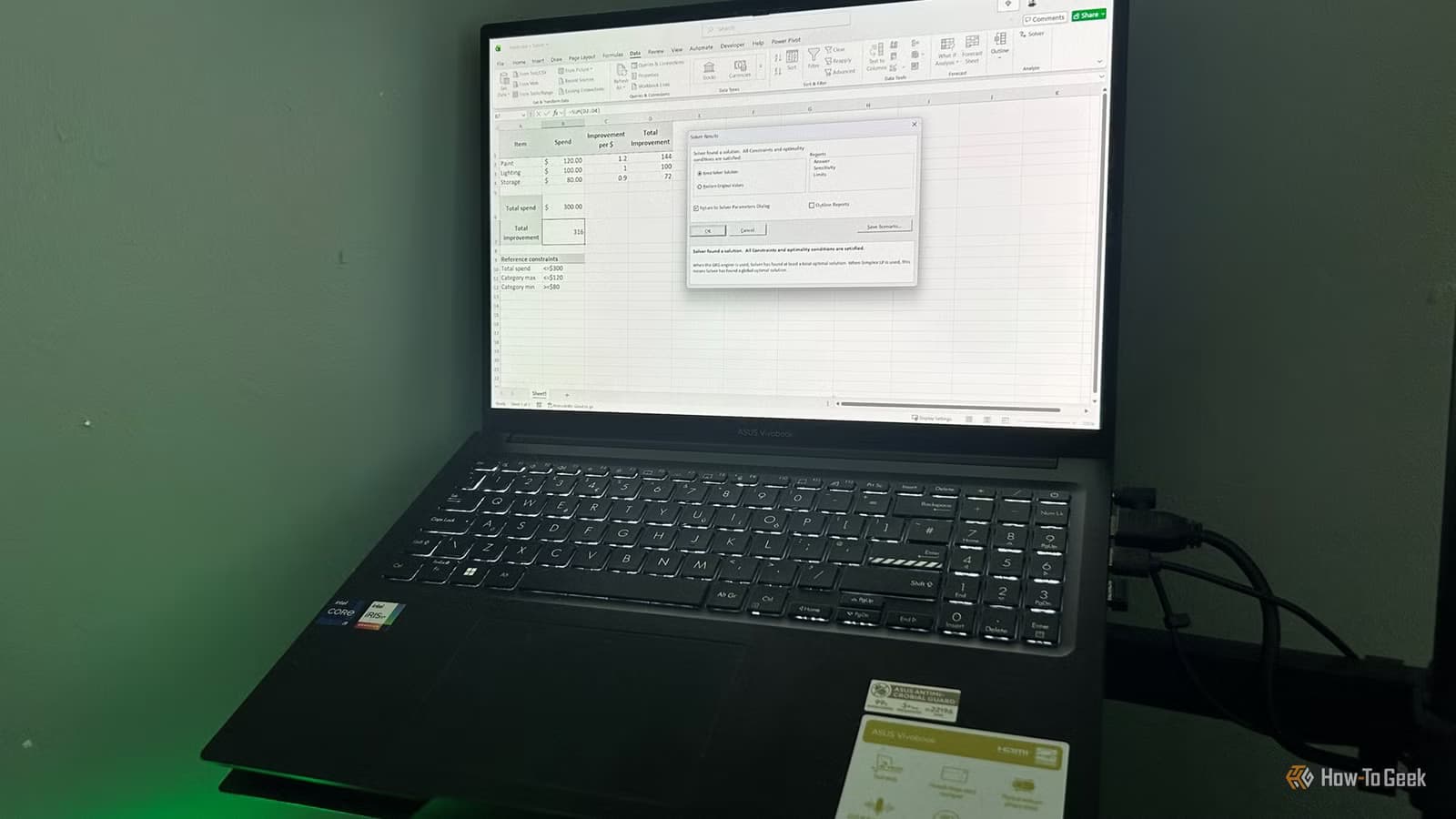
- Solver ships free with Excel but is hidden until you activate it in Add-ins
- Unlike Goal Seek, Solver handles multiple variables and constraints simultaneously
- Every Solver model needs three components: an objective cell, variable cells, and constraint rules
Excel Solver is a free optimization engine bundled with every copy of Excel, yet most users have never touched it. The add-in calculates the best possible outcome for a problem by testing thousands of variable combinations against rules you define. Instead of manually tweaking cells until a budget balances or a schedule fits, you hand the grunt work to an algorithm.
How-To Geek's Tony Phillips walked through the setup process this week, and the key insight is simple: Solver has been sitting in Excel for roughly 30 years, yet it remains buried because Microsoft doesn't surface it by default. Once activated, it handles problems that Goal Seek cannot touch.
Why Goal Seek isn't enough
Goal Seek adjusts a single cell to hit a target. That works fine when you want to find what sales figure produces a $50,000 profit. But real planning problems have multiple moving parts. A renovation budget might split funds across paint, lighting, and storage. A meal-prep plan balances cost, calories, and prep time. Goal Seek can't juggle all those variables at once.
Solver changes multiple cells simultaneously while respecting constraints you set. You tell it what to maximize or minimize, which cells it can adjust, and what limits apply. Then it evaluates combinations until it finds the best fit.
How to enable Excel Solver
Solver ships with Excel but hides until you activate it. The process takes about 30 seconds:
- Open File > Options.
- Click the Add-ins category on the left.
- Confirm the Manage drop-down is set to Excel Add-ins, then click Go.
- Check the box next to Solver Add-in.
- Click OK.
After that, a Solver button appears in the Analyze group on the Data tab. You only need to do this once per Excel installation.
The three pieces every Solver model needs
Solver relies on formulas, not static numbers, to understand how inputs affect outputs. Before you open the tool, your spreadsheet needs a clear structure with three components.
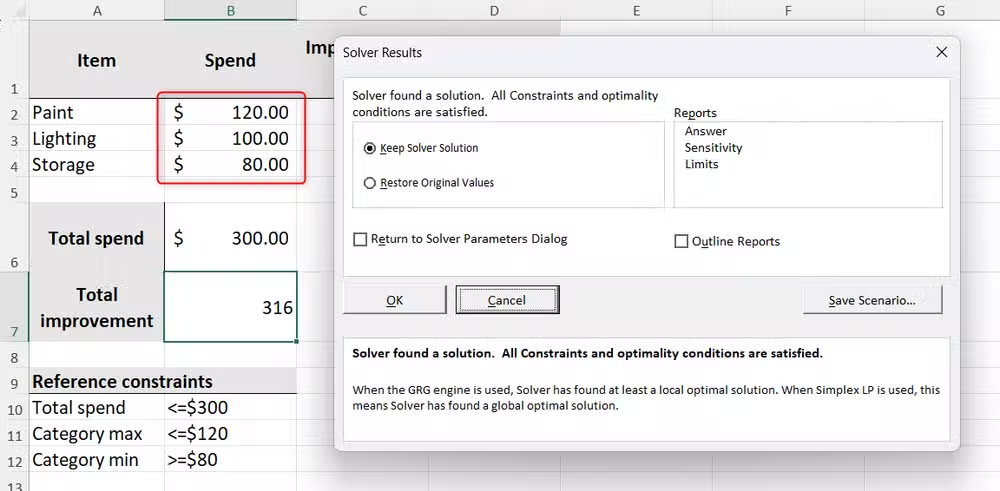
First, an objective cell. This is the single formula Solver will maximize, minimize, or drive to a specific value. In Phillips's example, he calculates a "total improvement" score by weighting each budget category. Paint earns 1.2 points per dollar, lighting earns 1.0, storage earns 0.9. Solver adjusts spending to push that score as high as possible.
Second, variable cells. These are the inputs Solver is allowed to change. Phillips uses placeholder values of $100 for each category. Solver overwrites them during optimization.
Third, constraints. These define the boundaries. In the example: total spend cannot exceed $300, and each category must fall between $80 and $120. Constraints prevent Solver from dumping the entire budget into the highest-weighted category.
When does Solver actually help?
Any problem where you want the best outcome subject to rules is a Solver candidate. Common uses include:
- Budget allocation across departments or projects
- Production scheduling to minimize cost or maximize output
- Portfolio optimization balancing risk and return
- Route planning to reduce travel time or fuel
- Resource assignment matching people to tasks
The tool uses three solving methods: Simplex LP for linear problems, GRG Nonlinear for smooth nonlinear problems, and Evolutionary for rough or discontinuous functions. Excel picks a default, but you can override it if you know your problem type.
Why this feature stays hidden
Microsoft bundles Solver as an add-in rather than a default ribbon button, which keeps the interface clean for casual users but buries the tool for everyone else. It's been this way since Excel 3.0 in the early 1990s. The add-in was originally developed by Frontline Systems, and Frontline still sells a premium version with more power. The free version handles most problems a small business or personal project would throw at it.
With over 750 million Excel users globally, the gap between people who could benefit from Solver and people who know it exists is enormous. If you've ever spent an hour nudging cells by hand to hit a target, you've done Solver's job manually.
Logicity's Take
Solver is one of Excel's best-kept secrets because Microsoft treats it like a niche tool, not a core feature. That's a mistake. Anyone managing a budget, schedule, or resource pool would benefit from understanding optimization basics. The 30-second activation process is a small price for a tool that can replace hours of manual iteration. If you use Excel regularly and have never tried Solver, start with a simple budget model. The learning curve is shallow, and the payoff is immediate.
If you're looking to automate repetitive tasks beyond Excel, these no-code options complement Solver workflows.
Frequently Asked Questions
Is Excel Solver free?
Yes. Solver ships with every copy of Excel at no extra cost. You just need to enable it through File > Options > Add-ins.
What's the difference between Goal Seek and Solver?
Goal Seek changes one cell to reach a target. Solver changes multiple cells simultaneously while respecting constraints you define.
Does Solver work in Excel Online?
No. Solver is only available in the desktop version of Excel for Windows and Mac. The web version does not support add-ins of this type.
Can Solver handle nonlinear problems?
Yes. Solver includes three solving methods: Simplex LP for linear problems, GRG Nonlinear for smooth nonlinear problems, and Evolutionary for rough functions.
What happens if Solver can't find a solution?
Solver reports that no feasible solution exists given your constraints. You'll need to relax one or more constraints or check for conflicting rules.
Need Help Implementing This?
If you're working on optimization problems in Excel or want to explore automation tools for your workflow, reach out to Logicity's team. We cover productivity tools and can point you toward resources that fit your use case.
Source: How-To Geek
Huma Shazia
Senior AI & Tech Writer
Produced with AI assistance and reviewed by the Logicity editorial team. Learn more in our Editorial Policy.






