
Key Takeaways

- Power Query transformations are reusable and update with one click, unlike Flash Fill or nested formulas
- Companies report 70% reduction in recurring data cleanup tasks after adopting Power Query workflows
- No coding required: analysts teach Excel by example, and it builds the logic automatically
According to [How-To Geek](https://www.howtogeek.com/microsoft-excel-power-query-column-from-examples/), Power Query's Column From Examples feature offers a more stable alternative to nested formulas and Flash Fill by building reusable transformations that update automatically when source data changes.
If your finance team spends Monday mornings reformatting the same vendor reports, or your operations analysts waste hours cleaning CRM exports before meetings, you're paying a hidden tax. Not in software licenses, but in salary hours burned on work that should be automated.
Excel's Power Query isn't new. It's been around since 2013. But most business teams still rely on fragile nested formulas or Flash Fill, both of which break silently when data formats shift. The Column From Examples feature changes that equation entirely. It's the difference between hiring someone to hand-wash your car weekly versus installing an automatic car wash.
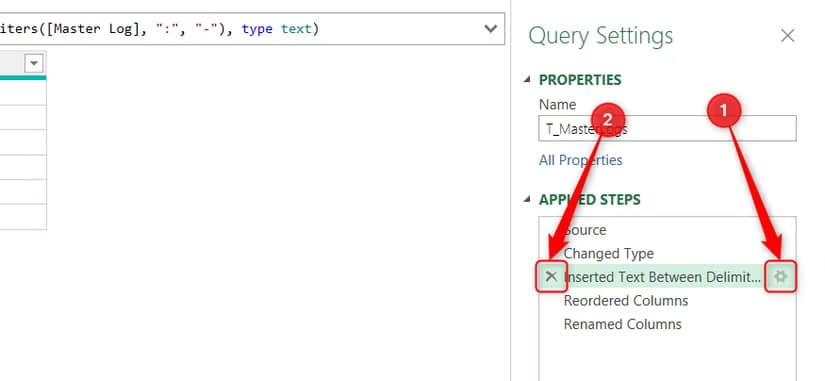
Why Does Excel Power Query Matter for Business?
Here's the scenario every operations manager knows: Your team downloads a weekly sales report. The product names include SKU codes that need separating. Dates arrive in inconsistent formats. Customer names have extra spaces or weird capitalization. An analyst spends 45 minutes fixing this every single week.
Multiply that across five recurring reports, and you've got a full day of analyst time burned monthly on pure cleanup. At a blended cost of $50-75/hour for skilled analysts, that's $2,400-$3,600 annually on work that adds zero strategic value.
The Real Cost of Manual Data Cleanup
A mid-sized company with 10 analysts each spending 3 hours weekly on data formatting loses approximately 1,560 hours annually. At $60/hour, that's $93,600 in productivity. Power Query workflows can recover 60-70% of this time within the first quarter.
Power Query solves this by recording your cleanup steps once, then replaying them automatically whenever your data updates. Column From Examples makes this accessible to anyone who can type an example of what they want. No formula syntax. No coding. Just show Excel what the output should look like, and it figures out the pattern.
How Does Power Query Column From Examples Work?
The concept is simple enough to explain in a meeting: You give Excel one or two examples of your desired output, and it reverse-engineers the transformation rule. If your source column contains "PROD-12345-RED" and you want just "12345," you type that example in a new column. Power Query analyzes the pattern and applies it to every row.
- Format your data as an Excel table (Ctrl+T) so Power Query tracks it as a single object
- Click inside the table, go to Data tab, select From Table/Range to open Power Query Editor
- Choose Add Column > Column From Examples and select whether to derive from all columns or specific ones
- Type your desired output for the first row. Power Query suggests a transformation rule
- Add more examples if the initial suggestion misses edge cases
- Click OK when the preview looks correct. The transformation becomes a permanent query step
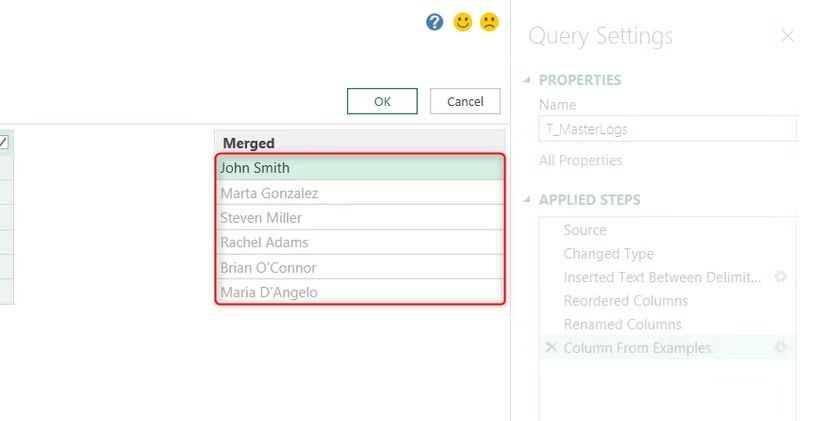
The magic happens on the refresh. Tomorrow, when a new version of that vendor report lands in your inbox, you drop it in the same location and hit Refresh. Every transformation you taught Power Query runs automatically. No re-typing. No formula auditing. No Flash Fill guessing games.
Power Query vs Flash Fill: Which Should Your Team Use?
Flash Fill impressed everyone when Microsoft introduced it. Type a few examples, press Ctrl+E, and watch Excel fill the column. But there's a critical flaw that business leaders need to understand: Flash Fill is a one-time action that doesn't stay connected to your source data.
| Feature | Flash Fill | Nested Formulas | Power Query Column From Examples |
|---|---|---|---|
| Ease of Use | Very Easy | Requires formula expertise | Easy (example-based) |
| Reusable on New Data | No (manual re-run) | Yes (but fragile) | Yes (one-click refresh) |
| Handles Pattern Changes | Poorly (silent failures) | Breaks with errors | Adapts or flags issues |
| Audit Trail | None | Formula visible | Full step-by-step log |
| Learning Curve | Minutes | Hours to days | 30-60 minutes |
| Best For | One-time quick fixes | Static data structures | Recurring reports and imports |
For one-off cleanups where you'll never see that data format again, Flash Fill still makes sense. But if you're dealing with recurring reports from vendors, CRM exports, ERP downloads, or any data that arrives in the same format weekly or monthly, Power Query pays for itself immediately.
If you're automating data workflows, you'll also want to understand how to protect sensitive information when using AI tools for analysis
What's the Business Case for Power Query Adoption?
Let's get specific about ROI. A finance team at a regional logistics company was spending 12 hours monthly cleaning vendor invoices before loading them into their accounting system. After a two-hour Power Query training session, they built a workflow that reduced that to 45 minutes of review time.
The numbers scale predictably. If your organization has multiple departments handling recurring external data, each one represents a potential recovery zone. Operations importing inventory feeds. Marketing cleaning campaign performance exports. HR processing payroll uploads. Sales reformatting lead lists from partners.
✅ Pros
- • Zero additional software cost (included in Excel 2016+ and Microsoft 365)
- • No IT involvement required for basic implementations
- • Transformations are auditable with a full step history
- • Works with CSV, databases, web data, and multiple Excel files
- • Non-technical staff can learn the basics in under an hour
❌ Cons
- • Initial setup takes longer than a quick Flash Fill
- • Complex transformations may need custom M code (Power Query language)
- • Requires discipline to maintain and document queries
- • Some edge cases still need manual review
How Long Does Power Query Implementation Take?
For a single recurring report, expect 30-60 minutes to build your first Power Query workflow using Column From Examples. That includes the learning curve for someone who's never opened the Power Query Editor. By the third or fourth report, most analysts complete setups in 15-20 minutes.
The compounding benefit is what matters. A workflow that takes 45 minutes to build but saves 2 hours monthly pays for itself in the first cycle. Over a year, that single transformation saves 23 hours. Build ten of them across your organization, and you've recovered a full month of analyst capacity.

What Are Common Power Query Use Cases for Business Teams?
- Finance: Cleaning vendor invoices, reformatting bank statements, standardizing expense reports across subsidiaries
- Sales Operations: Normalizing lead lists from different partners, merging CRM exports with marketing data
- HR: Processing payroll files from multiple systems, cleaning employee data imports
- Supply Chain: Transforming inventory feeds from suppliers, standardizing shipping carrier reports
- Marketing: Combining campaign performance data from multiple ad platforms, cleaning email list imports
The pattern is consistent: anywhere your team receives external data that needs reformatting before use, Power Query can automate the transformation. Column From Examples makes this accessible without requiring anyone to learn formula syntax or programming.
Understanding automation trends across AI and traditional tools helps leaders make better technology investment decisions
What Should CTOs Know Before Rolling Out Power Query?
Power Query workflows live inside Excel files by default. For team collaboration, you'll want to establish conventions: where query-enabled workbooks are stored, how queries are named, and who maintains them when the original creator leaves.
Governance Recommendations
Store Power Query workbooks in shared locations (SharePoint, OneDrive for Business). Use descriptive query names that include the data source and purpose. Document transformation logic in a simple wiki or shared doc. Assign backup owners for critical workflows.
For enterprise-scale implementations, Power Query also works inside Power BI, allowing analysts to build transformations that feed directly into dashboards. This creates a path from ad-hoc Excel cleanup to centralized business intelligence without changing the core skills your team learned.
Frequently Asked Questions
Does Power Query require additional software licenses?
No. Power Query is included in Excel 2016, Excel 2019, Excel 2021, and all Microsoft 365 subscriptions. If your organization already uses Excel, you have Power Query at no extra cost.
How long does it take to train analysts on Power Query?
Most analysts can learn basic Column From Examples workflows in 1-2 hours. Intermediate skills (merging multiple data sources, handling errors) typically require 4-6 hours of training. Advanced M code customization may need dedicated courses.
Can Power Query handle data from systems other than Excel?
Yes. Power Query connects to databases (SQL Server, MySQL, PostgreSQL), web APIs, SharePoint lists, folders of files, PDFs, and dozens of other sources. This makes it a practical ETL tool for business teams without IT involvement.
What happens when the source data format changes unexpectedly?
Power Query will either adapt automatically (for minor changes) or surface an error during refresh. Unlike Flash Fill, which silently produces wrong results, Power Query fails visibly so you can fix the transformation.
Is Power Query suitable for large datasets?
Power Query handles millions of rows efficiently because it processes data in a streaming manner rather than loading everything into memory. For truly massive datasets, Power BI or database solutions may be more appropriate.
Logicity's Take
We've implemented data automation pipelines for startups and mid-sized companies using tools ranging from Python scripts to n8n workflows to enterprise ETL platforms. What strikes us about Power Query is how it democratizes automation for teams that aren't ready for code-based solutions. Our clients in finance and operations frequently ask us to build custom integrations, but we often recommend they try Power Query first for recurring Excel-based workflows. The ROI on a two-hour training session is immediate, and it builds internal capability rather than creating dependency on external developers. That said, Power Query has limits. When you need real-time data pipelines, complex multi-system orchestration, or AI-powered data cleaning, you'll want to graduate to proper automation infrastructure. For Indian businesses scaling rapidly, we suggest treating Power Query as your automation training wheels. It teaches teams to think in transformations and workflows, which translates directly to understanding more sophisticated tools like n8n or custom API integrations later. Start here, prove the value internally, then invest in bigger infrastructure when you hit the ceiling.
Need Help Implementing This?
Logicity helps business teams build automation workflows that scale. Whether you're optimizing Excel-based processes or ready to graduate to AI-powered data pipelines, we can assess your current workflows and recommend practical next steps. Reach out for a free automation audit.
Source: How-To Geek
Huma Shazia
Senior AI & Tech Writer
Produced with AI assistance and reviewed by the Logicity editorial team. Learn more in our Editorial Policy.